Put VIPs first with waitlist priority
Choose which shoppers hear about a restock first, and see each shopper’s place in line on the waitlist.
ProNeeds the Pro plan.
Before you start
- Your store is on the Pro plan.
- For the tag rules, your best customers already carry a tag in Shopify, like VIP.
- 1
Open Waitlist priority in Settings
In Waitly, choose Settings and scroll to Waitlist priority.
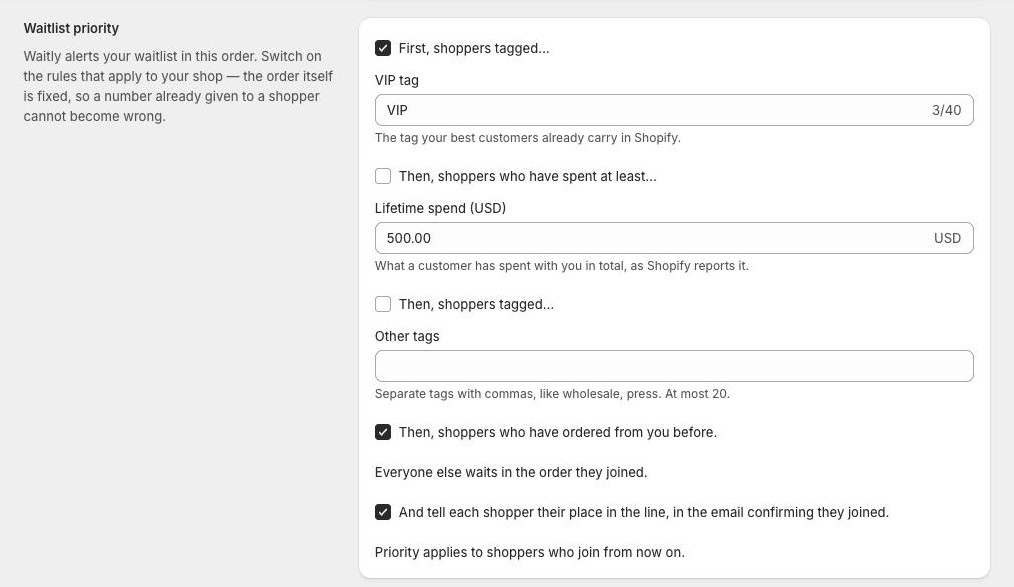
The rules read as one sentence, from the first shoppers to be alerted to the last. Every rule starts switched off, so until you switch one on, everyone waits in the order they joined.
Shopify admin · Waitly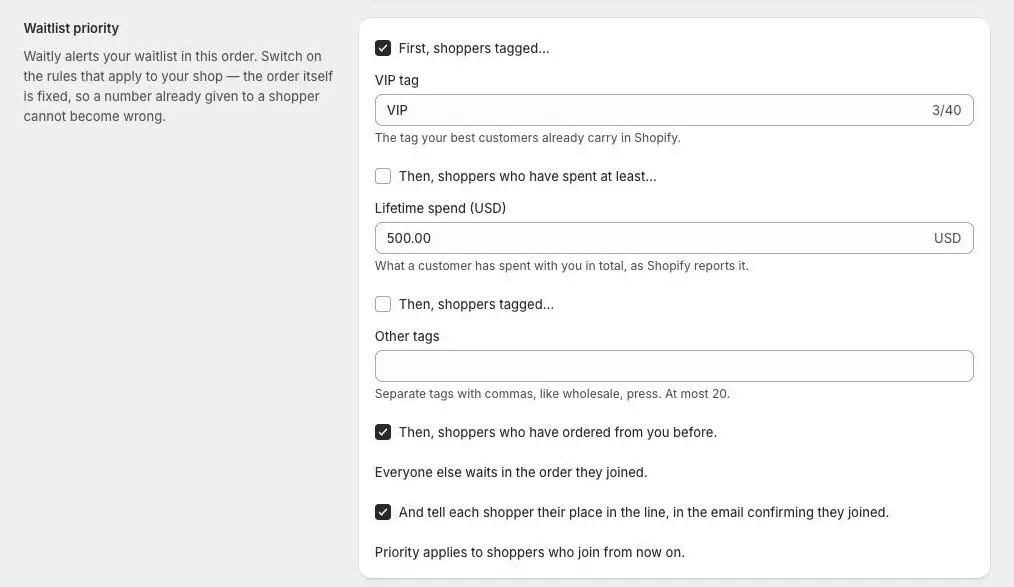
- 1Scroll to Waitlist priority
- 2The rules, first to last
- 2
Switch on the rules that fit your shop
Tick each rule you want. Shoppers who match a higher rule are alerted before shoppers who match a lower one:
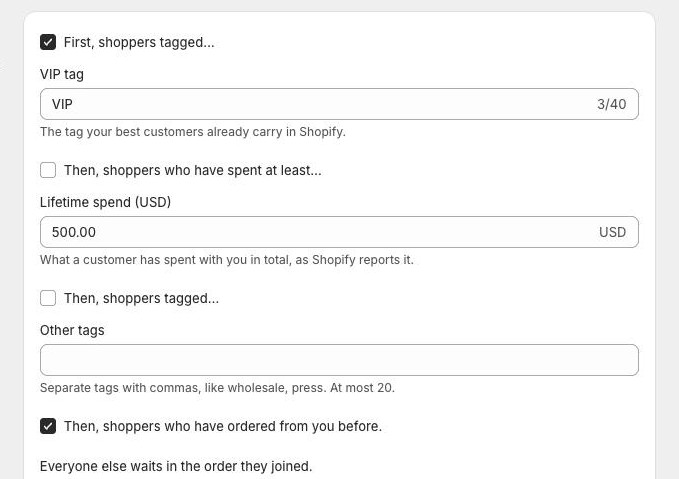
First, shoppers tagged… puts customers with one tag at the front. Type it in VIP tag. It’s VIP unless you change it. Then, shoppers who have spent at least… comes next. Enter the amount in Lifetime spend, which is what a customer has spent with you in total, as Shopify reports it.
Then, shoppers tagged… takes up to 20 more tags in Other tags, separated by commas, like wholesale, press. Then, shoppers who have ordered from you before. puts returning customers ahead of first-time shoppers. Everyone else waits in the order they joined.
Shopify admin · Waitly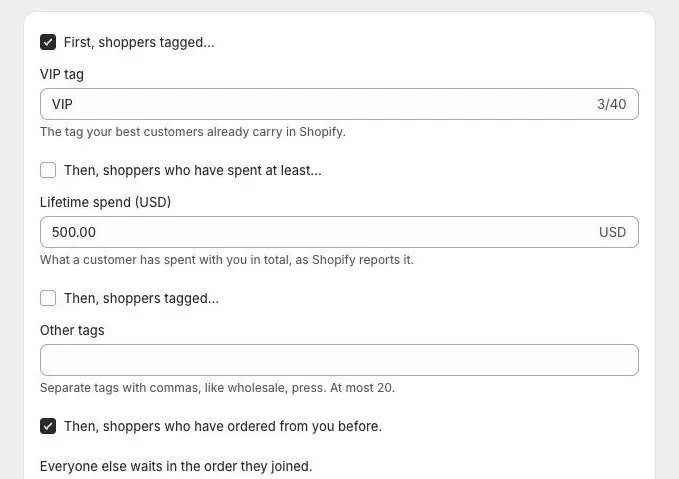
- 1VIPs first, by this tag
- 2Then big spenders (off here)
- 3Then returning customers
Note: You choose which rules apply, but not their order. The order is fixed, so a place already given to a shopper can’t become wrong. A shopper who matches several rules takes the highest one.
- 3
Choose whether to tell shoppers their place in line
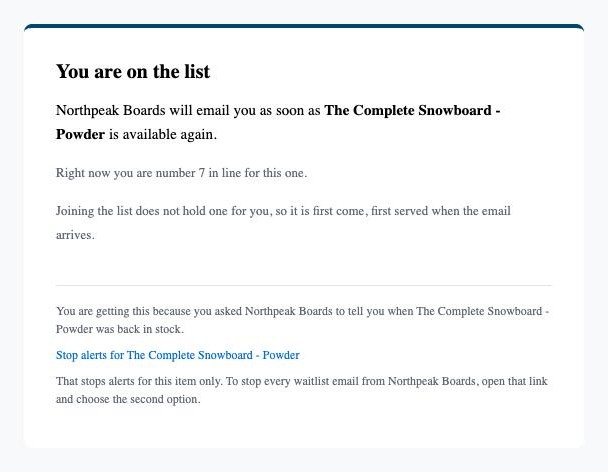
Tick And tell each shopper their place in the line, in the email confirming they joined. to add a line like “Right now you are number 4 in line for this one.” to the confirmation email.
The number is a snapshot of the moment they joined. It can change as shoppers ahead of them buy or leave, or as higher-priority shoppers join.
Shopper’s inbox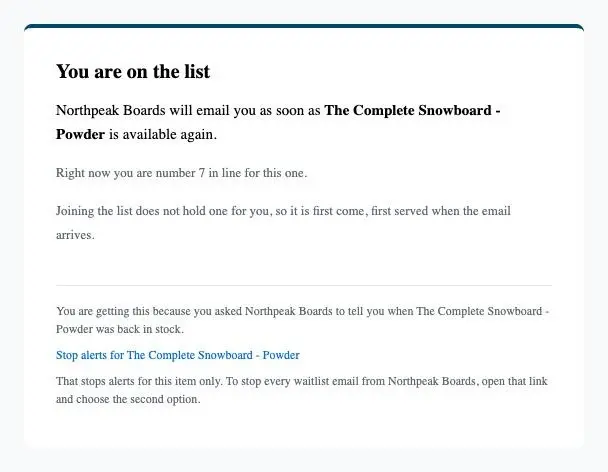
- 1Their place in line
- 4
Save your changes
Select Save in the bar at the top of the page. You’ll see Settings saved.
Switching a rule on or off reorders the shoppers who joined while your store was on Pro straight away, including those already waiting. Changing only the tag or the amount doesn’t reorder shoppers already waiting. Shoppers who joined before your store was on Pro keep their place by the date they joined.
- 5
See the order on a waitlist
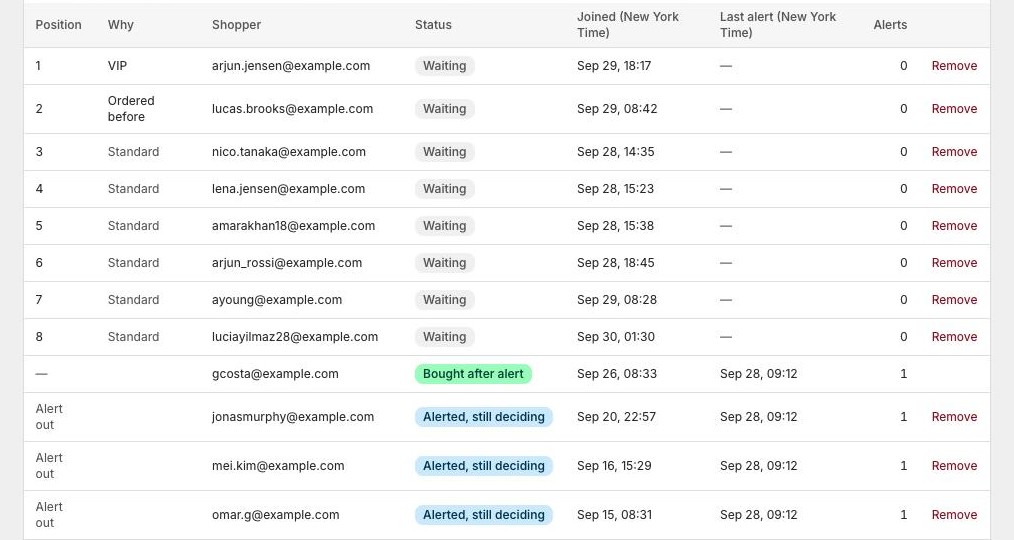
Open any waitlist from Waitlists. In the Shoppers card, Position shows each waiting shopper’s place in line, and the list is sorted by it.
Why shows the rule that put them there: VIP, High-value, Tagged or Ordered before. A shopper no rule matched reads Standard. The Why column only appears once at least one rule is on.
A shopper who has an alert and is still deciding shows Alert out instead of a number. A dash means they’re no longer waiting.
Shopify admin · Waitly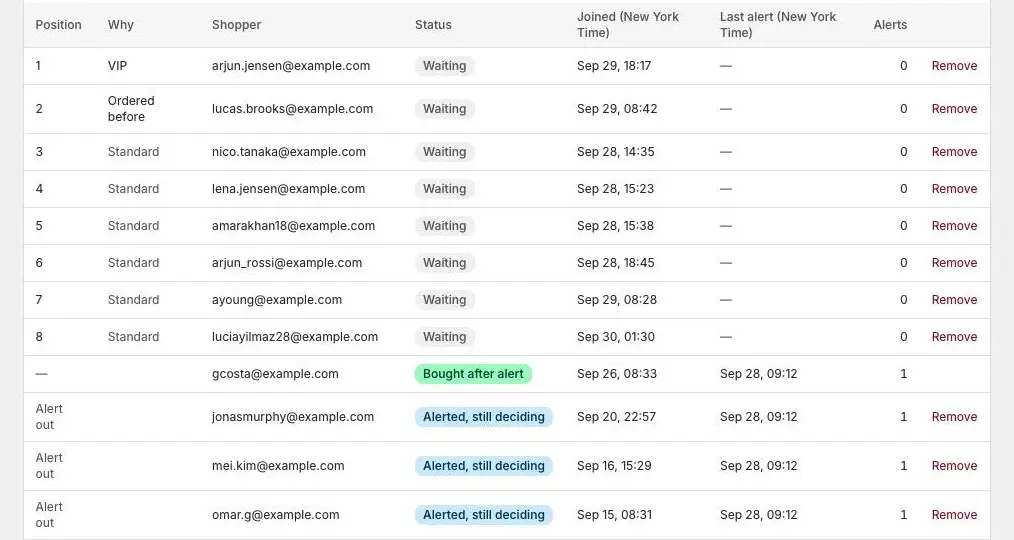
- 1Place in line
- 2The rule that put them there
- 3Alerted, still deciding
- 6
Check for a paused rule
If Shopify stops letting Waitly read your customers, a rule you switched on shows Paused under it in Settings. You didn’t switch anything off: the rule simply isn’t applied to new sign-ups for now. While a rule is paused, Why reads Standard for every waiting shopper, and shoppers already ranked keep their place.
A paused rule starts again by itself once Shopify answers. You don’t need to do anything.
Questions
- Does switching a rule on or off reorder shoppers already waiting?
- Yes, for shoppers who joined while your store was on Pro. Waitly remembers which rules each of them matched, so the line is reordered straight away without asking Shopify again.
- Who counts as a VIP?
- A shopper whose Shopify customer record carries the tag you typed in VIP tag. Shoppers who aren’t customers in your store yet can’t match a tag or spend rule, so they wait in the order they joined.
- Does priority take anyone off the waitlist?
- No. Priority only decides the order. It matters most when you also release in batches or reserve units, where the first shoppers in line get the first chance to buy.
Read next
- Send restock alerts in batchesAlert a few shoppers at a time, in line order, until the item sells out, and follow each batch in the send log.
- Hold a unit for the first shoppersHold one restocked unit for each of the first shoppers in line, send them a link only they can use, and see who holds a unit right now.
- See who’s waiting for a productOpen one product’s waitlist, read its totals and cards, and see every shopper on it and what happened to them.