Mark a product Coming Soon
Mark a sold-out product so its page takes “I want this” signups, then email everyone waiting when you add stock.
ProNeeds the Pro plan.
Before you start
- Your store is on the Pro plan.
- The product exists in Shopify and has no stock for sale.
- The Coming soon block is on your product page. See “Set up the Coming soon form”.
- 1
Open Coming Soon
In your Shopify admin, open Waitly and choose Coming Soon in the menu.
Marked products lists every product you’ve marked. Until you mark one, it’s empty.
Shopify admin · Waitly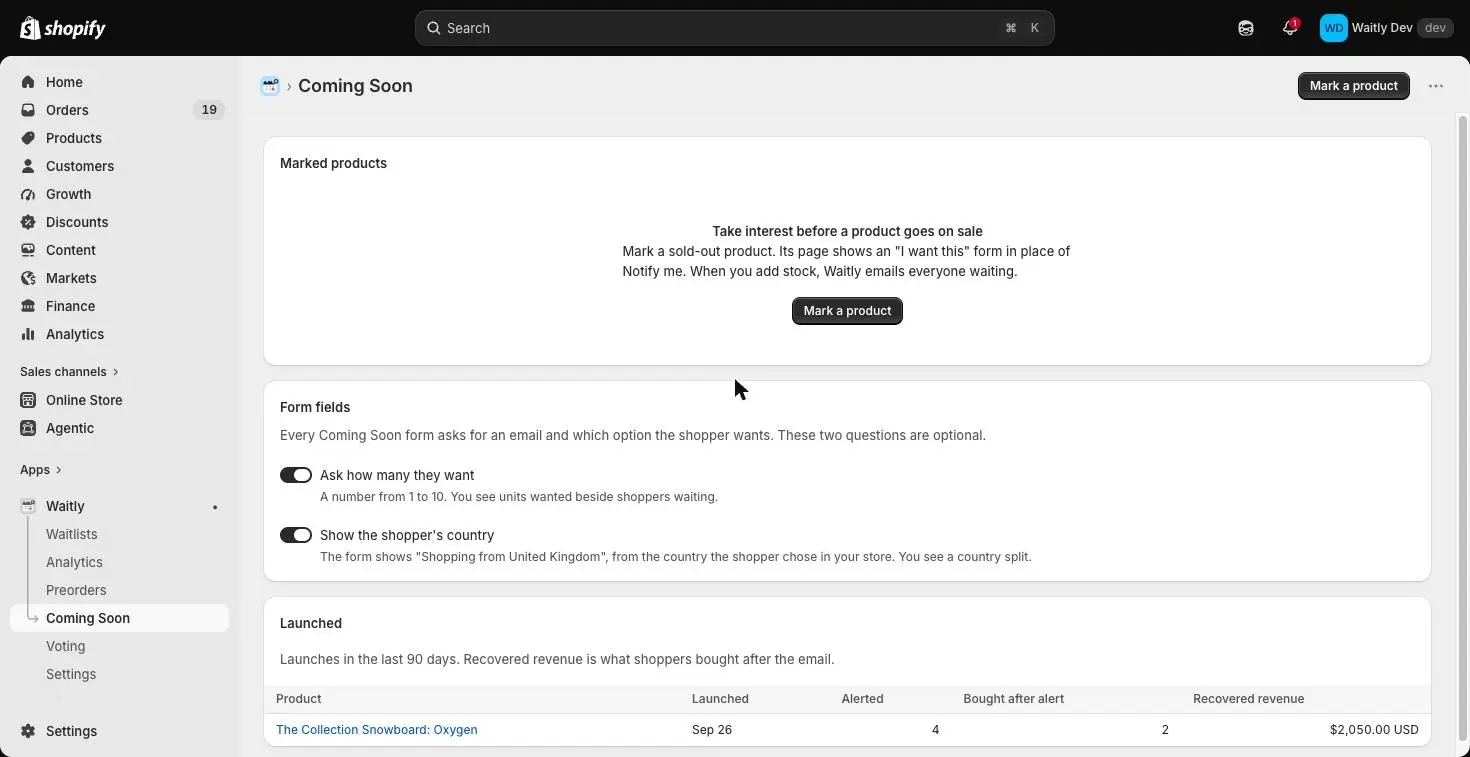
- 1Open Coming Soon
- 2Mark a product
- 3Marked products, empty at first
- 2
Mark a product
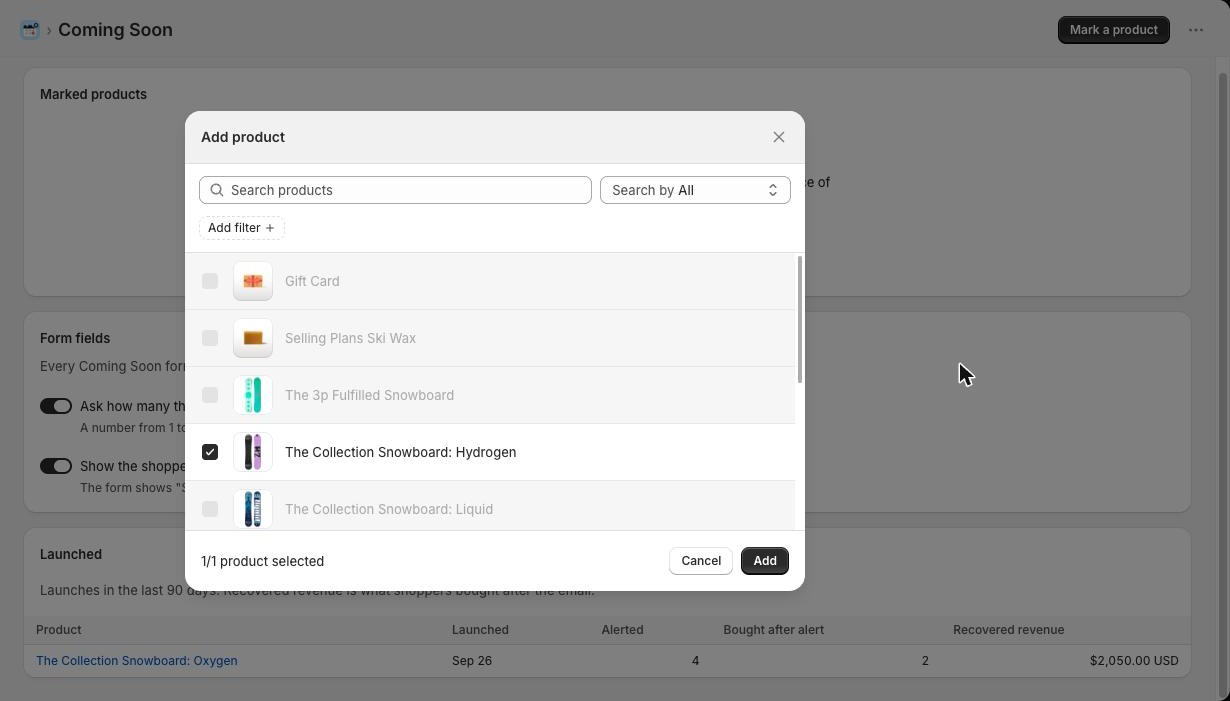
Select Mark a product, tick the product in Shopify’s product picker and select Add. A message says the product is marked Coming Soon, and the product joins the list.
Its product page now shows an “I want this” form in place of Notify me.
Shopify admin · Waitly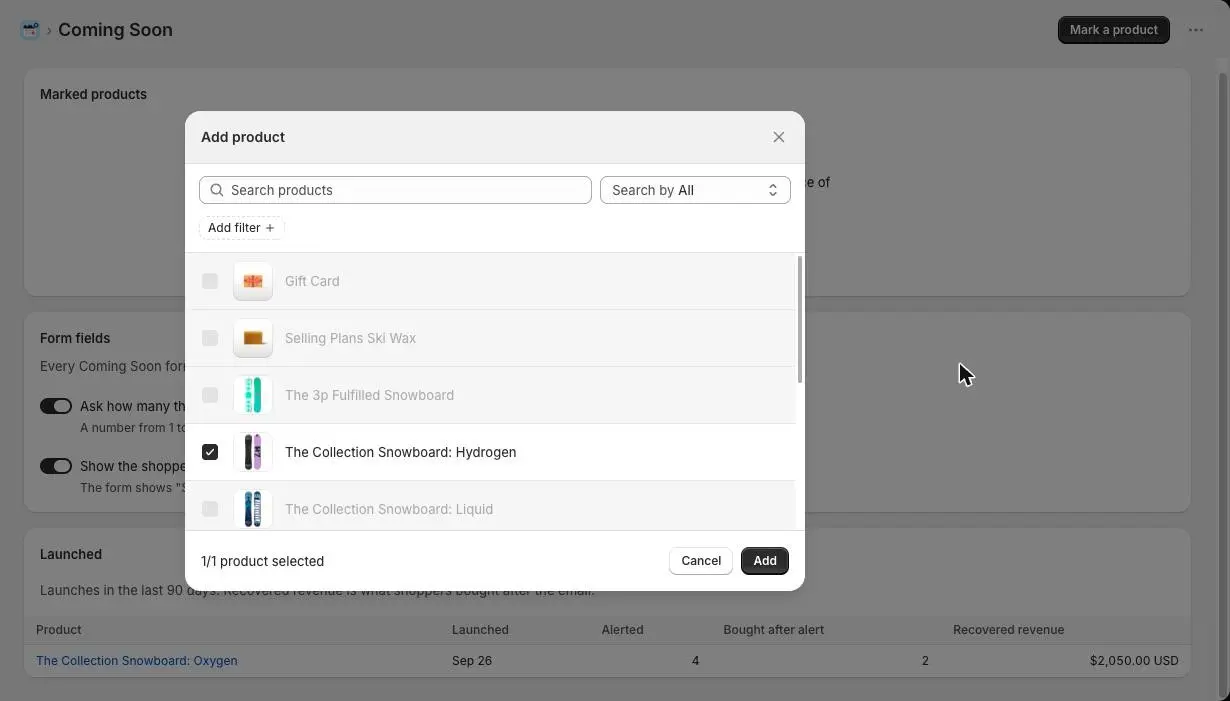
- 1Tick the product
- 2Select Add
- 3
Know which products can be marked
Only a product with no stock for sale can be marked, because stock arriving is what launches it. A product that sold before and is now sold out is fine; anyone already waiting for it to come back stays on the waitlist.
If the product has stock, Waitly shows This product cannot be marked and tells you how many are in stock.
Shopify admin · Waitly
- 1Why the product wasn’t marked
- 4
Check that the form is showing
The Form column tells you what shoppers see. Form showing means the form is on the product page. Partly on preorder means some variants take preorders instead.
Form hidden comes with the reason, for example the product isn’t published to the Online Store, Shopify doesn’t track its stock, or it keeps selling when out of stock. Fix that in Shopify and the form appears.
Waiting, Units wanted and Potential revenue show the demand so far. Select a product name to open its waitlist, where a Coming Soon card shows the most wanted options, units wanted and shopping countries.
Shopify admin · Waitly
- 1What shoppers see
- 2Demand so far
- 3Remove the mark
Tip: The form only shows on a variant that tracks stock, stops selling at zero and has none. A variant a preorder policy covers takes preorders instead: the form is hidden for it, and the Pre-order panel shows there if the Pre-order block is on the page.
- 5
Remove a mark if you change your mind
Select Remove on the product’s row. You’ll see Mark removed, and the product page goes back to Notify me.
Shoppers who already signed up stay on the waitlist and still get an email when the product comes into stock.
- 6
Launch by adding stock
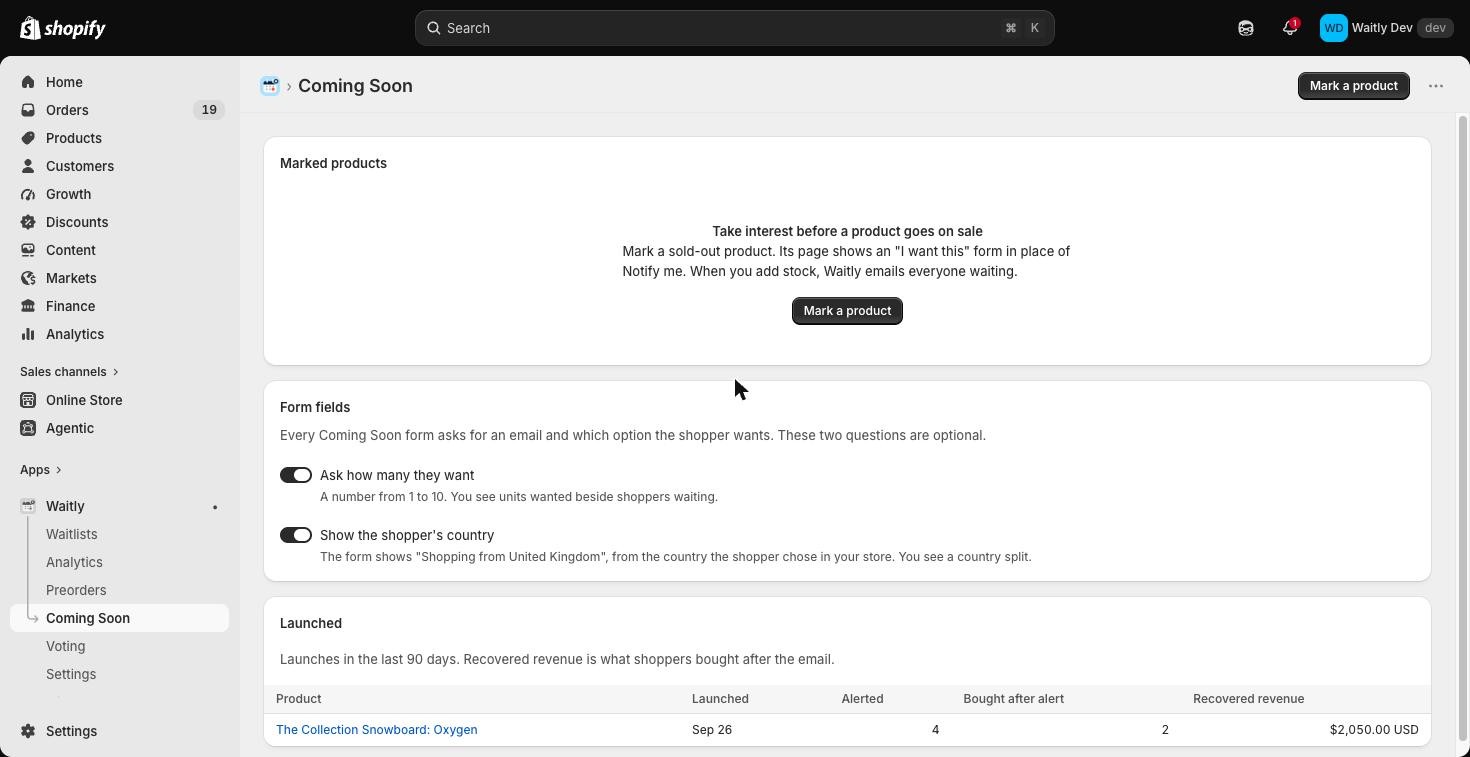
When you add stock in Shopify, the product launches. Waitly emails everyone waiting that it’s now available, and the mark ends by itself.
The product then moves to Launched, which lists launches from the last 90 days with Alerted, Bought after alert and Recovered revenue.
Shopify admin · Waitly
- 1A launched product
- 2What the launch brought in



Questions
- What do shoppers get when the product launches?
- An email saying the product is now available, never “back in stock”, because it was never on sale before. Shoppers who joined with Notify me before you marked it get the usual back-in-stock wording.
- What happens to my marks if I leave Pro?
- They’re kept, but the product page shows Notify me in place of the Coming Soon form. Shoppers already waiting still get their launch email.
Read next
- Set up the Coming soon formAdd the Coming soon block to your product page, word it your way, and choose whether it asks for quantity and country.
- Turn a winning proposal into a productPromote a proposal to a new Shopify product, or link it to one you already have, so every voter hears when it launches.
- See who’s waiting for a productOpen one product’s waitlist, read its totals and cards, and see every shopper on it and what happened to them.