Check how a restock alert went
Find each restock alert Waitly sent, see how many went out, and what happened to the rest.
Before you start
- At least one item shoppers were waiting for has come back in stock.
- 1
Find Restock alerts on Analytics
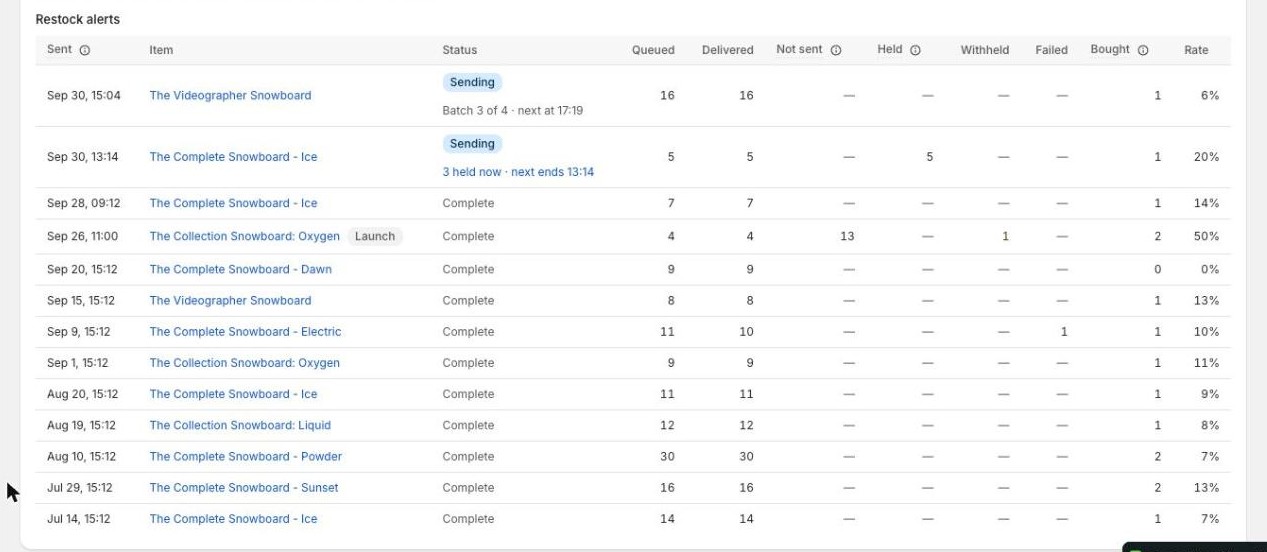
Select Analytics in the Waitly menu and scroll to the end of Over time. Restock alerts lists each time Waitly told shoppers an item was back, newest first, 25 to a page.
The date menu next to Over time filters the list by when each alert started sending. Use the arrows under the table to see older pages.
Shopify admin · Waitly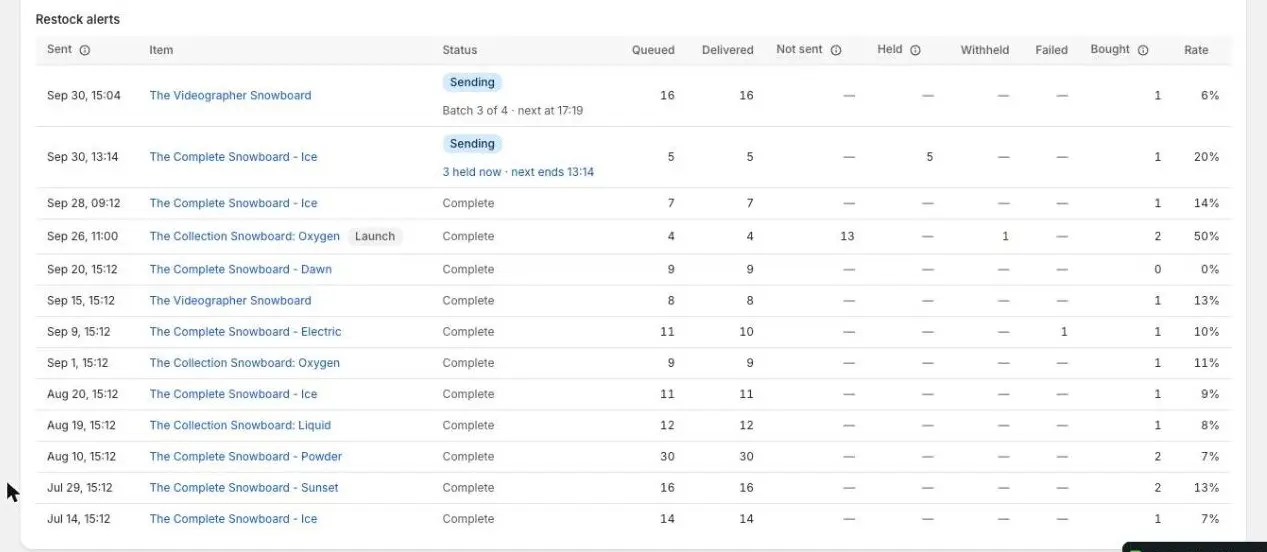
- 1When the alert started
- 2
Read when, what and where it’s up to
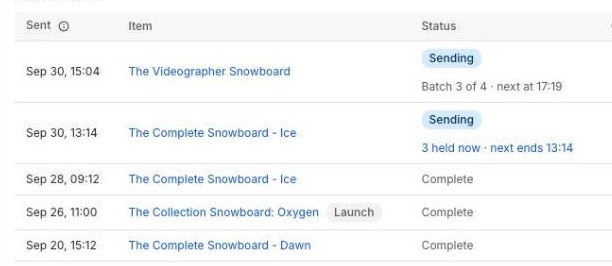
Sent is when the alert started going out. Point at the header to see which time zone it’s in. Item is the product or variant; select it to open its waitlist. A Launch badge means it was a Coming Soon launch rather than a restock.
Status is Sending or Complete. When you release stock in batches, a line under Sending says which batch it’s on, for example “Batch 2 of 5 · next at 14:00”. When you reserve units, it says how many are held now and when the next hold ends.
Shopify admin · Waitly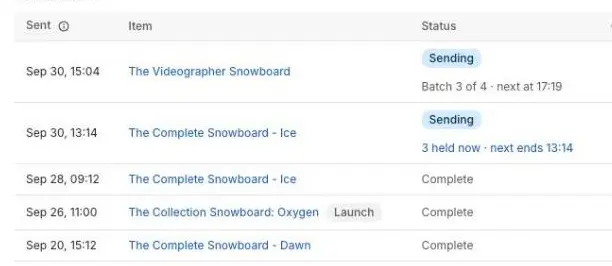
- 1Where a batched send is up to
- 2A Coming Soon launch
Note: “Not reserved: draft-order access is missing” means your settings reserve units, but Waitly couldn’t create draft orders, so the alert went out to everyone at once. Open Settings, Restock release, and allow Waitly to create draft orders.
- 3
Read how many went out
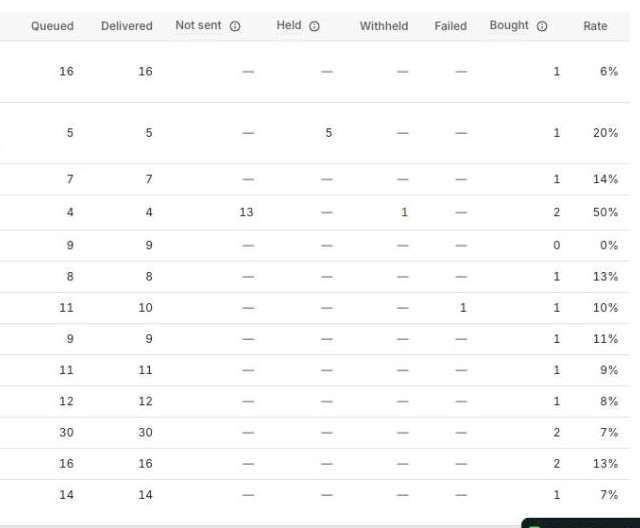
Queued is how many alerts Waitly started to send. Delivered is how many of them the email service accepted.
On Pro, Not sent counts shoppers still left when batches stopped because the item sold out or the send ran out of time. They stay on the waitlist for next time.
- 4
Check held units
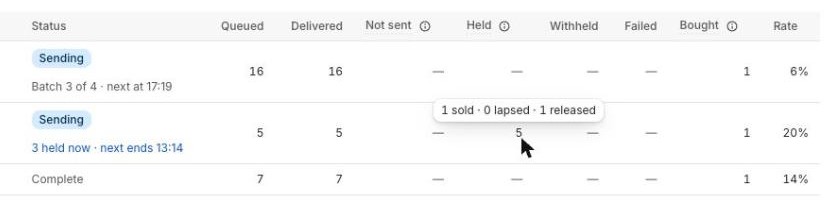
On Pro, when you reserve units for the first shoppers, Held shows how many units were held. Point at the number to see how many sold, lapsed (the time ran out and the shopper is still waiting) or were released (the shopper left the waitlist).
A dash means the alert didn’t hold any units.
Shopify admin · Waitly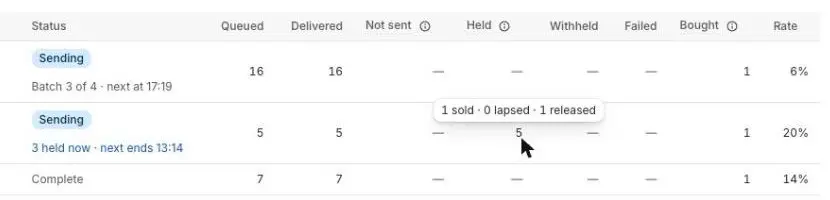
- 1Sold, lapsed and released units
- 5
Look for Withheld and Failed
These two columns only appear when at least one alert on the page has them. Withheld means Waitly didn’t send those alerts because your plan’s restock alerts for this billing cycle were used up. Failed means the email service refused an alert or it hit an error.
Careful: Withheld alerts are shoppers you didn’t reach. Check your usage under Billing, and consider a bigger plan if it happens often.
- 6
See what the alert sold
On Growth and Pro, Bought counts purchases the alert led to, and Rate is how many of the delivered alerts led to a purchase. Rate shows a dash when nothing was delivered.
A held unit counts as sold whoever bought it, so the sold figure under Held and Bought can differ.
Shopify admin · Waitly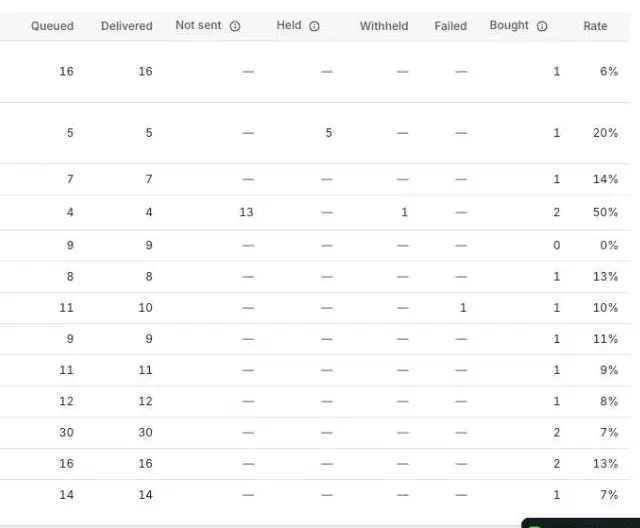
- 1Purchases the alert led to
- 2Share of delivered alerts that sold
Questions
- Why is Queued bigger than Delivered?
- Queued counts every alert Waitly started to send. Some may still be sending, and some may have failed. Withheld and Not sent shoppers are counted in their own columns, not in Queued.
- Why don’t I see an alert I expected?
- Check the date range next to Over time. The list only shows alerts that started in that range.
Read next
- How restock alerts are sentUnderstand when Waitly sends a restock alert, who gets it, how long an alert holds a shopper, and when an alert is held back.
- Send restock alerts in batchesAlert a few shoppers at a time, in line order, until the item sells out, and follow each batch in the send log.
- Track your monthly allowancesSee how many restock alerts and preorders you’ve used this billing cycle, and what happens when one runs out.