See preorder volume by variant
See how many units shoppers have preordered on each variant, and for how much, over any date range.
ProNeeds the Pro plan.
Before you start
- You’re on the Pro plan.
- Shoppers have placed at least one preorder.
- 1
Find Preorder volume on Analytics
Select Analytics in the Waitly menu and scroll to Preorder volume in the Over time section. It lists the 10 variants with the most units preordered.
The date menu next to Over time sets the range, by the date each order was placed.
Shopify admin · Waitly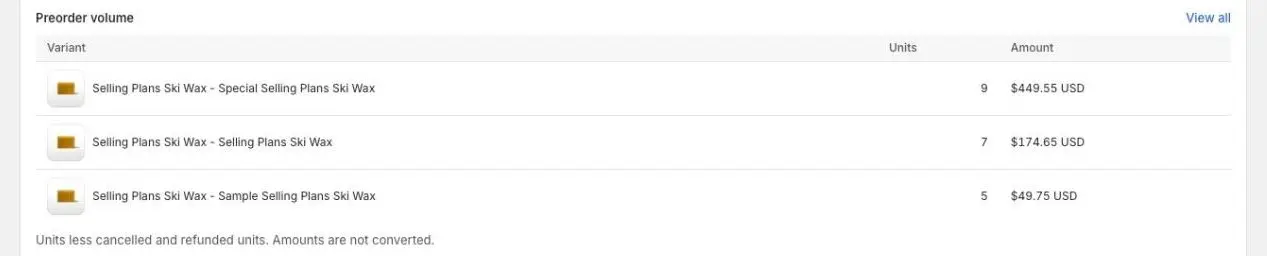
- 1Open the full list
- 2Units and what shoppers paid
Note: Below Pro, the variant names show but Units and Amount are dashes.
- 2
Open the full list
Select View all to open the Preorder volume page. It lists every variant with preorders in the range, most units first, 50 to a page.
The page has its own date menu. Select Analytics at the top to go back.
Shopify admin · Waitly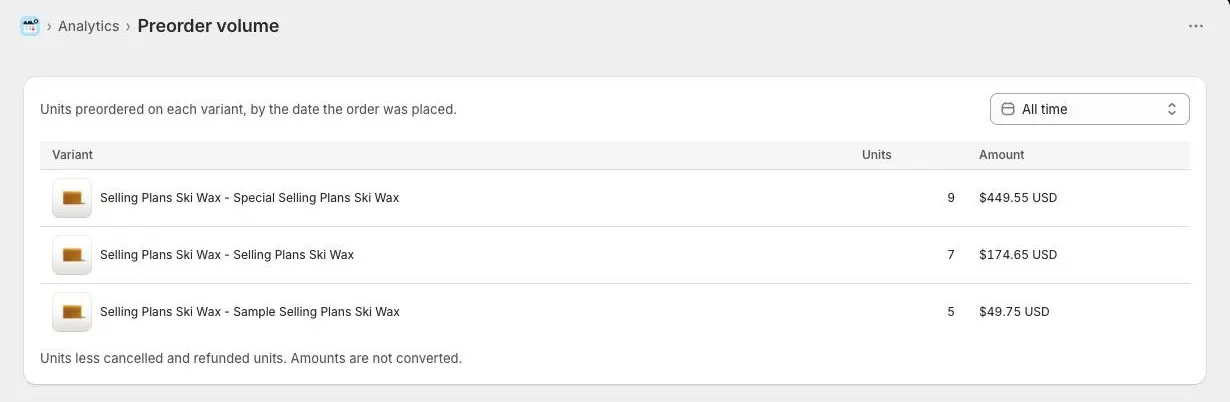
- 1This page’s date range
- 2Back to Analytics
- 3Units and amount
- 3
Read units and amounts
Units is how many units were preordered, less any cancelled or refunded. Units that have shipped still count, because they were preorder demand.
Amount is what shoppers paid for those units. If you sell in more than one currency, each currency gets its own line, and amounts aren’t converted.
Tip: Preordered units also feed each product’s Demand Score, and unshipped ones count toward its suggested restock.
Questions
- Why does it say “No preorders in this period”?
- No preorder was placed in the date range you picked. Choose a longer range, such as All time.
- Is preorder volume part of recovered revenue?
- No. Preorder volume is money shoppers paid for preorders. Recovered revenue only counts sales that came after a Waitly restock alert.
Read next
- Track the preorders you’ve takenSee every preorder with its ship estimate and status, spot the ones that need you, and ship, cancel or refund them in Shopify.
- Plan restocks with Demand ScoreSee which products shoppers want most, what Waitly suggests you do, and roughly how many units to restock.
- Read your analyticsSee how many shoppers are waiting, what your alerts recovered, and how the rest of the demand ended.