Test it on a sold-out product
Sell out a variant, join its waitlist with your own email, see the signup in Waitly, then restock it and get the alert.
Before you start
- The Notify me block is on your live theme’s product page.
- A product you can change the stock of. A test product is best, because restocking it emails everyone waiting.
- 1
Make a variant sold out
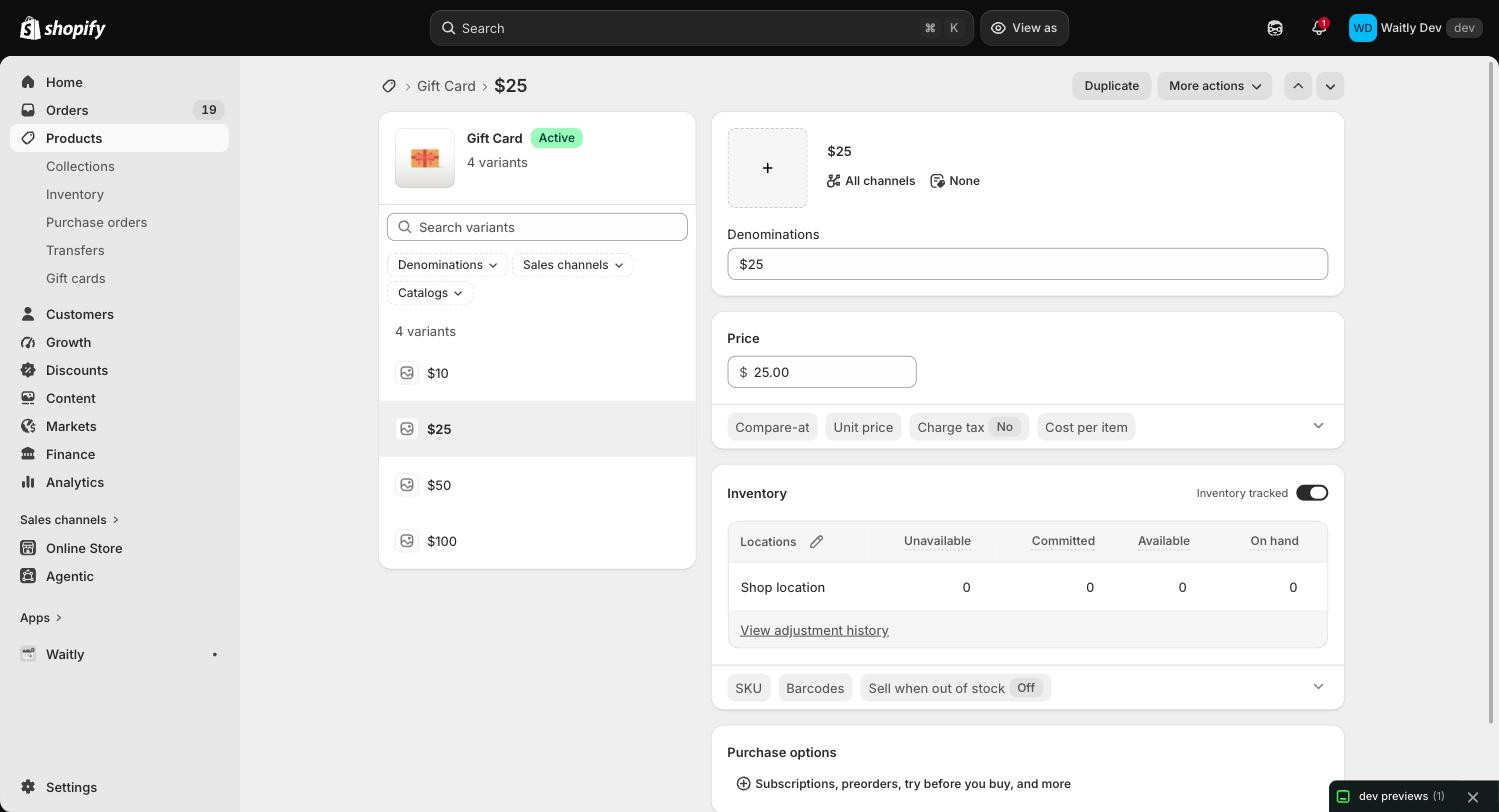
In your Shopify admin, open Products, choose a product and open one of its variants. In the Inventory card, make sure Inventory tracked is on and Sell when out of stock is Off. Set the quantity so Available reads 0, and select Save.
Shopify admin · Waitly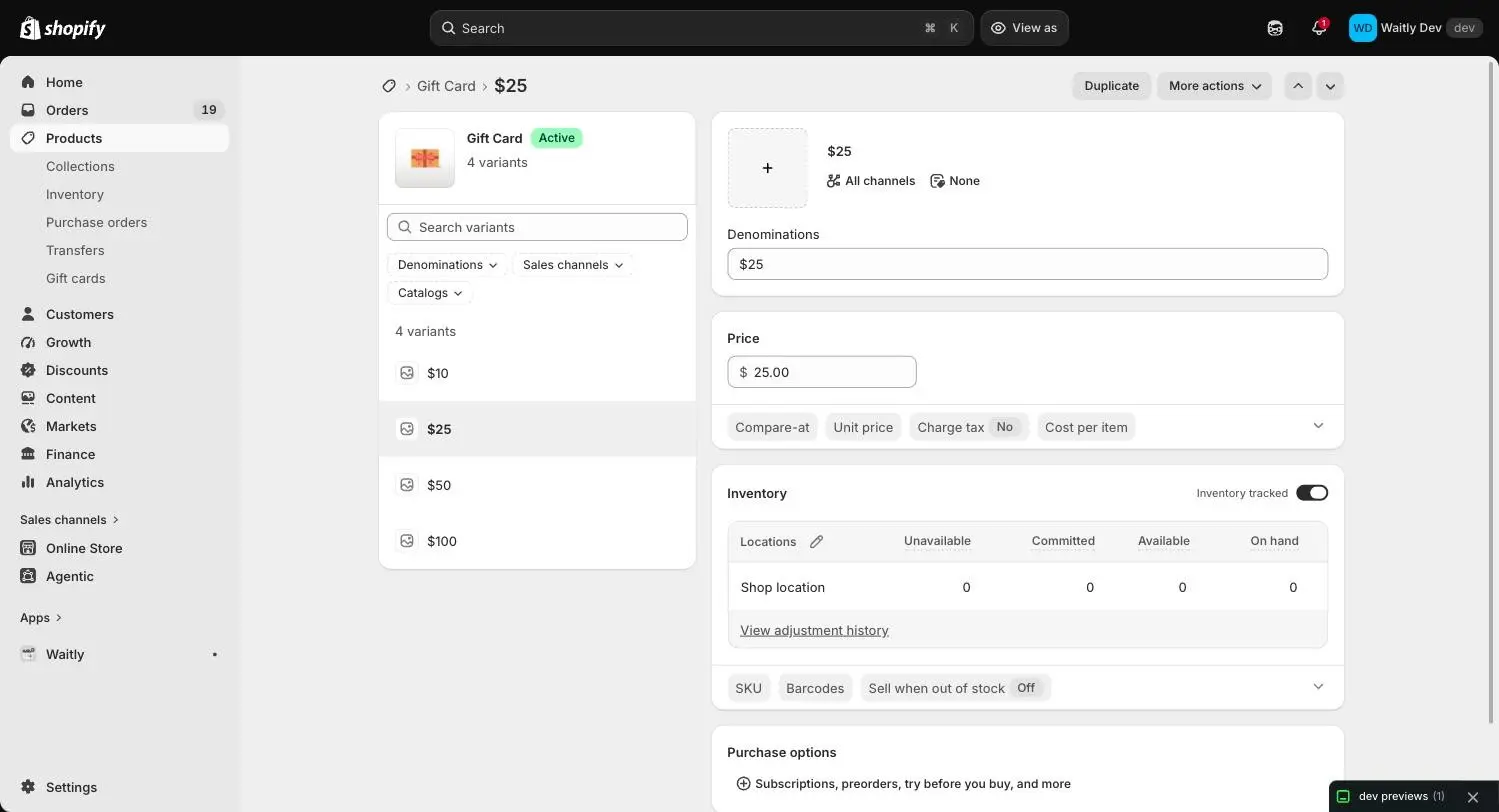
- 1Inventory tracked on
- 2Available is 0
- 3Leave this off
Careful: The button never shows on a variant that doesn’t track quantity or keeps selling when out of stock. Shoppers can already buy it, so there’s nothing to wait for.
- 2
Open it on your storefront
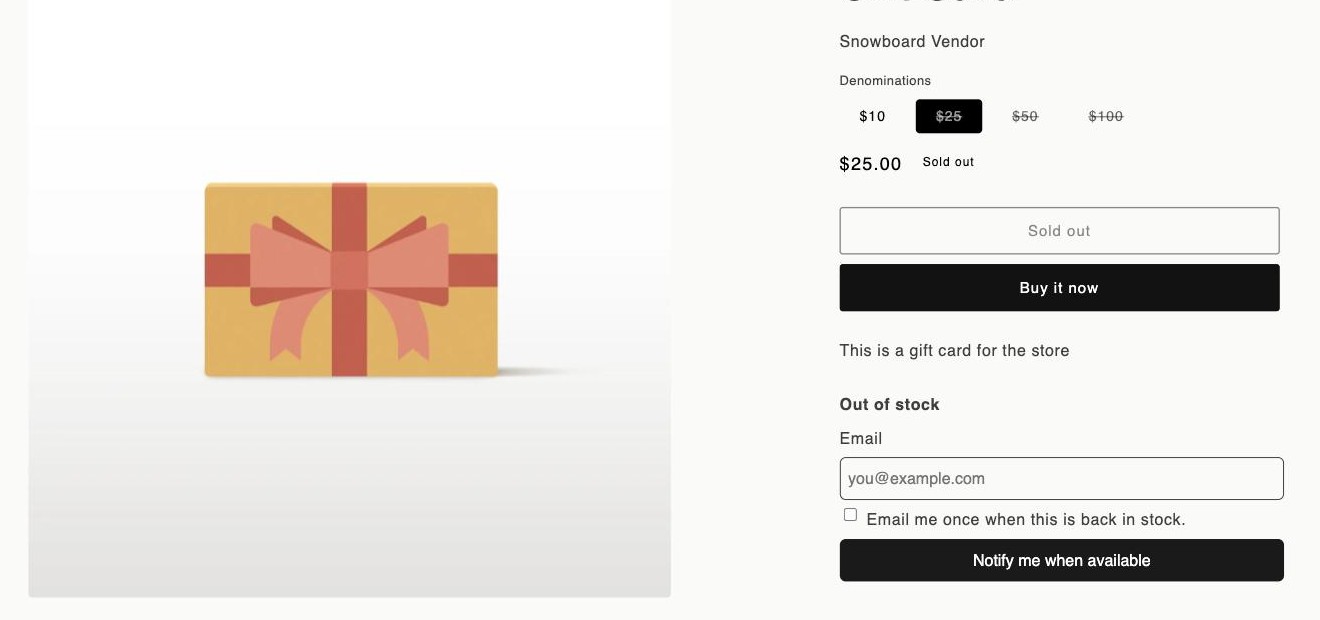
Open the product on your online store and choose the sold-out variant. The Notify me form appears where you placed the block: an Out of stock heading, an email field, a consent checkbox and a Notify me when available button.
Pick a variant that’s in stock and the form disappears again.
Your online store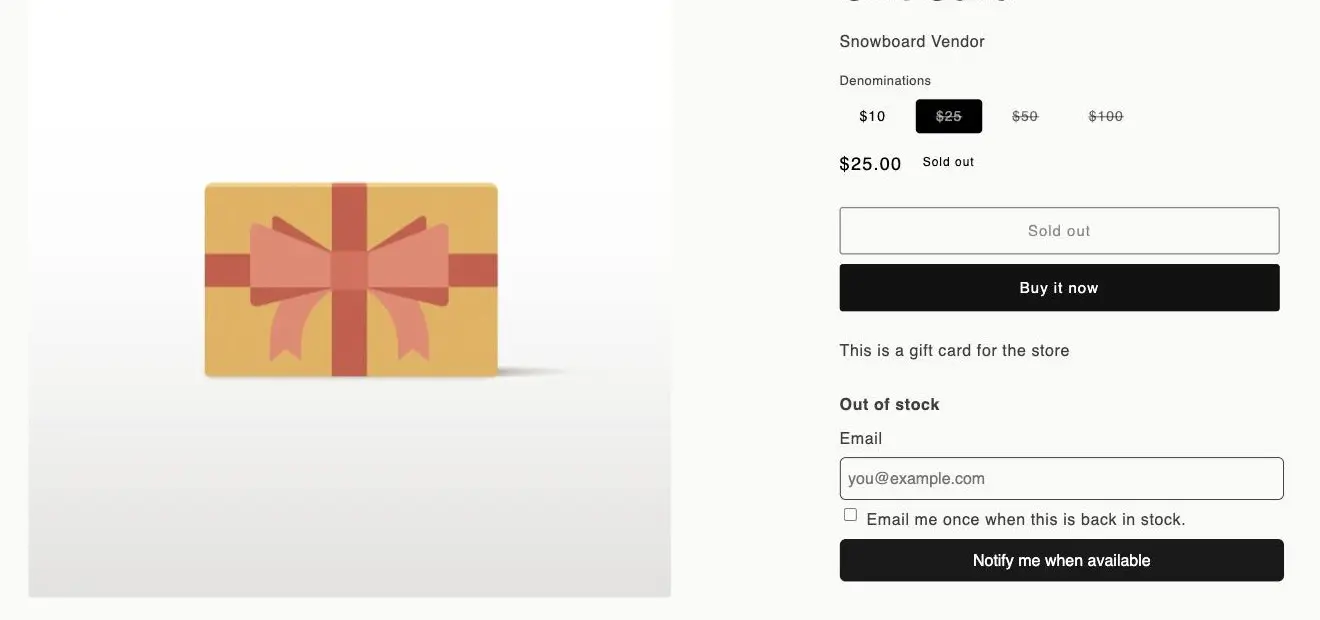
- 1Choose the sold-out variant
Note: If your store is password protected, enter the storefront password first.
- 3
Sign up with your own email
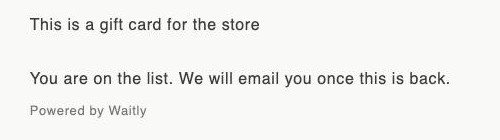
Type your email address, tick the consent box and select Notify me when available. The form is replaced by “You are on the list. We will email you once this is back.”
Your online store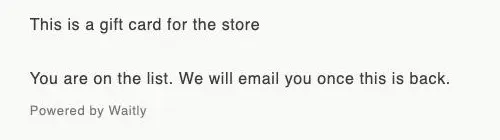
- 1You’re signed up
- 4
Check your confirmation email
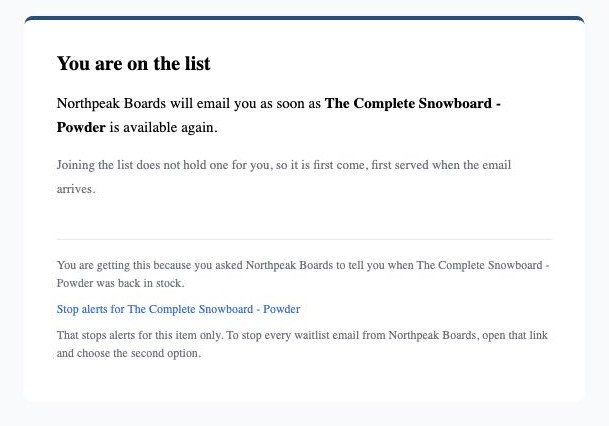
You’ll get an email with the subject “You are on the list for” followed by the product and variant name. It comes from your store’s name, and a reply goes to your store’s contact address.
Shopper’s inbox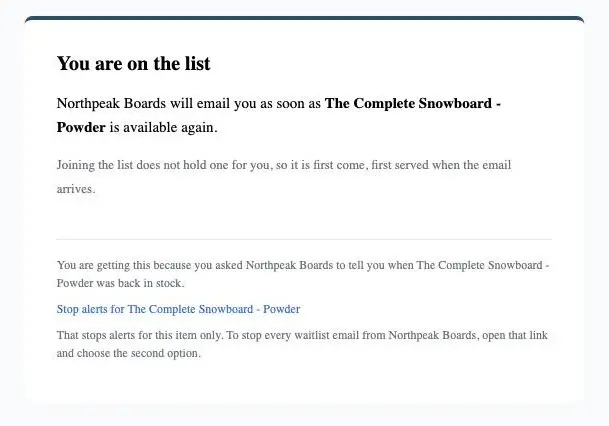
- 5
Find your signup in Waitly
Open Waitly. On Home, the second step of the setup guide is now done (with both steps done, the guide goes away), and the product shows in Most wanted.
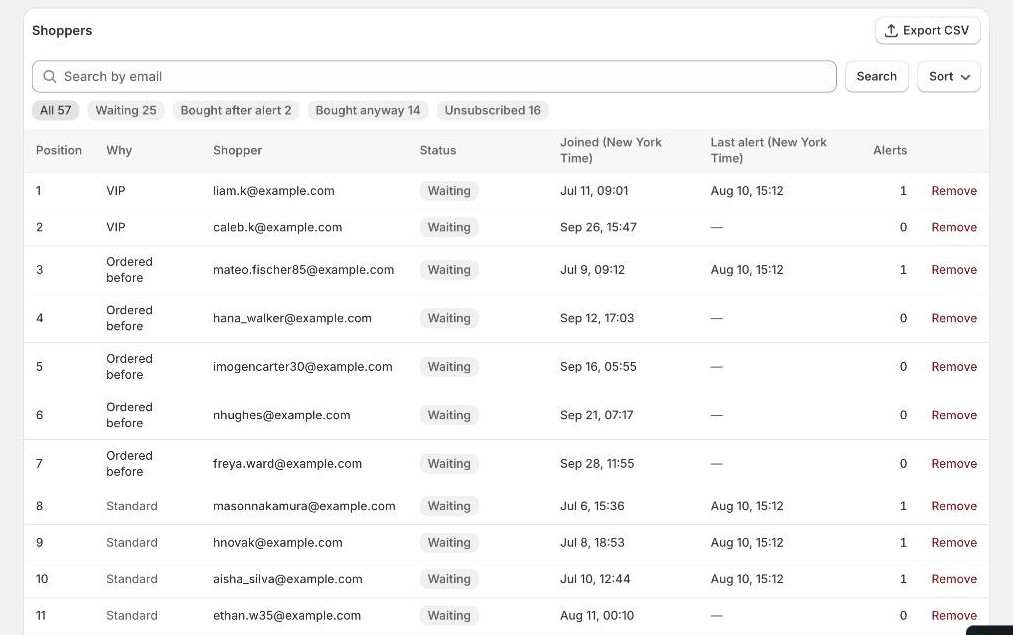
Select it to open its waitlist. You’re in the Shoppers list with the status Waiting.
Shopify admin · Waitly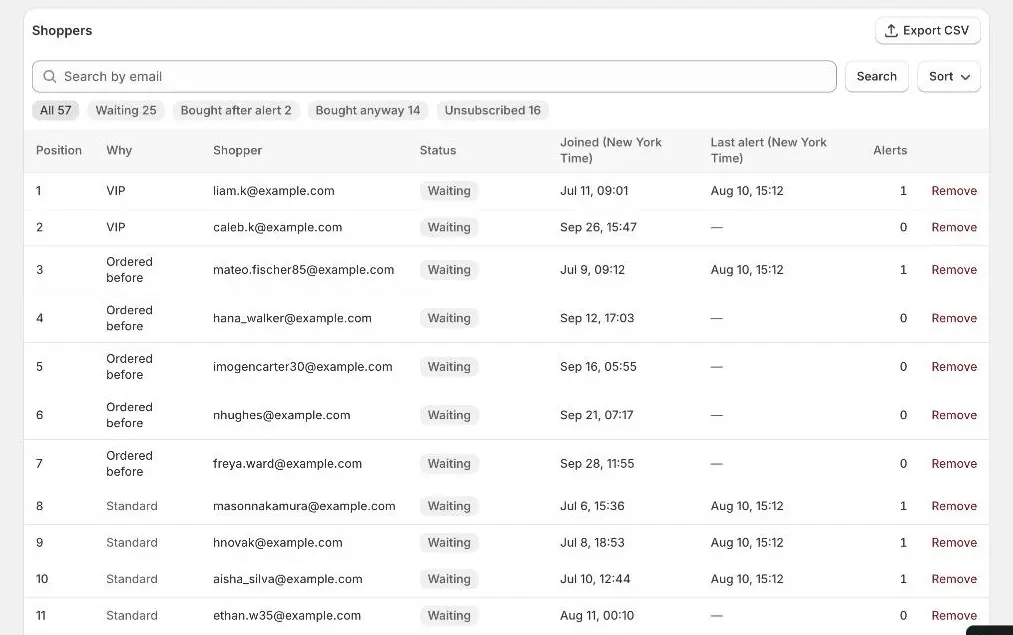
- 1A signup, Waiting
- 6
Restock it and get the alert
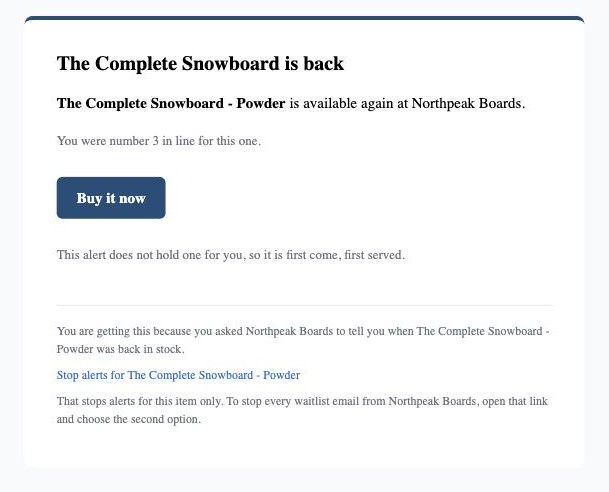
Back in the Shopify admin, set the variant’s quantity above 0 and select Save. Waitly sees the change and emails everyone waiting. You’ll get an email titled with the product name and “is back in stock”, with a Buy it now button.
In Waitly, your status on the waitlist changes to Alerted, still deciding.
Shopper’s inbox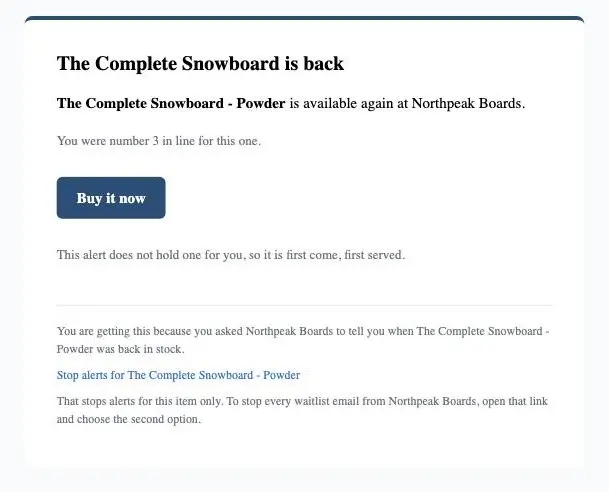
Careful: Restocking emails every shopper waiting for that variant, not only you. On a real product with real shoppers, only restock when you mean it.
Questions
- I don’t see the button on my sold-out variant. What should I check?
- Check that the variant has inventory tracked, 0 available and Sell when out of stock set to Off. Then check that the block is saved on your published theme, on the product template this product uses. On Pro, a product marked Coming Soon shows the Coming soon form instead.
- What if I sign up twice with the same email?
- Nothing changes. You’re already on that waitlist, so Waitly doesn’t add a second entry or send a second confirmation.
- I restocked but got no alert. Why?
- An alert goes only to shoppers who signed up before the restock, and only if the variant is still in stock when the send starts. Check your spam folder, then look for the send under Restock alerts on the Analytics page.
Read next
- How restock alerts are sentUnderstand when Waitly sends a restock alert, who gets it, how long an alert holds a shopper, and when an alert is held back.
- See who’s waiting for a productOpen one product’s waitlist, read its totals and cards, and see every shopper on it and what happened to them.
- Check the storefront connectionConfirm that the Notify me block can send signups to Waitly, and fix it when Waitly can’t confirm the connection.