Send restock alerts in batches
Alert a few shoppers at a time, in line order, until the item sells out, and follow each batch in the send log.
ProNeeds the Pro plan.
Before you start
- Your store is on the Pro plan.
- 1
Open Restock release in Settings
In Waitly, choose Settings and scroll to Restock release, just below Waitlist priority.
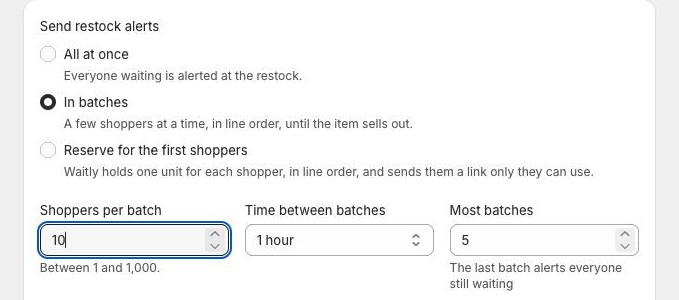
Under Send restock alerts you have three choices. All at once alerts everyone waiting at the restock. In batches alerts a few shoppers at a time, in line order, until the item sells out.
Shopify admin · Waitly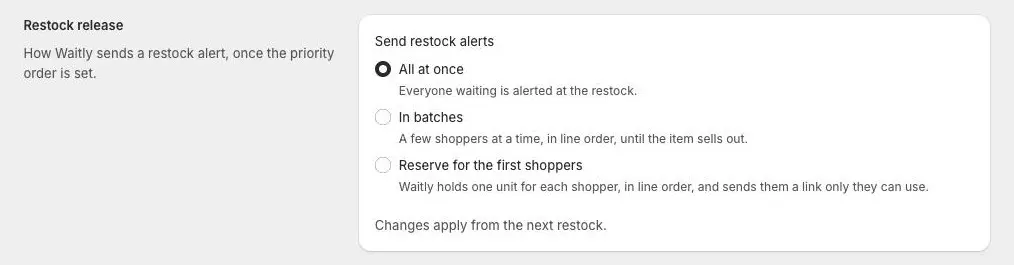
- 1Scroll to Restock release
- 2Three ways to send
- 2
Choose In batches and set the pace
Select In batches. Three fields appear:
Shoppers per batch is how many shoppers each batch alerts, between 1 and 1,000. Time between batches is how long Waitly waits before the next batch: 15 minutes, 30 minutes, 1 hour or 2 hours. Most batches is between 2 and 10. The last batch alerts everyone still waiting.
Shopify admin · Waitly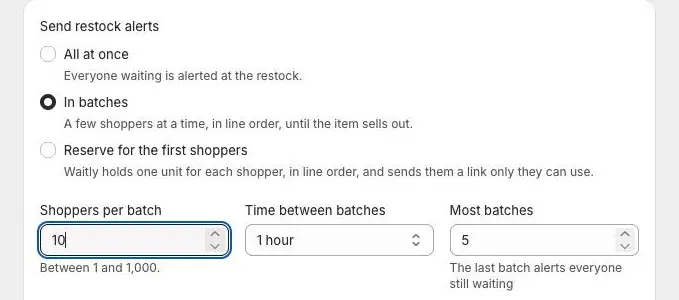
- 1Select In batches
- 2Set the pace
- 3
Check the preview
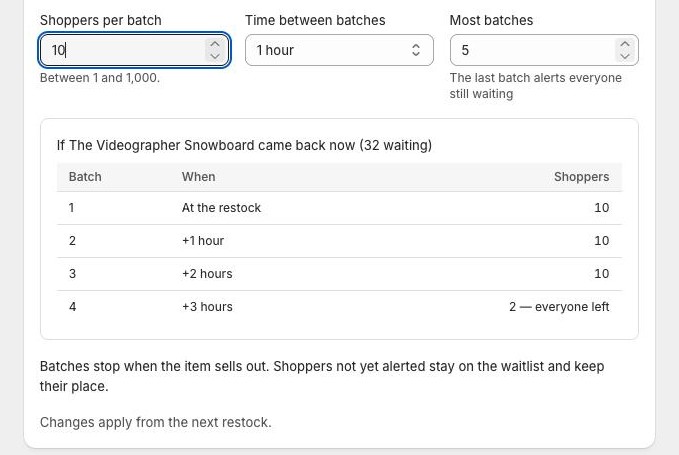
Below the fields, Waitly plays your settings out on your largest waitlist, under a heading like “If The Complete Snowboard came back now (46 waiting)”. Each row shows a batch, when it goes (At the restock, then the time after it, like +1 hour) and how many shoppers it alerts. The last row says everyone left.
The preview updates as you type, so you can try numbers before you save. If you don’t have a waitlist yet, it shows how a batched restock goes out in words instead.
Shopify admin · Waitly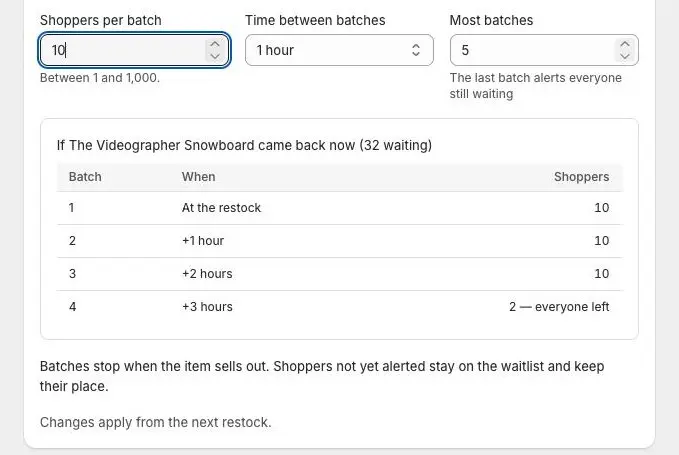
- 1Your settings on your largest waitlist
- 2The last batch takes everyone left
Note: Batches stop when the item sells out. Shoppers not yet alerted stay on the waitlist and keep their place for the next restock.
- 4
Save
Select Save in the bar at the top of the page. Changes apply from the next restock. A send that’s already going out keeps the settings it started with.
- 5
Follow the batches in Analytics
When the item comes back, open Analytics and scroll to Restock alerts. While batches are still going out, the Status column shows Sending with a line like Batch 2 of 5 · next at 14:30. Once the last batch is due, it shows only the batch, like Batch 4 of 4.
When the send ends, the status reads Complete. Not sent counts shoppers the batches never reached because the item sold out or the send ran out of time. They’re still on the waitlist.
Shopify admin · Waitly
- 1Which batch the send is on
- 2Shoppers no batch reached

Questions
- Who goes in the first batch?
- The first shoppers in line. With waitlist priority on, that means your VIPs and other priority shoppers; otherwise it’s the shoppers who joined first.
- Can a batched send stop before the last batch?
- Yes. It stops when the item sells out, or when the restock is more than 24 hours old or a newer restock has happened. Anyone it didn’t reach is still waiting and is counted as Not sent.
- What happens if I move off Pro while batches are running?
- That send finishes its batches on schedule, and Settings tells you when. Your next restock goes out all at once.
Read next
- Put VIPs first with waitlist priorityChoose which shoppers hear about a restock first, and see each shopper’s place in line on the waitlist.
- Hold a unit for the first shoppersHold one restocked unit for each of the first shoppers in line, send them a link only they can use, and see who holds a unit right now.
- Check how a restock alert wentFind each restock alert Waitly sent, see how many went out, and what happened to the rest.