Create a preorder policy
Make a policy, choose the products it covers, and turn it on so Shopify offers them as Pre-order.
Before you start
- Waitly is installed. Preorders are on every plan.
- The Pre-order block is on your product page, or you’ll add it right after. Without it, shoppers can’t preorder.
- 1
Open Preorders
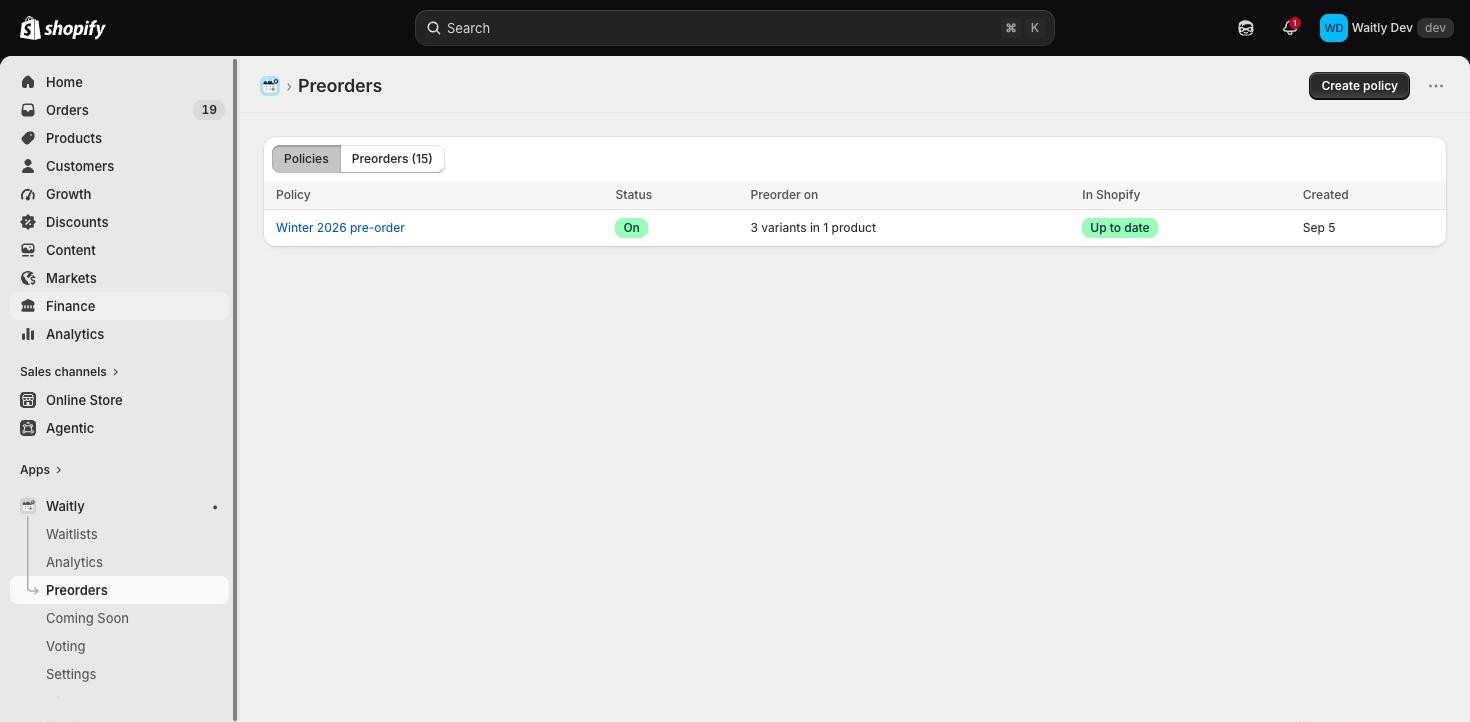
In your Shopify admin, open Waitly and choose Preorders in the Waitly menu.
The page opens on Policies. A policy is a named set of rules that decides which products take preorders. Select Create policy.
Shopify admin · Waitly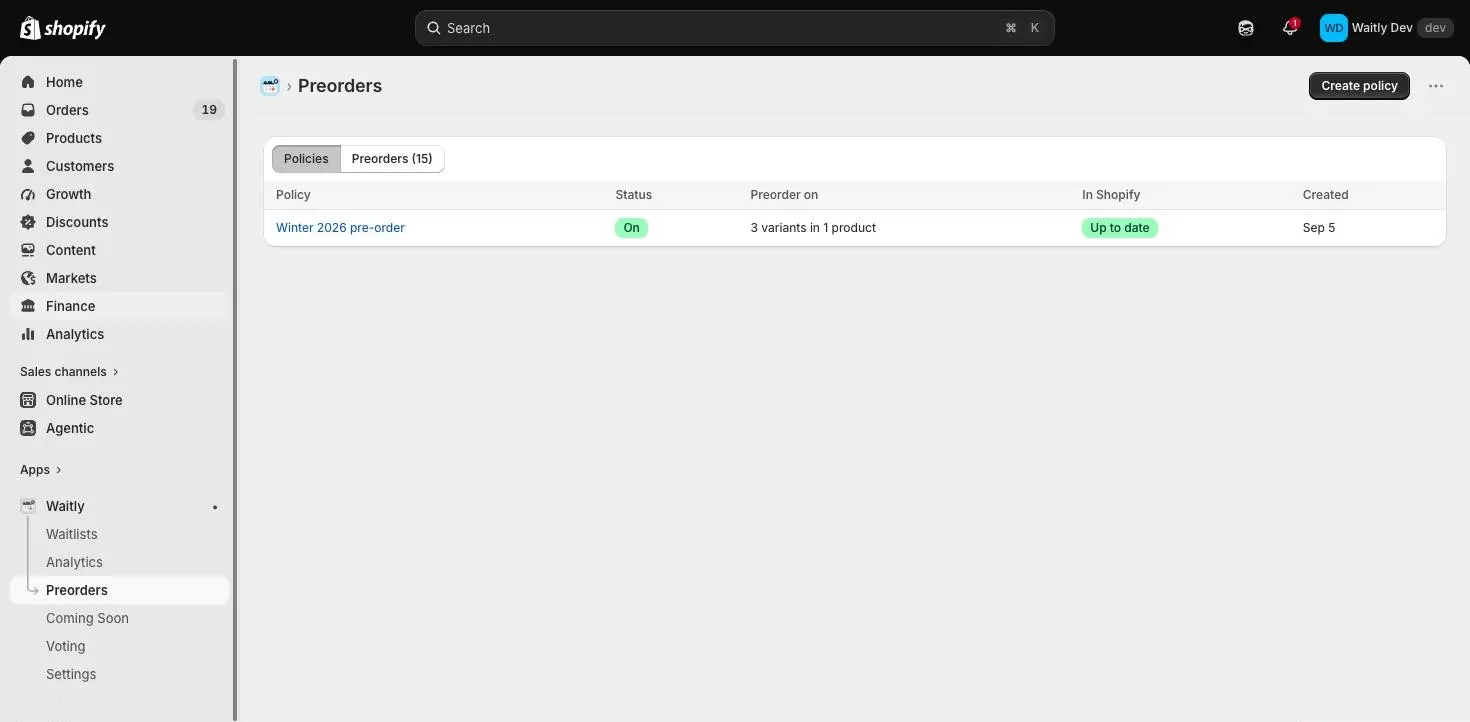
- 1Open Preorders
- 2The Policies view
- 3Start a new policy
- 2
Name the policy
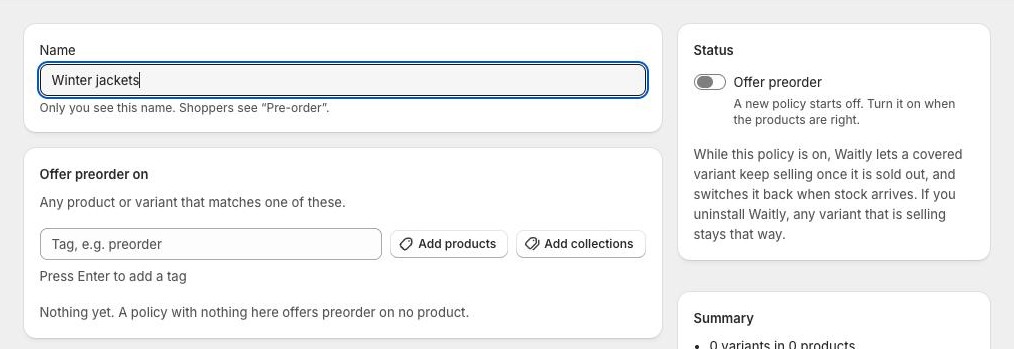
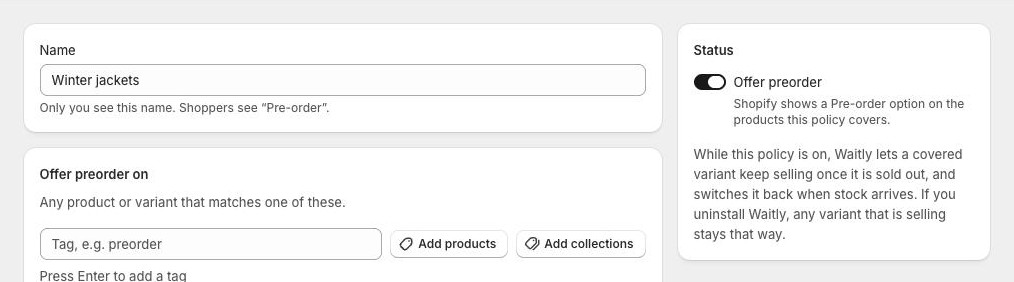
Type a Name, such as “Winter jackets” or “Made to order”. Only you see this name. Shoppers see “Pre-order”.
Names don’t have to be unique, but a clear one makes the list easier to read later.
Shopify admin · Waitly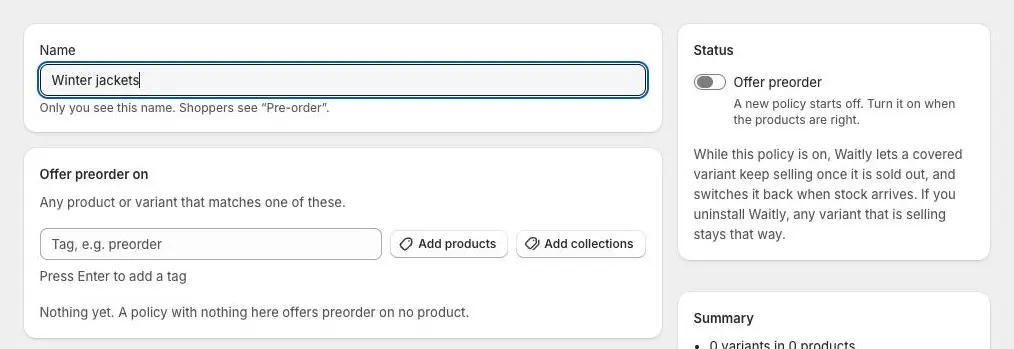
- 1Name the policy
- 3
Pick the products
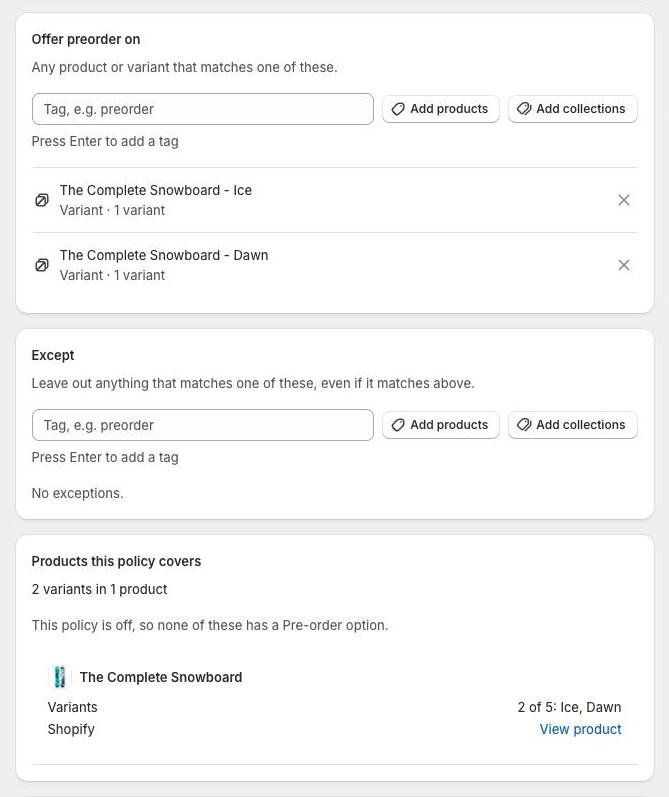
Under Offer preorder on, select Add products to choose products, or tick only some of a product’s variants. You can also select Add collections, or type a product tag and press Enter.
Products this policy covers updates as you add things. It counts the variants and products the rule reaches and lists the first ones, each with a View product link.
Shopify admin · Waitly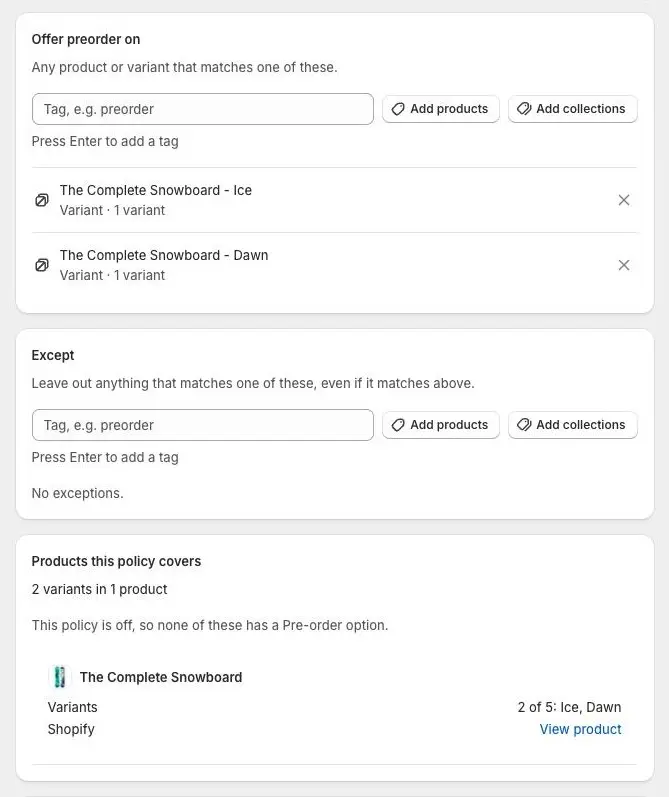
- 1Add products or collections
- 2What you’ve added
- 3What the policy reaches
Tip: To leave some products out, add them under Except. See “Choose products with rules and exceptions”.
- 4
Turn on Offer preorder
In the Status card on the right, turn on Offer preorder. A new policy starts off, so nothing changes in your store until you do.
While the policy is on, Waitly lets covered variants keep selling when they’re out of stock, and switches them back when stock arrives or they leave the policy.
Shopify admin · Waitly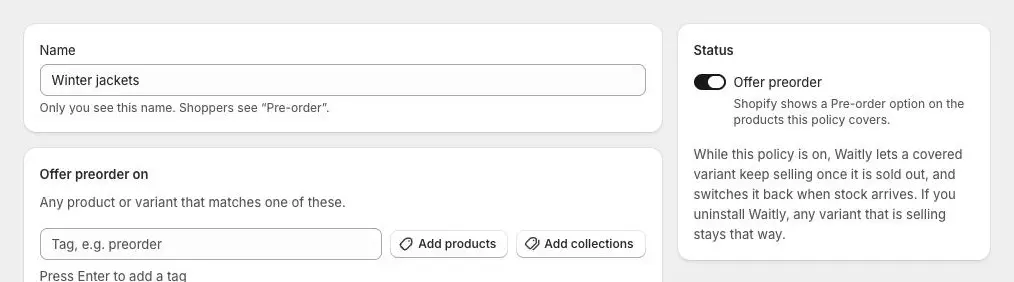
- 1Turn on Offer preorder
Note: By default, a new policy offers preorder only while a variant is sold out. You can change that, set dates or cap units under When preorder runs.
- 5
Save the policy
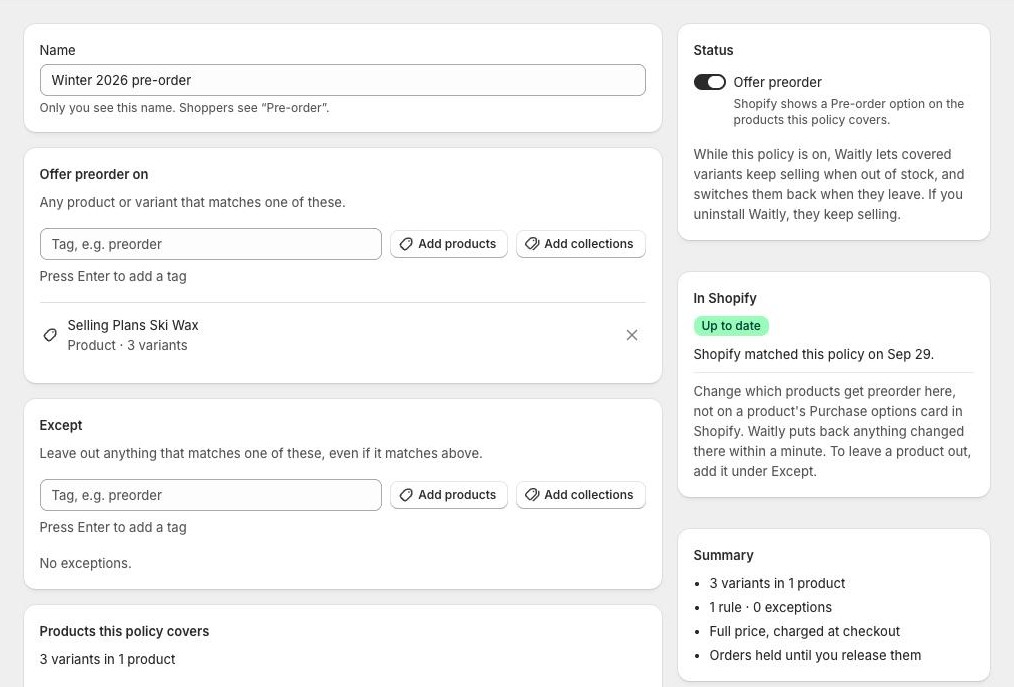
Select Save in the bar at the top of the page. The page title changes from “Create policy” to the policy’s name. When you save a change to it later, you’ll see “Saved. Updating Shopify…”.
Waitly then sets up the Pre-order purchase option in Shopify. The In Shopify card reads Updating… while it works, then Up to date once Shopify matches the policy.
The Summary card sums it up: what the policy covers, how many rules and exceptions it has, Full price, charged at checkout, and Orders held until you release them.
Shopify admin · Waitly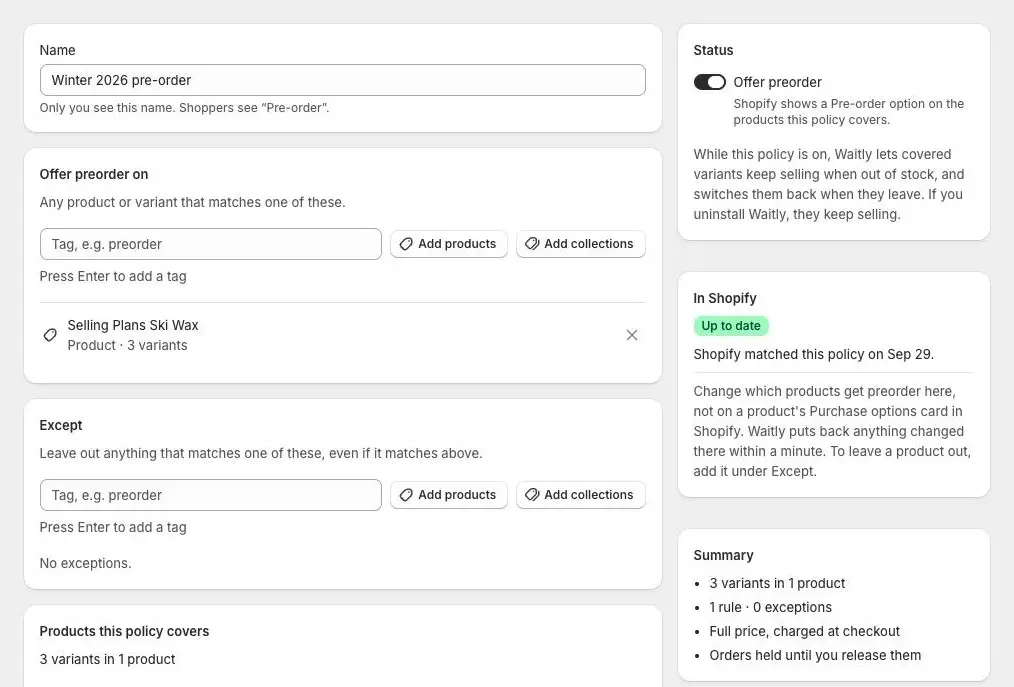
- 1The policy is on
- 2Shopify matches the policy
- 3What the policy does
Careful: Change a policy’s products here, not with the buttons on a product’s Purchase options card in Shopify. Waitly puts back anything changed there within a minute.
- 6
Make sure shoppers can preorder
If the Pre-order block isn’t on the product template your covered products use, a warning appears at the top of the page, with an Add the Pre-order block button that opens your theme editor.
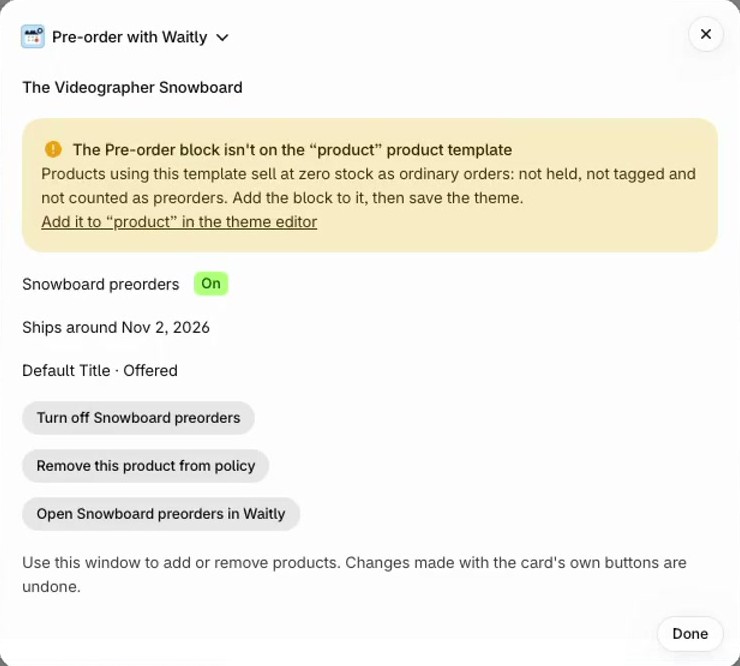
Until the block is placed, those products sell at zero stock as ordinary orders: not held, not tagged and not counted as preorders.
The same warning shows in the Pre-order with Waitly window on a covered product’s page in Shopify, with a link that opens the theme editor.
Shopify admin · Waitly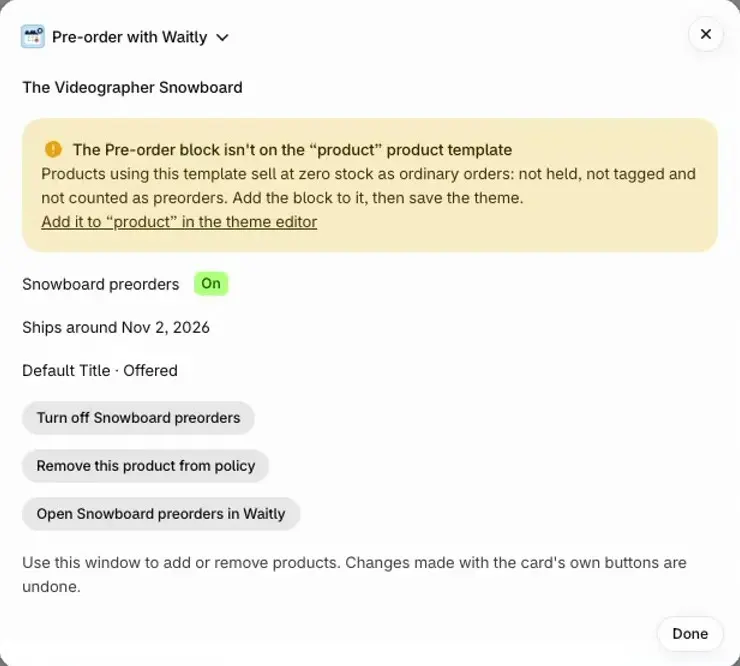
- 1The warning names the template
- 2Opens the theme editor on that template
The warning as it shows in the Pre-order with Waitly window on a product page.
Questions
- How do shoppers pay for a preorder?
- In full, at checkout. Shopify then holds the order until you release it for fulfillment, so you ship it when the stock arrives.
- How many preorders can I take?
- 20 per billing cycle on Free, 500 on Growth, and unlimited on Pro. When a cycle’s preorders are used up, preorder pauses on every product until the cycle resets or you upgrade. Preorders already placed are kept.
- Can one product be in two policies?
- Yes, but only one policy offers it at a time: the oldest one that’s on and open. The editor warns you when another policy already offers some of the products.
Read next
- Add the Pre-order block to your themePut the Pre-order block above Add to cart so shoppers see the Pre-order badge, the ship estimate and the terms, and can buy.
- Choose products with rules and exceptionsCover products by tag, product, variant or collection, leave some out, and check exactly what the policy reaches before you save.
- Set when preorder runs and how manyRun preorder only while a variant is sold out, open and close it on set dates, and cap the units each product can take.