Read your analytics
See how many shoppers are waiting, what your alerts recovered, and how the rest of the demand ended.
Before you start
- At least one shopper has joined a waitlist. Until then, Analytics shows only a setup message.
- 1
Open Analytics
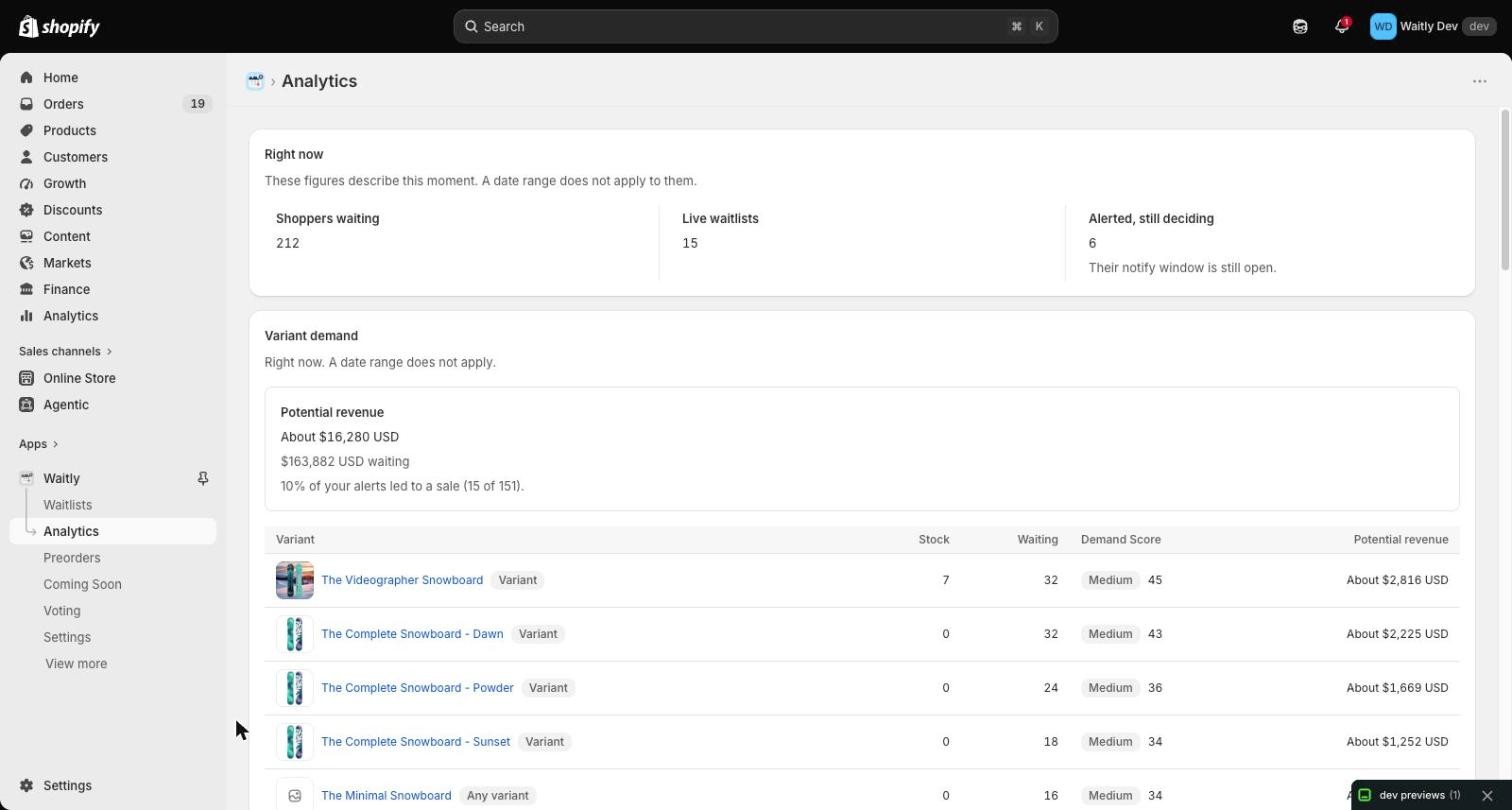
In the Waitly menu on the left of your Shopify admin, select Analytics.
The page reads from top to bottom: what’s true right now, the products to restock, your results, and then Over time, which you can filter by date.
Shopify admin · Waitly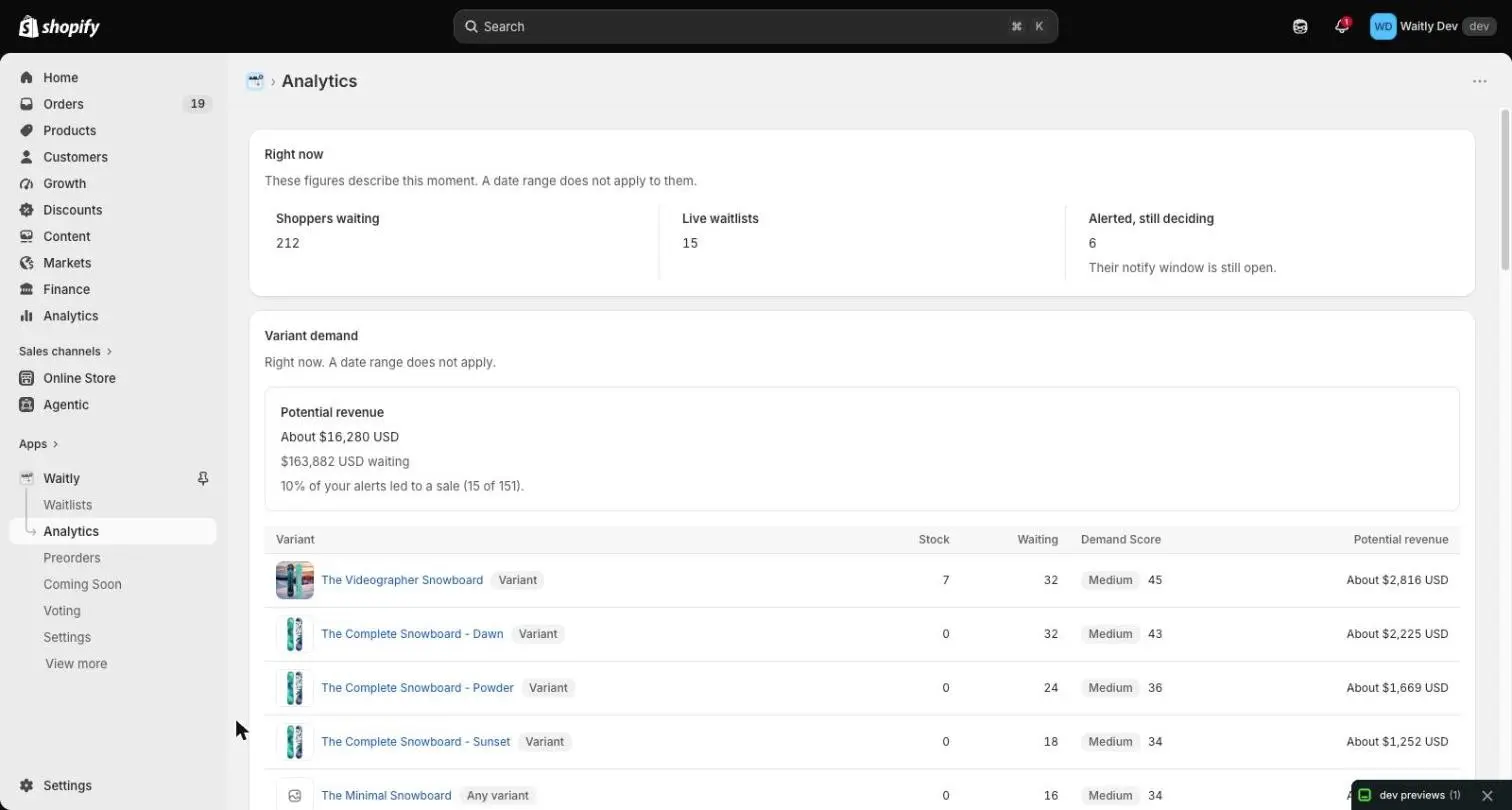
- 1Open Analytics
Note: Analytics is on every plan. On Free, a banner offers Growth to see what your alerts recovered. On Growth, a banner offers Pro for variant demand, trends and preorder volume. You can close either banner.
- 2
Read Right now
Right now shows Shoppers waiting, Live waitlists (items with at least one shopper waiting or still deciding) and Alerted, still deciding (shoppers who got an alert and are still inside the time set by Hold a restock alert for in Settings).
These describe this moment, so the date range doesn’t change them. Select Shoppers waiting or Live waitlists to open the Waitlists page.
Shopify admin · Waitly
- 1Open the Waitlists page
- 3
See demand by variant
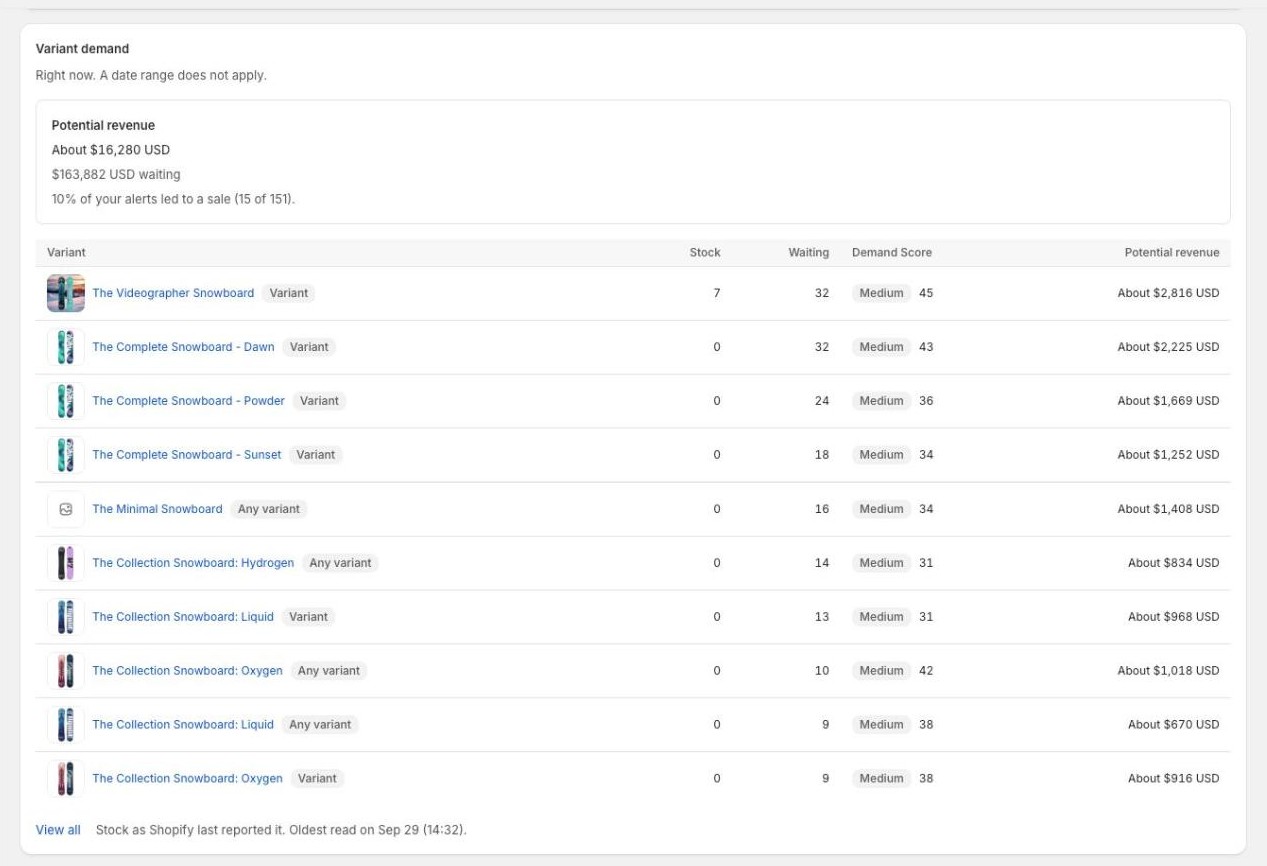
On Pro, Variant demand lists the 10 waitlists with the most shoppers waiting (a variant, or a product shoppers will take in any variant), with their Stock, Waiting, Demand Score and Potential revenue. Select View all to see every waitlist.
The Potential revenue box above it estimates what everyone waiting could spend if their items came back, based on how often your alerts have led to a sale. It starts once your store has sent 100 restock alerts.
Shopify admin · Waitly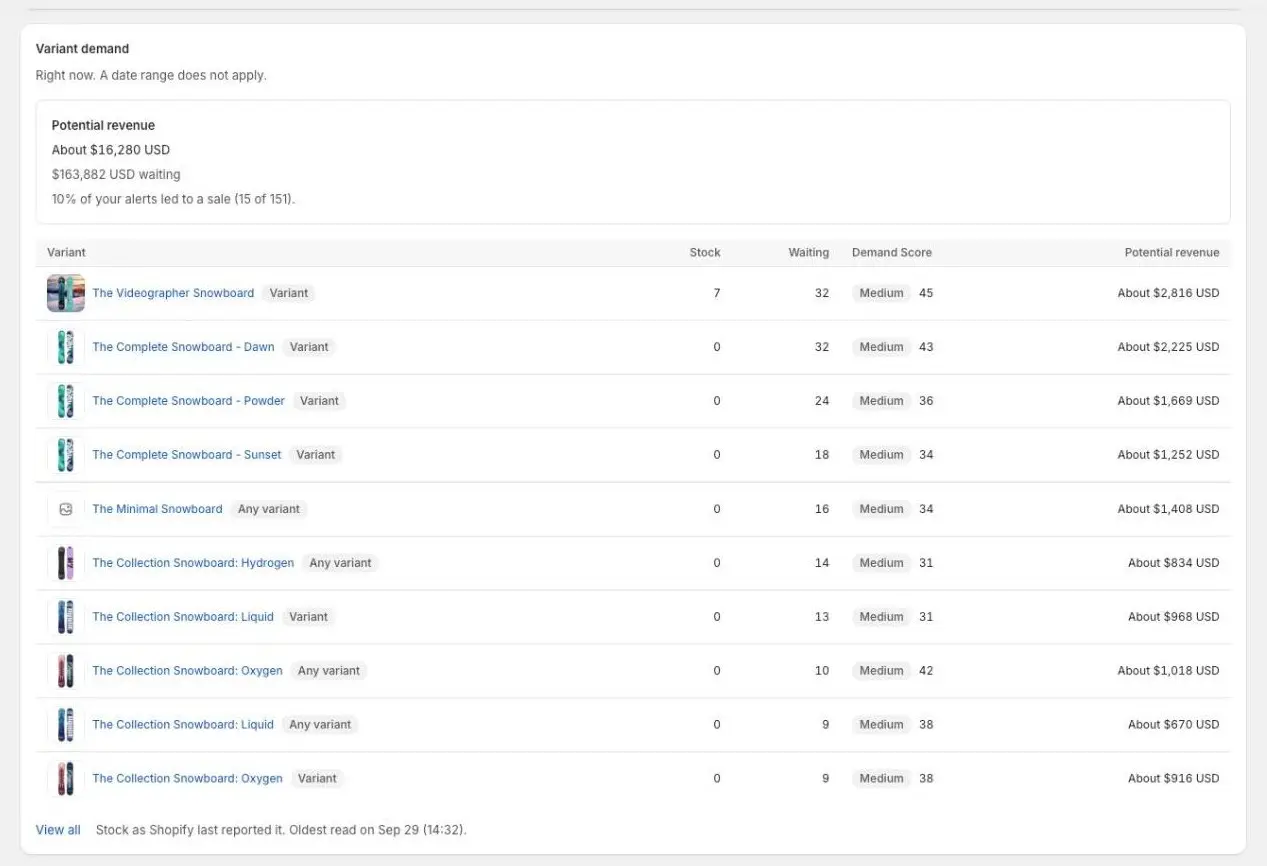
- 1Estimate of what waiting shoppers could spend
Tip: The Demand Score section below it ranks products to restock. See Plan restocks with Demand Score.
- 4
Read your results
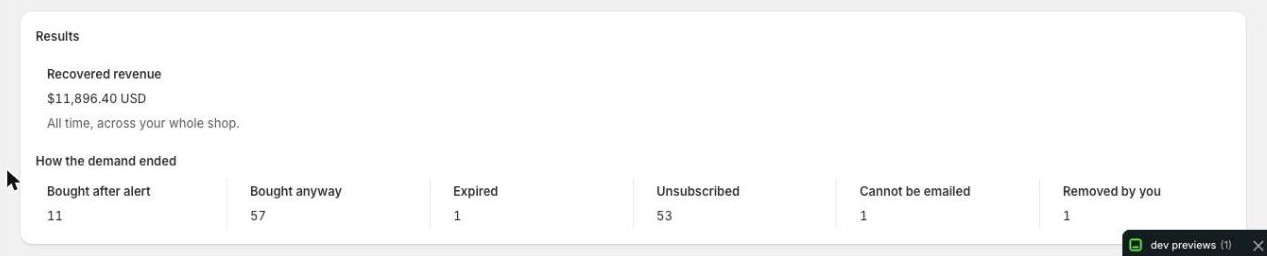
On Growth and Pro, Results shows your Recovered revenue: sales from shoppers who bought what they were waiting for after a Waitly alert. It covers all time across your whole shop, less anything refunded or never collected.
How the demand ended counts shoppers by how their wait ended: Bought after alert, Bought anyway, Expired, Unsubscribed, Cannot be emailed and Removed by you.
Shopify admin · Waitly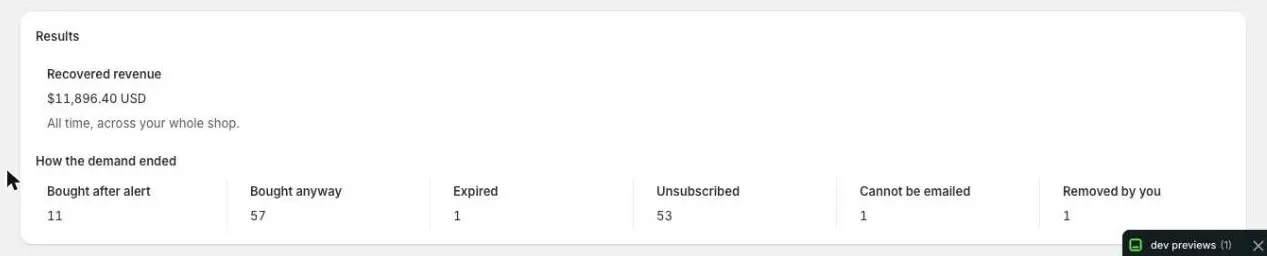
- 1Sales your alerts brought back
- 2How each wait ended
Note: On Free, Results shows dashes. Upgrade to Growth to see what your alerts recovered.
- 5
Choose a date range
In Over time, open the date menu and choose All time, Last 24 hours, Last 7 days or Last 30 days.
The range applies to everything in that section: the trends, Preorder volume and Restock alerts. It doesn’t change Right now or Results.
Shopify admin · Waitly
- 1Choose a date range


Questions
- When does a sale count as recovered?
- When a shopper buys the item they were waiting for within the number of days you set in Settings, Notifications, Count a sale as recovered for. The default is 7 days.
- Why does Recovered revenue show more than one amount?
- If your store has changed its currency, Waitly shows one total per currency rather than adding unlike amounts together.
Read next
- Plan restocks with Demand ScoreSee which products shoppers want most, what Waitly suggests you do, and roughly how many units to restock.
- See demand over timeChart new signups and open demand by day or week, and read the same figures as a table.
- Check how a restock alert wentFind each restock alert Waitly sent, see how many went out, and what happened to the rest.