Keeping or cancelling a preorder
How your shoppers cancel a preorder for a full refund, and how they answer when you move a ship date later.
Before you start
- A shopper has placed an order that holds a preorder, and got the Preorder receipt.
- 1
The shopper opens the Keep or cancel page
The Keep or cancel your preorder button in the Preorder receipt, or in a delay notice, opens a page on your store, inside your theme.
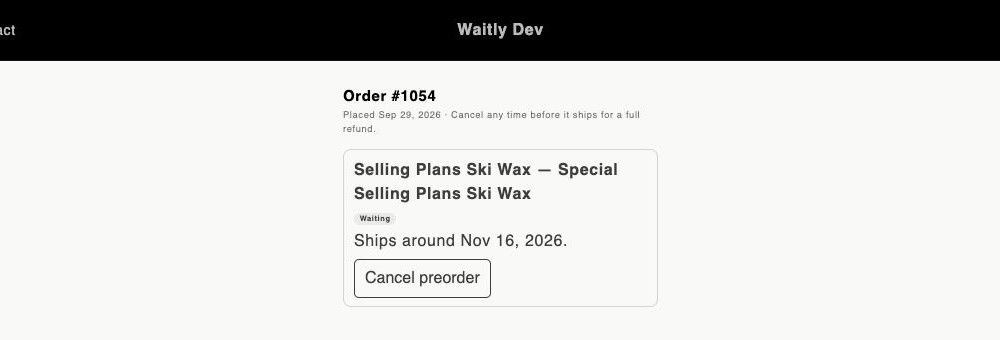
It’s headed with the order number and the day it was placed, followed by the terms: “Cancel any time before it ships for a full refund.” Each preordered item has its own card with a Waiting badge and when it ships.
Your online store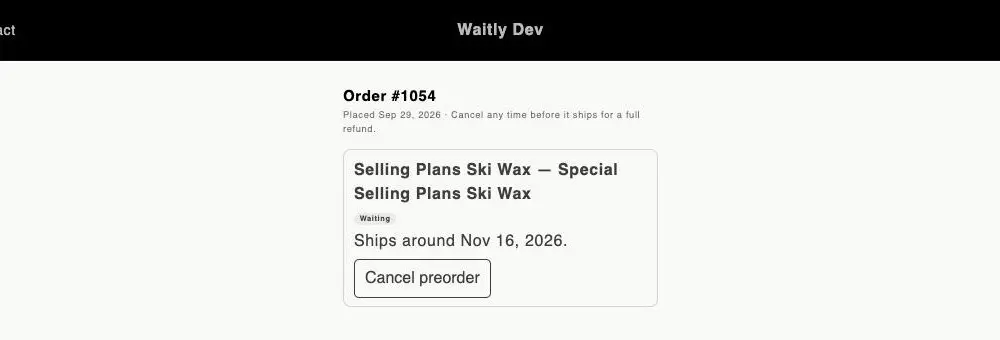
- 1Order number, date and cancel terms
- 2Waiting badge
- 3Cancel preorder
- 2
The shopper cancels
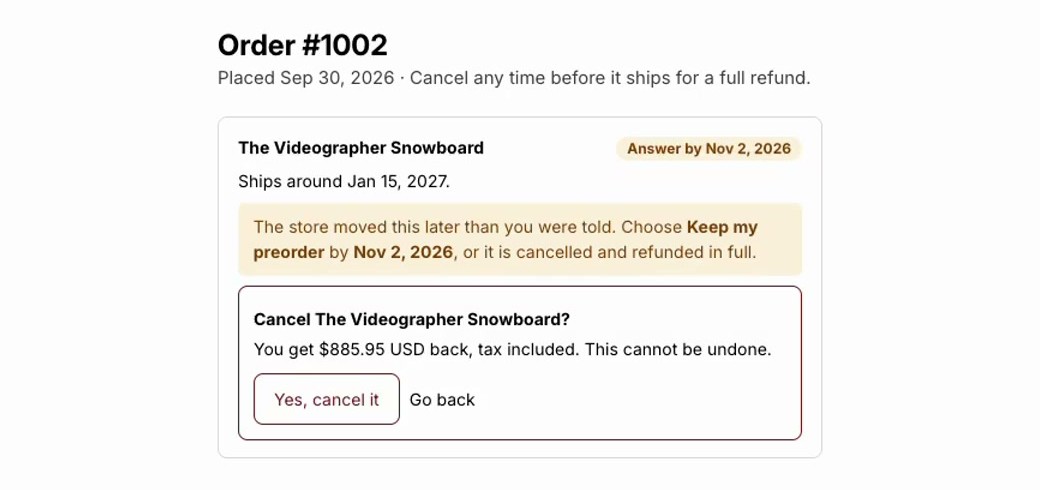
They select Cancel preorder. The card asks them to confirm, shows how much they’ll get back, tax included, and warns that it can’t be undone.
They select Yes, cancel it, or Go back to leave it as it is.
Your online store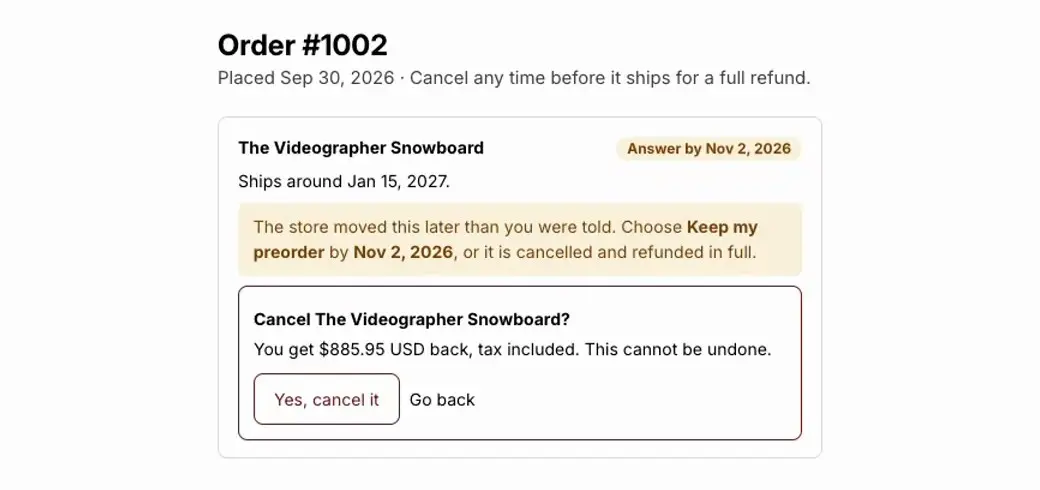
- 1What they’ll get back
- 2Yes, cancel it
- 3Go back leaves it as it is
This order also had a delay to answer, so the card shows that notice above the question.
- 3
Waitly cancels and refunds straight away
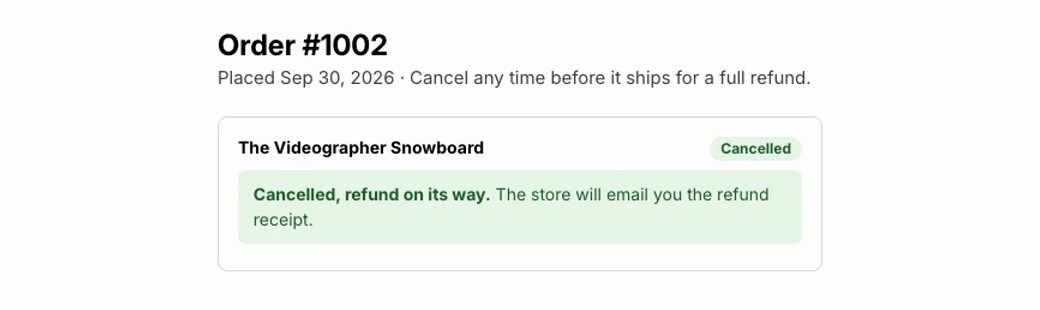
The card shows a Cancelled badge and reads “Cancelled, refund on its way. The store will email you the refund receipt.” Waitly cancels the whole line and refunds it through Shopify at once, with no approval from you. Shopify then emails the shopper the refund receipt.
Your online store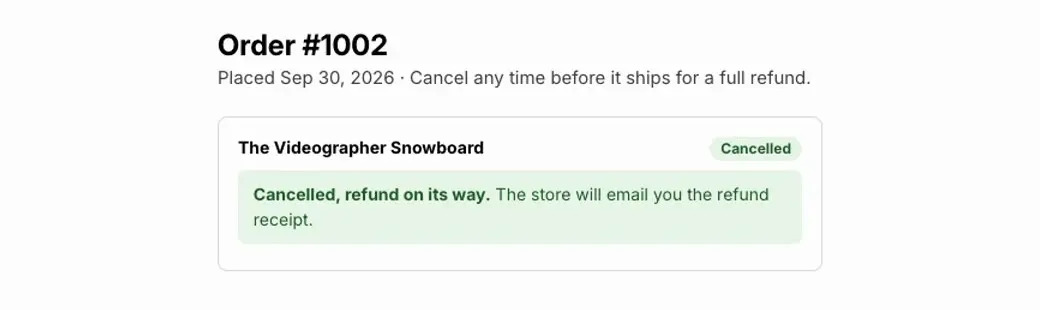
- 1Cancelled badge
- 2The refund is on its way
Note: Only a preorder that hasn’t shipped can be cancelled here. If part of the order has shipped, the card asks the shopper to contact you at your reply-to address instead.
- 4
When you move a ship date later, the shopper is told
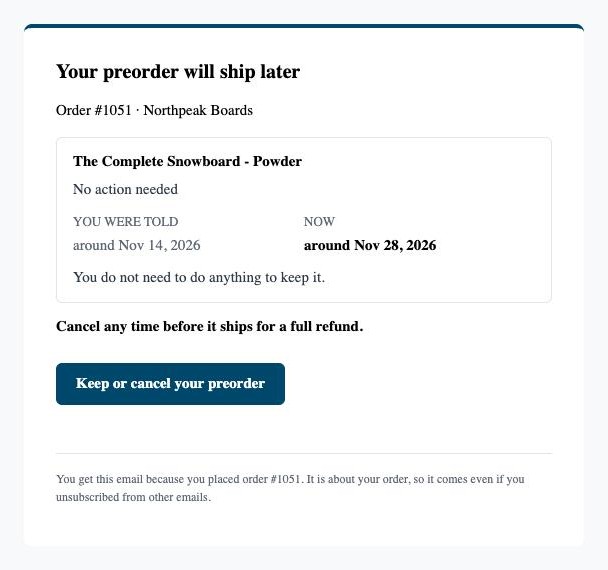
If you change a policy’s ship estimate to a later day, Waitly emails a delay notice. Each item has a card showing You were told beside Now, and “You do not need to do anything to keep it.”
Shopper’s inbox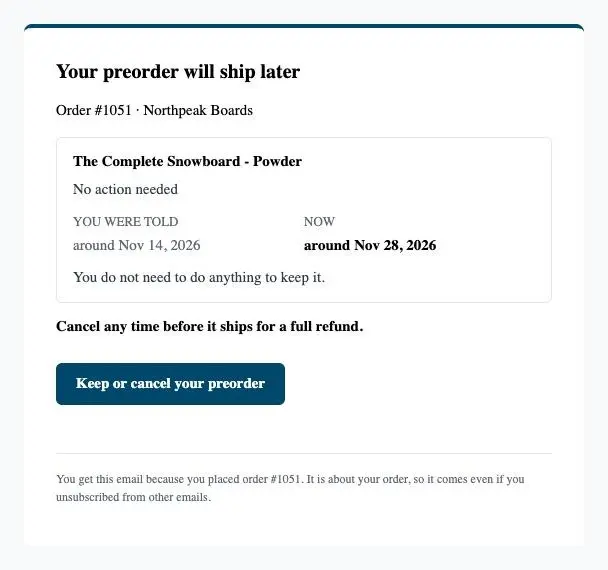
- 1You were told beside Now
- 2Nothing to do to keep it
- 3Opens the Keep or cancel page
- 5
For a long delay, the shopper must choose to keep it
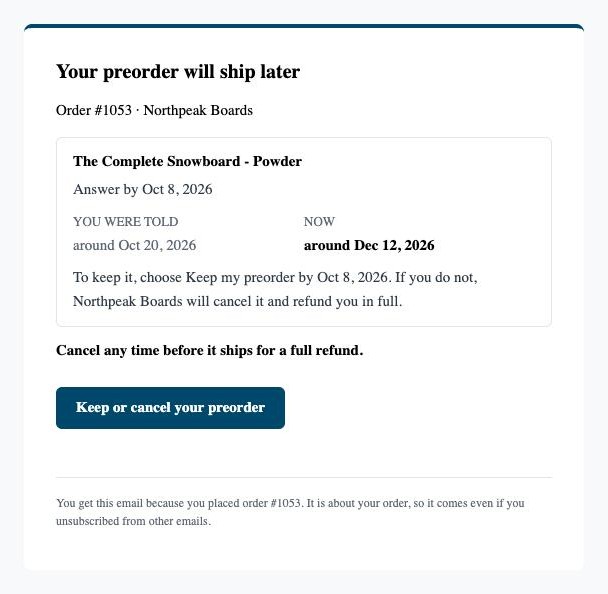
If the new day is more than 30 days later than the shopper was promised, if there’s no date any more, or if the promised day passes and the item hasn’t shipped, the notice’s subject starts “Action needed” and gives a day to answer by.
On the Keep or cancel page the card shows Answer by and a Keep my preorder button. Once the shopper keeps it, the card shows Kept and the new ship day.
Shopper’s inbox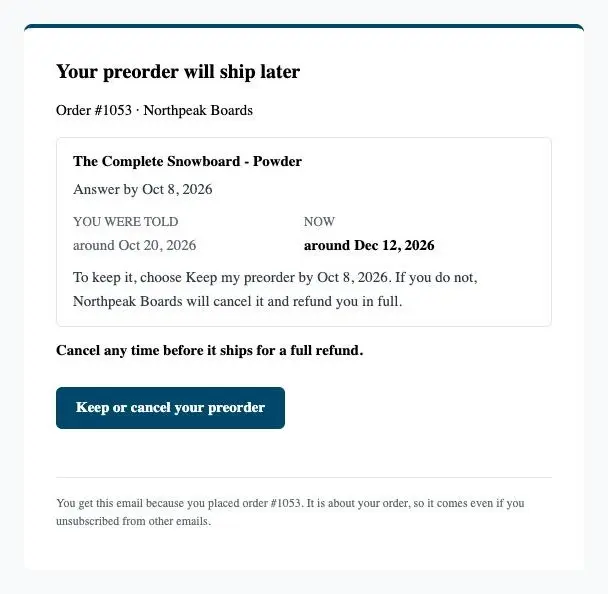
- 1The day to answer by
- 2Keep it by then, or it’s refunded
- 3Opens the Keep or cancel page
The delay notice that asks the shopper to answer.
Careful: If the shopper doesn’t answer by the day given, Waitly cancels the preorder and refunds it in full, just as if they had cancelled it.
Questions
- What does the page show once everything has shipped?
- When nothing on the order is left waiting, the link shows “This link no longer works” and your contact address.
- Do these emails reach shoppers who unsubscribed?
- Yes. The Preorder receipt and delay notices are about an order the shopper placed, so they’re always sent, on every plan.
Read next
- Change a ship date and notify shoppersMove a policy’s ship estimate later, see who will be told before you save, and let Waitly send the delay notices.
- Track the preorders you’ve takenSee every preorder with its ship estimate and status, spot the ones that need you, and ship, cancel or refund them in Shopify.
- Buying on preorderWhat your shoppers see when they preorder a sold-out item, from the product page to the Preorder receipt email.