Manage preorder from a Shopify product page
Add a product or variant to a policy, start a new policy, turn a policy on or off, or take a product out, without leaving the product in Shopify.
Before you start
- Waitly is installed. Preorders are on every plan.
- 1
Open Pre-order with Waitly
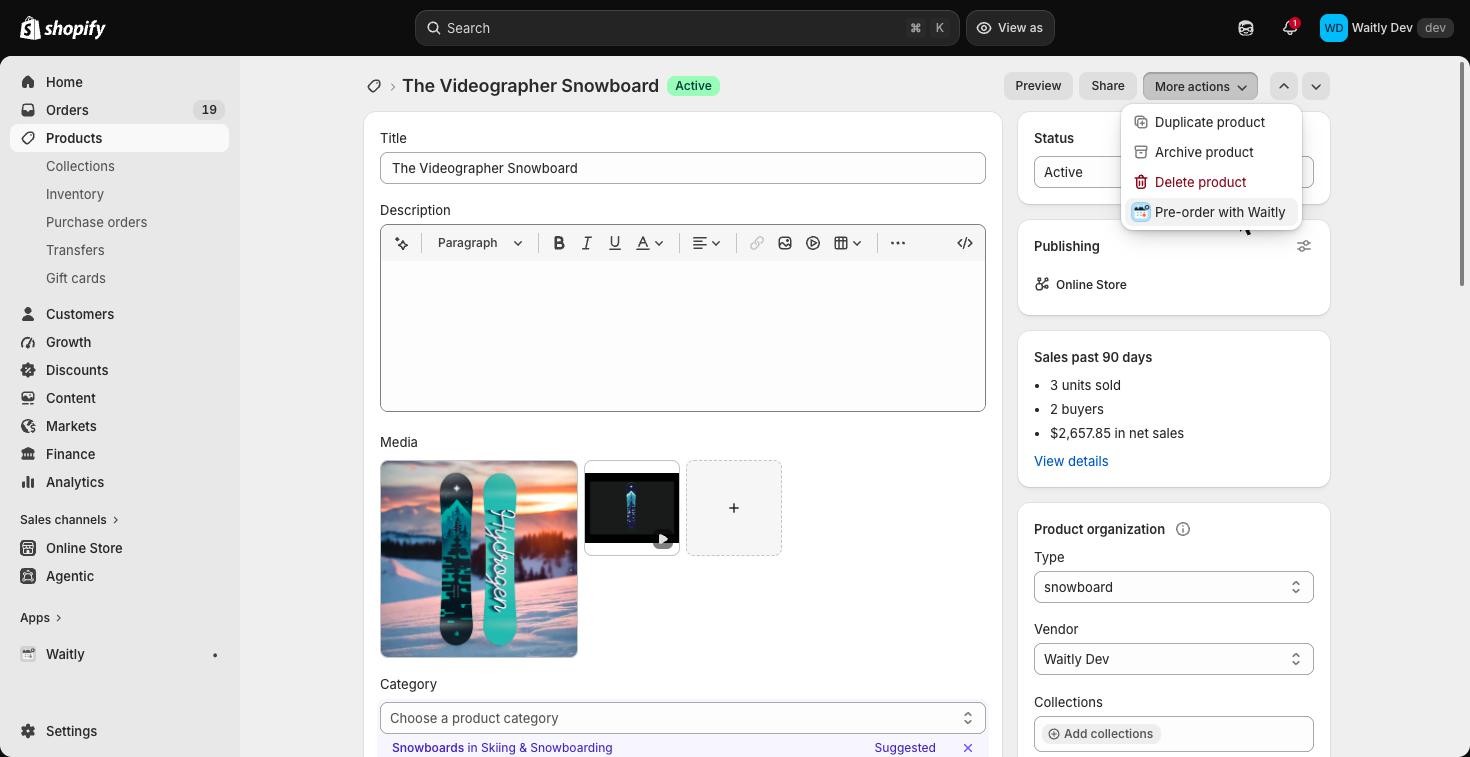
In your Shopify admin, open Products and select a product. At the top of the page, select More actions, then Pre-order with Waitly.
To work on one variant only, open that variant’s page and use its More actions menu. The window then says “One variant:” and the variant’s name.
Shopify admin · Waitly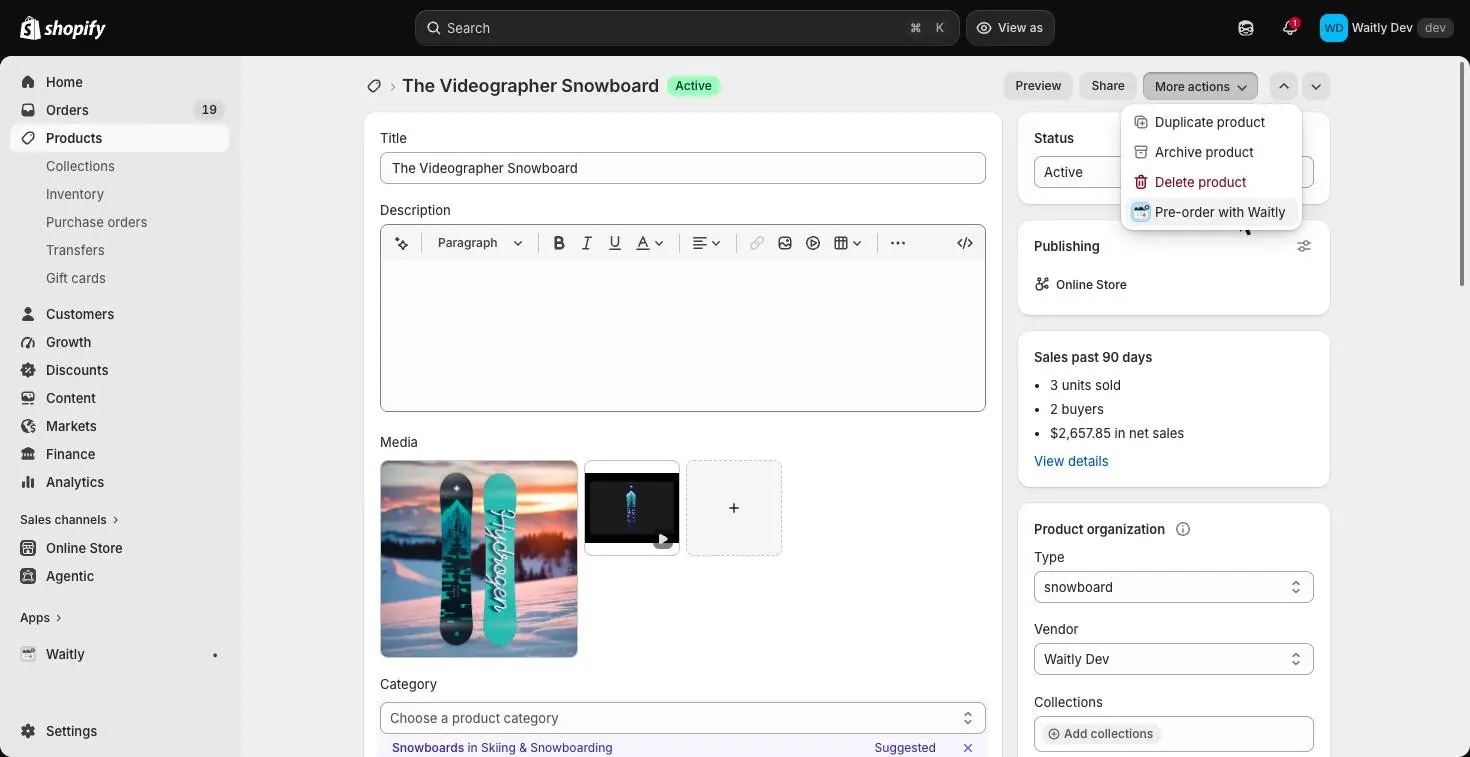
- 1Select More actions
- 2Then Pre-order with Waitly
Tip: Once a product has a Pre-order option, you can also open the same window from the product’s Purchase options card.
- 2
Add the product to a policy
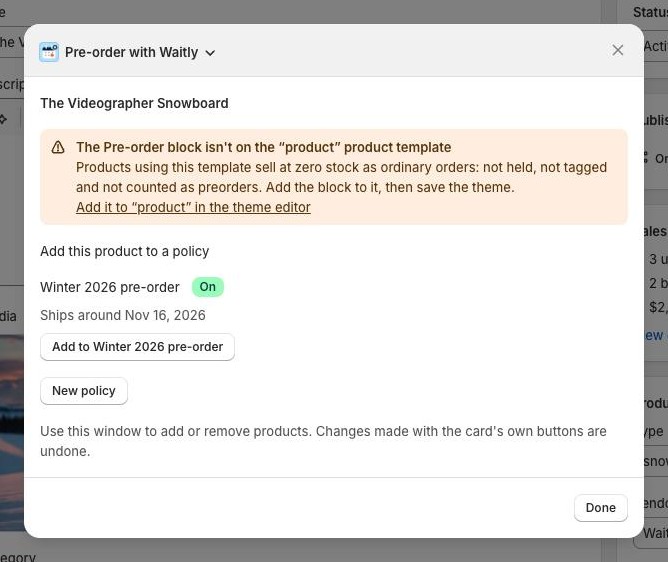
If the product isn’t in a policy yet, the window lists your policies under Add this product to a policy, each with an On or Off badge and its ship estimate.
Select the Add to button that names the policy you want. The window confirms it, for example “Added this product to Spring drop’s rule.”
Shopify admin · Waitly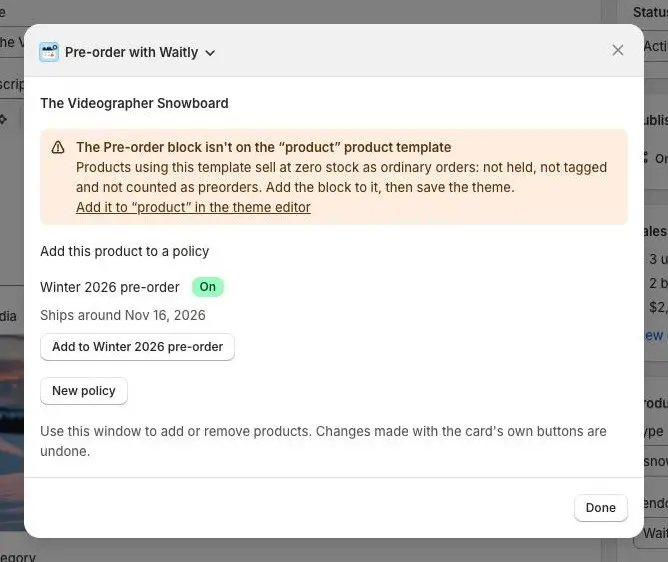
- 1A policy, its state and ship estimate
- 2Add this product to it
- 3Or start a new policy
- 3
Or start a new policy
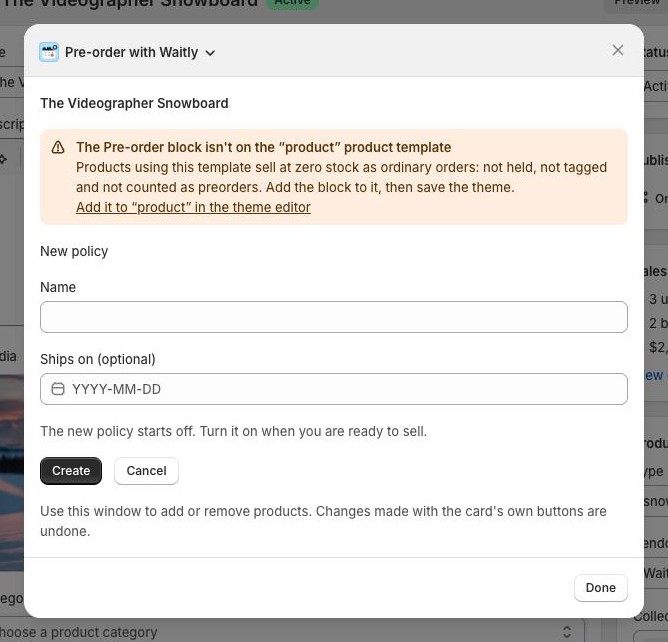
Select New policy, type a Name, and on Growth or Pro pick a date in Ships on (optional). Select Create.
The new policy holds just this product and starts off. Select the Turn on button that names the policy when you’re ready to sell.
Shopify admin · Waitly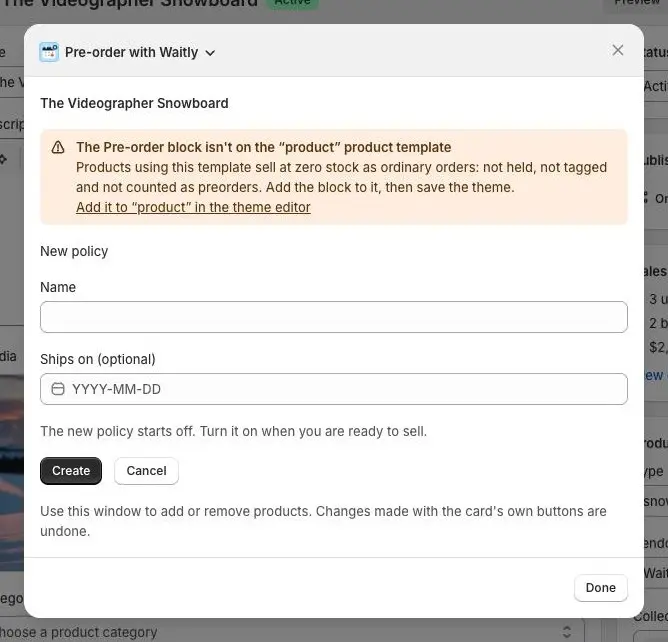
- 1Name the policy
- 2Ship date, on Growth or Pro
- 3Create it
- 4
See how a product in a policy is doing
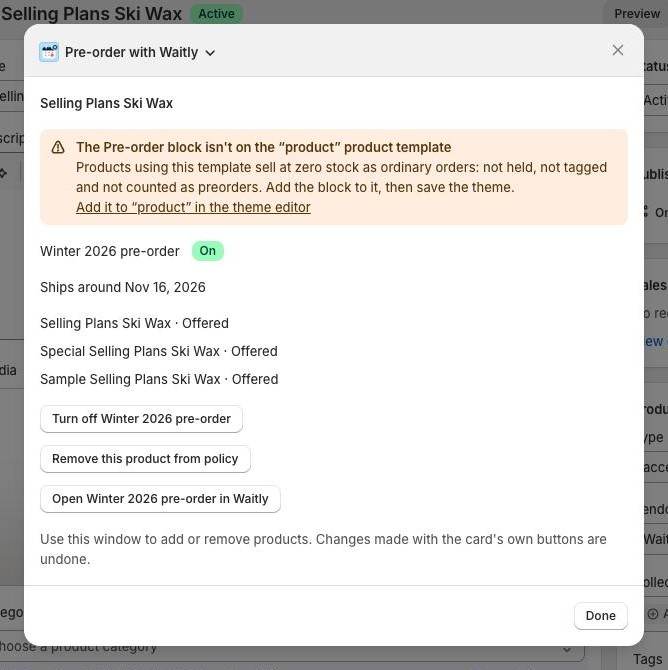
For a product already in a policy, the window shows the policy’s name with On or Off, its ship estimate, and a line for each variant, such as Offered, Offered when it sells out, Paused — limit reached or Covered — policy is off.
Shopify admin · Waitly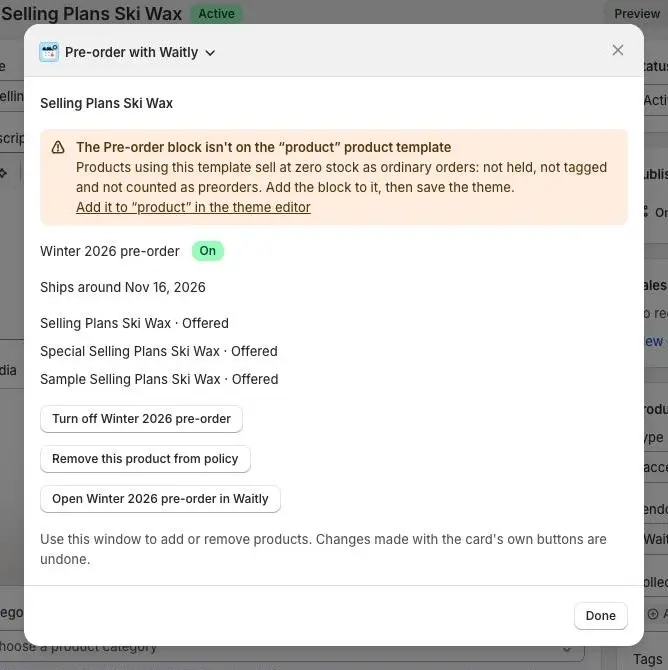
- 1The policy, on or off
- 2Each variant’s state
- 3Turn off, remove or open
- 5
Turn the policy on or off, or remove the product
Select Turn on or Turn off with the policy’s name to switch the whole policy.
Select Remove this product from policy to take just this product out. If a collection or tag in the policy still covers it, Waitly adds an exception for it instead, so the rest of the collection stays in.
Select Open with the policy’s name and in Waitly to edit everything else in the policy editor. Select Done to close the window.
Careful: Turn off stops preorder on every product in the policy, not just this one. To stop only this product, remove it.
Questions
- Can I use the Purchase options card’s own buttons instead?
- No. Waitly undoes changes made with the card’s own buttons, because the policy decides which products get preorder. Use Pre-order with Waitly, or the policy editor.
- Why doesn’t the window let me set a ship date?
- Ship estimates are on Growth and Pro. On Free, the New policy form asks only for a name.
Read next
- Create a preorder policyMake a policy, choose the products it covers, and turn it on so Shopify offers them as Pre-order.
- Choose products with rules and exceptionsCover products by tag, product, variant or collection, leave some out, and check exactly what the policy reaches before you save.
- Turn off or delete a policyStop taking preorders on a policy’s products, either by turning it off to use again later or by deleting it for good.