Install Waitly
Install Waitly from the Shopify App Store, approve its permissions and open it in your Shopify admin.
Before you start
- A Shopify store with an Online Store 2.0 theme, such as Dawn or any theme from the Shopify Theme Store.
- You’re the store owner, or a staff member allowed to install apps.
- 1
Find Waitly in the Shopify App Store
Open the Shopify App Store and search for Waitly. Open the Waitly listing to see what it does, its plans and its reviews.
- 2
Select Install
Select Install on the listing. If you’re signed in to more than one store, Shopify asks which store to install Waitly on.
- 3
Approve the permissions
Shopify shows what Waitly will be able to see and change in your store. Waitly reads your products and inventory to know when something comes back in stock, your orders to see who bought after an alert and to run preorders, and your themes to check that its block is on your product page.
Select Install to approve them.
Shopify admin · Waitly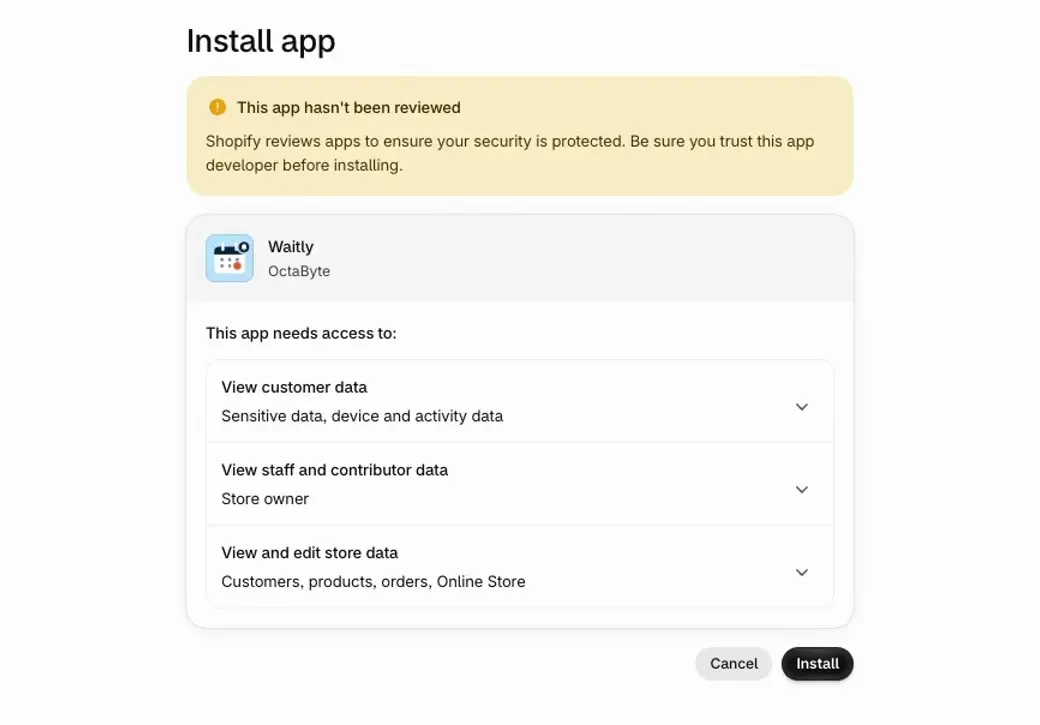
- 1What Waitly can see and change
- 2Select Install
Select a row to see everything it includes.
Note: A few features ask for one more permission when you first turn them on. For example, Reserve for the first shoppers on Pro needs permission to create draft orders, and Waitly asks for it on the Settings page.
- 4
Start on Home
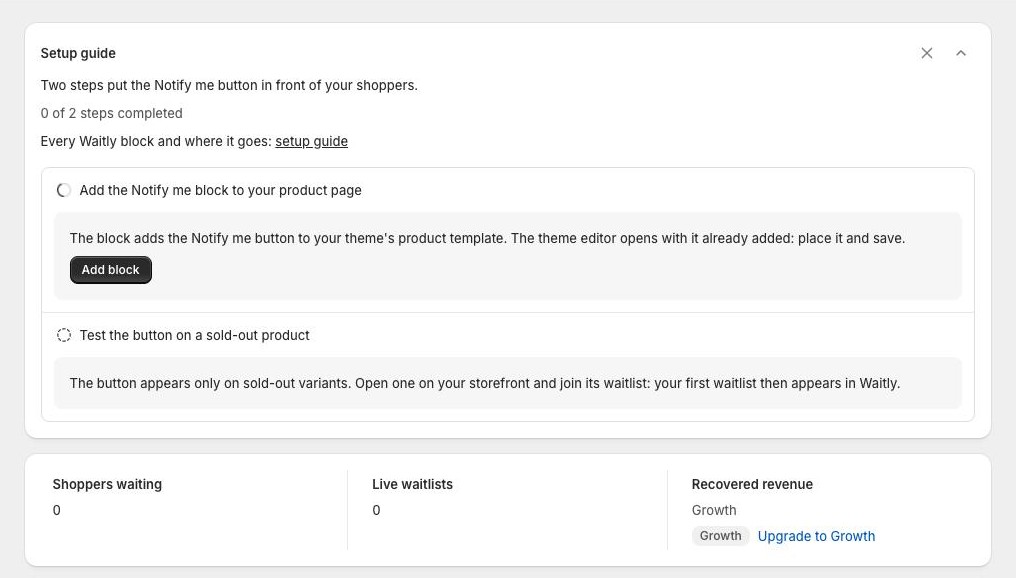
Waitly opens inside your Shopify admin on Home. The Setup guide at the top has two steps: add the Notify me block to your product page, and test it on a sold-out product.
Below it you’ll see Shoppers waiting and Live waitlists, which read zero until your first shopper signs up. Recovered revenue is a Growth figure, so on Free it shows Growth with an Upgrade to Growth link.
Shopify admin · Waitly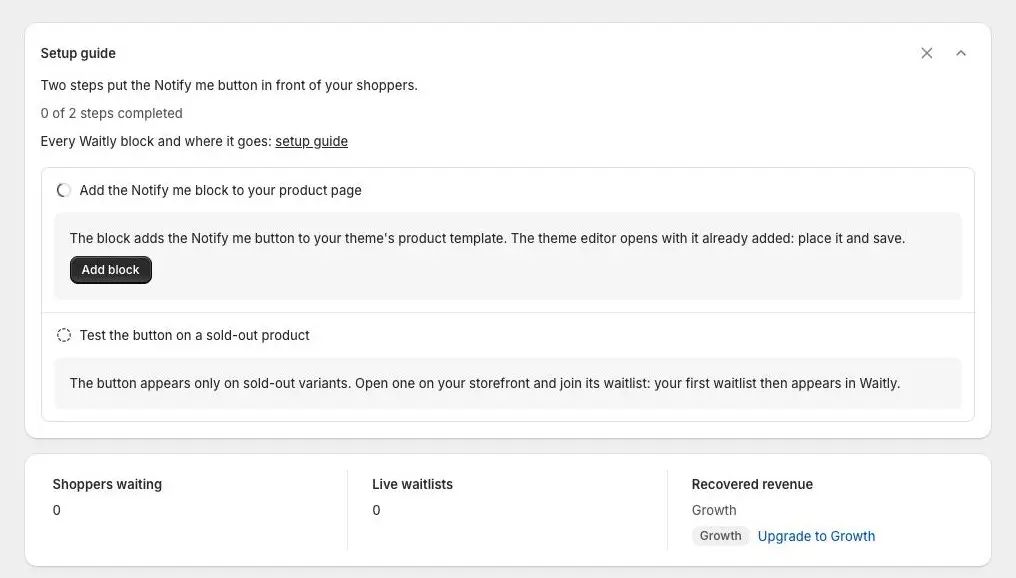
- 1The Setup guide and its two steps
- 2A Growth figure
- 5
Check your plan
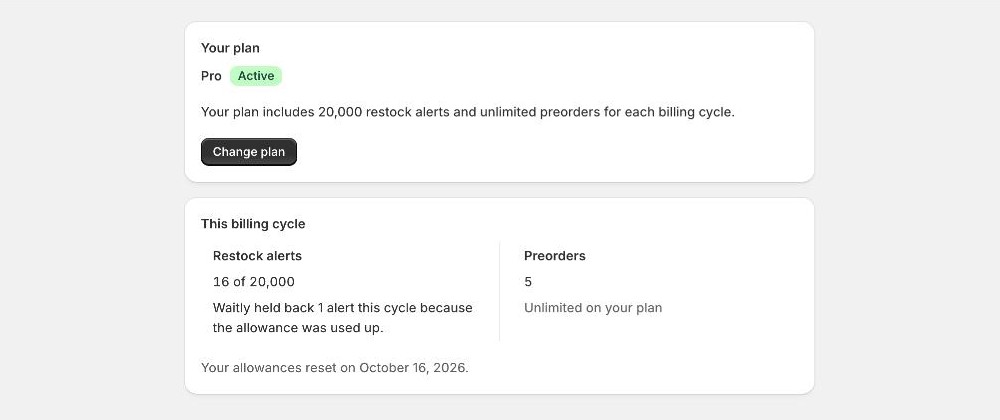
Every new store starts on the Free plan, so nothing is charged. Free includes the Notify me button, restock alerts, preorders and the send log, with a monthly allowance of 100 restock alerts and 20 preorders.
To see or change your plan, open Billing in the Waitly menu. Your plan shows the plan you’re on, and Change plan opens Shopify’s plan page, where Growth and Pro are billed through your Shopify invoice.
Shopify admin · Waitly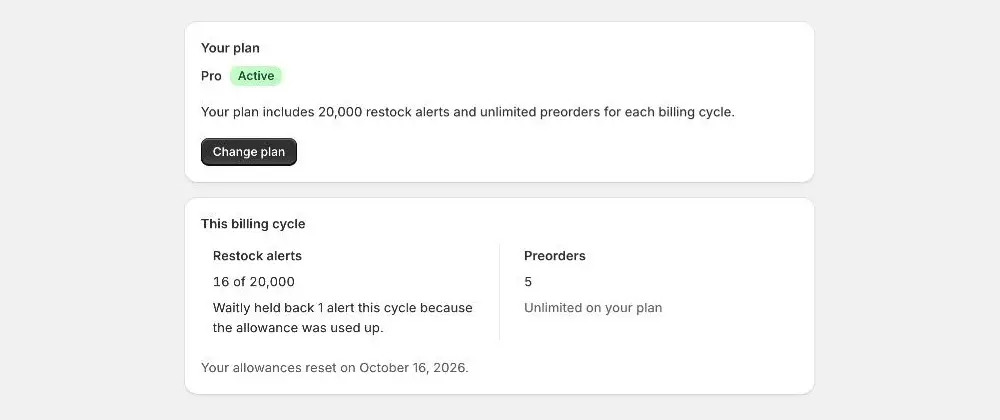
- 1The plan you’re on
- 2Change plan
Questions
- Does installing Waitly change my theme files?
- No. Waitly adds its button as a theme app block, which you place in the theme editor. Nothing is pasted into your theme’s code, and uninstalling leaves your theme as it was.
- What happens to my data if I uninstall?
- Your store’s Waitly data is erased 48 hours after you uninstall. If you reinstall within those 48 hours, it’s all still there.
Read next
- Find your way aroundLearn what’s on Waitly’s Home page and where each page in the Waitly menu takes you.
- Add the Notify me blockPut the Notify me button on your product page from the setup guide, or add it yourself in the theme editor.
- Choose or change your planSee which plan you’re on, compare what Growth and Pro add, and change plan through Shopify.