Add a message and ship estimate
Tell shoppers when their preorder ships, add a short message of your own, and tag preorder orders by policy.
GrowthNeeds the Growth plan or Pro.
Before you start
- You’re on the Growth or Pro plan.
- You have a preorder policy, and the Pre-order block is on your product page.
- 1
Open What shoppers see
In Waitly, choose Preorders, select the policy, and scroll to What shoppers see.
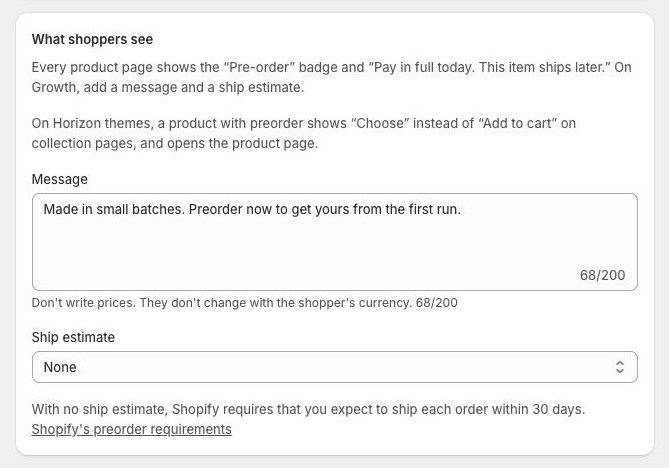
On every plan, the product page shows the “Pre-order” badge and “Pay in full today. This item ships later.” On Growth you can add a message and a ship estimate.
Shopify admin · Waitly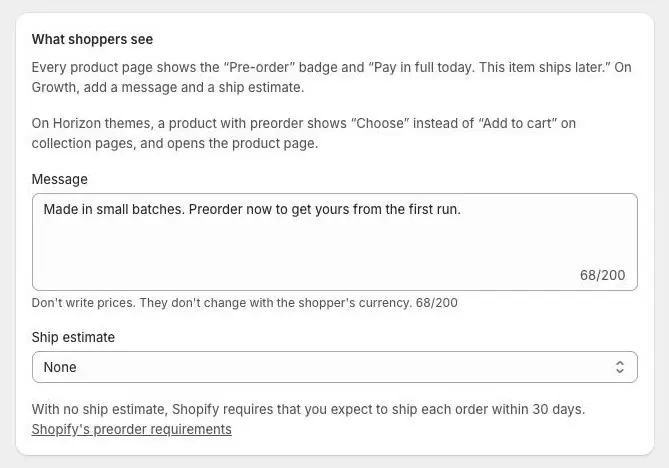
- 1Your message, up to 200 characters
- 2Choose a ship estimate
- 2
Write a message
Type up to 200 characters in Message, for example what the preorder includes or why it’s worth the wait. It shows under the Pre-order terms on the product page.
Don’t write prices. They don’t change with the shopper’s currency.
- 3
Choose a ship estimate
Pick one in Ship estimate:
A date — fill in Ships around. Shoppers read “Ships around October 15, 2026.”
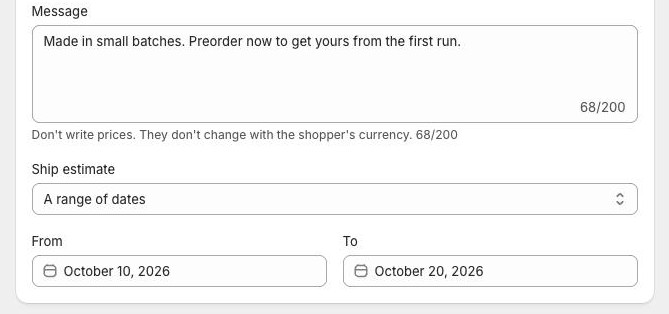
A range of dates — fill in From and To. Shoppers read “Ships October 10, 2026 – October 20, 2026.”
A time after the order — a number in From, optionally one in To (optional), and days after the order or weeks after the order. Shoppers read “Ships 3–4 weeks after you order.” Good for made-to-order goods.
Shopify admin · Waitly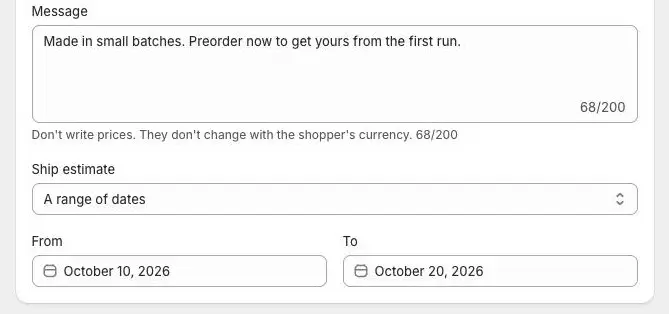
- 1Choose the kind of estimate
- 2Fill in the dates
Note: With None, Shopify requires that you expect to ship each order within 30 days. Waitly treats those preorders as promised 30 days after the order.
- 4
Add an order tag
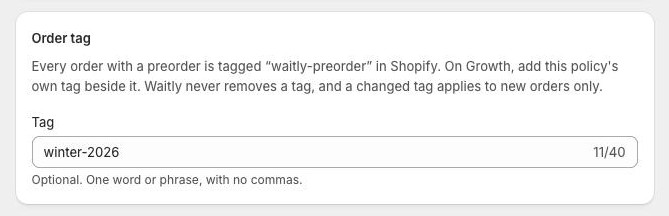
Every order with a preorder is tagged “waitly-preorder” in Shopify. In the Order tag card, add this policy’s own Tag beside it, so you can filter its orders in Shopify.
Use one word or phrase, with no commas. Waitly never removes a tag, and a changed tag applies to new orders only.
Shopify admin · Waitly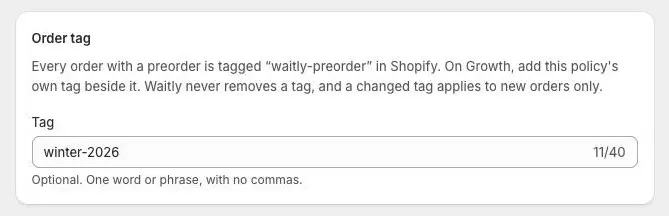
- 1This policy’s own tag
- 5
Save and check the product page
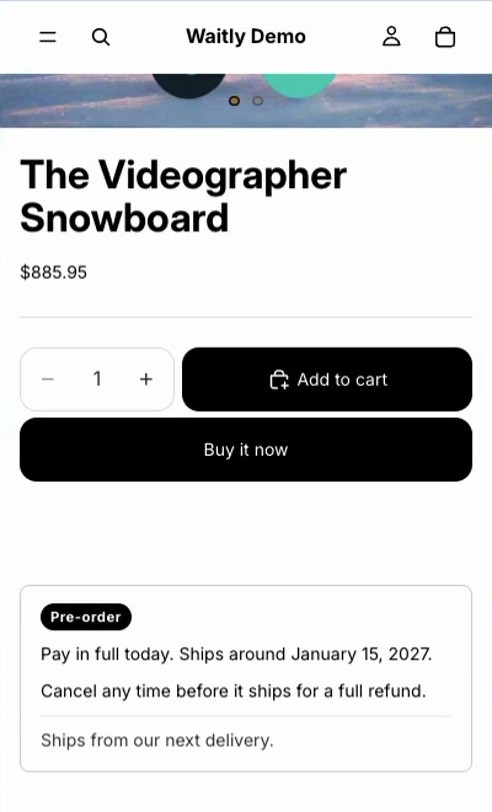
Select Save in the bar at the top. Open a covered, sold-out product in your store: the Pre-order block now shows the estimate and your message.
When a shopper adds it to the cart, the line carries Ships with the estimate, so it also appears in the order.
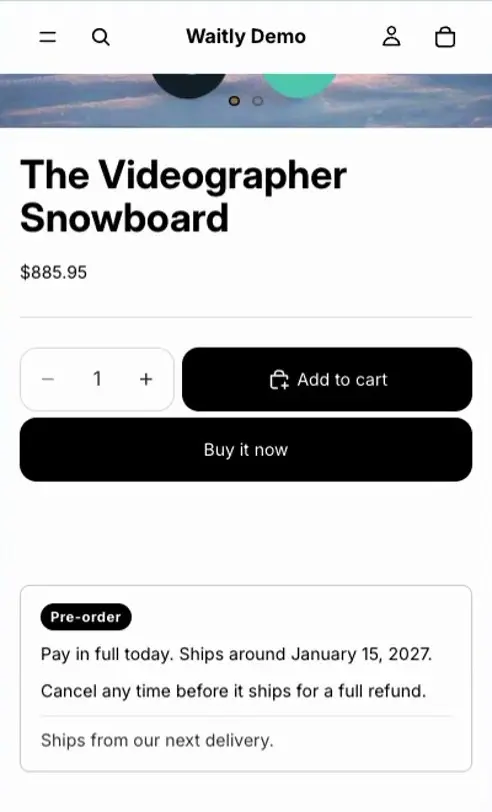
- 1Your ship estimate
- 2Your message
Questions
- What happens when the ship estimate passes?
- Shoppers stop seeing the date and read “This item ships later.” instead, and the Preorders page warns you. Waitly sends a late notice to shoppers whose preorder hasn’t shipped. Set a new estimate to tell them when it ships.
- What if I change the estimate after taking preorders?
- If the new date is later, Waitly emails the affected shoppers a delay notice. See “Change a ship date and notify shoppers”.
- What happens to my message if I move to Free?
- Waitly keeps it, but shoppers see only the standard Pre-order text until you’re back on Growth.
Read next
- Change a ship date and notify shoppersMove a policy’s ship estimate later, see who will be told before you save, and let Waitly send the delay notices.
- Add the Pre-order block to your themePut the Pre-order block above Add to cart so shoppers see the Pre-order badge, the ship estimate and the terms, and can buy.
- Buying on preorderWhat your shoppers see when they preorder a sold-out item, from the product page to the Preorder receipt email.