Track the preorders you’ve taken
See every preorder with its ship estimate and status, spot the ones that need you, and ship, cancel or refund them in Shopify.
Before you start
- You have a preorder policy that has taken at least one order.
- 1
Open the Preorders view
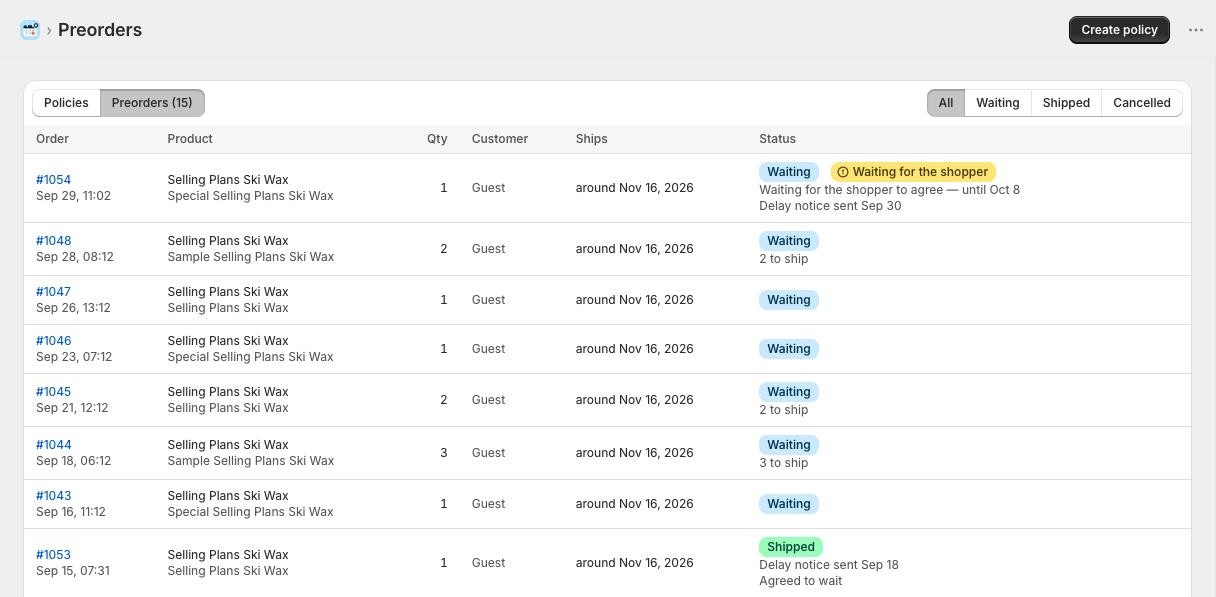
In Waitly, choose Preorders, then select Preorders with its count at the top of the table (next to Policies).
Each row is one preordered product on one order, newest first, 50 to a page. Every plan sees this list.
Shopify admin · Waitly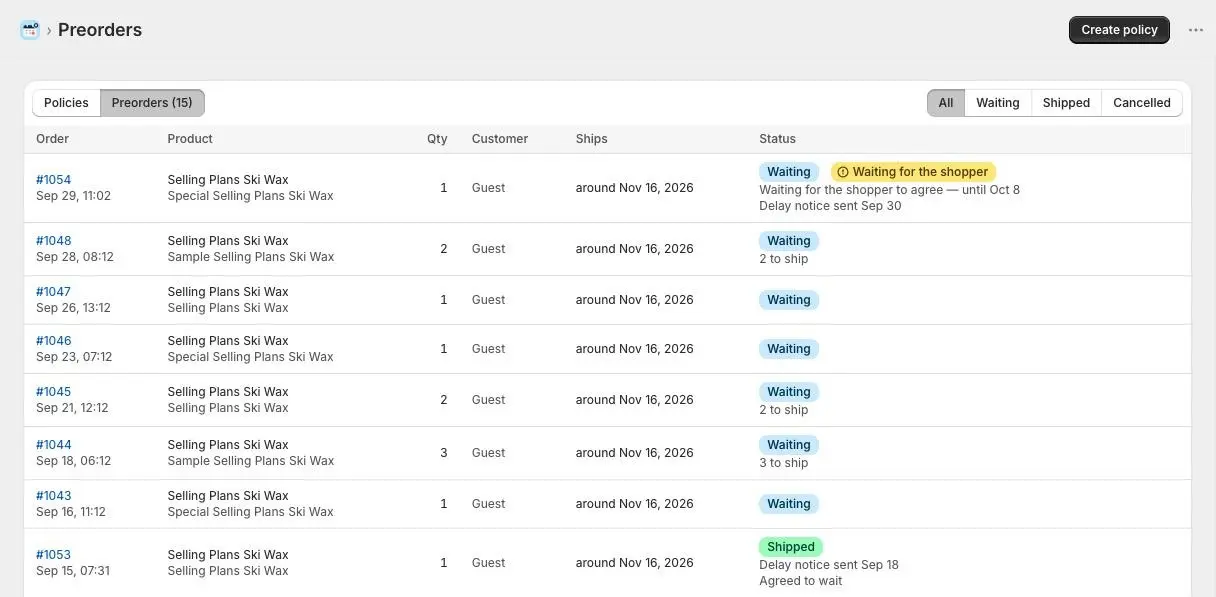
- 1Select Preorders
- 2Filter by status
- 2
Filter by status
Use the filters at the top right of the table: All, Waiting, Shipped or Cancelled.
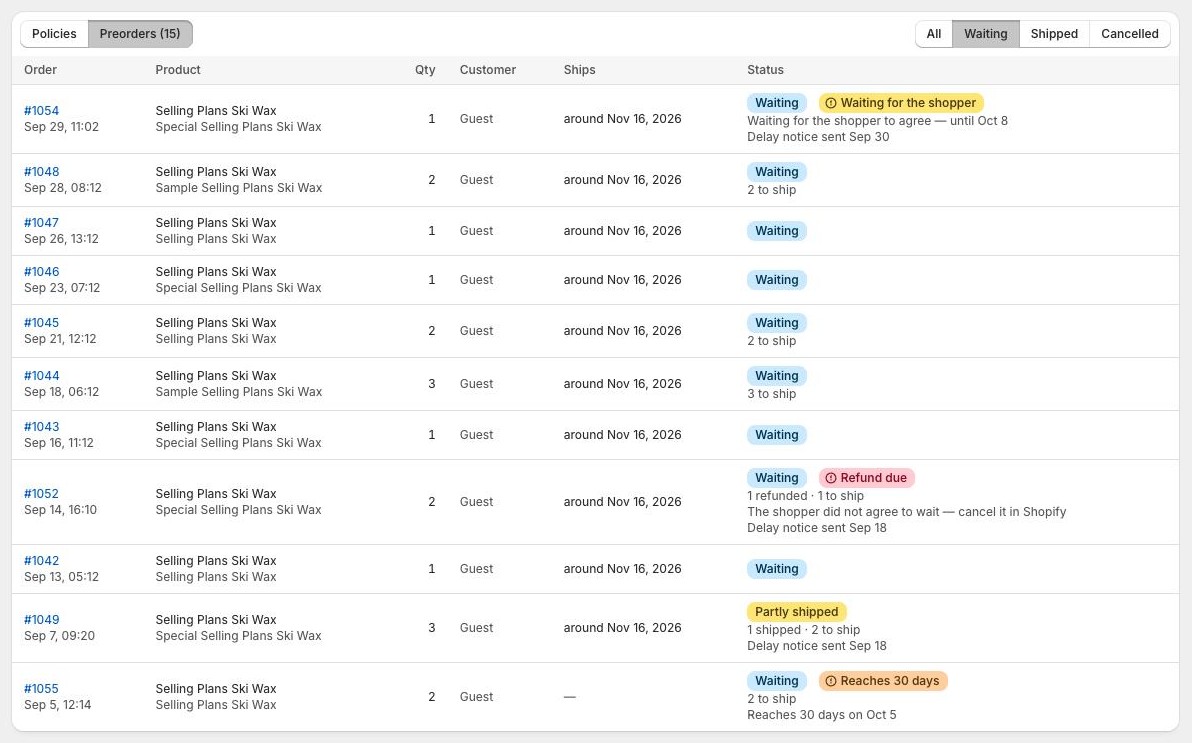
Waiting includes preorders that are Partly shipped, because units are still owed on them.
- 3
Read a row
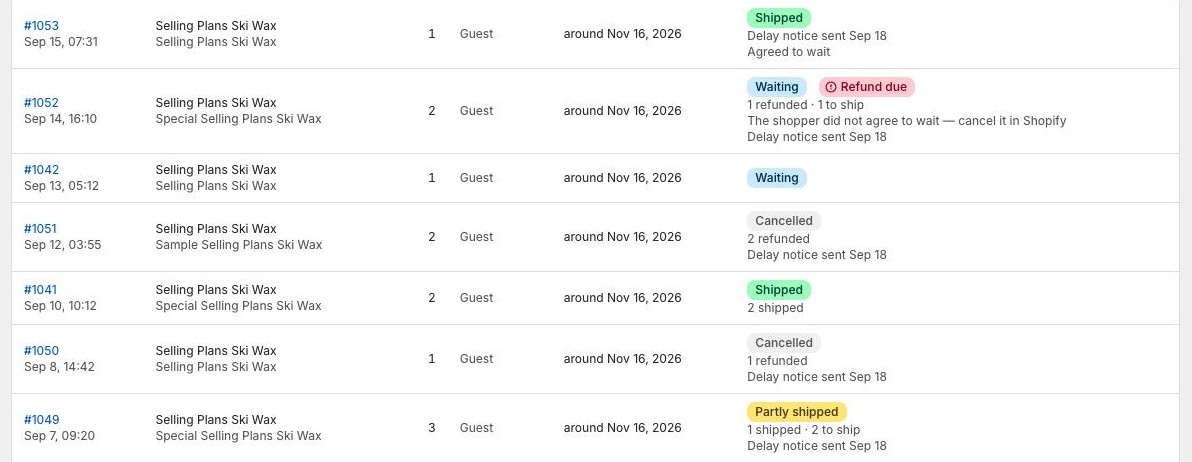
Order links to the order in Shopify, with the time it was placed. Product shows the variant under it. Customer links to the customer, or reads “Guest”. Ships is the ship estimate the shopper saw.
Status is one of four: Waiting (nothing shipped yet), Partly shipped, Shipped or Cancelled. When a line has several units or a refund, the counts show underneath, like “1 shipped · 1 refunded · 1 to ship”. Lines such as “Delay notice sent Sep 14” or “Agreed to wait” show what the shopper has been told.
Shopify admin · Waitly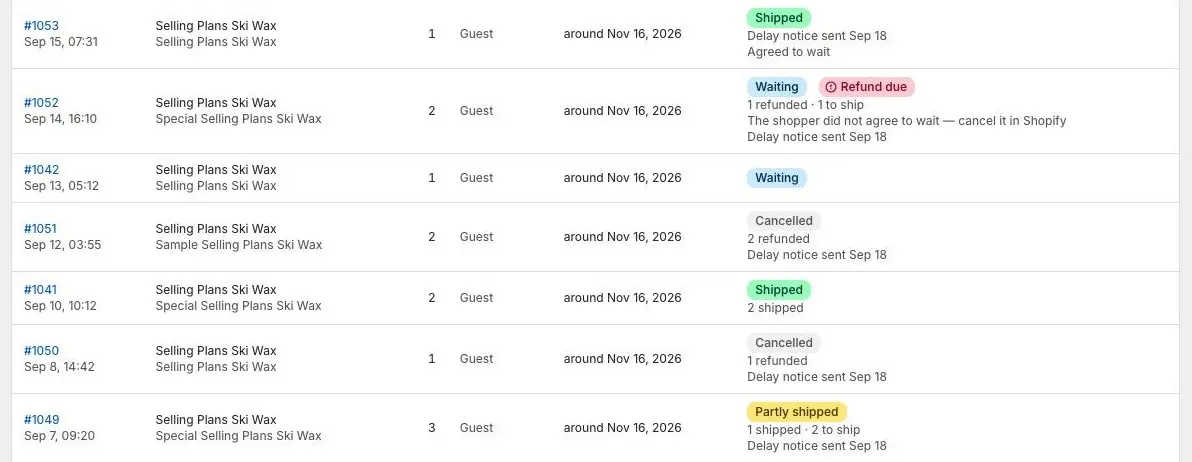
- 1Status and unit counts
- 2What the shopper was told
- 4
Check the preorders that need you
A second badge next to the status means something needs your attention:
Refund due — the shopper didn’t agree to wait after a long delay, and Waitly couldn’t refund it automatically. Cancel it in Shopify.
Waiting for the shopper — they’ve been asked to keep or cancel, and have until the date shown.
Reaches 30 days — a preorder with no ship estimate is getting close to 30 days after its order. Ship it before that date if you can.
Shopify admin · Waitly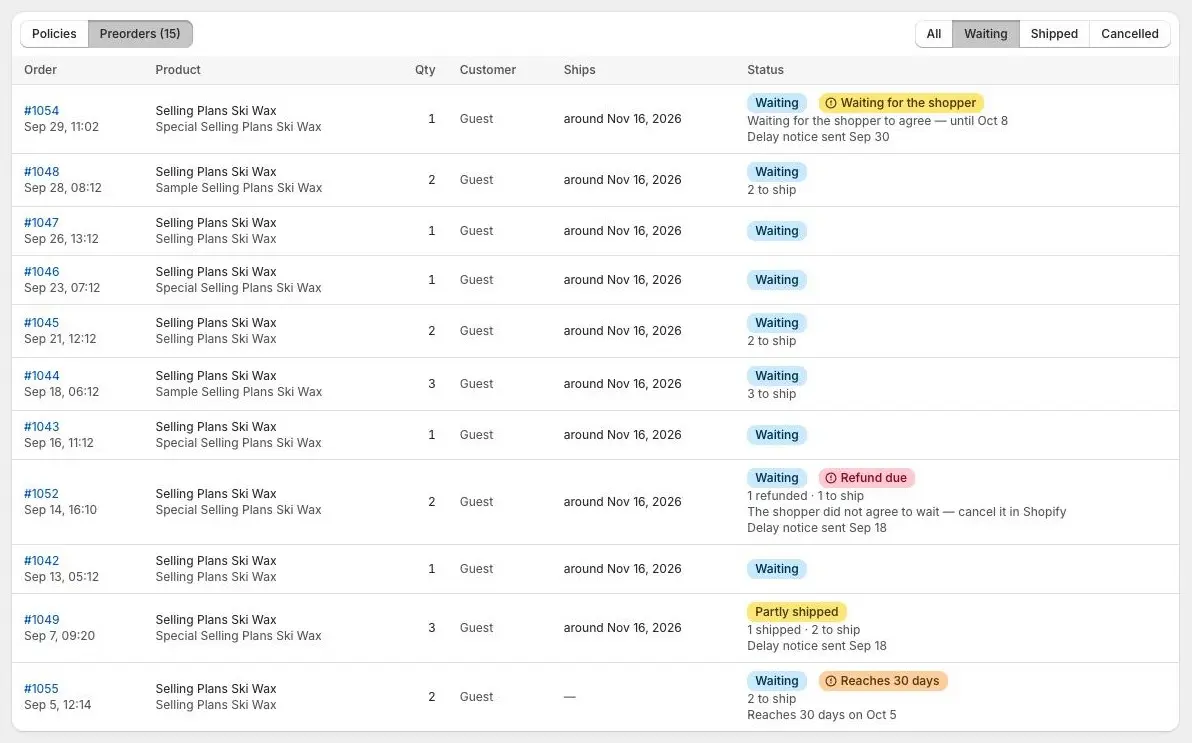
- 1The shopper hasn’t answered yet
- 2Cancel this one in Shopify
- 3Ship before this date
- 5
Ship the preorder in Shopify
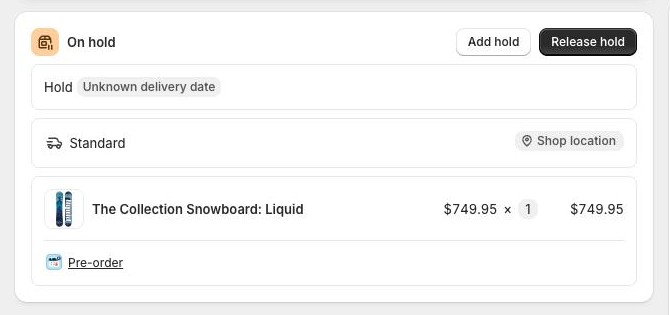
Shopify holds every preorder order until you release it, so nothing ships early. When the stock arrives, select the order name to open it in Shopify, select Release hold, and fulfill it as usual.
Waitly reads the shipment from Shopify, and the row changes to Shipped, or Partly shipped if you sent some of the units.
Shopify admin · Waitly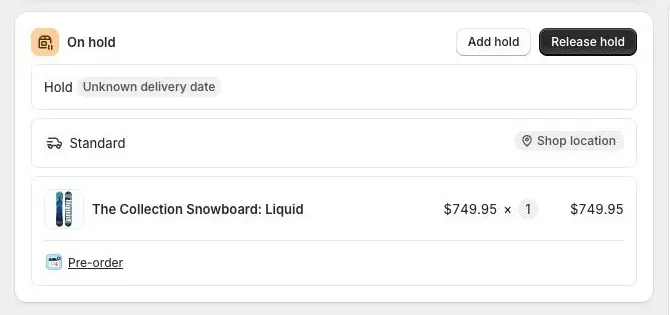
- 1Release it when the stock arrives
- 2The Pre-order option on the item
- 6
Handle cancellations and refunds
Shoppers can cancel a preorder themselves, any time before it ships, from the link in their preorder receipt email. Waitly refunds that product in full through Shopify, with the note “Cancelled by the shopper through Waitly”, and the row reads Cancelled.
You can also cancel or refund in Shopify as usual. Waitly picks up the change, and refunded units stop counting toward the policy’s unit limit.
Note: Every action on an order happens in Shopify. The Waitly list is read-only, so it always matches your orders.
Questions
- Do preorders from a deleted policy still show?
- Yes. The list has no policy column, so preorders from a deleted or turned-off policy show like any other.
- Why does a customer show as “View customer” instead of a name?
- Waitly couldn’t read the name from Shopify just then. The link still opens the customer.
Read next
- Change a ship date and notify shoppersMove a policy’s ship estimate later, see who will be told before you save, and let Waitly send the delay notices.
- Keeping or cancelling a preorderHow your shoppers cancel a preorder for a full refund, and how they answer when you move a ship date later.
- See preorder volume by variantSee how many units shoppers have preordered on each variant, and for how much, over any date range.