Choose or change your plan
See which plan you’re on, compare what Growth and Pro add, and change plan through Shopify.
Before you start
- Waitly is installed. Every store starts on the Free plan.
- 1
Open Billing
In the Waitly menu on the left of your Shopify admin, choose Billing. If it isn’t listed, select View more.
Shopify admin · Waitly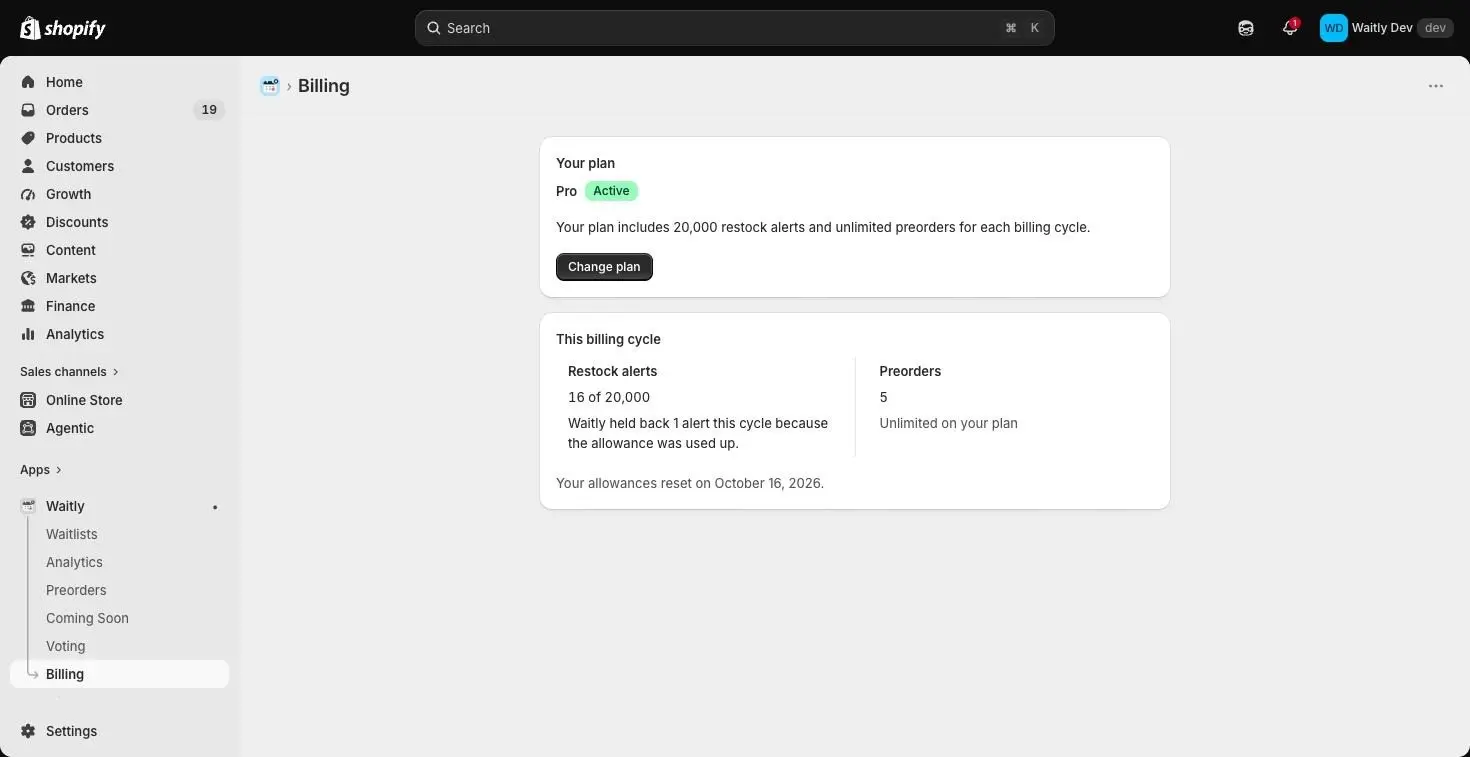
- 1Choose Billing
- 2
Check your current plan
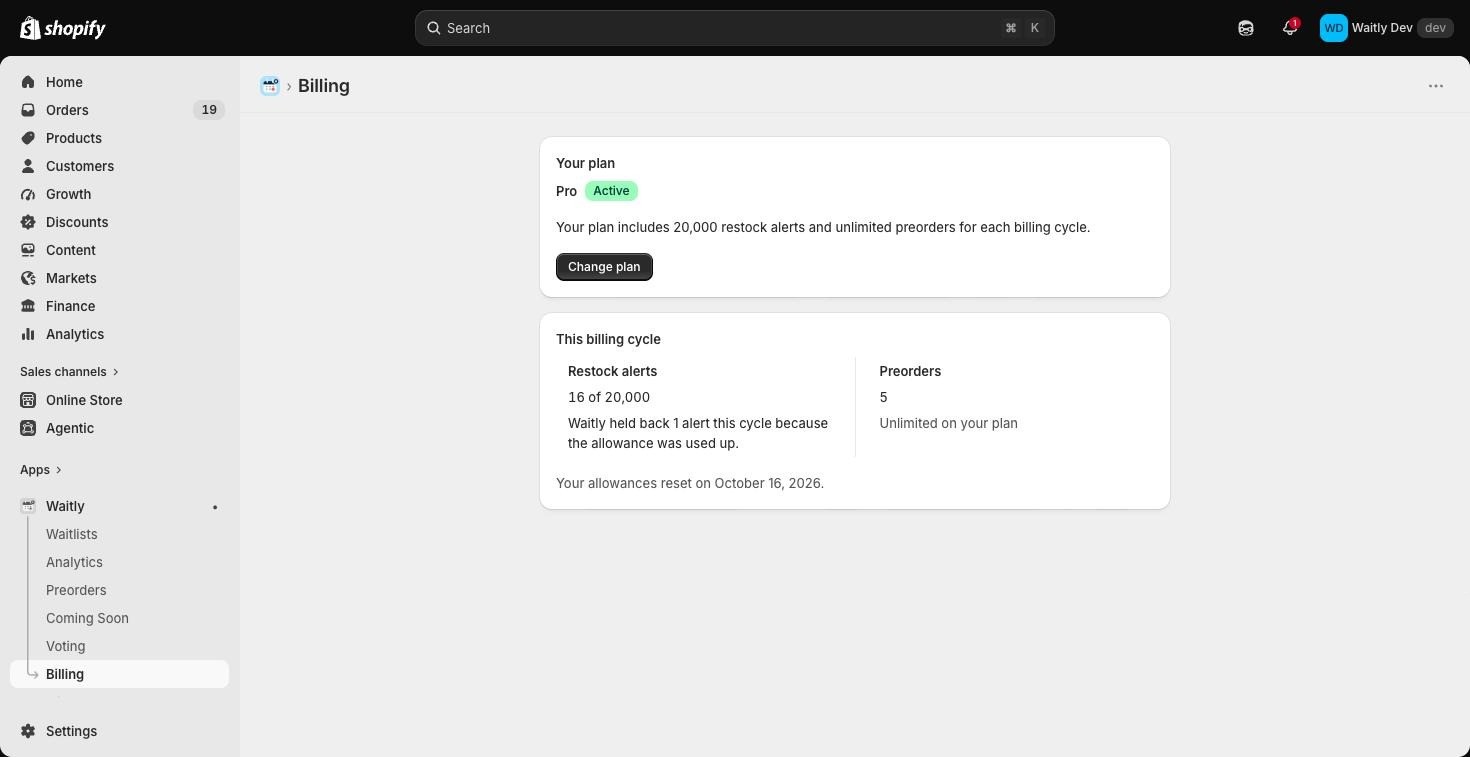
The Your plan card shows your plan’s name with a badge: Active for a plan you’re paying for or on Free, Free trial while a trial runs, Confirming while Shopify confirms a change, and Paused by Shopify if Shopify has paused billing for the app.
Under it, a line says how many restock alerts and preorders your plan includes each billing cycle. During a trial, another line gives the day it ends and Shopify starts charging.
Shopify admin · Waitly
- 1Your plan and its badge
- 2What the plan includes each cycle
- 3Change plan opens Shopify’s plan page
- 3
Compare what a higher plan adds
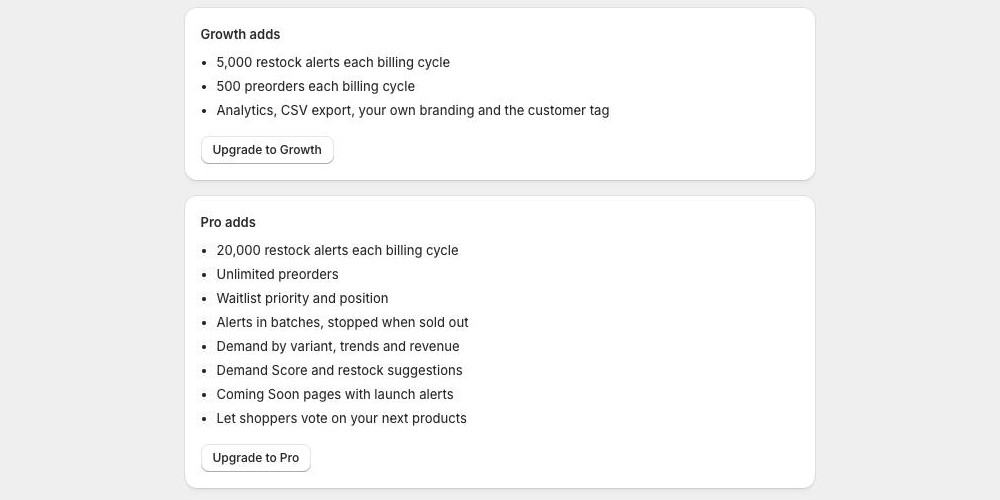
Below your plan, a card for each plan above yours lists what it adds. Growth adds 5,000 restock alerts and 500 preorders each billing cycle, plus analytics, CSV export, your own email text and widget styles, and the customer tag.
Pro adds 20,000 restock alerts, unlimited preorders, waitlist priority, alerts in batches, demand by variant, Demand Score and restock suggestions, Coming Soon pages and product voting.
Shopify admin · Waitly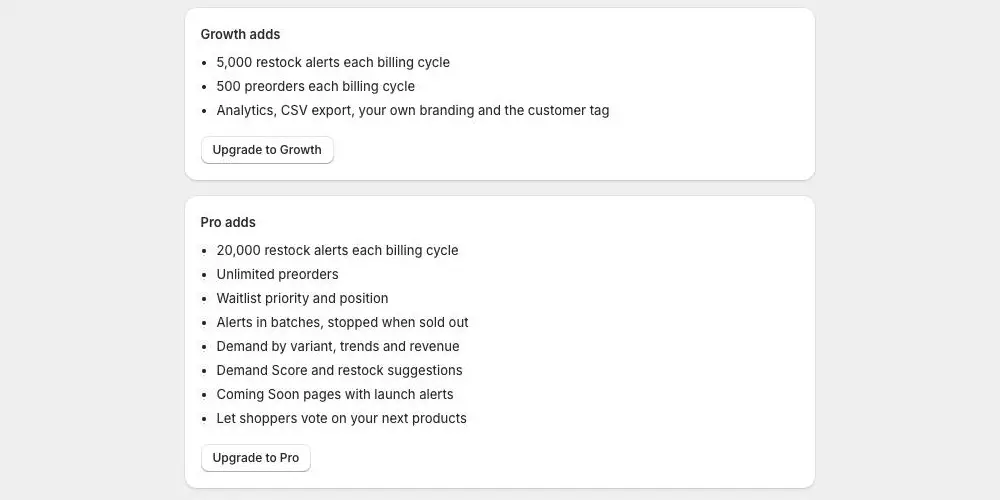
- 1What Growth adds
- 2What Pro adds
Note: On Pro there’s nothing above your plan, so these cards don’t appear.
- 4
Change your plan in Shopify
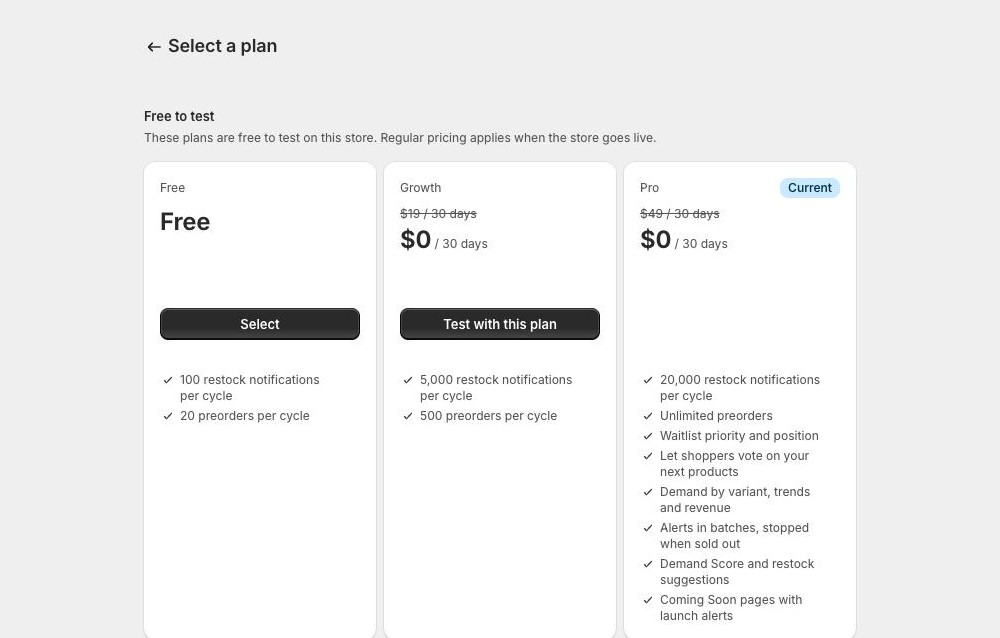
Select Change plan, or Upgrade to Growth or Upgrade to Pro on a card. Shopify opens its own Select a plan page for Waitly, with each plan’s price and a Current badge on the plan you’re on.
Choose a plan. Growth and Pro each start with a 14-day free trial.
Shopify admin · Waitly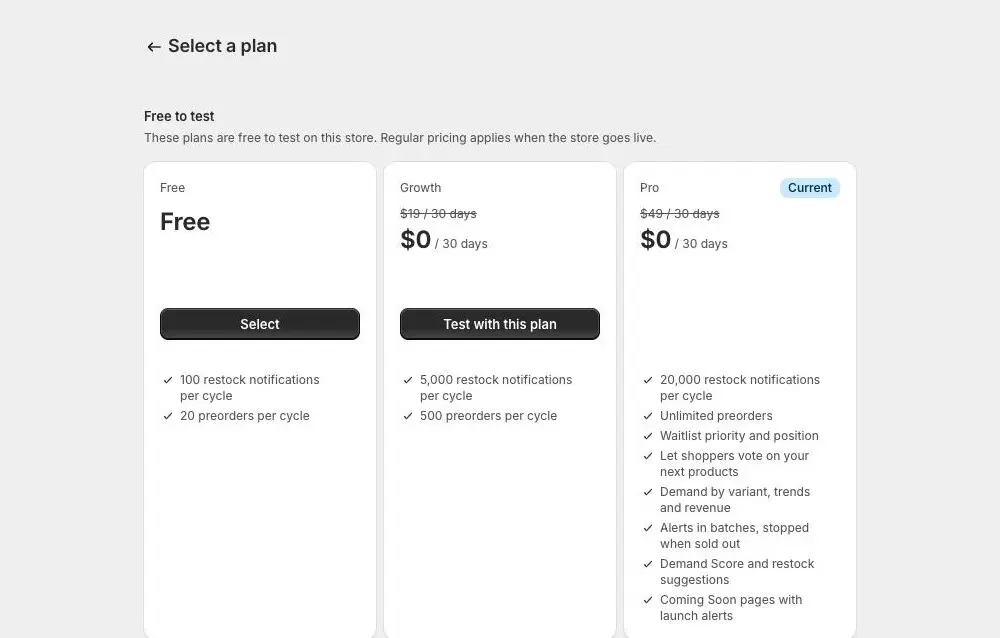
- 1Each plan with its price
- 2Current marks your plan
This is a test store, so Shopify shows each plan as free to test, with its normal price crossed out.
- 5
Approve the charge
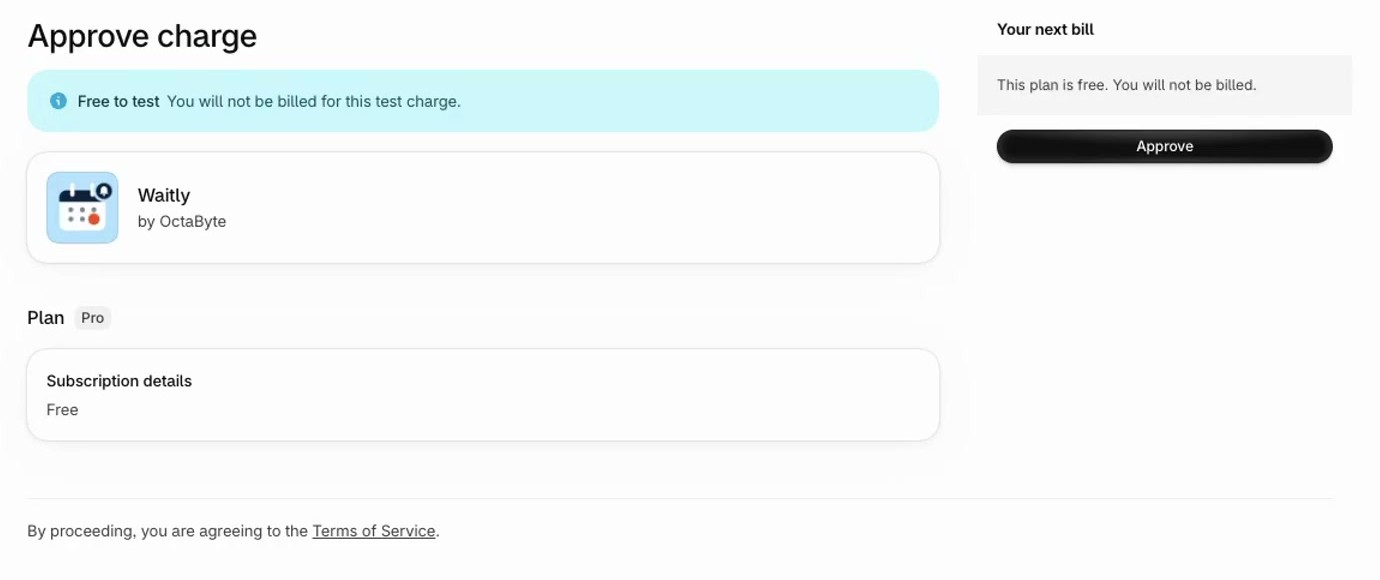
Shopify shows its Approve charge page, with the plan you chose and what your next bill will be. Select Approve.
Shopify bills you on your normal Shopify invoice, so there’s no card to enter in Waitly.
Shopify admin · Waitly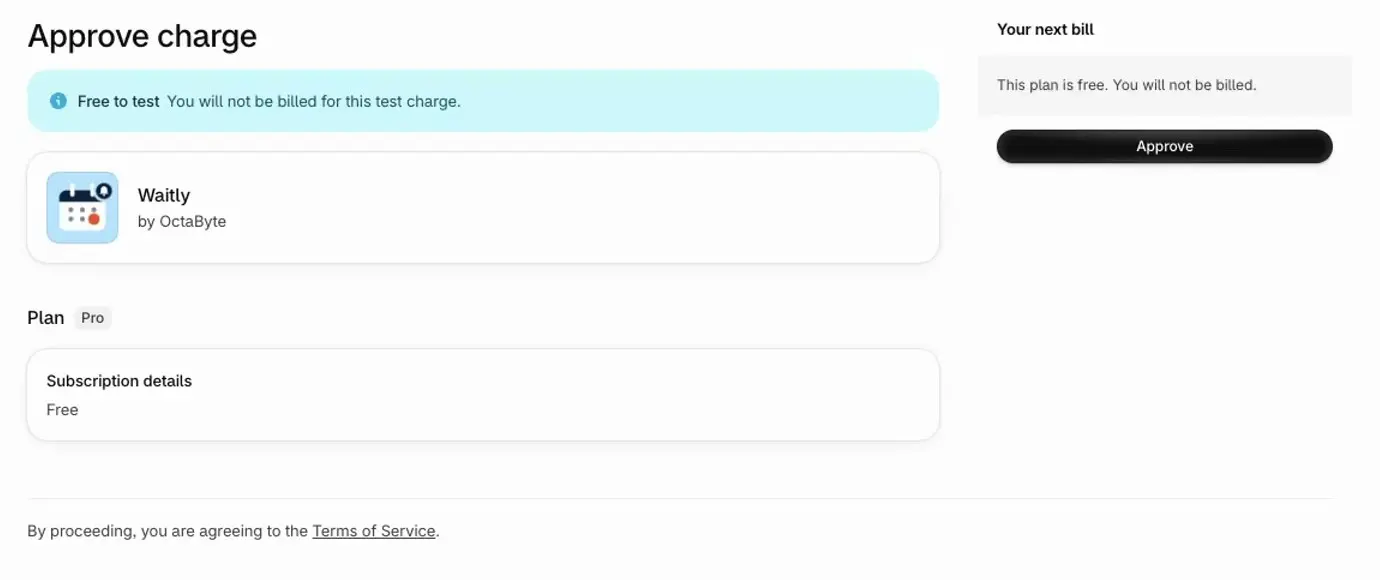
- 1The plan you chose
- 2Your next bill
- 3Select Approve
This is a test store, so Shopify says the charge is free to test.
- 6
Wait for Shopify to confirm
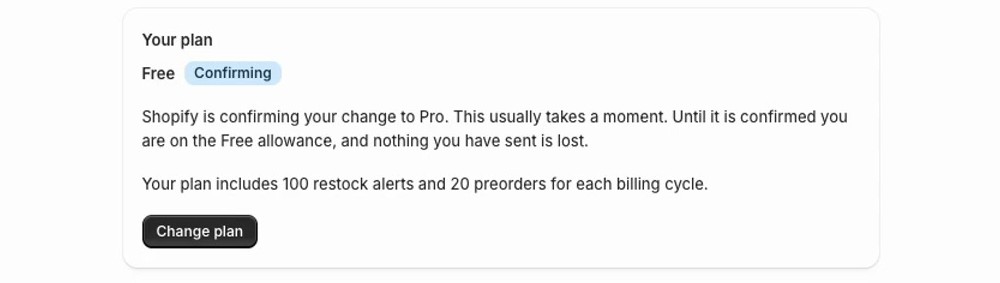
Back in Waitly, the badge may read Confirming for a moment. Until Shopify confirms, you keep your current plan’s allowance, and nothing you’ve sent is lost.
Once it’s confirmed, the badge changes to Free trial or Active, and the new plan’s features unlock. If a change is set for later, the card says “Your plan changes to” the new plan and gives the day.
Shopify admin · Waitly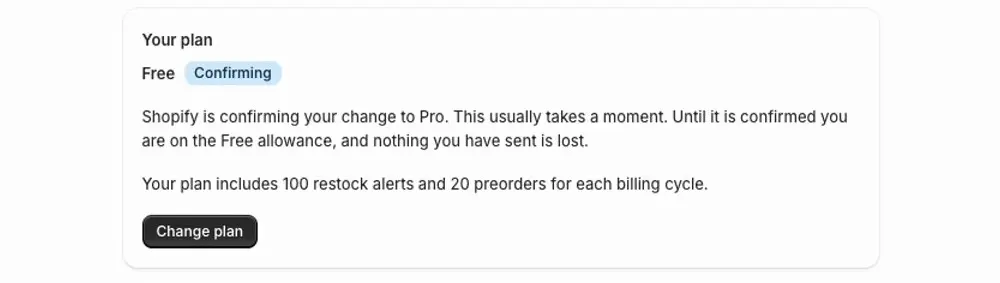
- 1Confirming badge
- 2You keep your current allowance meanwhile
Tip: Moving to a lower plan keeps your settings, such as your email text and customer tag. The features lock with a plan badge and come back if you upgrade again.

Questions
- What does “Paused by Shopify” mean?
- Shopify has paused billing for the app. Waitly uses the Free allowance until you check your billing details in Shopify and your plan starts again. Your waitlists keep collecting shoppers.
- Is there annual billing?
- Not yet. Growth and Pro are billed every 30 days through Shopify.
Read next
- Track your monthly allowancesSee how many restock alerts and preorders you’ve used this billing cycle, and what happens when one runs out.
- Install WaitlyInstall Waitly from the Shopify App Store, approve its permissions and open it in your Shopify admin.
- Add your logo and color to emailsSet the sender name and reply-to address, and put your logo and brand color on every email Waitly sends for you.