Turn off or delete a policy
Stop taking preorders on a policy’s products, either by turning it off to use again later or by deleting it for good.
Before you start
- You have a preorder policy.
- 1
Open the policy
In Waitly, choose Preorders, then select the policy’s name.
Decide which you need. Turning a policy off keeps all its settings, so you can turn it back on. Deleting it can’t be undone.
- 2
Turn it off
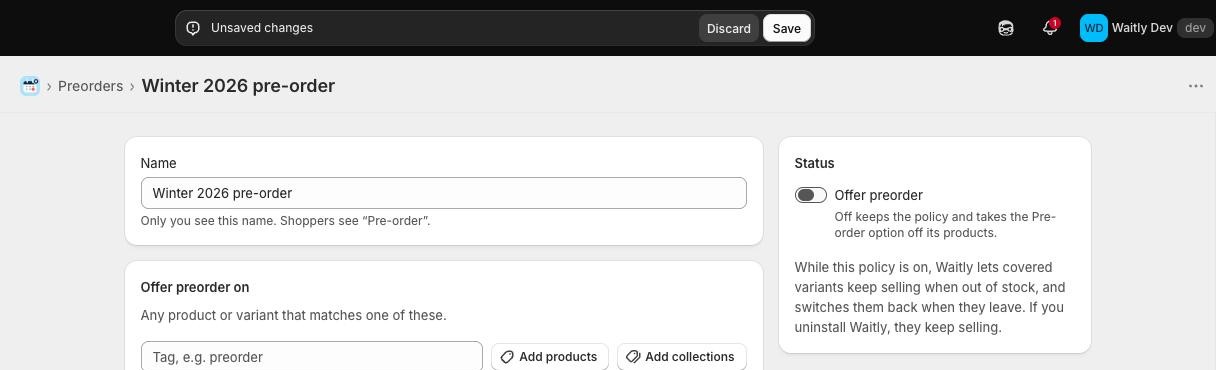
In the Status card, turn off Offer preorder. The line under it changes to “Off keeps the policy and takes the Pre-order option off its products.”
Select Save in the bar at the top. Waitly takes the Pre-order option off the products in Shopify, and puts back the “continue selling when out of stock” setting it changed on them.
Shopify admin · Waitly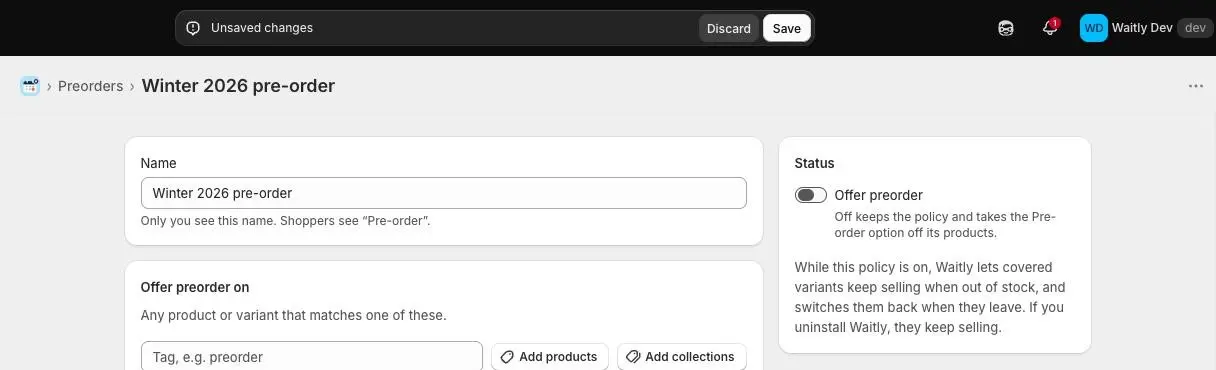
- 1Turn off Offer preorder
- 2Then select Save
- 3
Check the policy list
Back on Preorders, the policy’s Status reads Off, and Preorder on reads “Nothing while off” with what it would cover when on. In Shopify shows Up to date once Shopify has caught up.
To start again, open the policy, turn Offer preorder back on, and save.
Tip: You can also turn a policy on or off from any of its products in Shopify, with More actions and Pre-order with Waitly.
- 4
Or delete it
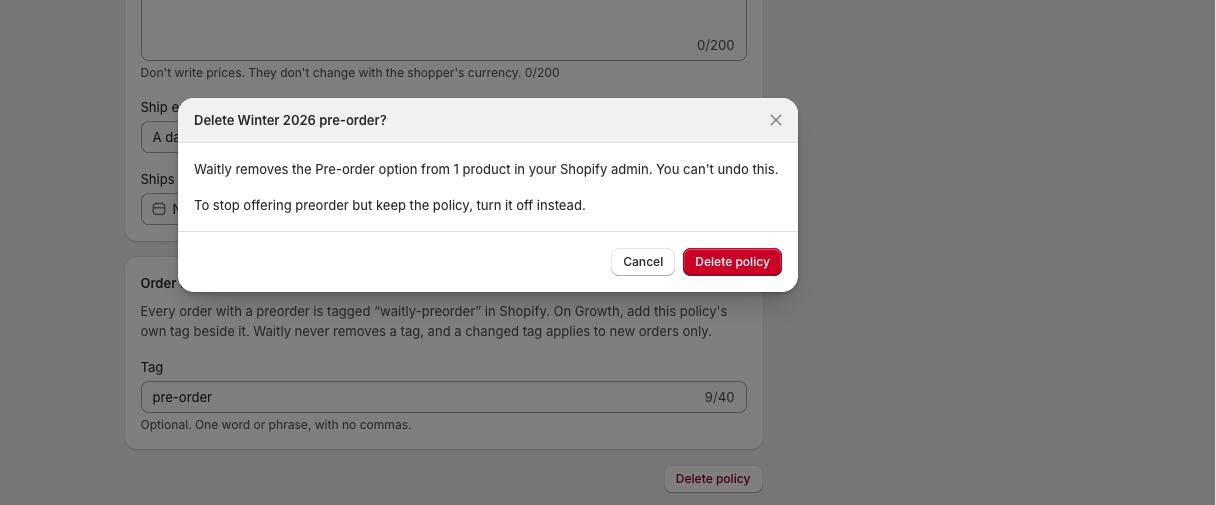
At the bottom of the policy editor, select Delete policy. A window asks you to confirm: Waitly removes the Pre-order option from the policy’s products in your Shopify admin, and you can’t undo this.
Select Delete policy to confirm, or Cancel to keep it. Waitly takes you back to the Preorders page.
Shopify admin · Waitly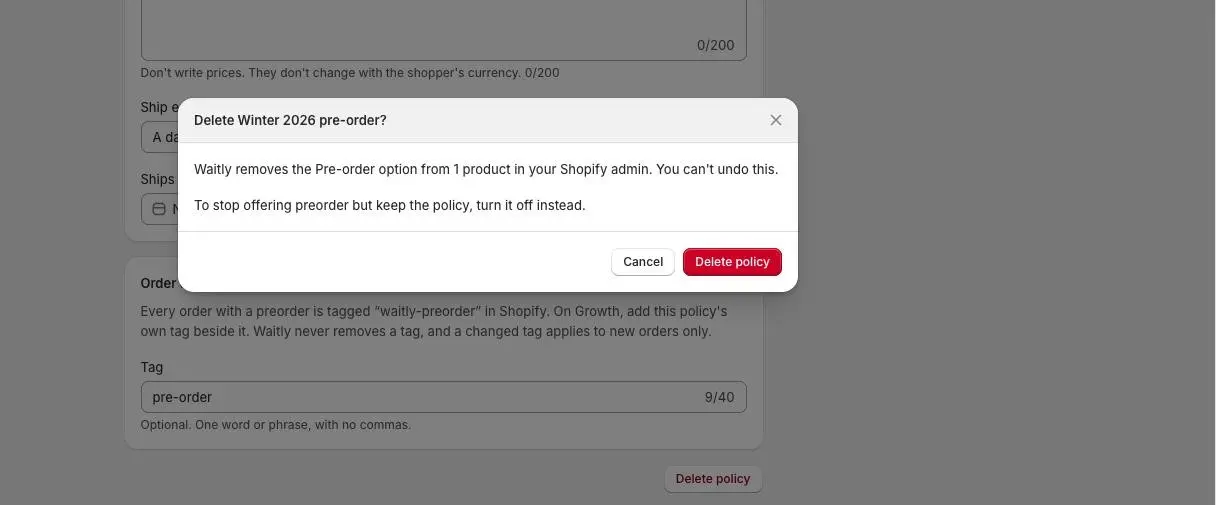
- 1Select Delete policy
- 2Confirm
- 3Or keep the policy
Careful: A deleted policy can’t be restored. To stop preorder but keep the policy’s products, dates and wording, turn it off instead.
- 5
Look after the preorders you already took
Turning off or deleting a policy stops new preorders only. Orders already placed stay in Shopify, held until you release them, and stay in the Preorders view with their status.
Ship them, or cancel and refund them, in Shopify as usual. Shoppers can still cancel their own preorder before it ships.
Questions
- What if I uninstall Waitly instead?
- Shopify removes Waitly’s Pre-order options within 48 hours. Any variant Waitly had set to keep selling when out of stock stays that way, so check those variants in Shopify.
- Can I stop preorder on just one product?
- Yes. Add it under Except in the policy, or open it in Shopify and use Remove this product from policy in Pre-order with Waitly.
Read next
- Track the preorders you’ve takenSee every preorder with its ship estimate and status, spot the ones that need you, and ship, cancel or refund them in Shopify.
- Manage preorder from a Shopify product pageAdd a product or variant to a policy, start a new policy, turn a policy on or off, or take a product out, without leaving the product in Shopify.
- Create a preorder policyMake a policy, choose the products it covers, and turn it on so Shopify offers them as Pre-order.