Add the Pre-order block to your theme
Put the Pre-order block above Add to cart so shoppers see the Pre-order badge, the ship estimate and the terms, and can buy.
Before you start
- You use an Online Store 2.0 theme, such as Dawn or Horizon.
- You have a preorder policy. The block shows only on products a policy covers.
- 1
Open the theme editor from Waitly
In Waitly, choose Preorders. While a policy is on and the block is missing, a warning names the product template that needs it. Select Add the Pre-order block to open your theme editor on that template.
If the warning lists several templates, select Add it to next to each one in turn.
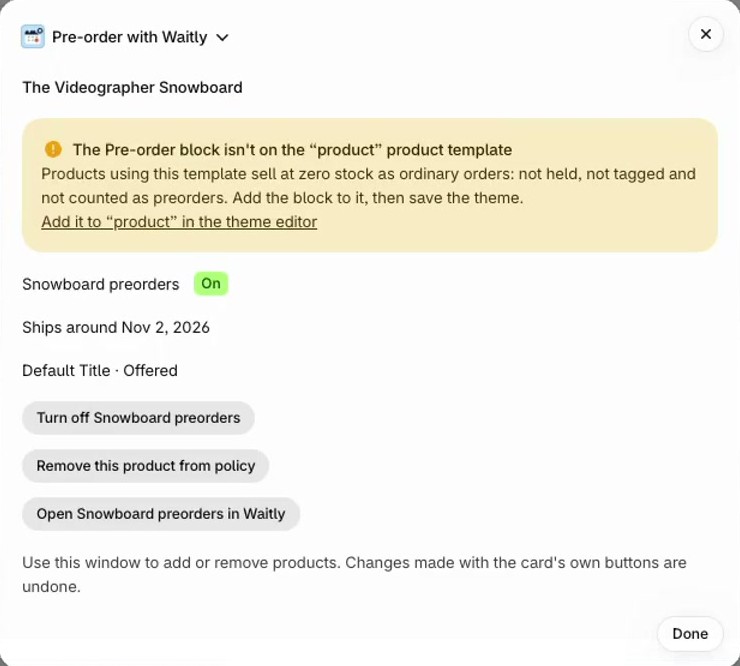
The same warning shows in the Pre-order with Waitly window on a covered product’s page in Shopify. There, select the Add it to link.
Shopify admin · Waitly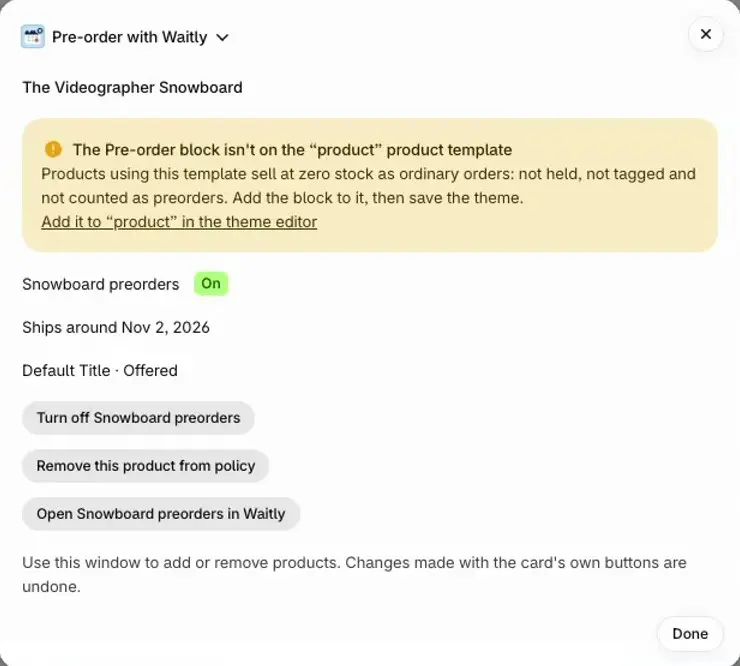
- 1The warning names the template
- 2Opens the theme editor on that template
The warning as it shows in the Pre-order with Waitly window on a product page.
Tip: You can also get there yourself: in Shopify, choose Online Store, then Themes, then Customize, and open a product template.
- 2
Add the Pre-order block
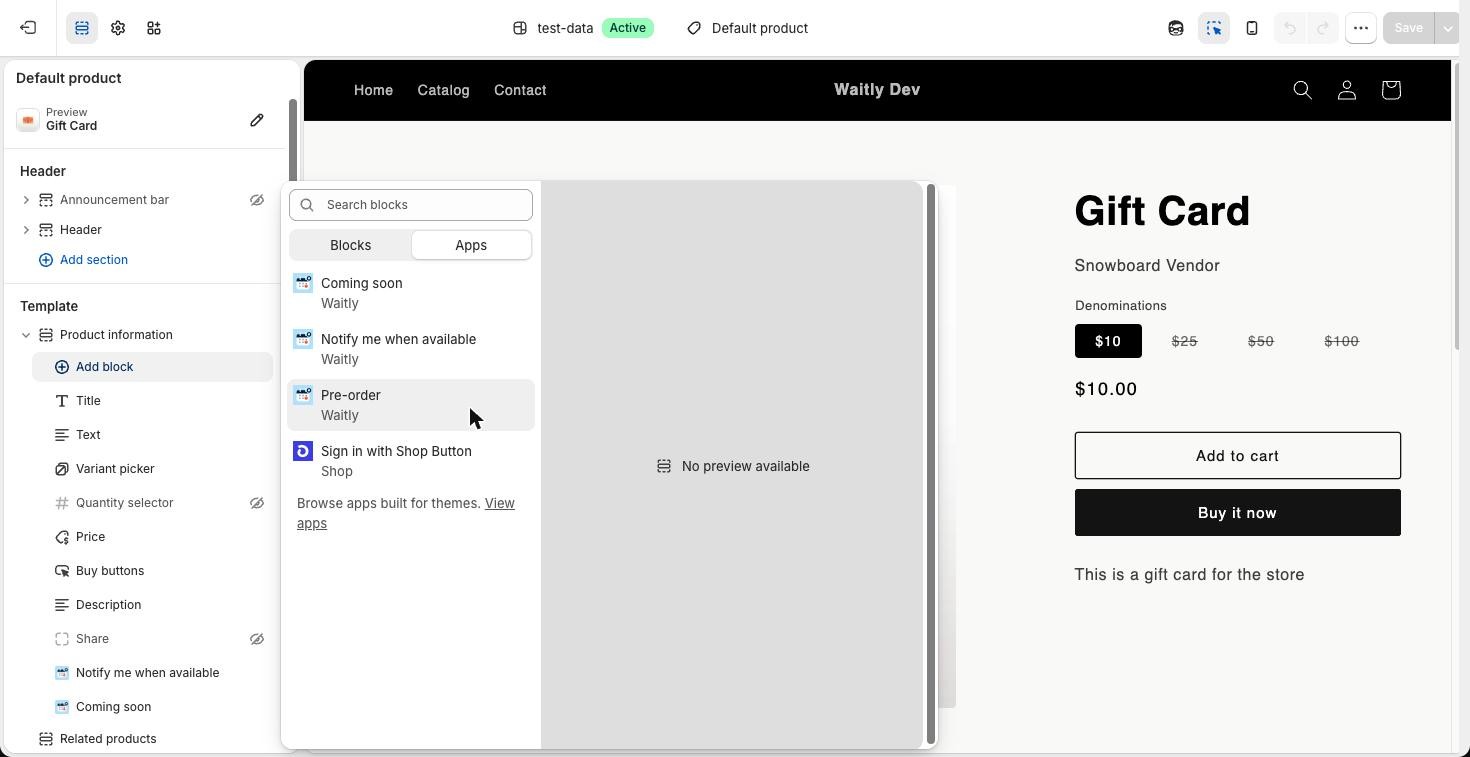
In the product information section, select Add block, open the Apps tab, and choose Pre-order.
Shopify admin · Waitly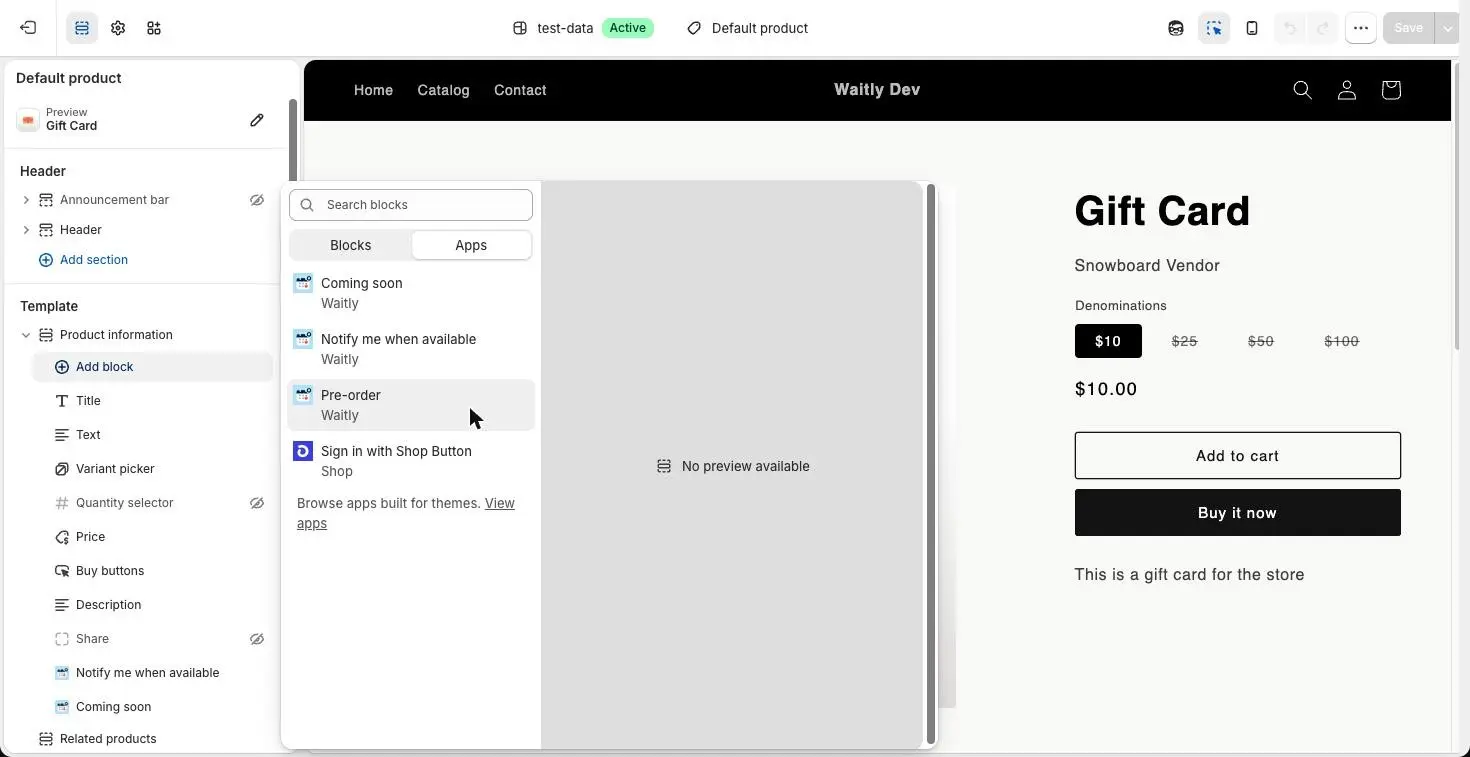
- 1Select Add block
- 2Open Apps
- 3Choose Pre-order
- 3
Place it above Add to cart
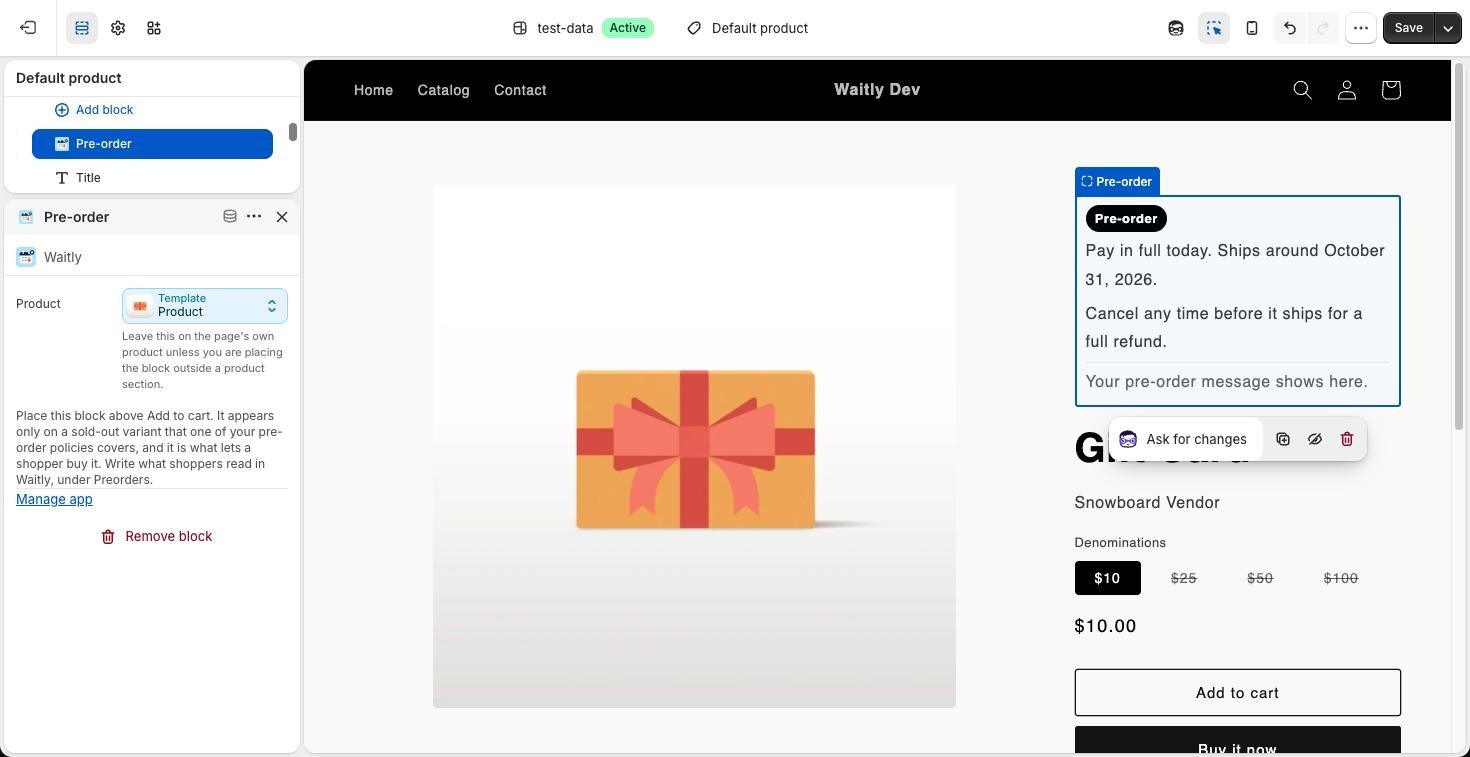
The new block lands at the top of the section’s block list. Drag it down so it sits just above the buy buttons. The block has no button of its own: it switches your theme’s own Add to cart and Buy it now to buy through the Pre-order option, so shoppers read the terms before they press them.
In the editor the block shows a sample, so you can see where it lands even on an in-stock product.
Shopify admin · Waitly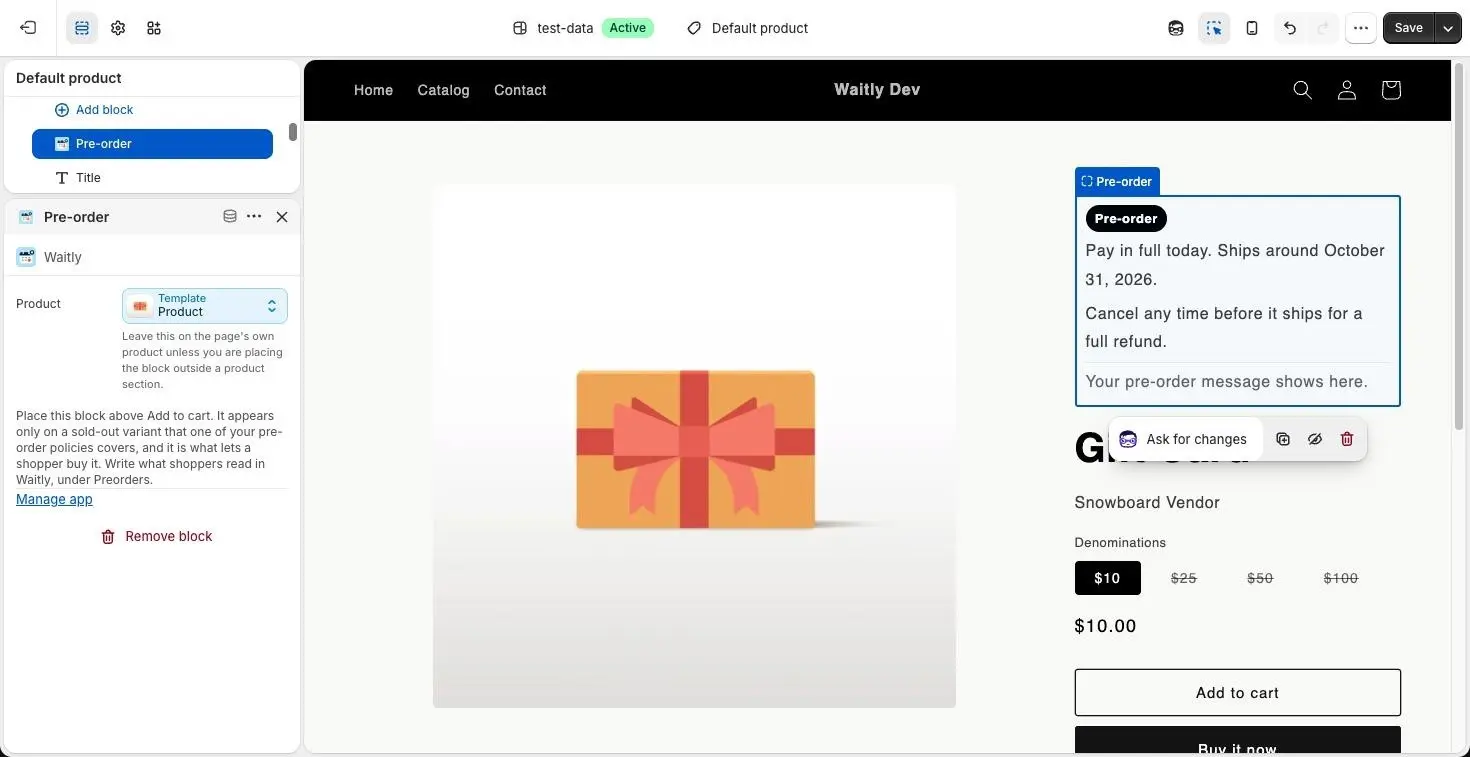
- 1The new block, at the top of the list
- 2Its sample in the preview
- 3Where the block belongs
- 4
Save the theme
Select Save in the theme editor. Waitly checks your live theme, so the block must be on the published theme for the warning to clear.
- 5
Check a sold-out product
Open a product your policy covers and pick a sold-out variant. You’ll see the “Pre-order” badge, “Pay in full today. This item ships later.” and “Cancel any time before it ships for a full refund.” On Growth, the pay-in-full line gives your ship estimate instead, and your message shows under the terms.
Pick an in-stock variant and the block hides, so that variant sells as usual.
Your online store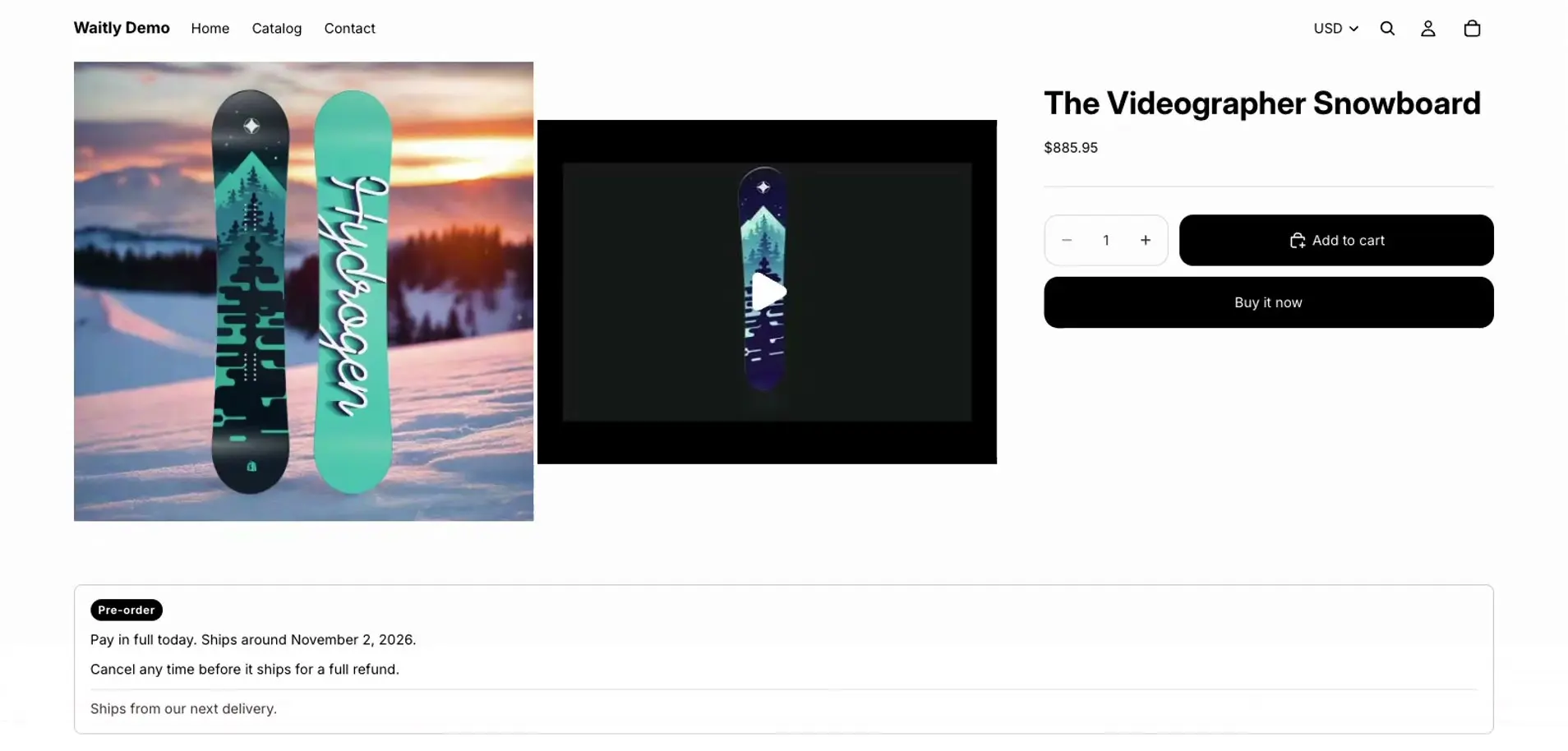
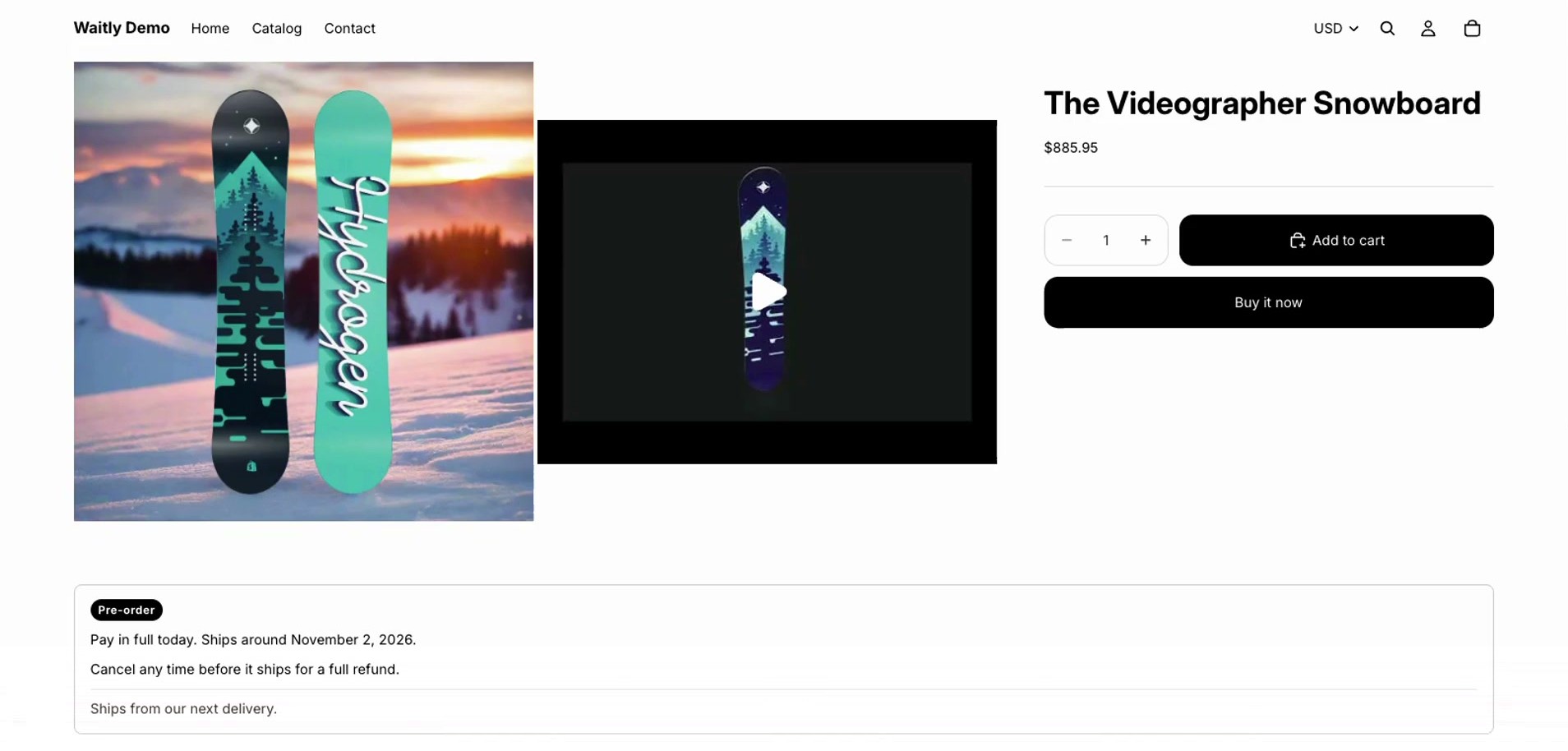
- 1The Pre-order block
- 2Your theme’s buttons buy the preorder
This store is on a plan with a ship estimate and message, so both show in the block. Here the block sits below the buy buttons. Place yours above them, so shoppers read the terms first.
Careful: Without the block, covered products still sell at zero stock, but as ordinary orders: not held, not tagged and not counted as preorders.
Questions
- Waitly says my theme can’t show the Pre-order block. What now?
- That template isn’t a JSON template, so it can’t hold app blocks. Use an Online Store 2.0 theme, such as Dawn or Horizon.
- Why does a collection page say “Choose” instead of “Add to cart”?
- On Horizon themes, a product with preorder shows “Choose” on collection pages and opens the product page, where the shopper sees the Pre-order terms.
- Where do I change the block’s text?
- In Waitly, not the theme editor. The badge and terms are fixed; on Growth you add a message and ship estimate to the policy.
Read next
- Create a preorder policyMake a policy, choose the products it covers, and turn it on so Shopify offers them as Pre-order.
- Add a message and ship estimateTell shoppers when their preorder ships, add a short message of your own, and tag preorder orders by policy.
- Buying on preorderWhat your shoppers see when they preorder a sold-out item, from the product page to the Preorder receipt email.