Export a waitlist as CSV
Download everyone on a waitlist, or just the shoppers you’ve filtered to, as a spreadsheet.
GrowthNeeds the Growth plan or Pro.
Before you start
- You’re on the Growth or Pro plan.
- The product has a waitlist with at least one shopper on it.
- 1
Open the waitlist
Select Waitlists in the Waitly menu, then select the product or variant you want. Scroll to the Shoppers card.
- 2
Narrow the list if you want
The file follows what the table shows. Select a status filter, such as Waiting, or type in Search by email and select Search, and only those shoppers are exported.
It ignores which page you’re on: every matching shopper is in the file, not just the 50 on screen. Select All first to export everyone.
Shopify admin · Waitly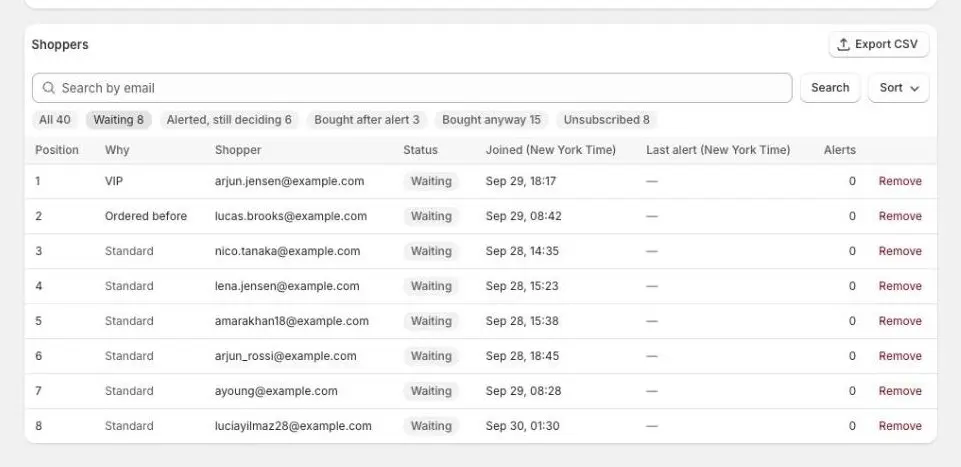
- 1Only these shoppers are exported
- 3
Select Export CSV
Select Export CSV at the top right of the Shoppers card. Your browser downloads a file named after the item and today’s date, for example waitly-variant-123456789-2026-10-01.csv.
Open it in Excel, Numbers or Google Sheets.
Shopify admin · Waitly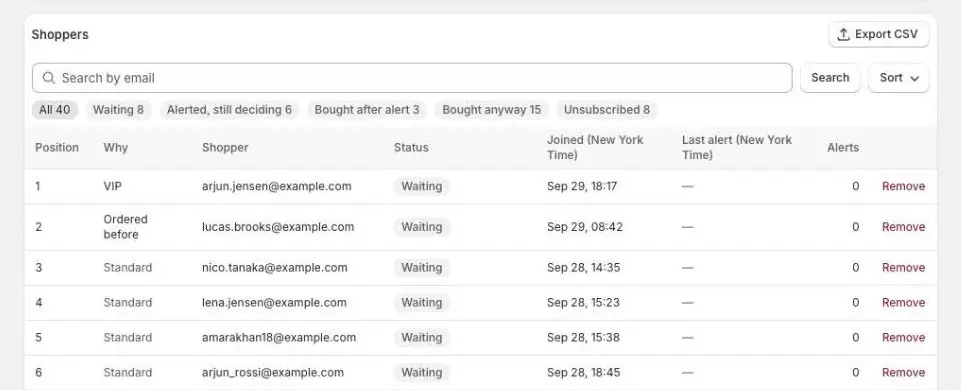
- 1Download the list as CSV
Note: On Free the button reads Export CSV (Growth) and can’t be selected.
- 4
Read the columns
Every file has email, state, item, product_id, variant_id, joined_at, last_notified_at, notify_count and ended_at. On Pro it adds position, priority_reason, joined_by, quantity and shopping_country.
state uses short names: waiting, notified (alerted, still deciding), converted (bought after alert), fulfilled (bought anyway), unsubscribed, expired, barred (cannot be emailed) and dismissed (removed by you). Times are in UTC. position is only filled in for shoppers still in the queue, and joined_by is back_in_stock, coming_soon or voted.
Shopify admin · Waitly
- 1Status as a short name
- 2Added on Pro
Note: The file holds email addresses. Keep it safe, and only email shoppers in line with the consent they gave when they joined.

Questions
- Is there a limit to how many shoppers I can export?
- A file holds the first 50,000 shoppers, in the order the table shows them. If the list is longer, a line under the button says how many aren’t in it.
- Can I export who voted for a proposal?
- Yes, on Pro. Open the proposal under Voting and select Export voters. The file has the same columns, with joined_by set to voted.
- Why is a shopper’s email blank?
- Their data was deleted at their request through Shopify. Their row stays so the demand still counts. On screen it reads Redacted.
Read next
- See who’s waiting for a productOpen one product’s waitlist, read its totals and cards, and see every shopper on it and what happened to them.
- Remove a shopper from a waitlistTake one shopper off one waitlist so they don’t get the alert when it’s back in stock.
- Choose or change your planSee which plan you’re on, compare what Growth and Pro add, and change plan through Shopify.