Buying on preorder
What your shoppers see when they preorder a sold-out item, from the product page to the Preorder receipt email.
Before you start
- A preorder policy that’s on covers the product.
- The Pre-order block is on your product page, above Add to cart.
- The chosen variant is sold out.
- 1
The shopper sees the Pre-order panel
On a sold-out variant your policy covers, a panel appears where you placed the Pre-order block. It has a Pre-order badge, the line “Pay in full today. This item ships later.” and your terms: “Cancel any time before it ships for a full refund.”
On Growth and Pro, the line gives your ship estimate instead, such as “Pay in full today. Ships around” a date, and your own message shows under the terms.
Your online store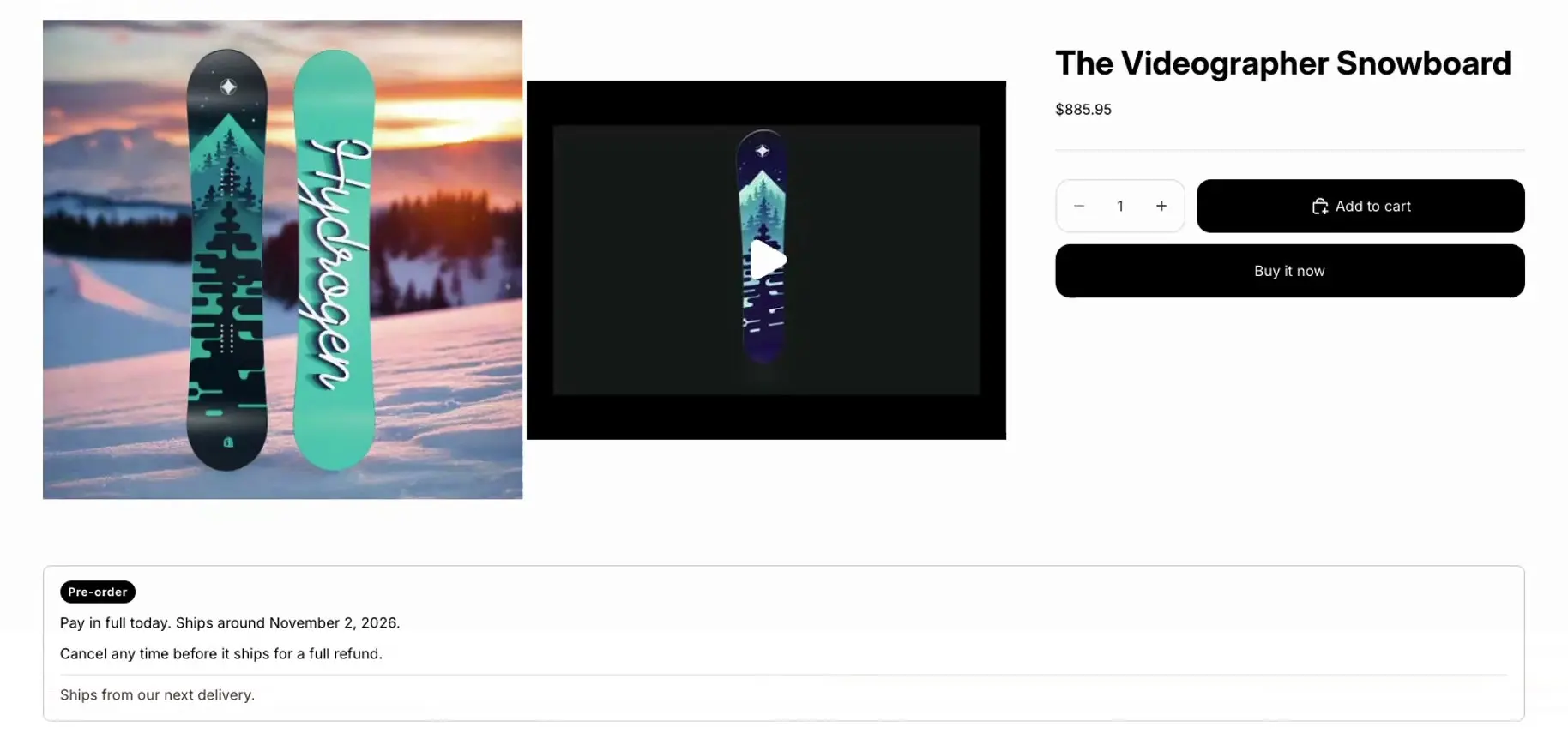
- 1The badge and the ship estimate
- 2The cancel terms
- 3Your message
This store placed the block under the product, so the panel shows there.
Note: The block has no button of its own. Your theme’s usual buttons buy the preorder, with their usual labels. If the Notify me block is on the page too, its form still shows on that variant, so a shopper can join the waitlist instead.
- 2
The shopper adds it to the cart and checks out
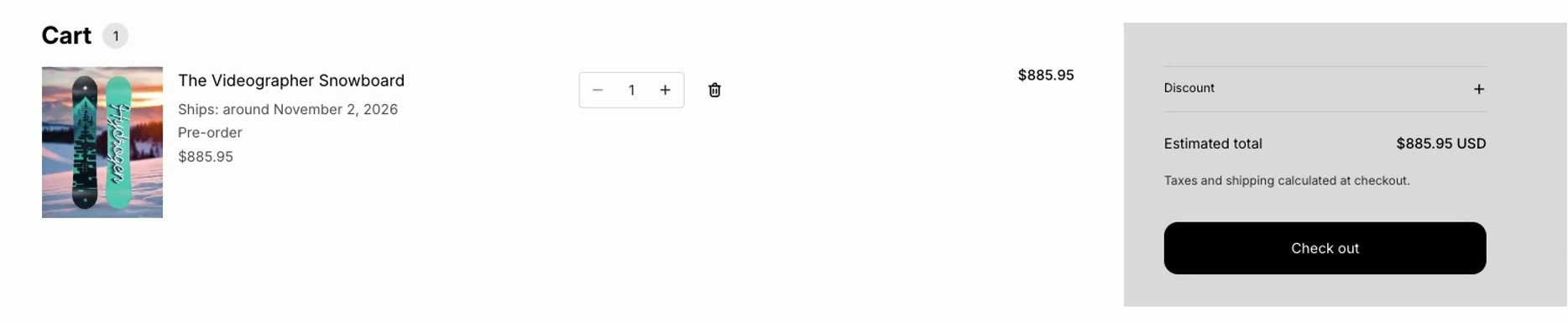
In the cart and at checkout, Shopify shows “Pre-order” under the item, so the shopper can see what they’re buying. If the policy has a ship estimate, a Ships line shows with it. They pay the full price at checkout.
Your online store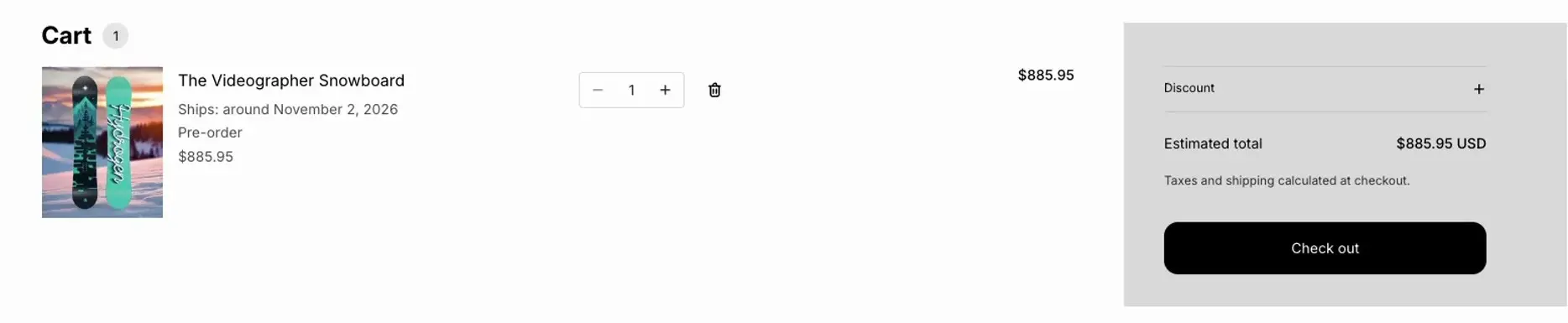
- 1The ship estimate and Pre-order
- 3
The shopper gets a Preorder receipt
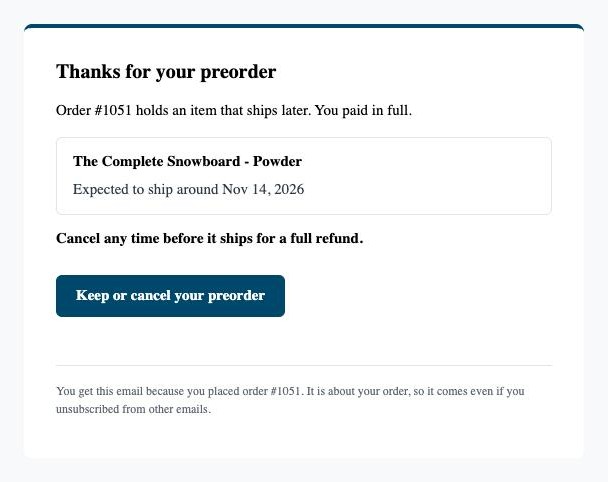
Alongside Shopify’s order confirmation, Waitly emails a Preorder receipt headed Thanks for your preorder. It names each preordered item with when it’s expected to ship: your ship estimate, or “within 30 days of your order” if the policy has none.
It repeats the cancel terms and has a Keep or cancel your preorder button, which opens a page on your store where the shopper can cancel.
Shopper’s inbox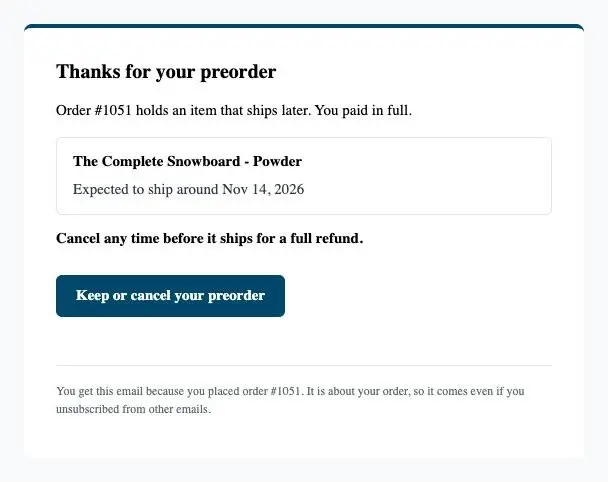
- 1The item and when it should ship
- 2The cancel terms
- 3Opens the Keep or cancel page
Note: The receipt is sent on every plan, never uses an allowance, and reaches shoppers who unsubscribed from waitlist emails, because it’s about an order they placed.
- 4
The order arrives in your admin
In Shopify, the order is tagged waitly-preorder, and in Waitly it appears under Preorders. Shopify holds it until you’re ready to ship.
Questions
- What happens when I run out of preorders on my plan?
- Preorder pauses on every product until your allowance resets, so the Pre-order panel doesn’t appear. Preorders already placed are kept.
- Can a shopper cancel?
- Yes, any time before the item ships, from the link in their receipt. Waitly cancels and refunds it straight away.
Read next
- Add the Pre-order block to your themePut the Pre-order block above Add to cart so shoppers see the Pre-order badge, the ship estimate and the terms, and can buy.
- Keeping or cancelling a preorderHow your shoppers cancel a preorder for a full refund, and how they answer when you move a ship date later.
- Track the preorders you’ve takenSee every preorder with its ship estimate and status, spot the ones that need you, and ship, cancel or refund them in Shopify.