The back-in-stock email
What your shoppers get when an item they’re waiting for comes back, and what happens after they read it.
Before you start
- A shopper has joined a waitlist, and the item has come back in stock.
- 1
The shopper gets the alert
When the item is back in stock, Waitly emails the shoppers waiting for it. The subject reads “The Complete Snowboard is back in stock”.
Shoppers who joined through a Coming Soon page get “is now available” instead, and shoppers who voted for a product get “The … you voted for is now available”.
- 2
The shopper reads the email
The email is headed with the product’s name and “is back”, then says the item is available again at your shop. A quieter line tells them where they were in line, such as “You were number 3 in line for this one.”
The Buy it now button opens the product page with their variant already chosen. The last line says the alert doesn’t hold one for them, so it’s first come, first served.
Shopper’s inbox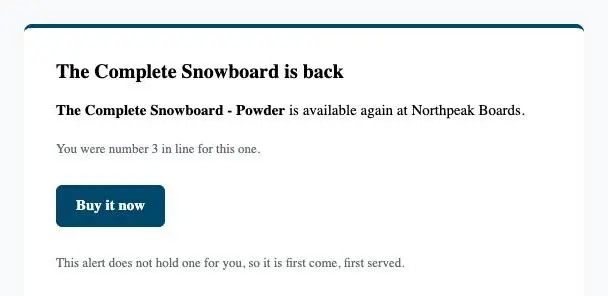
- 1The shopper’s place in line
- 2Buy it now opens the product page
- 3First come, first served
Note: If the product isn’t published to your online store, there’s no button. The email says “Visit” your shop “to buy it — stock can go quickly.” instead.
- 3
The footer lets them stop alerts
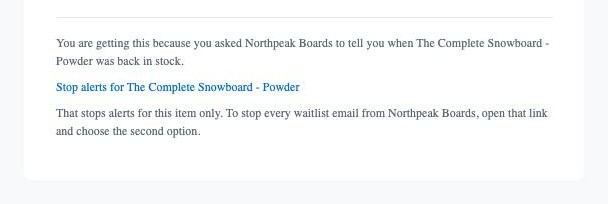
Every alert ends with a footer that says why the shopper got it and gives a Stop alerts for link naming the item. That link stops alerts for this one item only, and the footer says how to stop all of them.
Shopper’s inbox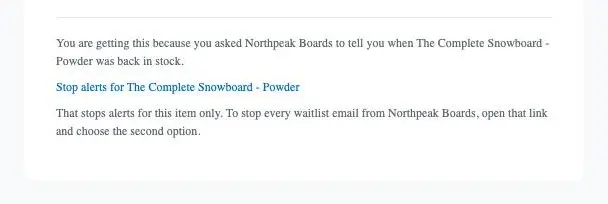
- 1Why the shopper got this email
- 2Stops alerts for this item
- 3How to stop every waitlist email
- 4
What happens after the alert
If the shopper buys within your Count a sale as recovered for window, they show on the waitlist as Bought after alert.
If they haven’t bought when Hold a restock alert for runs out, they go back on the waitlist in their original place. After Alert one shopper at most alerts without buying, they leave the waitlist as Expired.
- 5
On Pro, the first shoppers may get a held unit
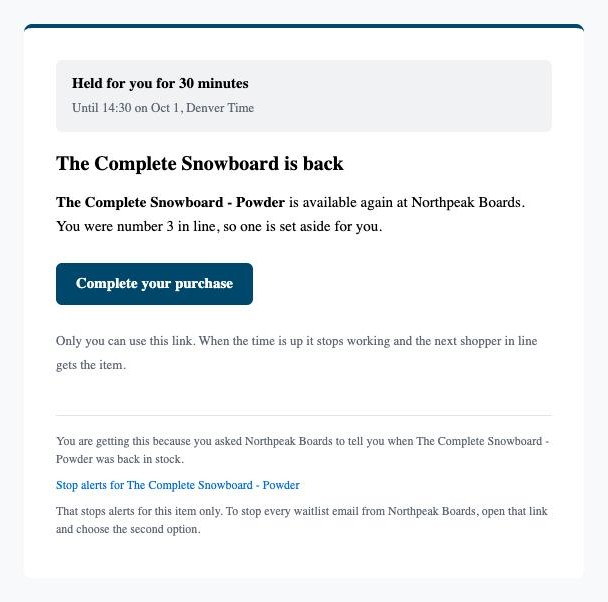
If you use Reserve for the first shoppers under Restock release, the first shoppers in line get a different email. Its subject says one is held for them and for how long, and a box at the top shows when the hold ends.
Its Complete your purchase button opens a checkout only that shopper can use. When the time is up, the link stops working and the next shopper in line gets the item.
Shopper’s inbox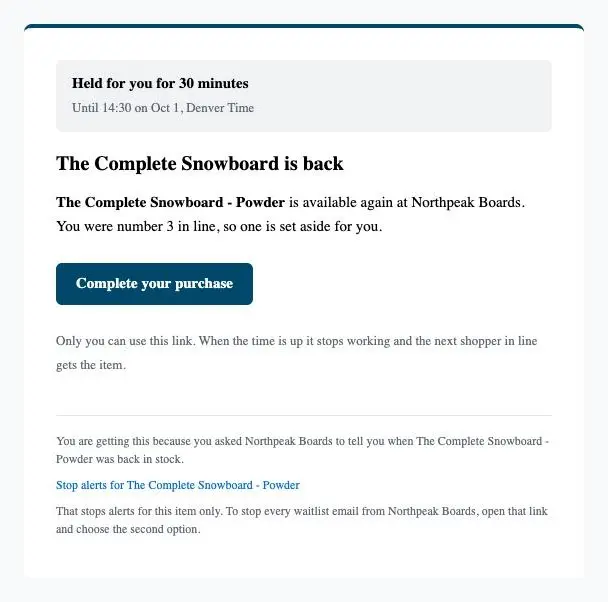
- 1When the hold ends
- 2Complete your purchase opens their own checkout
- 3Only this shopper can use the link
Questions
- Why doesn’t the email show the price or a product photo?
- Waitly leaves them out on purpose. A price can change between the restock and the moment a shopper reads the email, and the product page always shows the current one.
- Can I change the words?
- On Growth and Pro you can write your own subject, heading, message and button label in Settings, under Email text. On every plan you can add your logo and brand color.
Read next
- How restock alerts are sentUnderstand when Waitly sends a restock alert, who gets it, how long an alert holds a shopper, and when an alert is held back.
- Write your own email textChange the subject, heading, message and button of the back-in-stock alert, the launch alert and the waitlist confirmation.
- Stopping alertsHow your shoppers leave one waitlist or stop every waitlist email from your store.