Track your monthly allowances
See how many restock alerts and preorders you’ve used this billing cycle, and what happens when one runs out.
Before you start
- Waitly is installed.
- 1
Open This billing cycle
In Waitly, choose Billing and find the This billing cycle card. Restock alerts and Preorders each show how many you’ve used out of your plan’s allowance, for example “120 of 5,000”.
On Pro, preorders show a count with Unlimited on your plan under it. The line at the bottom gives the day your allowances reset.
Shopify admin · Waitly
- 1Restock alerts used, out of your allowance
- 2Preorders used
- 3The day your allowances reset
- 2
Know what counts
Each back-in-stock or launch alert email Waitly sends uses one restock alert. Each line of an order placed through one of your preorder policies uses one preorder, whatever its quantity: three of the same jacket on one line count as one.
Waitlist confirmations, preorder receipts and delay notices don’t use either allowance. A preorder receipt or delay notice is never held back, because it’s about an order the shopper already placed.
- 3
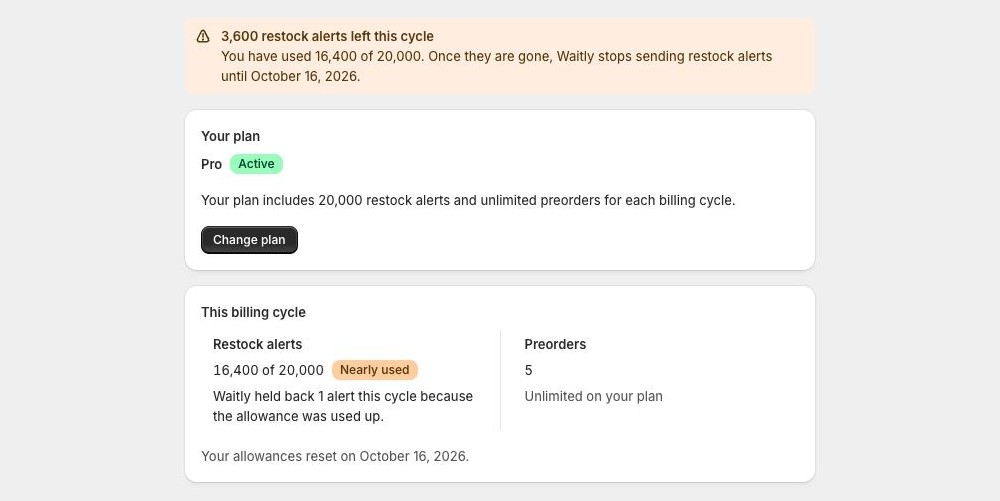
Watch for Nearly used
When you’ve used 80% of an allowance, it gets a Nearly used badge and a warning banner appears at the top of the page, such as “250 restock alerts left this cycle”.
Nothing stops yet. It’s your chance to change plan before the allowance runs out.
Shopify admin · Waitly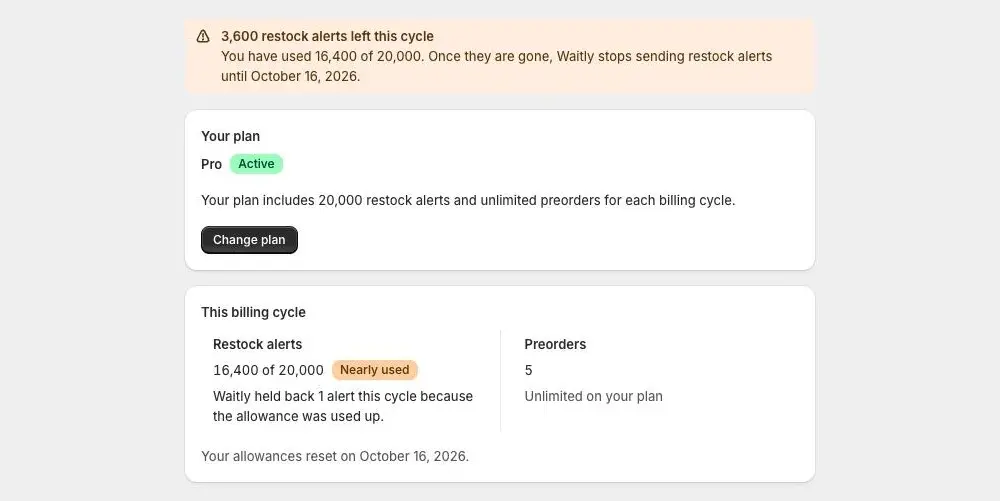
- 1How many alerts are left
- 2Nearly used badge
- 4
Know what happens when alerts run out
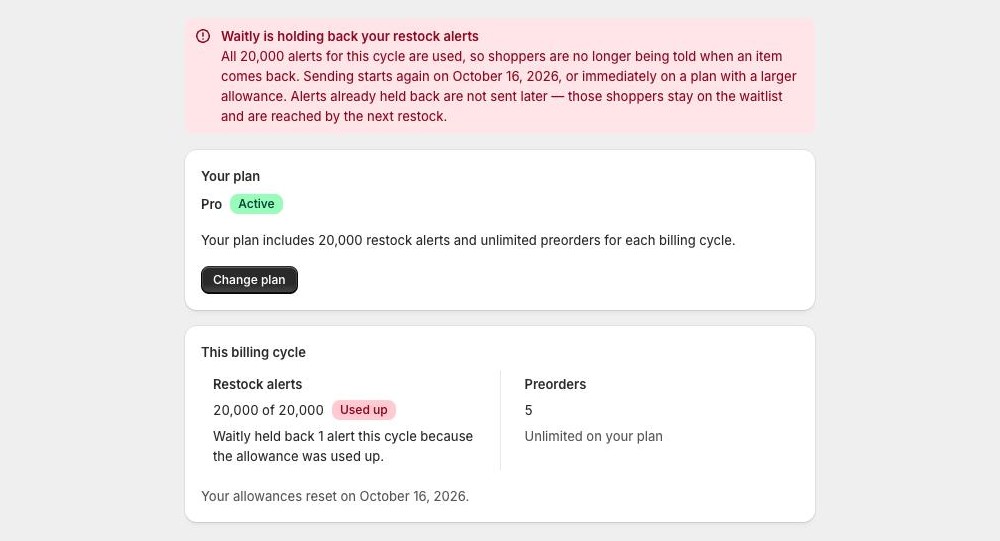
At 100%, Restock alerts shows Used up and a red banner reads Waitly is holding back your restock alerts. Shoppers are no longer told when an item comes back.
Alerts held back aren’t sent later. Those shoppers stay on the waitlist and are reached by the next restock after your allowance resets or grows. The card counts how many alerts Waitly held back this cycle, and the send log in Analytics shows them as Withheld.
Shopify admin · Waitly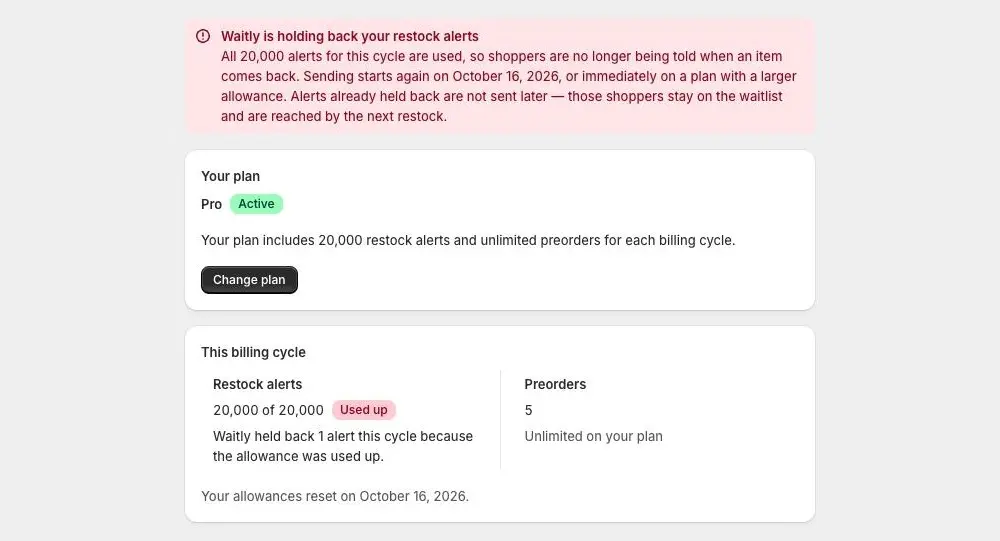
- 1Alerts are being held back
- 2Used up badge
- 3Alerts held back this cycle
- 5
Know what happens when preorders run out
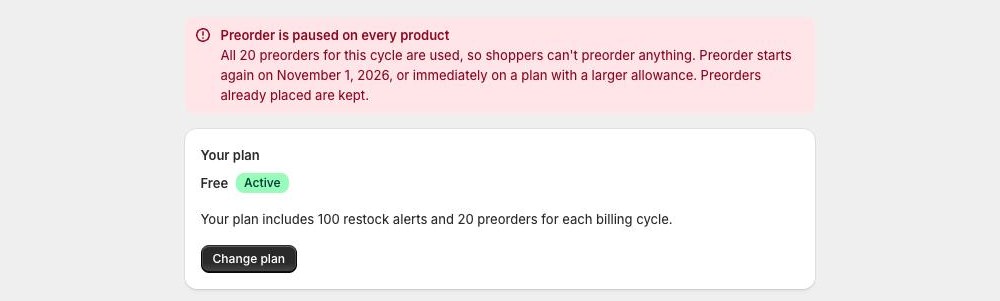
At 100% of your preorders, a red banner reads Preorder is paused on every product. Shoppers can’t preorder anything until your allowance resets. Preorders already placed are kept.
The same banner shows on the Preorders page, with a See plans button that opens Billing.
Shopify admin · Waitly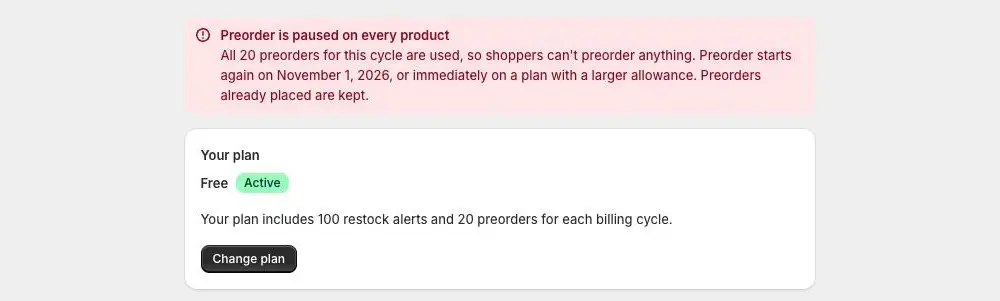
- 1Preorder is paused until the reset day
- 6
Get more room
Wait for the reset day shown on the card, or select Change plan to move to a plan with a larger allowance. A larger plan takes effect as soon as Shopify confirms it.

Questions
- Is there a limit on waitlist confirmations?
- Yes, a safety cap of 500, 10,000 or 40,000 a cycle depending on your plan. It’s set high enough that ordinary stores never reach it, and it isn’t shown on Billing. If it’s reached, shoppers still join the waitlist; only the confirmation email is skipped.
- Does a cancelled preorder give its allowance back?
- No. The allowance counts preorders placed in the cycle.
Read next
- Choose or change your planSee which plan you’re on, compare what Growth and Pro add, and change plan through Shopify.
- Check how a restock alert wentFind each restock alert Waitly sent, see how many went out, and what happened to the rest.
- Set alert and attribution rulesChoose how long an alert holds a shopper’s place, how many alerts one shopper gets, and how long a sale counts as recovered.