Stopping alerts
How your shoppers leave one waitlist or stop every waitlist email from your store.
Before you start
- A shopper has had an email from Waitly: a confirmation or an alert.
- 1
The shopper opens the link in the footer
Every waitlist email ends with a Stop alerts for link that names the item. It opens a small Email preferences page.
Opening the link on its own changes nothing. The shopper has to confirm on the page, so a mail scanner that follows links can’t unsubscribe anyone by accident.
Note: Mail apps like Gmail also show their own Unsubscribe button next to the sender. That button stops alerts for the item in one step, with no page.
- 2
The shopper stops alerts for the item
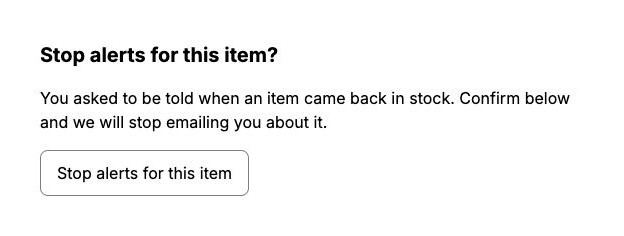
The page asks Stop alerts for this item? and explains that the shopper asked to be told when an item came back. They select Stop alerts for this item.
Your online store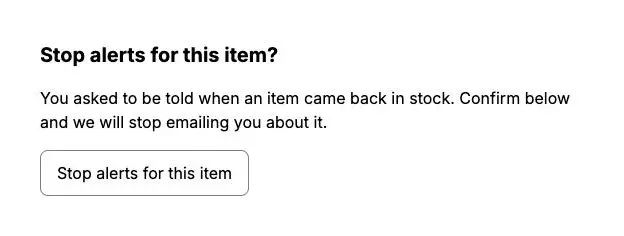
- 1The page asks before changing anything
- 2Stop alerts for this item
- 3
The shopper can stop everything
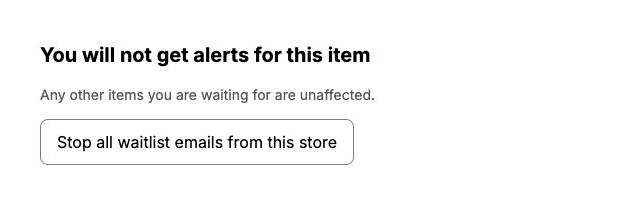
The page now reads You will not get alerts for this item and says any other items they’re waiting for are unaffected.
To stop all of them, they select Stop all waitlist emails from this store.
Your online store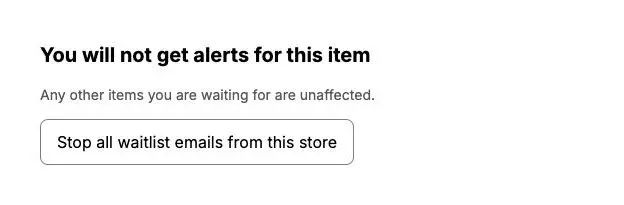
- 1Alerts for this item have stopped
- 2Stop all waitlist emails from this store
- 4
Every waitlist email stops
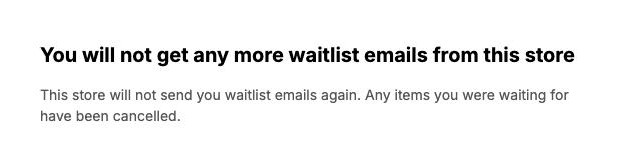
The page reads You will not get any more waitlist emails from this store, and says any items they were waiting for have been cancelled.
This stops only what Waitly sends. It doesn’t touch your own newsletter or Shopify’s order emails.
Your online store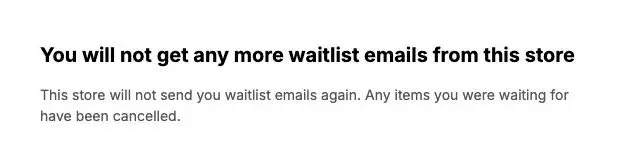
- 1Every waitlist email has stopped
Note: A shopper who has placed a preorder still gets its receipt and any delay notice. Those emails are about an order they placed, not a waitlist.
- 5
You see it on the waitlist
In Waitly, the shopper’s row on that item’s waitlist shows Unsubscribed. They won’t get a restock alert for it.
Questions
- What if the link doesn’t work?
- The page says “This link is no longer valid” and that it may already have been used, or the shop may no longer be using Waitly. It suggests the shopper replies to one of your emails, which reaches your reply-to address.
Read next
- The back-in-stock emailWhat your shoppers get when an item they’re waiting for comes back, and what happens after they read it.
- See who’s waiting for a productOpen one product’s waitlist, read its totals and cards, and see every shopper on it and what happened to them.
- Remove a shopper from a waitlistTake one shopper off one waitlist so they don’t get the alert when it’s back in stock.