Choose products with rules and exceptions
Cover products by tag, product, variant or collection, leave some out, and check exactly what the policy reaches before you save.
Before you start
- You have a preorder policy, or you’re creating one.
- 1
Open the policy
In Waitly, choose Preorders, then select the policy’s name. For a new one, select Create policy.
Two cards decide the products: Offer preorder on (any product or variant that matches one of these) and Except (leave out anything that matches one of these, even if it matches above).
- 2
Add a tag
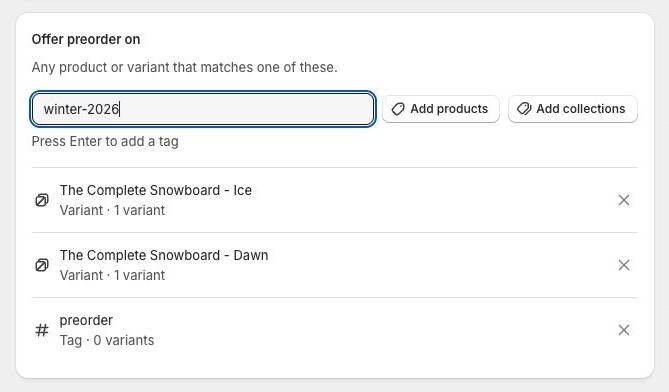
Under Offer preorder on, type a product tag in the tag field and press Enter. Every product with that tag is covered, including ones you tag later.
Tags are a good fit when products come and go, like a “preorder” tag you add in Shopify as new items are announced.
Shopify admin · Waitly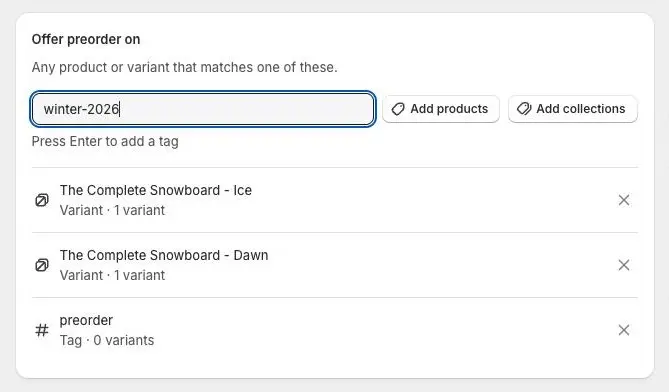
- 1Type a tag, press Enter
- 2The tag becomes a rule
- 3
Add products, variants or collections
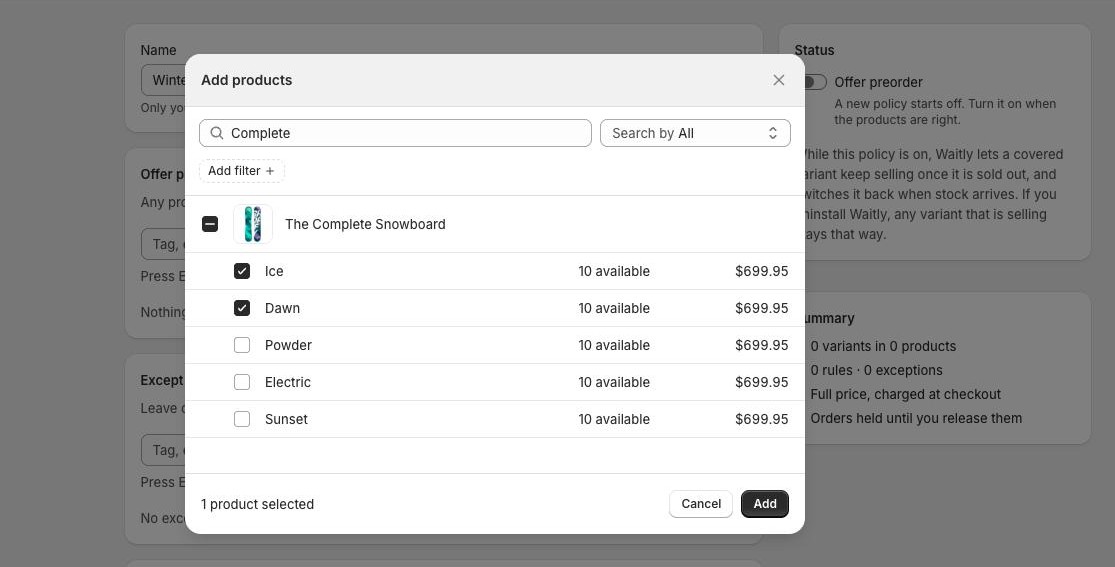
Select Add products to open Shopify’s product picker. Tick a product to cover all its variants, or tick only the variants you want. Draft and archived products are listed too.
Select Add collections to cover every product in a collection.
Each rule gets a row with its name, what it is, and how many variants it reaches. Select ✕ at the end of a row to remove it.
Shopify admin · Waitly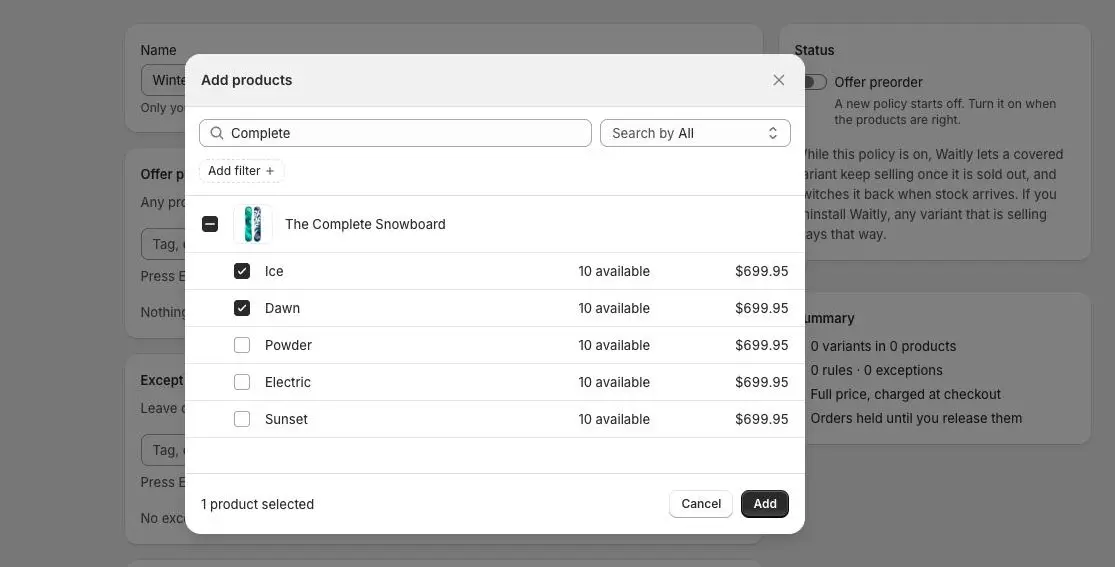
- 1Tick only the variants you want
- 2Add them to the policy
- 4
Leave some products out
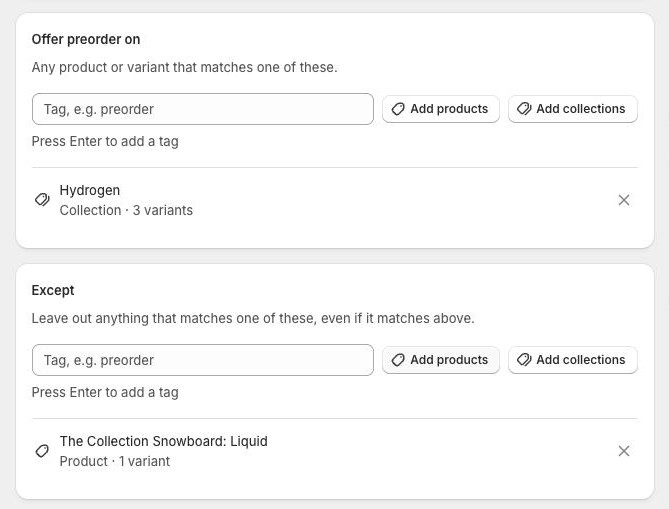
Use Except the same way: a tag, Add products or Add collections. Anything listed here is left out, even if a rule above covers it.
For example, cover a collection and add one of its boards under Except to keep it selling normally.
Shopify admin · Waitly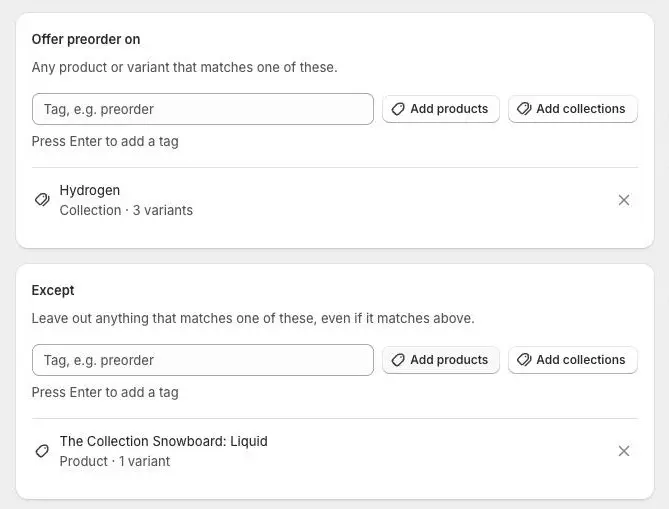
- 1The collection is covered
- 2Add an exception
- 3This product is left out
- 5
Check what the policy covers
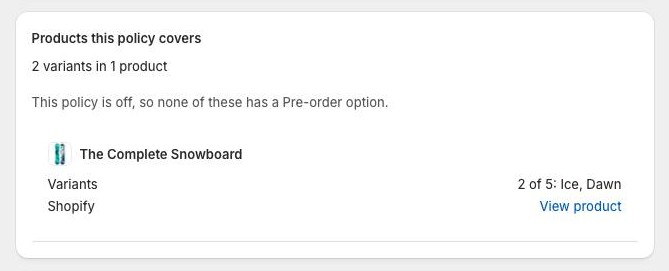
Products this policy covers shows the result as you edit, before you save: a count such as “12 variants in 4 products”, and a list of products with how many of their variants are in and a View product link.
If the policy is off, the card says none of these has a Pre-order option yet.
Shopify admin · Waitly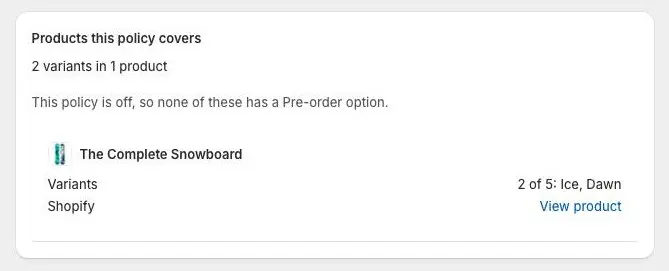
- 1Variants and products covered
- 2How many of its variants are in
- 6
Watch for overlapping policies
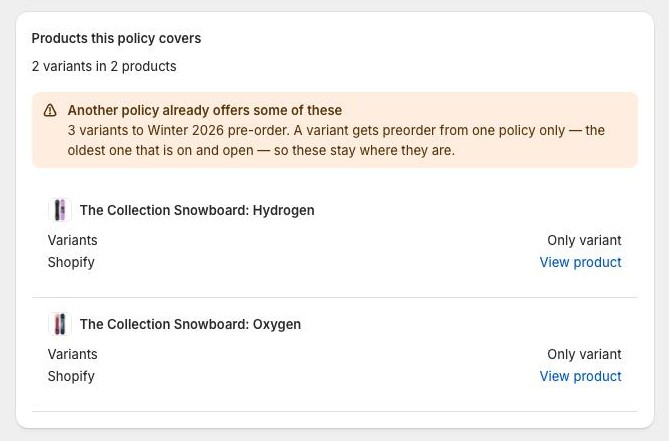
A variant gets preorder from one policy only: the oldest one that is on and open. If an older policy already offers some of these products, the coverage card shows Another policy already offers some of these and names it. Those variants stay with the older policy.
If you turn on an older policy that covers products a newer one offers, the Status card warns Turning this on moves products before you save.
Shopify admin · Waitly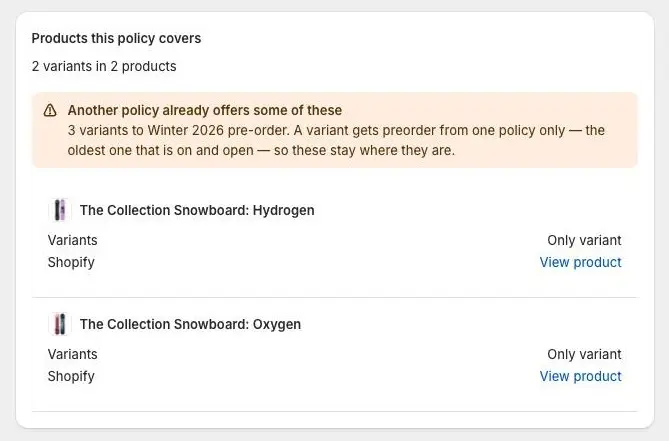
- 1These stay with the older policy
Tip: Policies are listed oldest first on the Preorders page, so the policy nearer the top wins when two cover the same variant.
- 7
Save
Select Save in the bar at the top. Waitly updates the Pre-order option in Shopify, and the In Shopify card shows Up to date when it’s done.
Questions
- What happens if a product in my rule is deleted in Shopify?
- Its row stays and shows “Deleted in Shopify — matches nothing”. Waitly never changes your rules behind your back, so remove the row when you’re ready.
- Is there a limit to how many products a policy can cover?
- Yes. A rule that covers more than 25,000 products can’t be applied, because Shopify can’t list that many. Narrow the rule, or split it into two policies.
Read next
- Create a preorder policyMake a policy, choose the products it covers, and turn it on so Shopify offers them as Pre-order.
- Manage preorder from a Shopify product pageAdd a product or variant to a policy, start a new policy, turn a policy on or off, or take a product out, without leaving the product in Shopify.
- Set when preorder runs and how manyRun preorder only while a variant is sold out, open and close it on set dates, and cap the units each product can take.