Set up the Coming soon form
Add the Coming soon block to your product page, word it your way, and choose whether it asks for quantity and country.
ProNeeds the Pro plan.
Before you start
- Your store is on the Pro plan.
- 1
Open the theme editor from Coming Soon
In Waitly, choose Coming Soon. Until the block is on your product page, a banner reads Add the Coming Soon block to your theme.
Select Open theme editor. Your theme editor opens on the product page with the block ready to add.
Shopify admin · Waitly
- 1Shows until the block is on your theme
- 2Select Open theme editor
- 2
Place the block and save
In the sidebar, keep the Coming soon block in the same section as Buy buttons and below it, so the form shows under your theme’s sold-out button. Then select Save in the theme editor.
The block only shows on products you mark in Waitly under Coming Soon. There it takes the place of Notify me, so you can keep both blocks on the page.
Shopify admin · Waitly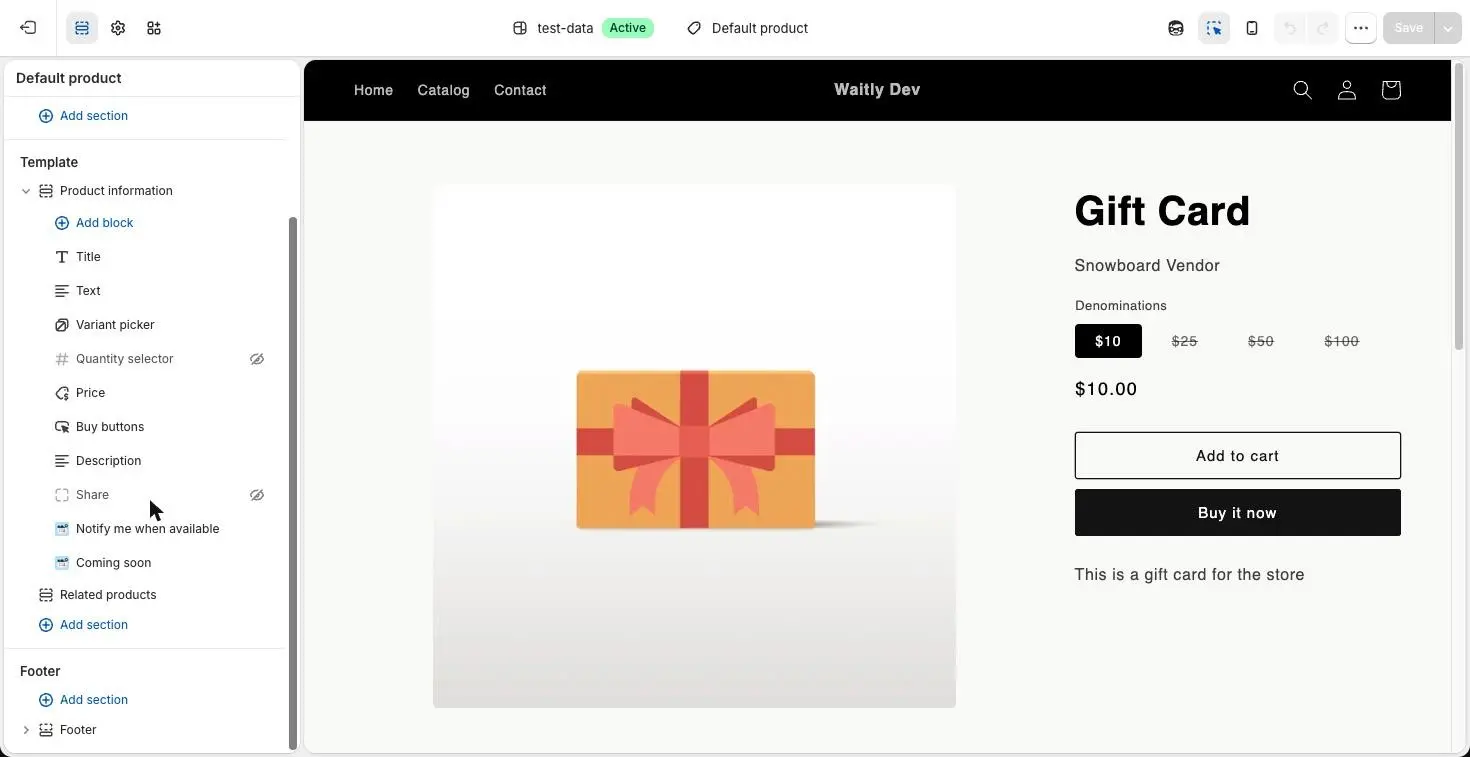
- 1The Coming soon block
- 2Keep it below Buy buttons
- 3Save the theme
- 3
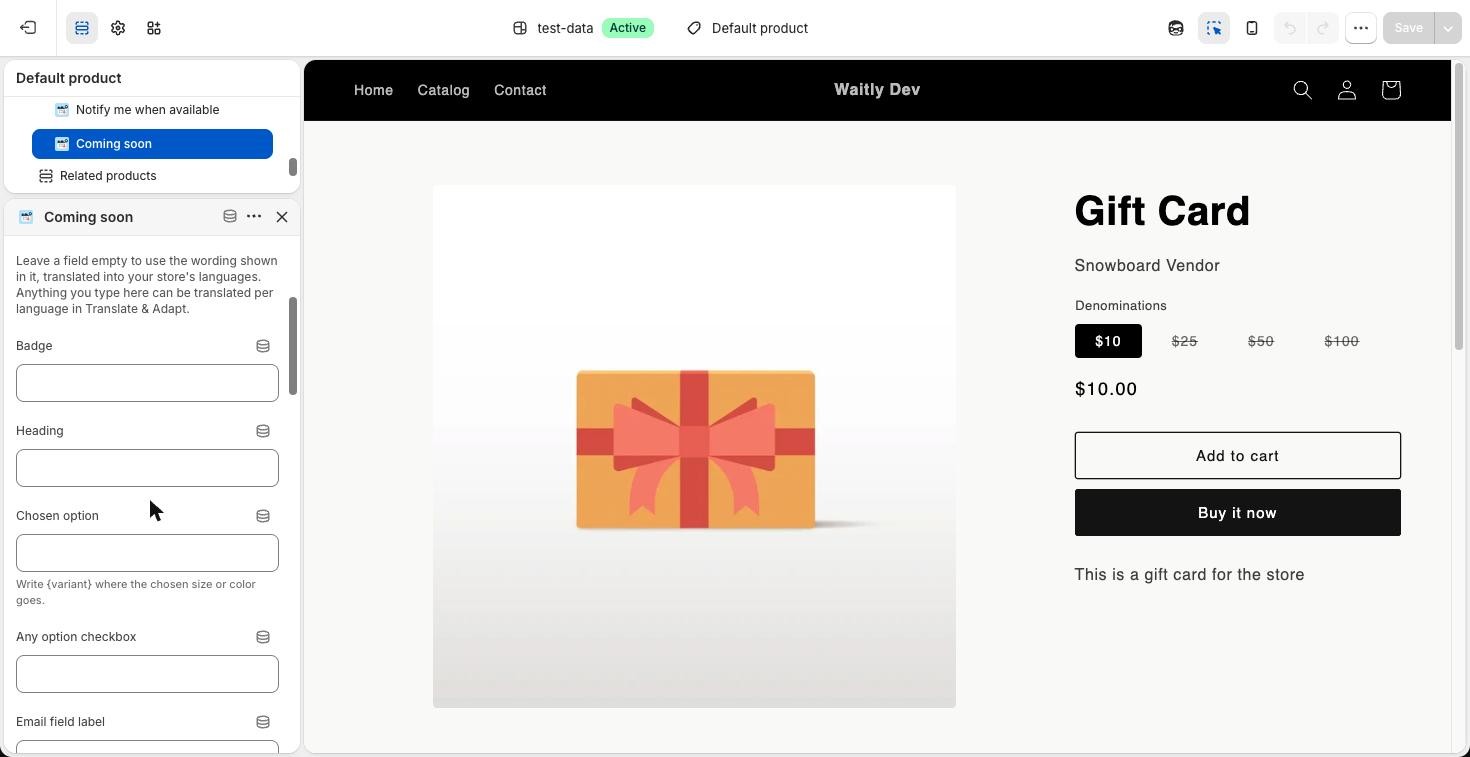
Change the wording and style if you like
Select the block to see its settings. Under Text you can change the Badge, Heading, Chosen option, Any option checkbox, Quantity field label, Country line, Consent checkbox, Button and the messages shoppers see after they sign up.
Leave a field empty to use Waitly’s wording, which is in English. In Chosen option, {variant} stands for the size or color the shopper picked; in Country line, {country} stands for their country.
Under Style, set the Button color, Button text color and Corner radius. Style (Growth) adds Background, Border, Button style and Full-width button, which work on Growth and Pro.
Shopify admin · Waitly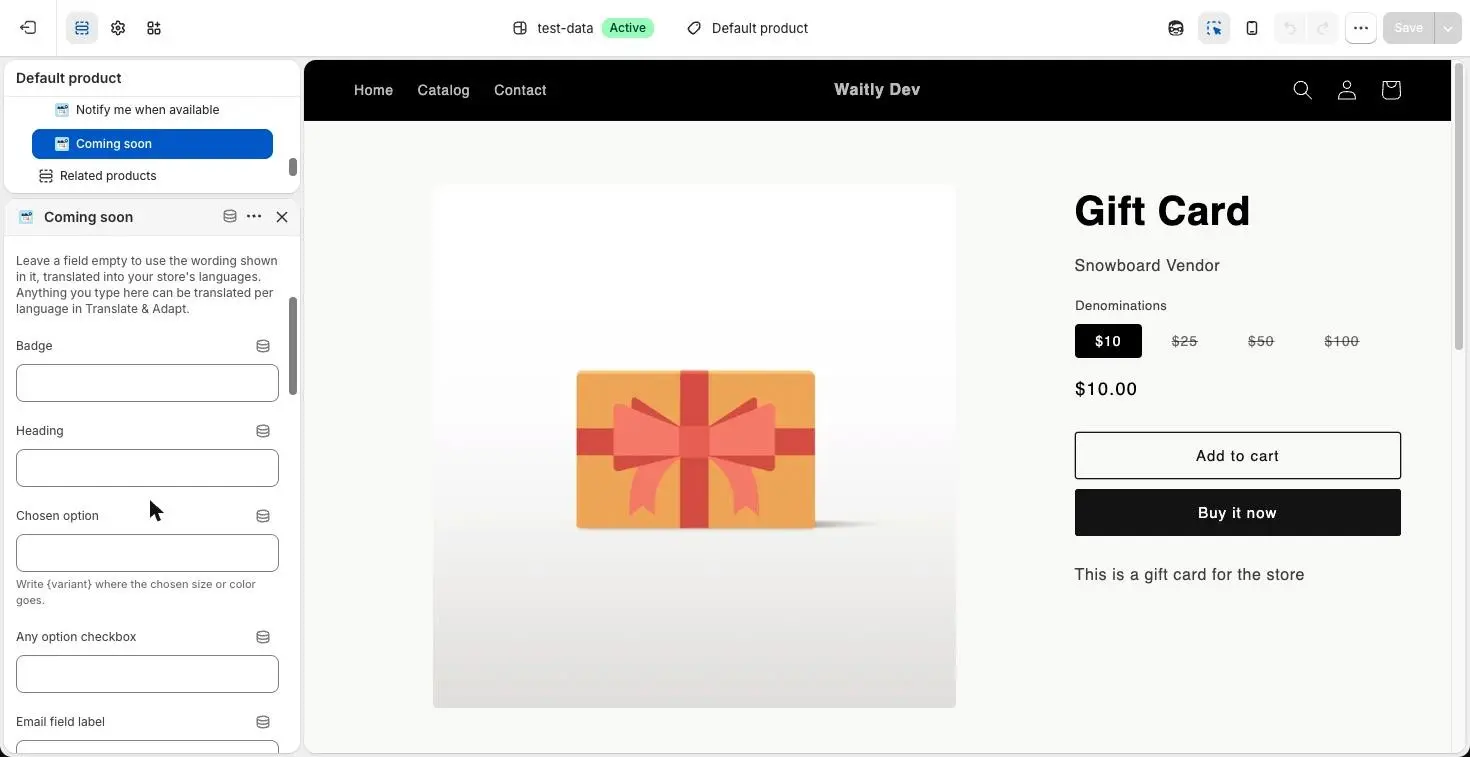
- 1Select the block
- 2Leave empty for Waitly’s wording
- 4
Choose the form fields in Waitly
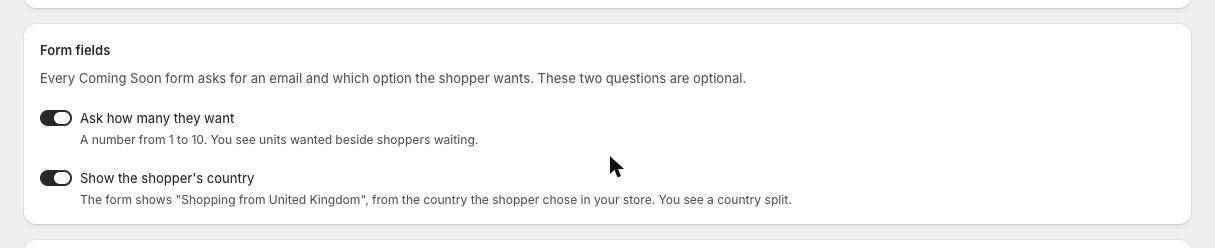
Back in Waitly, on Coming Soon, find Form fields. Every Coming Soon form asks for an email and which option the shopper wants. Two more questions are up to you:
Ask how many they want adds a number from 1 to 10, and you see Units wanted beside shoppers waiting. Show the shopper's country shows a line like “Shopping from United Kingdom”, from the country the shopper chose in your store, and you see where demand comes from.
Select Save in the bar at the top. You’ll see Form fields saved.
Shopify admin · Waitly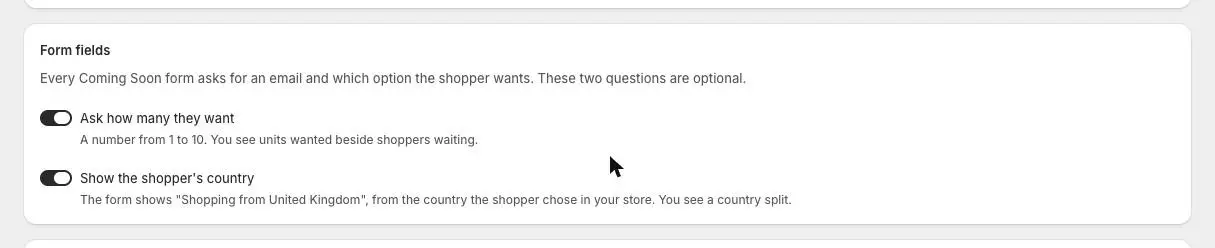
- 1Ask for a quantity
- 2Show the shopper’s country
Note: These switches apply to every Coming Soon form in your store. The block’s own Quantity field label and Country line only show when the matching switch is on.
- 5
Check it on your store
Open a marked, sold-out product on your store. You should see the Coming soon badge, the heading, the questions you chose and the I want this button.
If the form isn’t there, look at the Form column on the Coming Soon page. It says why a form is hidden.

Questions
- Can shoppers pick “any option”?
- Yes, on a product with more than one variant. The form shows a checkbox worded “Any size or color is fine” unless you change it, for shoppers who’ll take any variant.
- What if a shopper signs up twice?
- Their answers are updated rather than added again, and in the same browser they see a “Signed up again” message you can reword in the block.
Read next
- Mark a product Coming SoonMark a sold-out product so its page takes “I want this” signups, then email everyone waiting when you add stock.
- Change the Notify me block’s words and styleEdit the Notify me block’s text, button colors and corners in the theme editor, and on Growth its background, border and button style.
- Add the Notify me blockPut the Notify me button on your product page from the setup guide, or add it yourself in the theme editor.