See who’s waiting for a product
Open one product’s waitlist, read its totals and cards, and see every shopper on it and what happened to them.
Before you start
- Waitly is installed and at least one shopper has signed up with Notify me.
- 1
Open the product’s waitlist
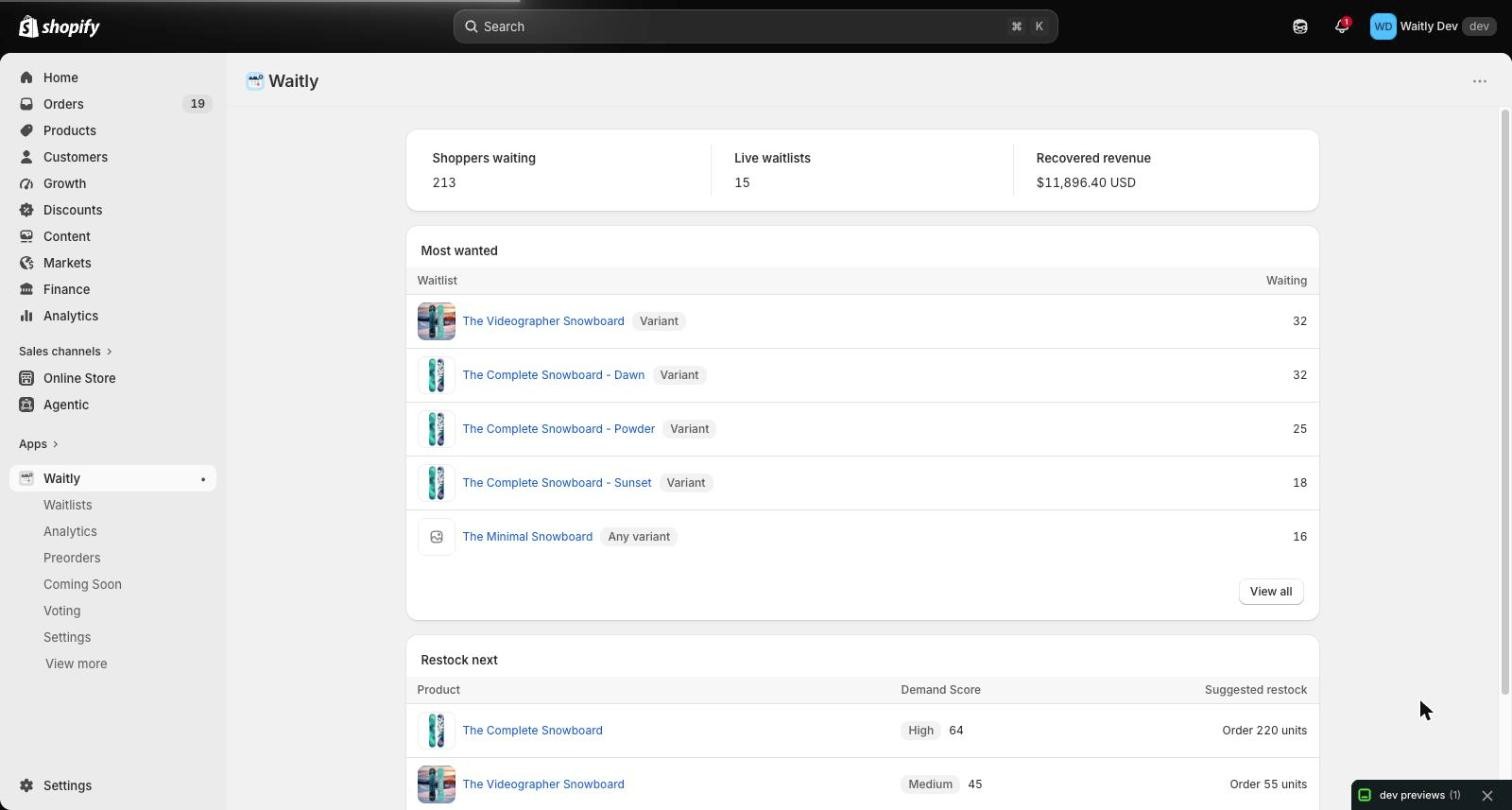
In your Shopify admin, choose Apps and then Waitly. Waitly opens on Home, where Most wanted lists the five waitlists with the most shoppers waiting.
Select a product name to open its waitlist, or select View all to see every waitlist on the Waitlists page.
Shopify admin · Waitly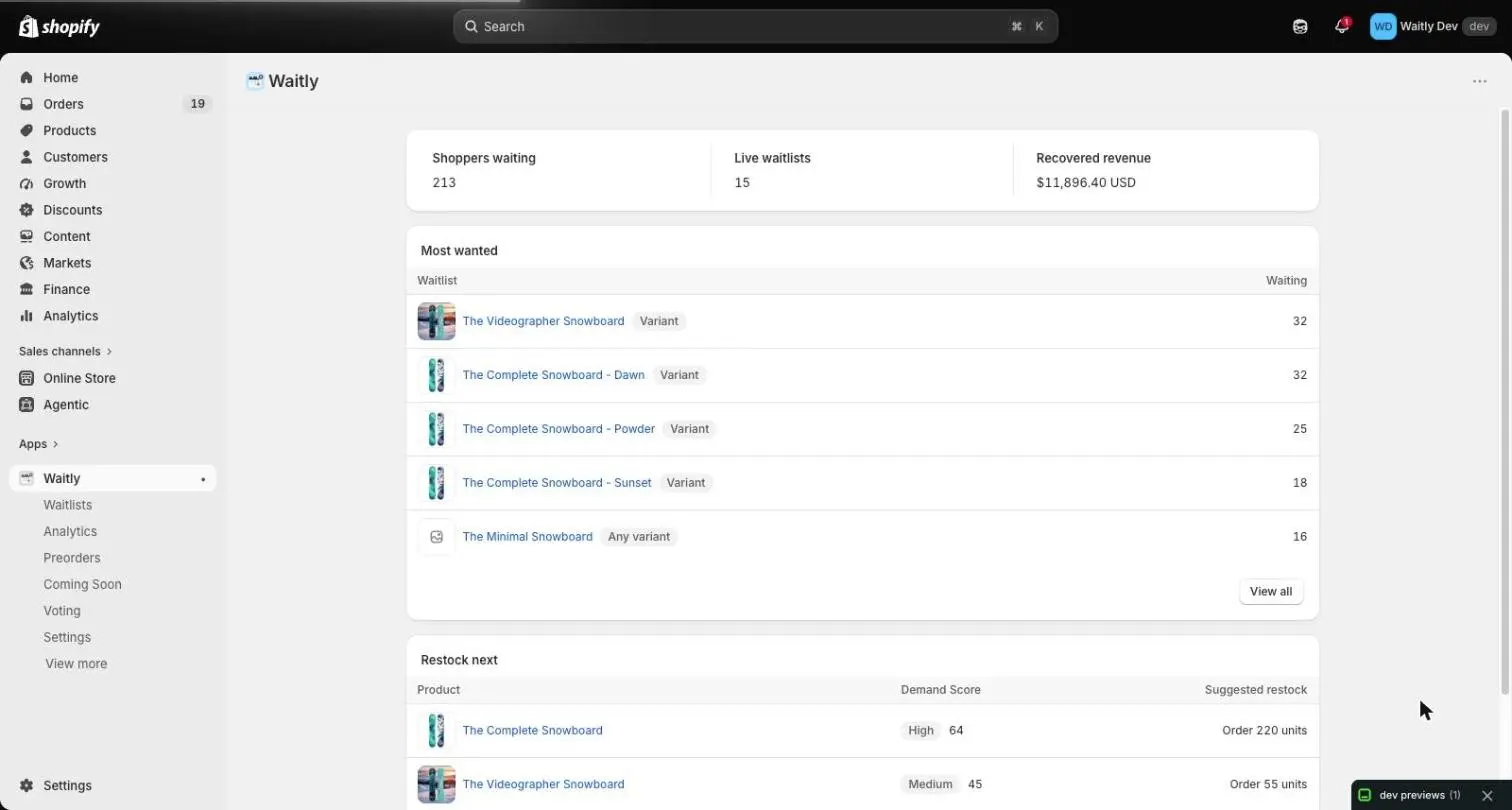
- 1Open Waitly from Apps
- 2Select a product to open its waitlist
- 3See every waitlist
Tip: You can also reach every waitlist from Waitlists in the Waitly menu on the left of your Shopify admin.
- 2
Read the totals at the top
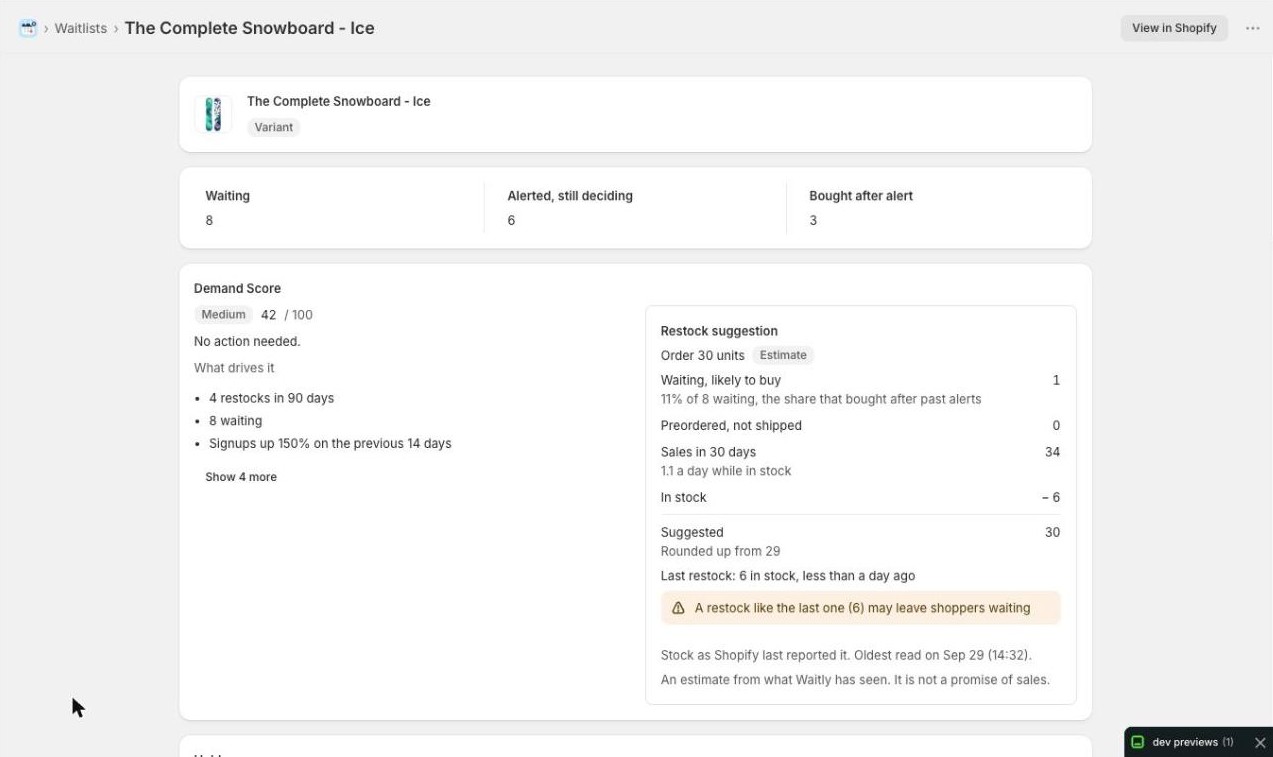
The page is named after the product or variant. A Variant badge means shoppers are waiting for that one size or color. An Any variant badge means they’ll take any variant of the product. View in Shopify opens the item in your Shopify admin.
Below it are three numbers: Waiting (shoppers still due an alert), Alerted, still deciding (alerted, and still inside the time set by Hold a restock alert for in Settings; if they don’t buy by then, they go back to waiting) and Bought after alert (shoppers who bought after Waitly told them it was back).
Shopify admin · Waitly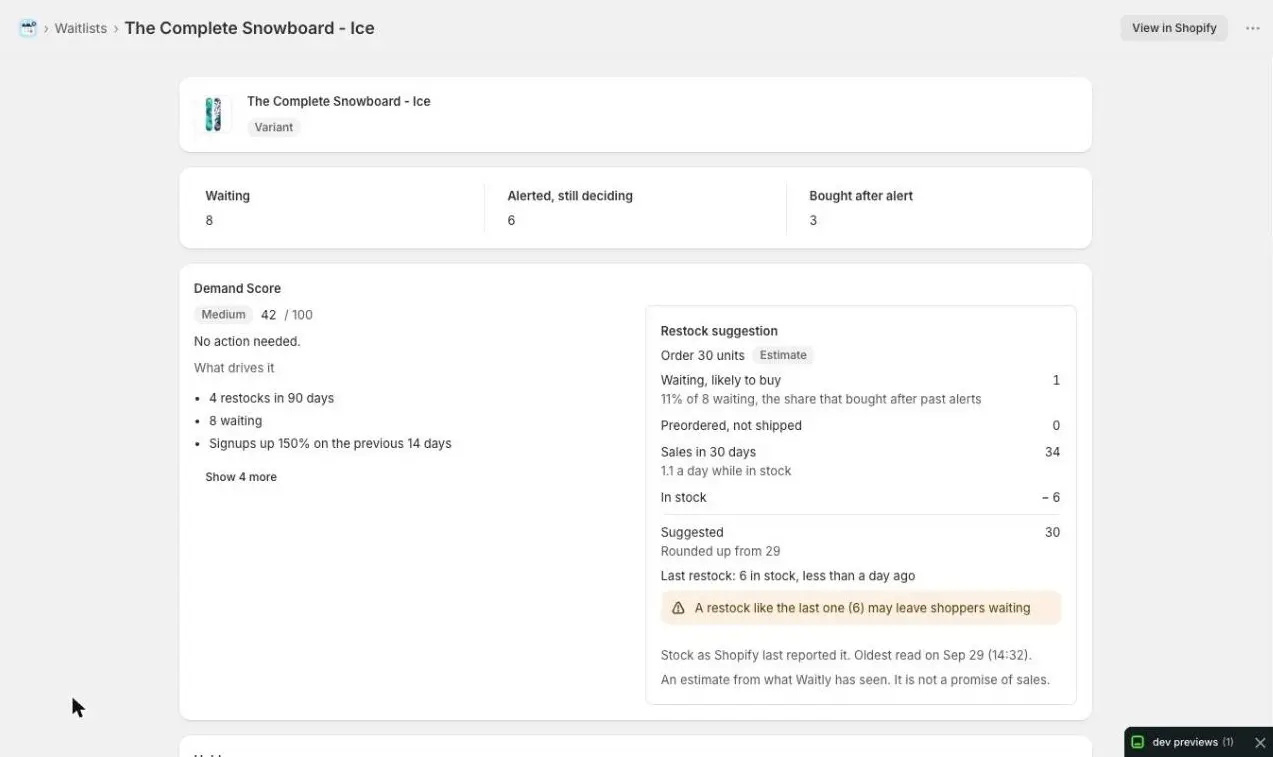
- 1Variant or Any variant
- 2Open the item in Shopify
- 3This waitlist’s totals
Note: A Deleted in Shopify badge means the product is gone from your store. Waitly keeps its waitlist so you can still see what happened.
- 3
Check the Coming Soon card
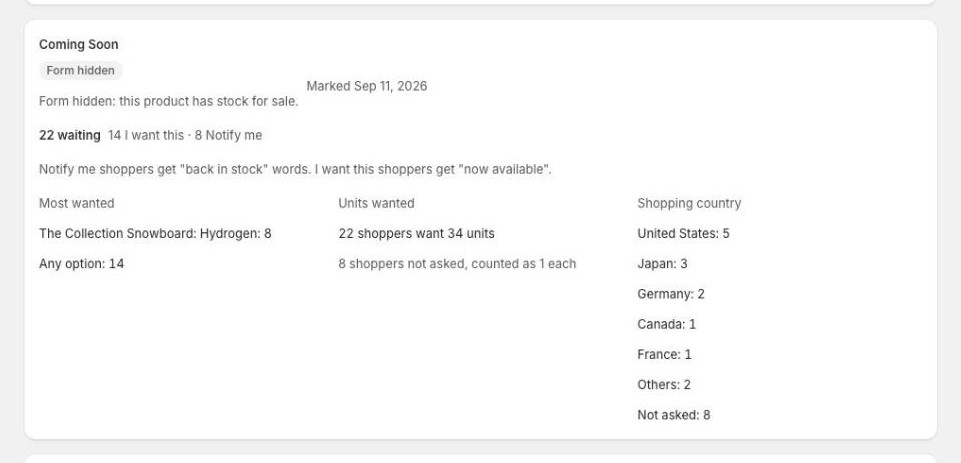
If the product is marked Coming Soon, a Coming Soon card shows when it was marked and whether the form is showing on your store. On Pro it also shows how many are waiting and how they joined, Most wanted variants, Units wanted and, if you ask for it, Shopping country.
If the mark has ended but shoppers who joined through I want this are still waiting, the card stays and reads No longer marked. Other products don’t show this card.
Shopify admin · Waitly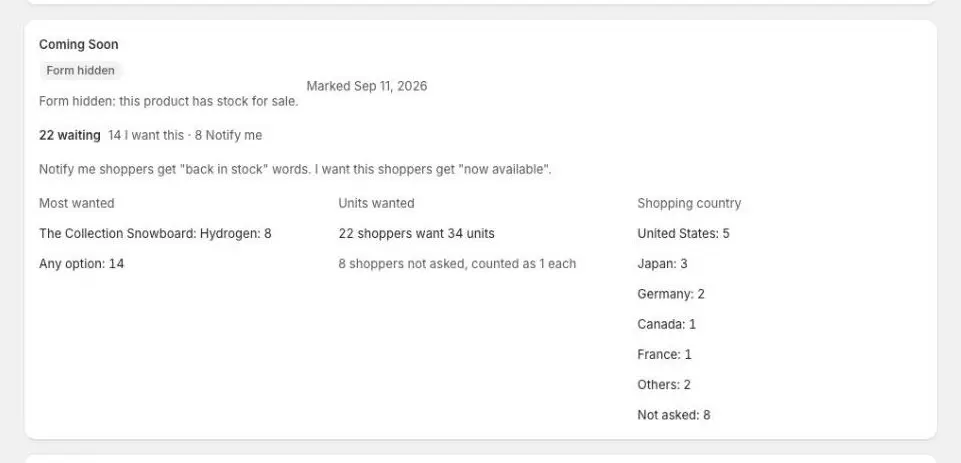
- 1When it was marked
- 4
Read the Demand Score card
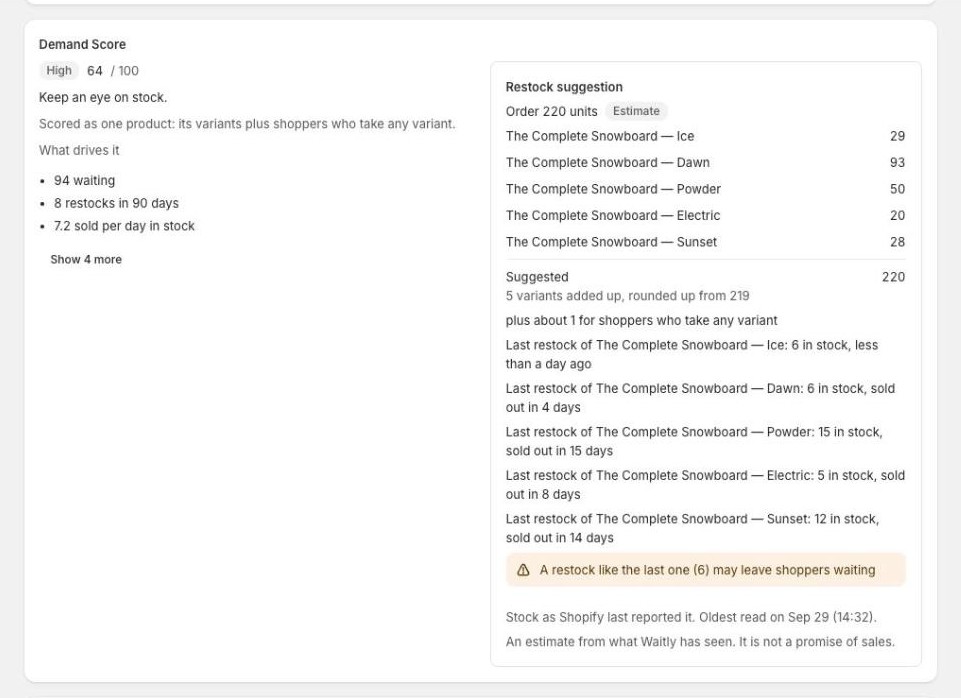
On Pro, the Demand Score card rates how strongly shoppers want this item from 0 to 100, says what to do, and lists What drives it. The Restock suggestion beside it estimates how many units to order and shows the working.
On an Any variant waitlist, the score covers the whole product: its variants plus the shoppers who’ll take any variant.
Shopify admin · Waitly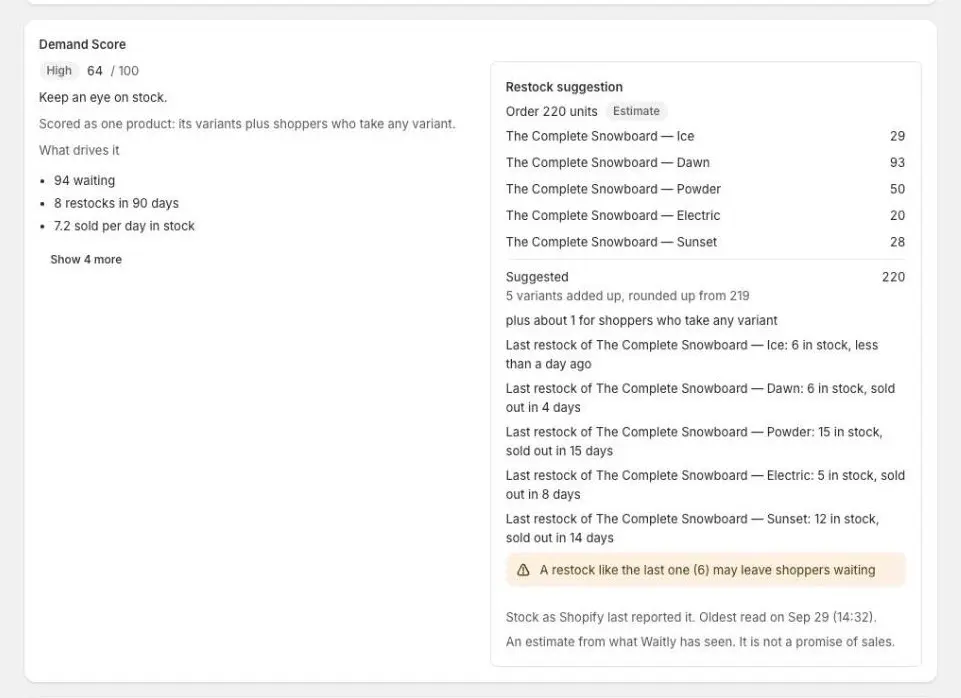
- 1Score from 0 to 100
- 2Estimated units to restock
Note: Demand Score is on Pro. On other plans the card shows one line saying what it would add.
- 5
See who holds a unit right now
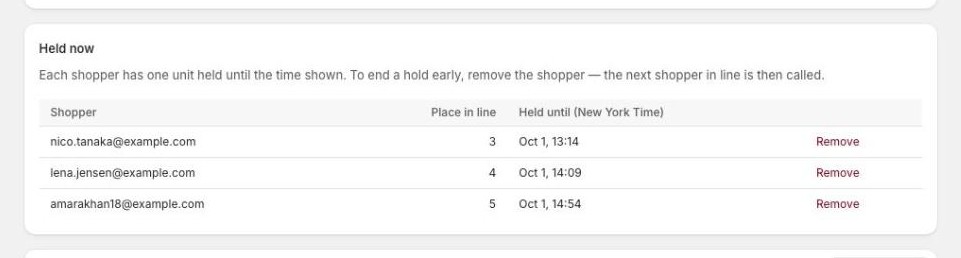
If you reserve units for the first shoppers, a Held now card lists each shopper holding a unit, their Place in line and Held until. It only appears while a hold is running.
To end a hold early, select Remove on that shopper. This also takes the shopper off the waitlist. The unit then goes to the next shopper in line.
Shopify admin · Waitly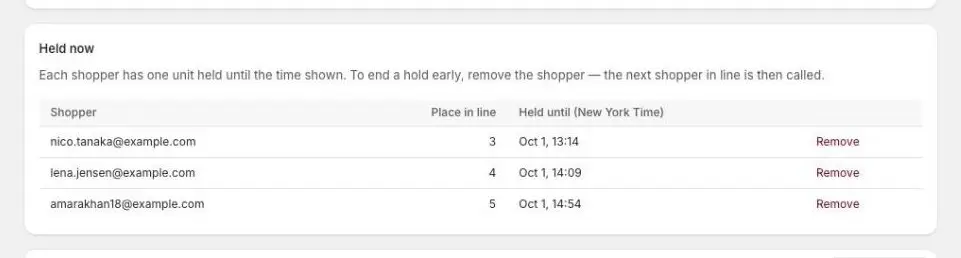
- 1When each hold ends
- 2End a hold early
- 6
Read the shopper list
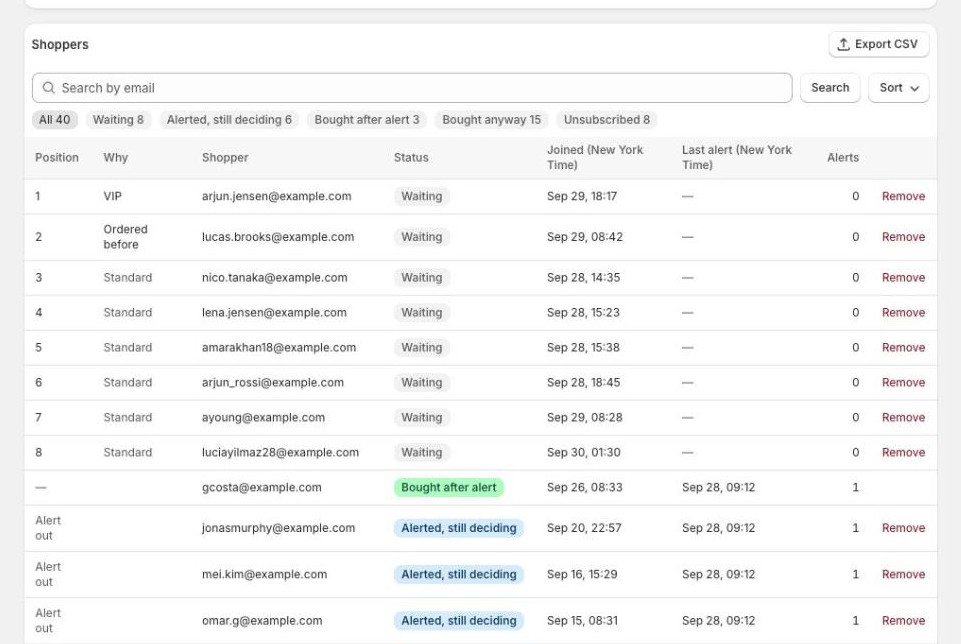
The Shoppers card lists everyone who signed up, with their email, Status, when they Joined, their Last alert and how many Alerts they’ve had. Times are in your store’s time zone, which is named in the column header.
On Pro, the list is in queue order and Position shows each shopper’s place in line. Alert out means they’ve been alerted and are still deciding. If you’ve turned on waitlist priority, Why shows what put them there: VIP, High-value, Tagged or Ordered before, and Standard for everyone else. Sort switches between Queue order and Newest first.
Shopify admin · Waitly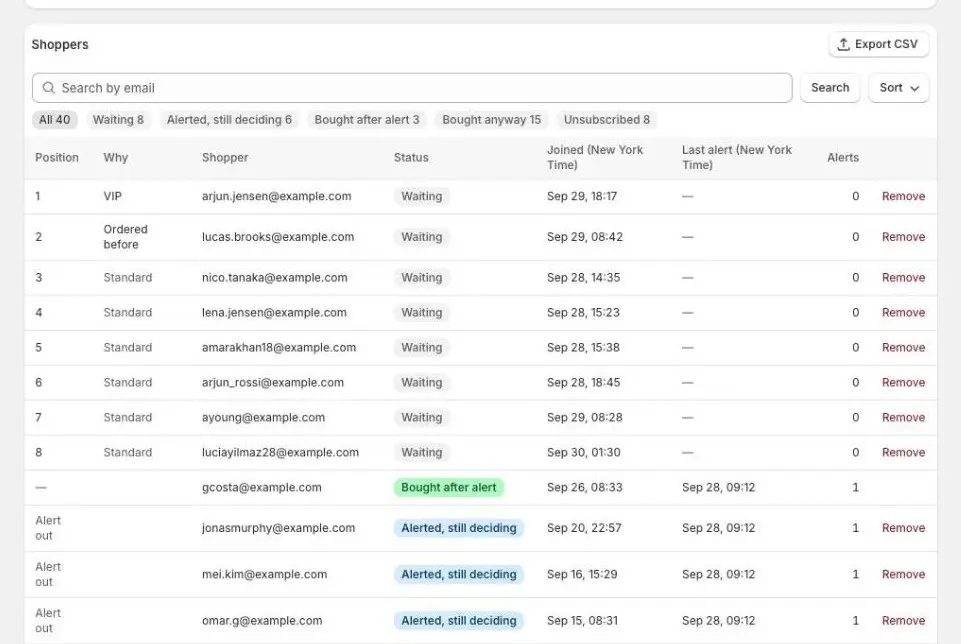
- 1Place in line and why
- 2Queue order or Newest first
Note: Below Pro, the list is newest first and the Position column shows a dash on every row, with a Pro badge on its header. There’s no Sort button and no Why column.
- 7
Filter by what happened
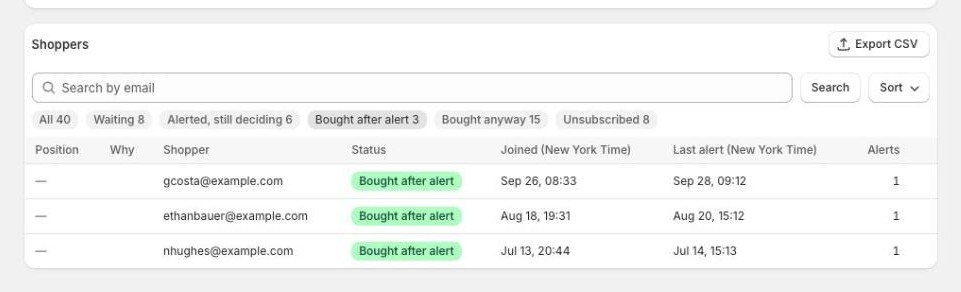
Use the filters above the table to show one status at a time. Each shows how many shoppers it holds, and only statuses this waitlist has are listed. Type in Search by email and select Search to find one shopper.
The statuses are Waiting, Alerted, still deciding, Bought after alert, Bought anyway (bought without an alert that counts), Unsubscribed (the shopper stopped alerts), Expired (too old, or alerted as many times as your settings allow), Cannot be emailed (their address bounced, or they reported an email as spam) and Removed by you.
Shopify admin · Waitly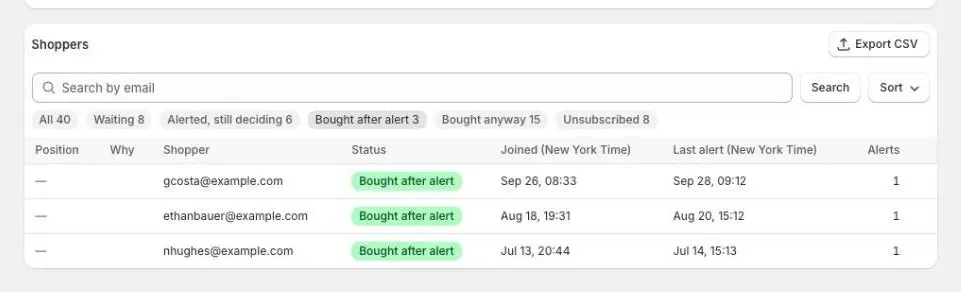
- 1Show one status at a time
- 2Find one shopper
Tip: To download the list, see Export a waitlist as CSV. To take someone off it, see Remove a shopper from a waitlist.
Questions
- Why is a shopper listed but not counted as waiting?
- Waiting counts only shoppers still due an alert. Anyone who bought, unsubscribed, expired or was removed keeps their row so you can see what happened.
- Can shoppers see where they are in the line?
- On Pro, the confirmation email can show their place in line. Turn it on or off under Settings, Waitlist priority.
- Why did a shopper’s row disappear?
- Waitly keeps waitlist demand for the number of days you set under Settings, Data retention. Older rows are removed after that.
Read next
- Export a waitlist as CSVDownload everyone on a waitlist, or just the shoppers you’ve filtered to, as a spreadsheet.
- Remove a shopper from a waitlistTake one shopper off one waitlist so they don’t get the alert when it’s back in stock.
- Put VIPs first with waitlist priorityChoose which shoppers hear about a restock first, and see each shopper’s place in line on the waitlist.