Add the Notify me block
Put the Notify me button on your product page from the setup guide, or add it yourself in the theme editor.
Before you start
- Waitly is installed.
- Your store uses an Online Store 2.0 theme, such as Dawn.
- 1
Select Add block in the setup guide
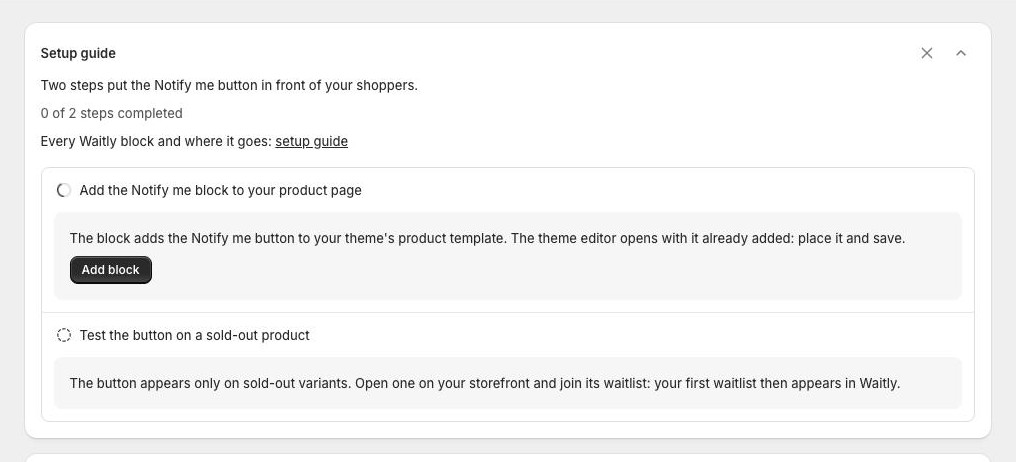
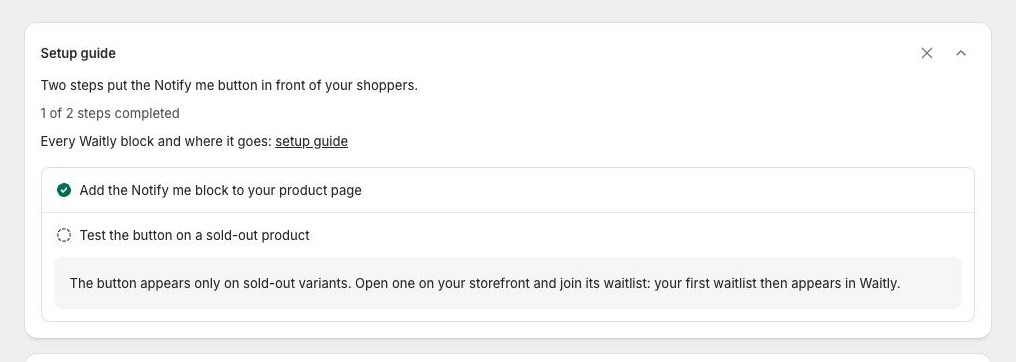
Open Waitly. The Setup guide is the card at the top of Home, and it lists two steps. Under the first one, Add the Notify me block to your product page, select the Add block button.
Your theme editor opens in a new browser tab.
Shopify admin · Waitly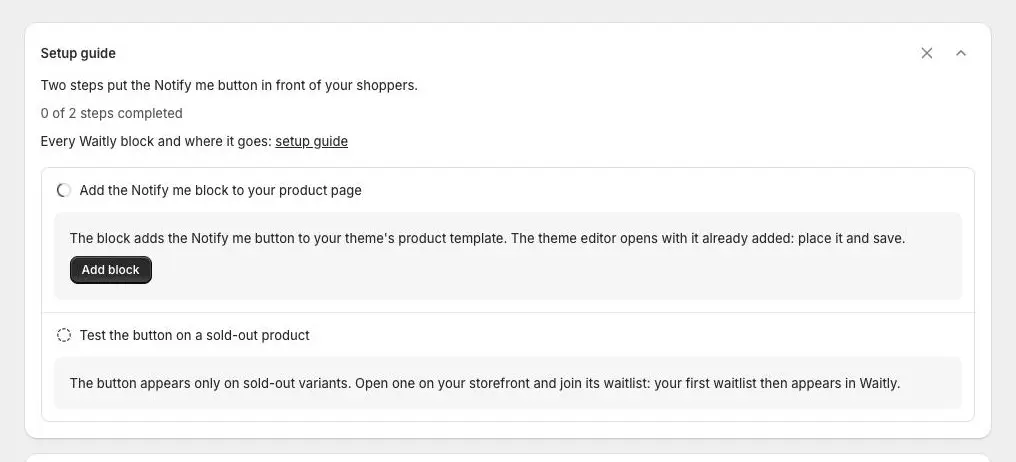
- 1The first step
- 2Select Add block
- 2
Find the block in the theme editor
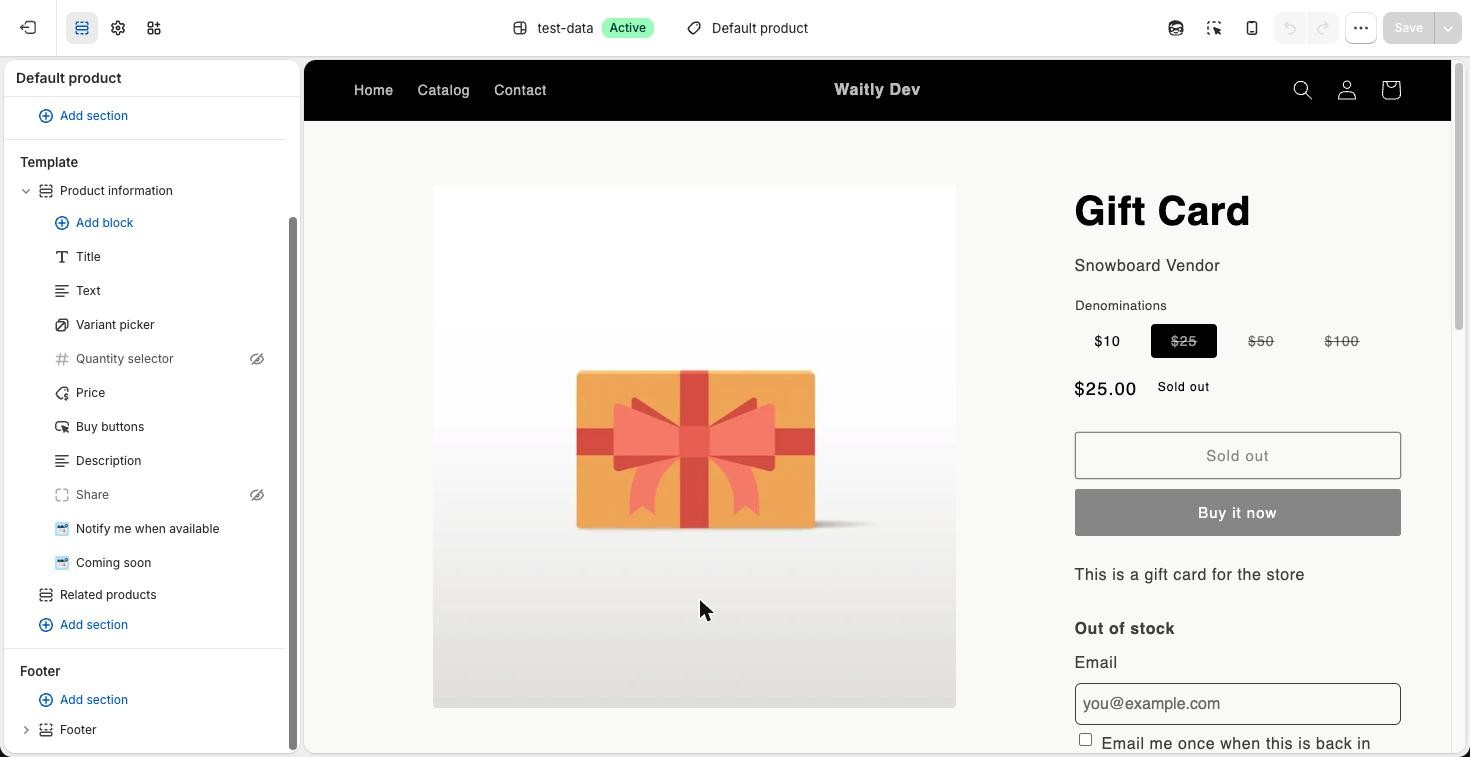
The theme editor opens your live theme on the default product template, with the Notify me when available block already added to the product section. You’ll see it in the list of blocks on the left.
Shopify admin · Waitly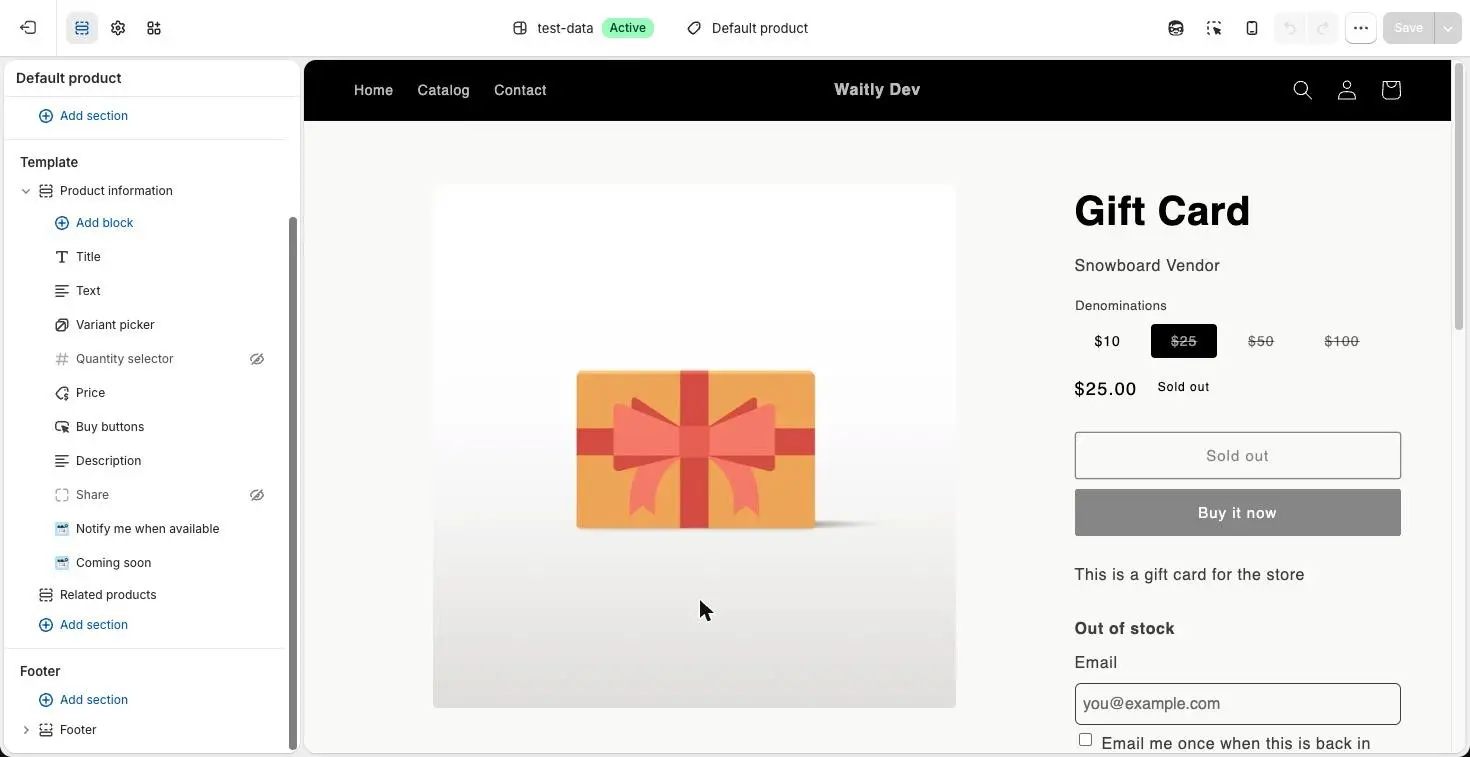
- 1The Notify me when available block
- 2The form on a sold-out variant
Tip: The block only shows on a sold-out variant, so the preview may look empty. To see it, use the product picker at the top of the editor to preview a product whose selected variant is sold out.
- 3
Drag it into place
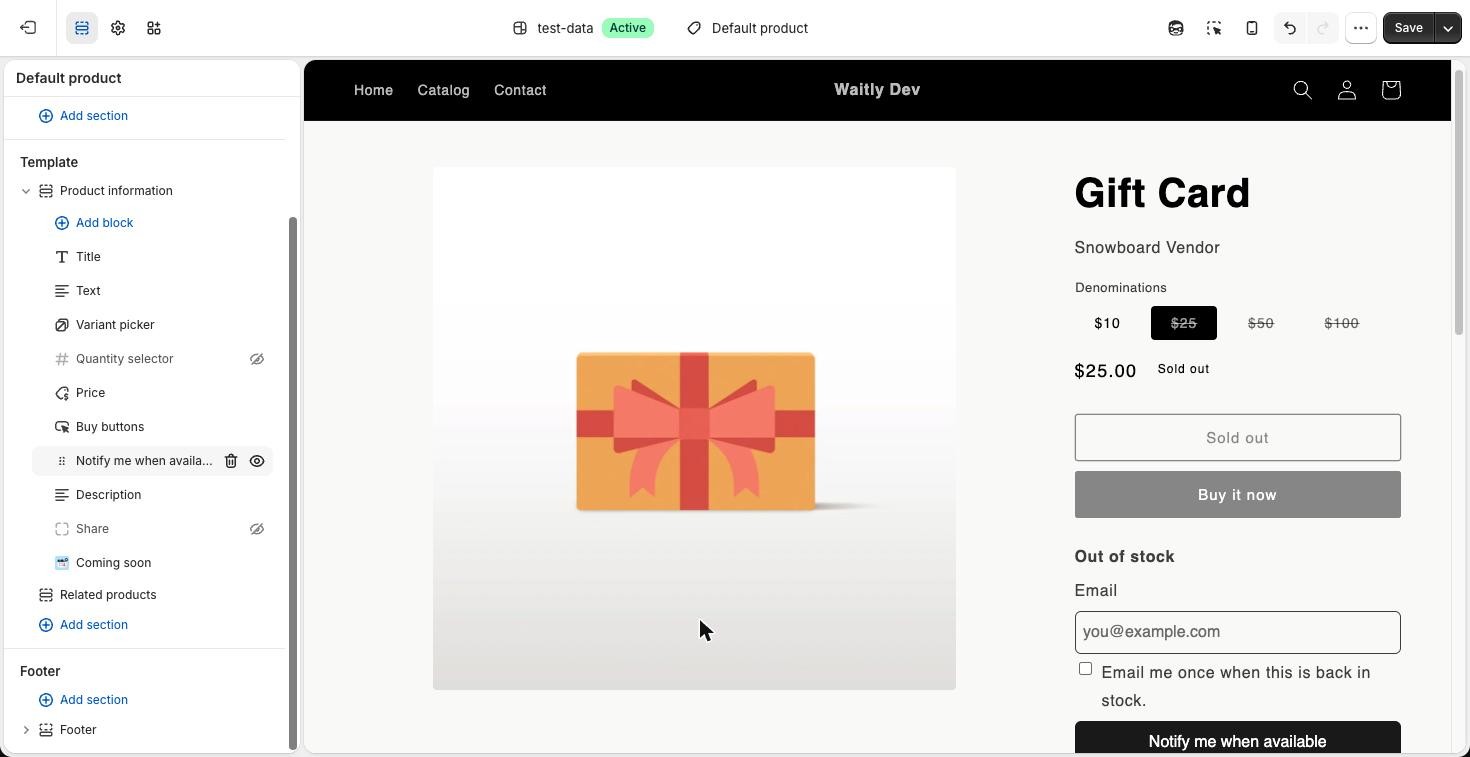
Drag Notify me when available up or down the block list to where you want the form. Just under the price or under the buy buttons works well, since that’s where shoppers look when a variant is sold out.
Shopify admin · Waitly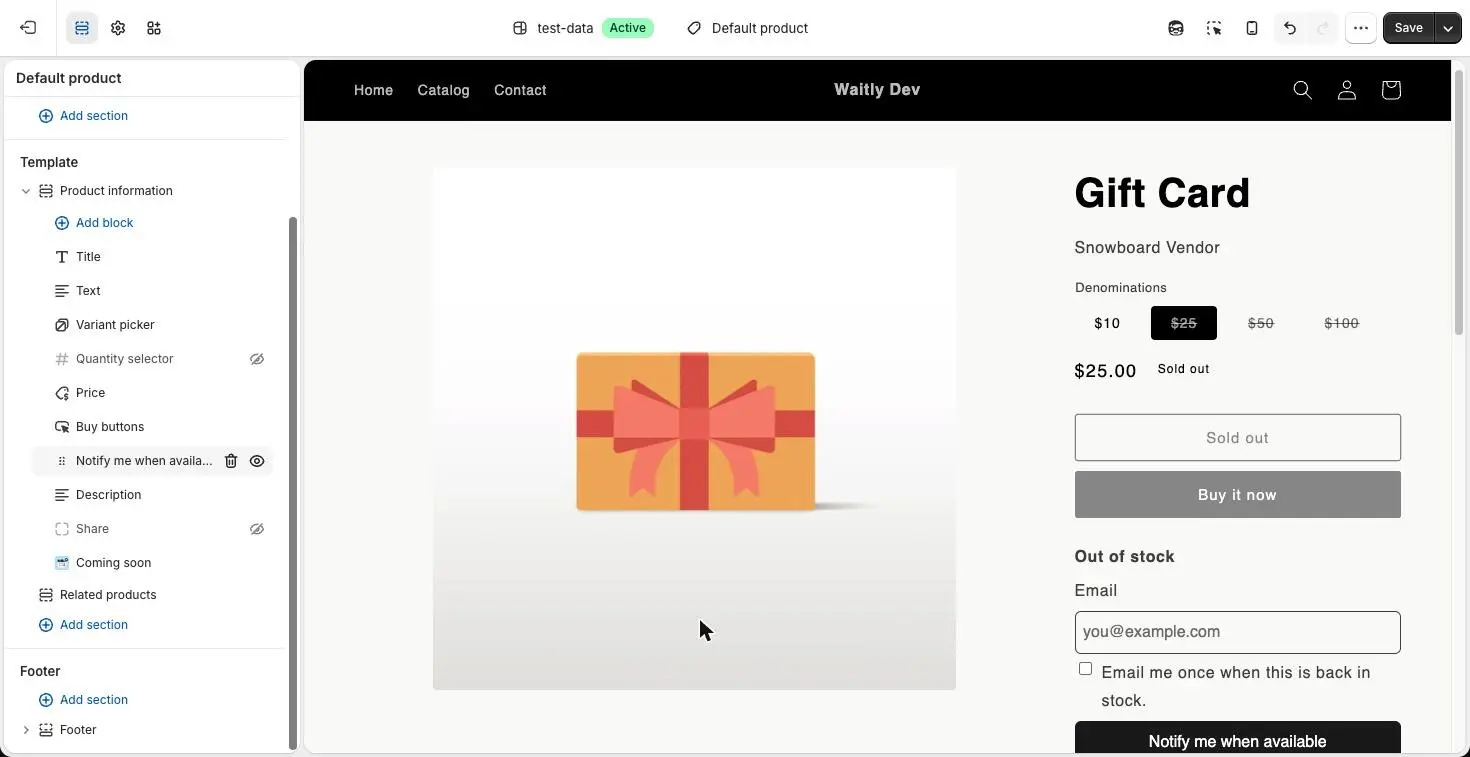
- 1Drag the block up or down
- 2The form, now under the buy buttons
- 4
Save your theme
Select Save at the top right of the theme editor. The button now appears on every sold-out variant that uses this template.
Go back to Waitly and reload Home. Once Waitly sees the block on your live theme, the first step of the setup guide is ticked off and the guide reads 1 of 2 steps completed.
Shopify admin · Waitly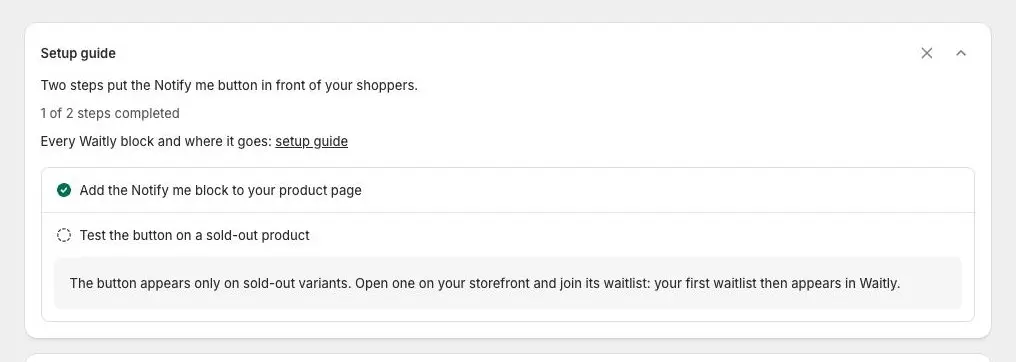
- 11 of 2 steps completed
- 2The first step is ticked off
Note: Waitly checks your published theme only. If you added the block to a theme you haven’t published yet, the step stays open until you publish it.
- 5
Or add it yourself
You can also add the block without the setup guide. In your Shopify admin, go to Online Store › Themes and select Customize. Choose Products › Default product from the menu at the top.
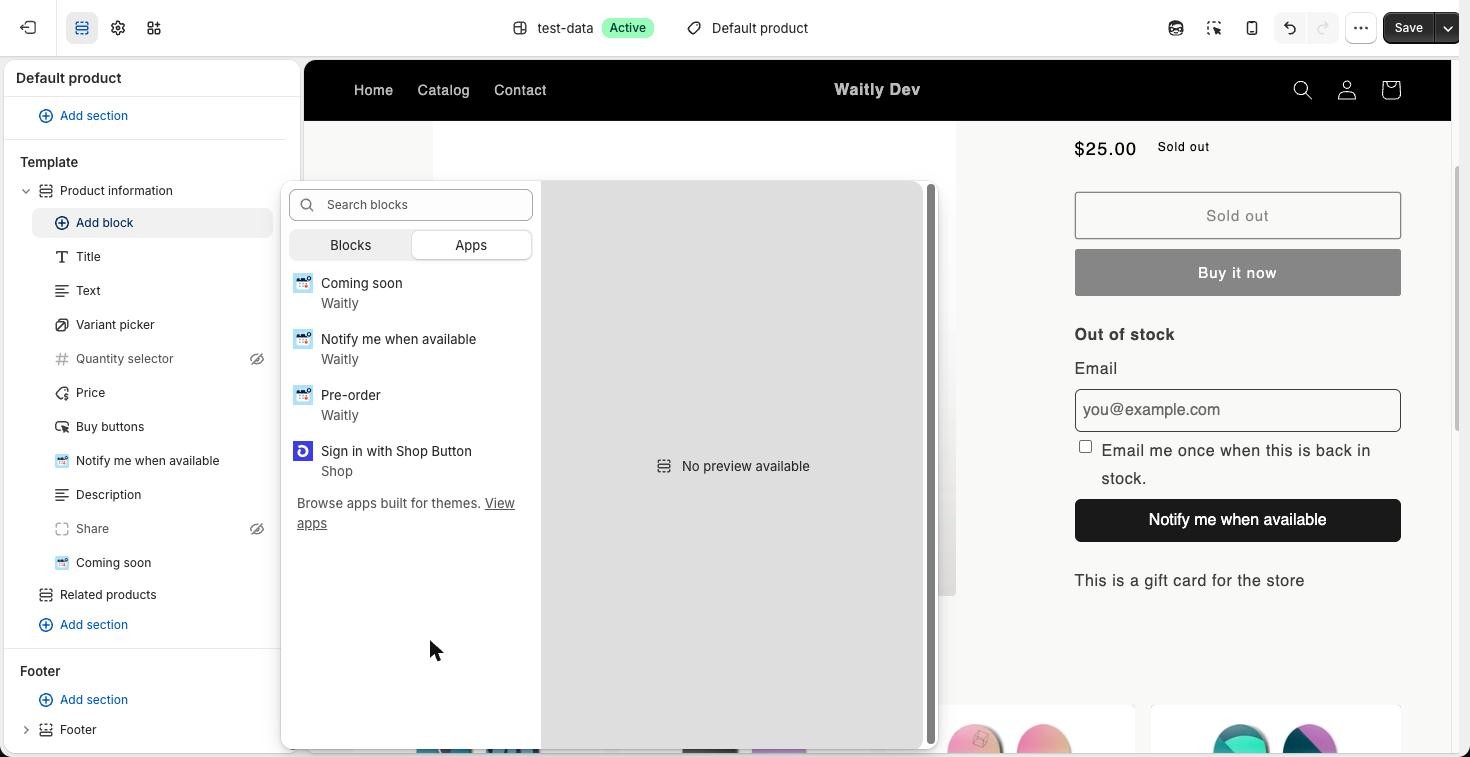
In the product section, select Add block, open the Apps tab and choose Notify me when available. Drag it into place and select Save.
If your theme has more than one product template, add the block to each one you use.
Shopify admin · Waitly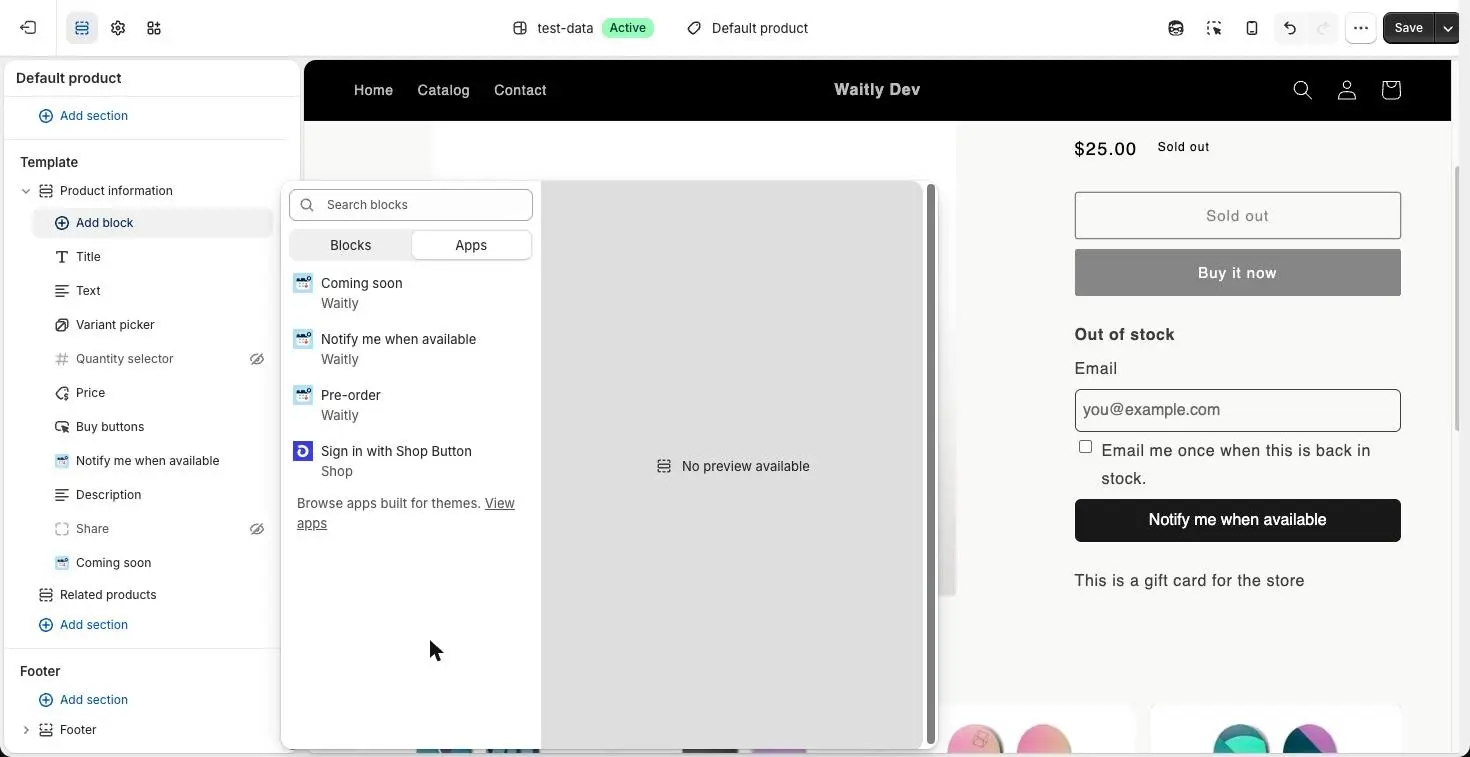
- 1Select Add block
- 2Open Apps
- 3Choose Notify me when available
Tip: Open the theme editor in Waitly’s Settings, under Widget, opens the editor with the block already added, just like the setup guide.
Questions
- Do I need to turn on Waitly’s app embed?
- No. Waitly also lists an app embed called Storefront runtime, but the Notify me block works on its own on an Online Store 2.0 theme. You can leave the embed off.
- Can I put the block on a page that isn’t a product page?
- No. The block can only be added to product templates. Leave its Product setting on the page’s own product.
- Does it work with an older (vintage) theme?
- Not today. A vintage theme can’t hold app blocks, so the Notify me block can’t be placed. You’ll need an Online Store 2.0 theme.
Read next
- Test it on a sold-out productSell out a variant, join its waitlist with your own email, see the signup in Waitly, then restock it and get the alert.
- Change the Notify me block’s words and styleEdit the Notify me block’s text, button colors and corners in the theme editor, and on Growth its background, border and button style.
- Check the storefront connectionConfirm that the Notify me block can send signups to Waitly, and fix it when Waitly can’t confirm the connection.