Plan restocks with Demand Score
See which products shoppers want most, what Waitly suggests you do, and roughly how many units to restock.
ProNeeds the Pro plan.
Before you start
- You’re on the Pro plan.
- Shoppers are waiting on at least one product, or have preorders that haven’t shipped.
- 1
Find the Demand Score section
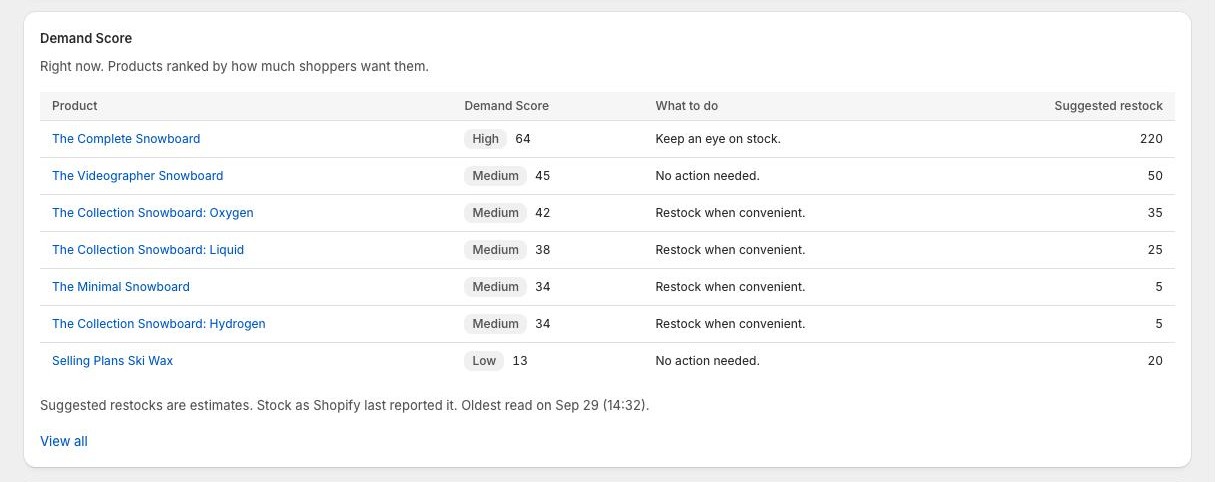
Select Analytics in the Waitly menu and scroll to Demand Score. It lists the 10 products shoppers want most right now, highest first.
Each row shows the Product, its Demand Score, What to do and a Suggested restock.
Shopify admin · Waitly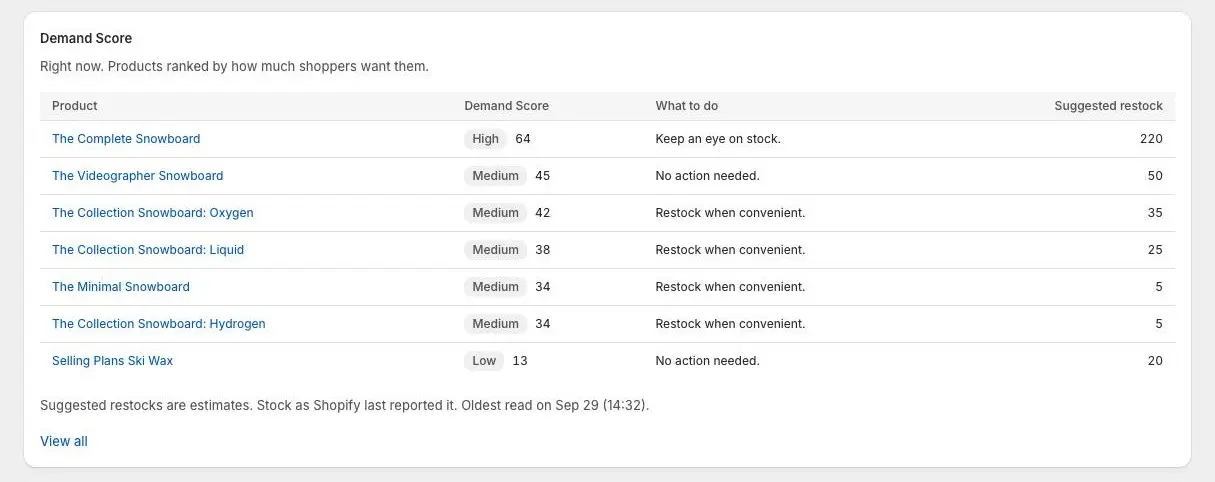
- 1Score and its band
- 2Units to restock
- 3Open the full list
- 2
Read the score
The score runs from 0 to 100, and the badge names its band: Low (0–29), Medium (30–49), High (50–69), Very high (70–84) and Critical (85–100).
It weighs, from most to least: how many shoppers are waiting, units preordered in the last 90 days, sales per day while in stock, restocks in the last 90 days, whether signups are growing (the last 14 days against the 14 before), how many shoppers bought after an alert, and shoppers who came back to wait again.
Every product is measured on the same fixed scale, so a score doesn’t drop just because another product got busier. Anything Waitly can’t know yet, like sales for a product that has never had a full stretch in stock, is left out rather than guessed.
- 3
Act on What to do
What to do is one short line based on the band and whether the product is in stock. Out of stock, it runs from Restock now. (Critical) through Restock soon., Plan a restock. and Restock when convenient. to No action needed. (Low).
In stock, it reads Order more before it sells out., Order more soon., Keep an eye on stock. or No action needed.
- 4
Read the suggested restock
Suggested restock estimates how many units to order. Waitly adds up the waiting shoppers likely to buy, preordered units not shipped yet, and 30 days of sales at the pace the product sells while in stock. Then it takes off the stock you have now and rounds up.
How many waiting shoppers are likely to buy comes from this product’s own alerts once it has sent 20, or from your whole store’s once it has sent 100. Covered by stock means you already have enough. Not enough data yet means Waitly hasn’t seen enough to estimate.
Note: Suggested restocks are estimates from what Waitly has seen. They aren’t a promise of sales, so check them against what you know.
- 5
Open the restock planner
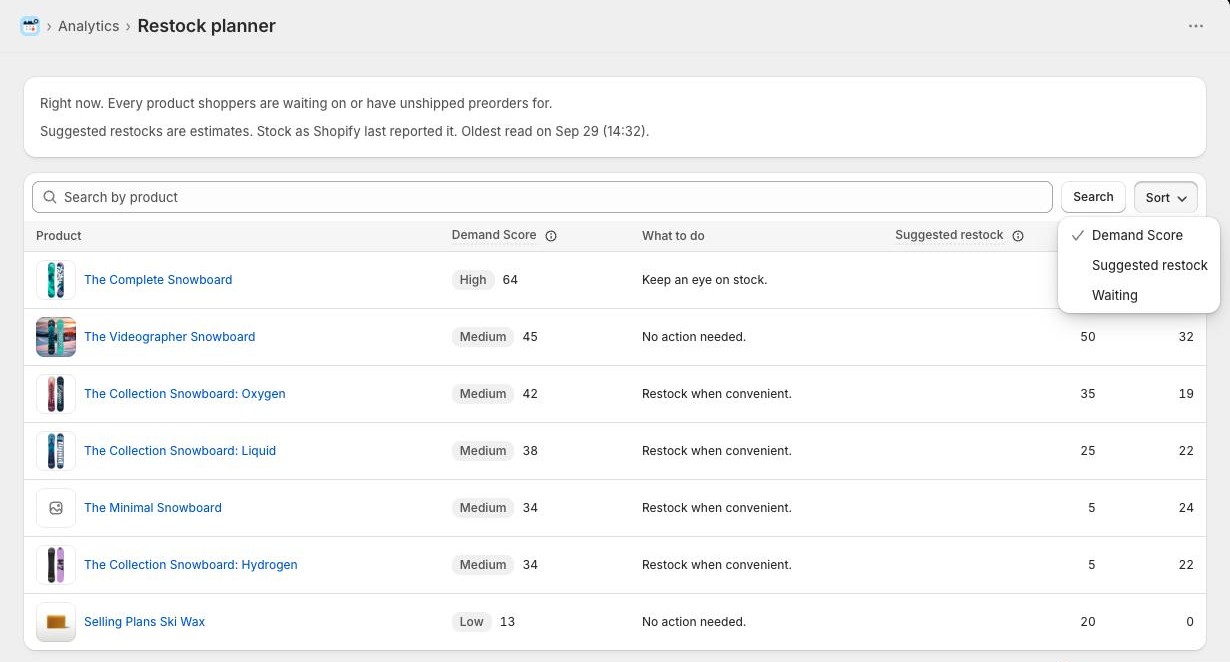
Select View all under the section to open the Restock planner. It lists every product shoppers are waiting on or have unshipped preorders for, 25 to a page.
Search with Search by product, and use Sort to order by Demand Score, Suggested restock or Waiting. Point at the Demand Score or Suggested restock header for a short explanation.
Shopify admin · Waitly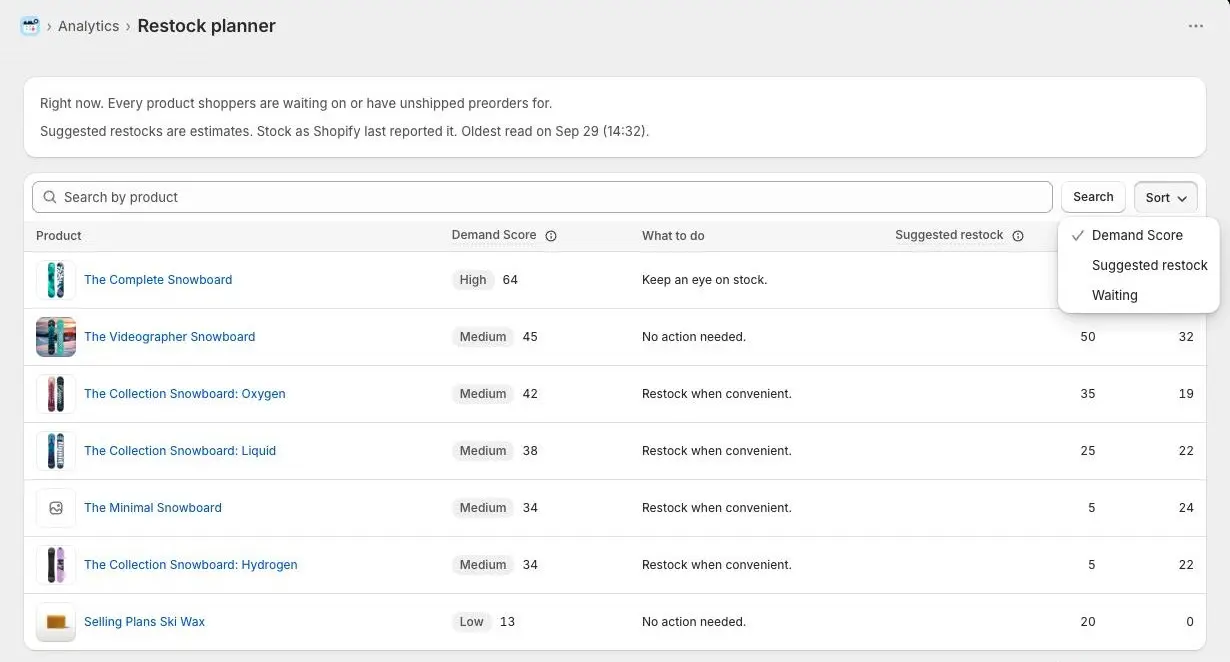
- 1Search by product
- 2Choose the order
- 3Point here for an explanation
- 6
See why an item scored what it did
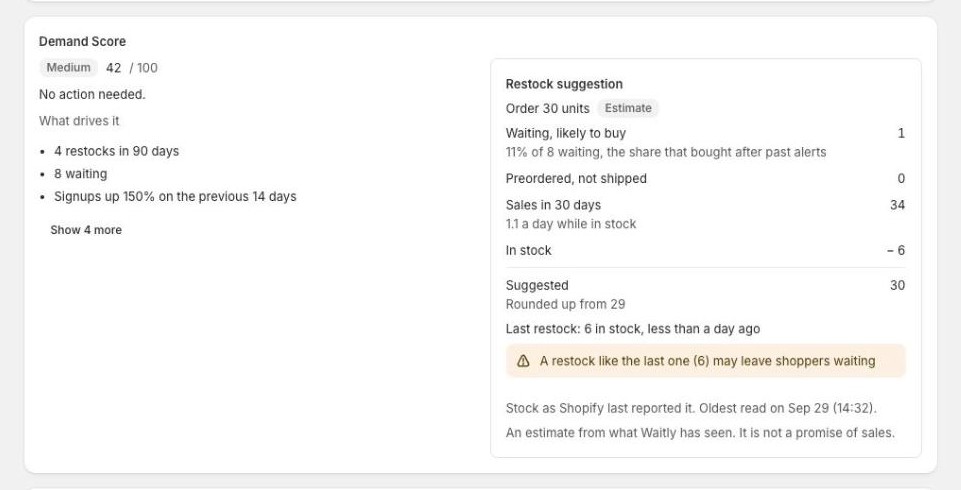
Open the item’s waitlist from Waitlists. Under the totals, the Demand Score card lists What drives it, with the figures behind the score. If there are more than three reasons, a button such as Show 2 more lists the rest. Not known yet lists anything left out.
The Restock suggestion box shows the working line by line: Waiting, likely to buy, Preordered, not shipped, Sales in 30 days, In stock, and the Suggested total.
Shopify admin · Waitly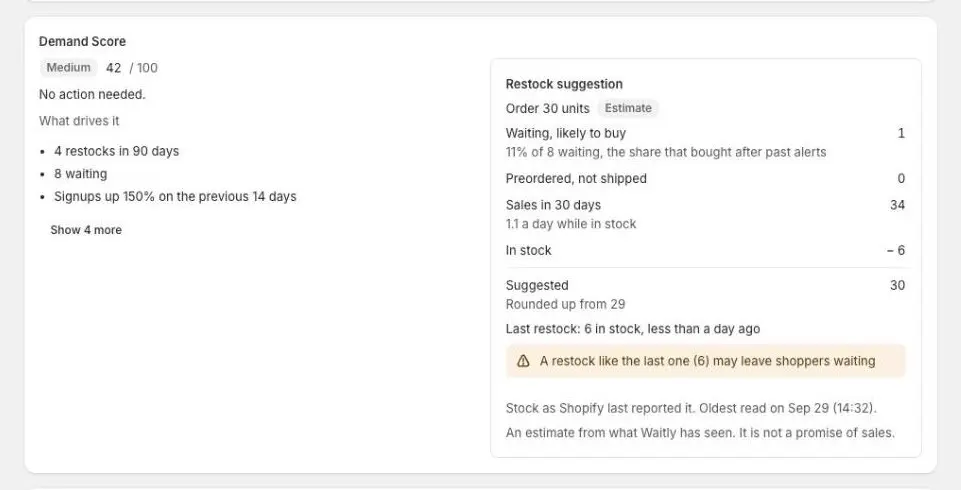
- 1Score out of 100
- 2The figures behind the score
- 3The working, line by line
- 7
Check Restock next on Home
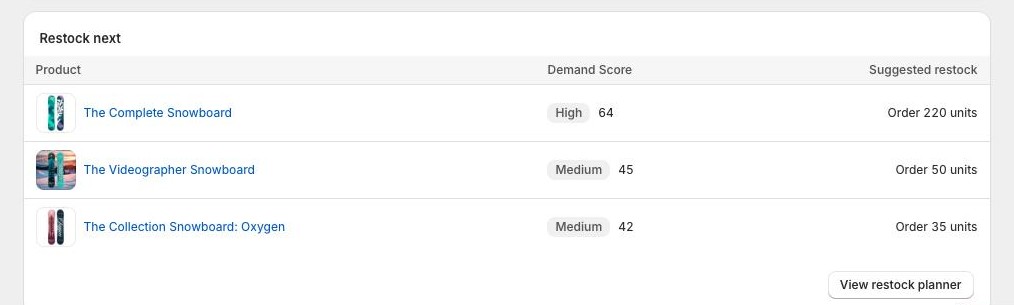
On Pro, Waitly’s Home shows Restock next: up to three of your highest-scoring products that have a number of units to order. Select View restock planner to see the full list.
Shopify admin · Waitly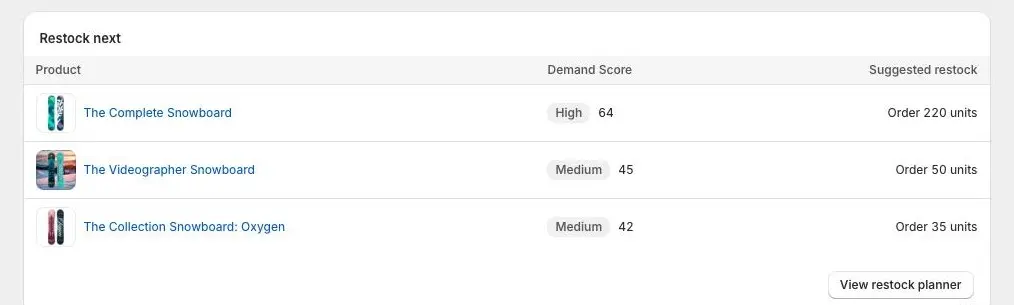
- 1Demand Score
- 2Units to order
- 3Open the full list
Questions
- Why doesn’t a variant have its own row in the planner?
- The planner scores whole products: every variant plus the shoppers who’ll take any variant. To see a single variant’s score, open its waitlist, or check Variant demand on Analytics.
- Does the date range on Analytics change the score?
- No. The score describes right now. Preorders and restocks always look back 90 days, and signup growth compares the last 14 days with the 14 before.
Read next
- Read your analyticsSee how many shoppers are waiting, what your alerts recovered, and how the rest of the demand ended.
- Browse every waitlistSearch and sort all your waitlists on one page, and see which products shoppers want most.
- See preorder volume by variantSee how many units shoppers have preordered on each variant, and for how much, over any date range.