Check the storefront connection
Confirm that the Notify me block can send signups to Waitly, and fix it when Waitly can’t confirm the connection.
Before you start
- Waitly is installed.
- 1
Open the Widget settings
Open Waitly and go to Settings. The Widget card at the top has a Storefront connection line. It shows Checking… while Waitly tries to reach your store, then one of three results.
The Notify me block sends each signup through a path on your store, /apps/waitly, which Shopify passes on to Waitly. This check makes sure that path works.
Shopify admin · Waitly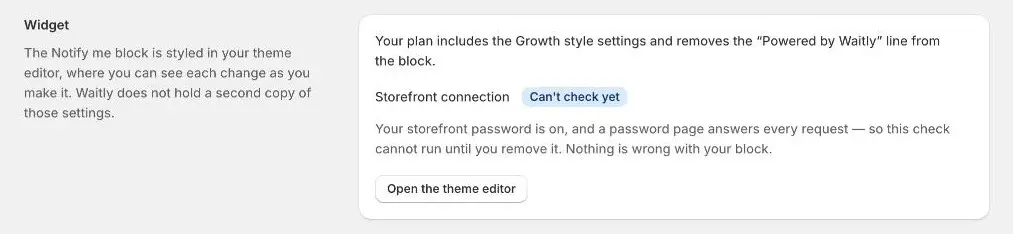
- 1The connection check
- 2
Connected: nothing to do
Connected means Waitly reached your store through that path, so the Notify me block can send signups.
- 3
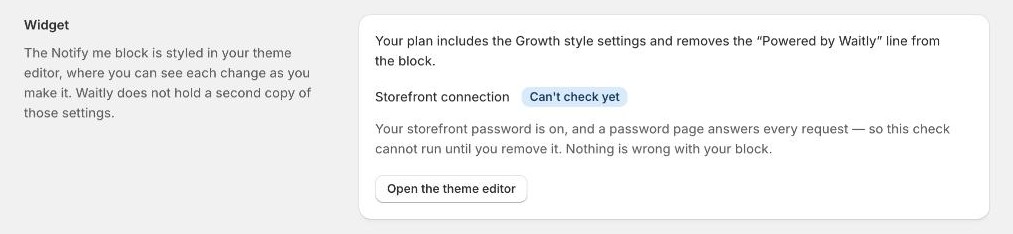
Can’t check yet: remove the password when you launch
Can’t check yet means your storefront password is on. The password page answers every request, so the check can’t get through. Nothing is wrong with your block.
Once you remove the password in your Shopify admin under Online Store › Preferences, open Waitly’s Settings again and the check runs.
Shopify admin · Waitly
- 1Storefront password is on
- 4
Not confirmed: check the app proxy
Not confirmed comes with a warning, Waitly could not confirm the connection to your storefront. The most likely cause is that the path Waitly uses was renamed.
In your Shopify admin, go to Settings › Apps and sales channels › Waitly and look at App proxy. The URL should end in /apps/waitly. If it was changed, set it back.
Careful: While the path is renamed, the Notify me block can’t send signups and shoppers see “Something went wrong” when they press the button.
- 5
Check again
The check runs each time you open Settings. After a fix, reload the page and look for Connected.
If the line doesn’t appear at all, the check itself couldn’t run that time. Reload the page to try again.

Questions
- Does this check whether the block is on my theme?
- No. It only checks the connection. The setup guide on Home checks that the Notify me block is on your published theme.
Read next
- Add the Notify me blockPut the Notify me button on your product page from the setup guide, or add it yourself in the theme editor.
- Test it on a sold-out productSell out a variant, join its waitlist with your own email, see the signup in Waitly, then restock it and get the alert.
- Set alert and attribution rulesChoose how long an alert holds a shopper’s place, how many alerts one shopper gets, and how long a sale counts as recovered.