Turn a winning proposal into a product
Promote a proposal to a new Shopify product, or link it to one you already have, so every voter hears when it launches.
ProNeeds the Pro plan.
Before you start
- Your store is on the Pro plan.
- The proposal is Open or Closed. A Draft has to be opened first.
- 1
Find the winner
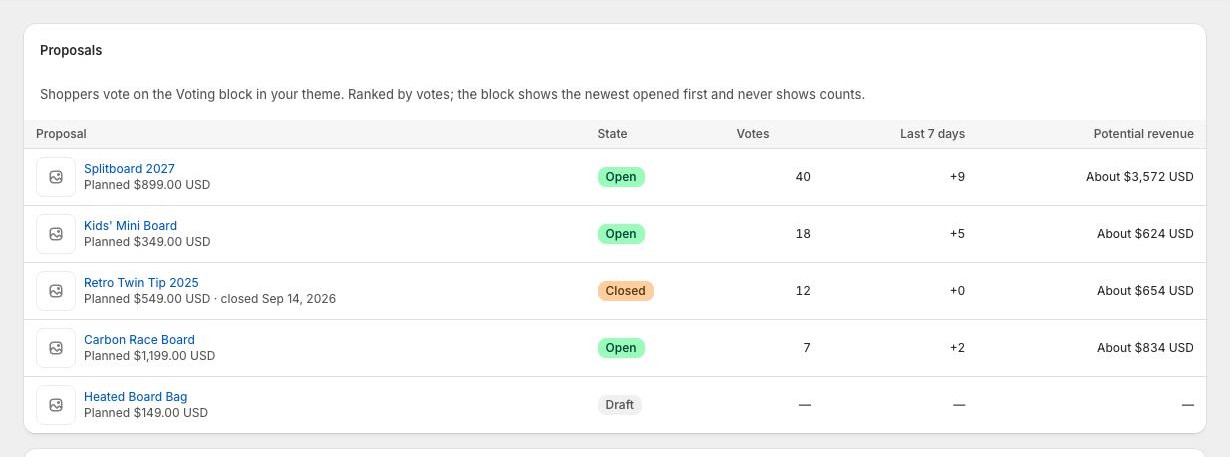
In Waitly, choose Voting. Proposals are ranked by votes, with Last 7 days and Potential revenue beside each one.
Select the proposal’s title to open it.
Shopify admin · Waitly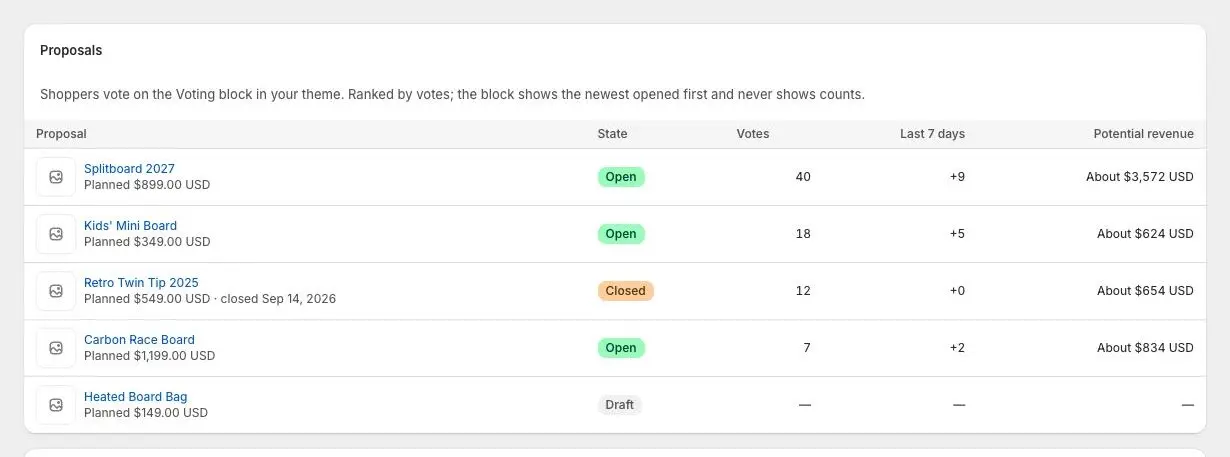
- 1Select the title to open it
- 2Votes, last 7 days, potential revenue
- 2
Promote it to a new product
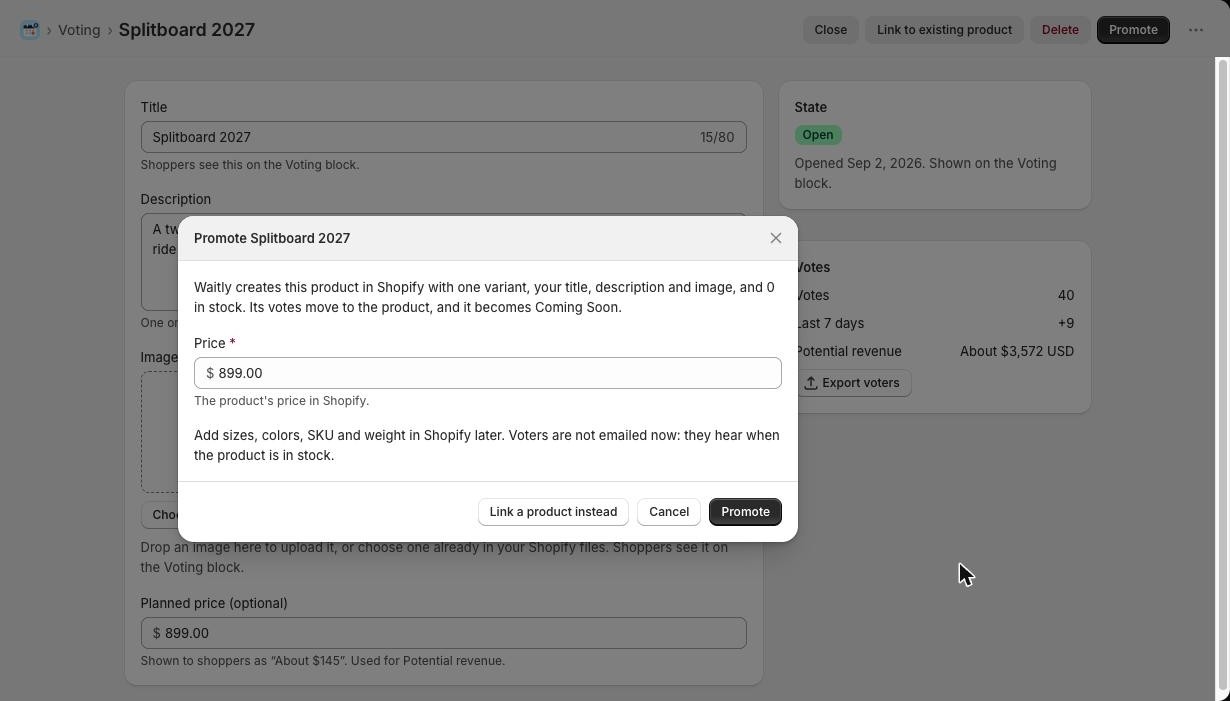
Select Promote. Waitly will create the product in Shopify with one variant, your title, description and image, and 0 in stock. Its votes move to the product, and it becomes Coming Soon.
Enter the product’s Price. It starts as your planned price, if you set one. Then select Promote.
If Shopify asks you to let Waitly publish products, allow it so the product goes on your Online Store with its Coming Soon form. If you say no, publish it yourself in Shopify.
Shopify admin · Waitly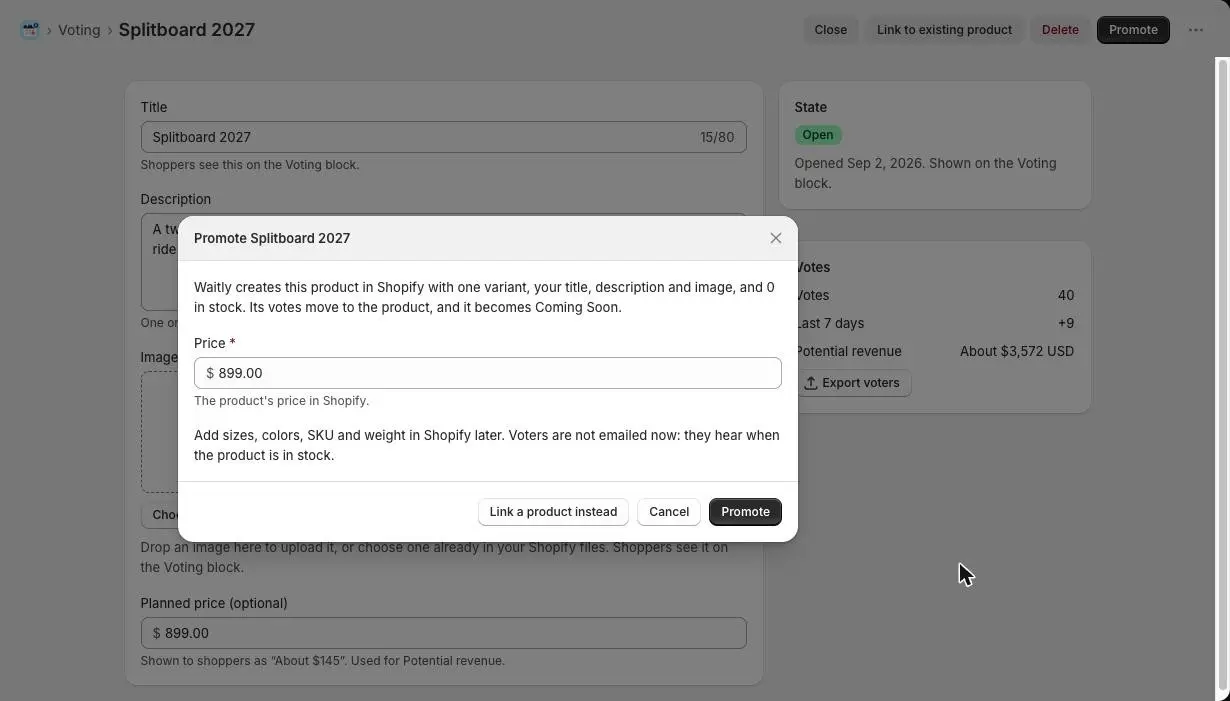
- 1Set the product’s price
- 2Create the product
- 3Or link an existing product
Note: Voters aren’t emailed when you promote. They hear when the product is in stock. Add sizes, colors, SKU and weight in Shopify afterwards.
- 3
Or link it to a product you already have
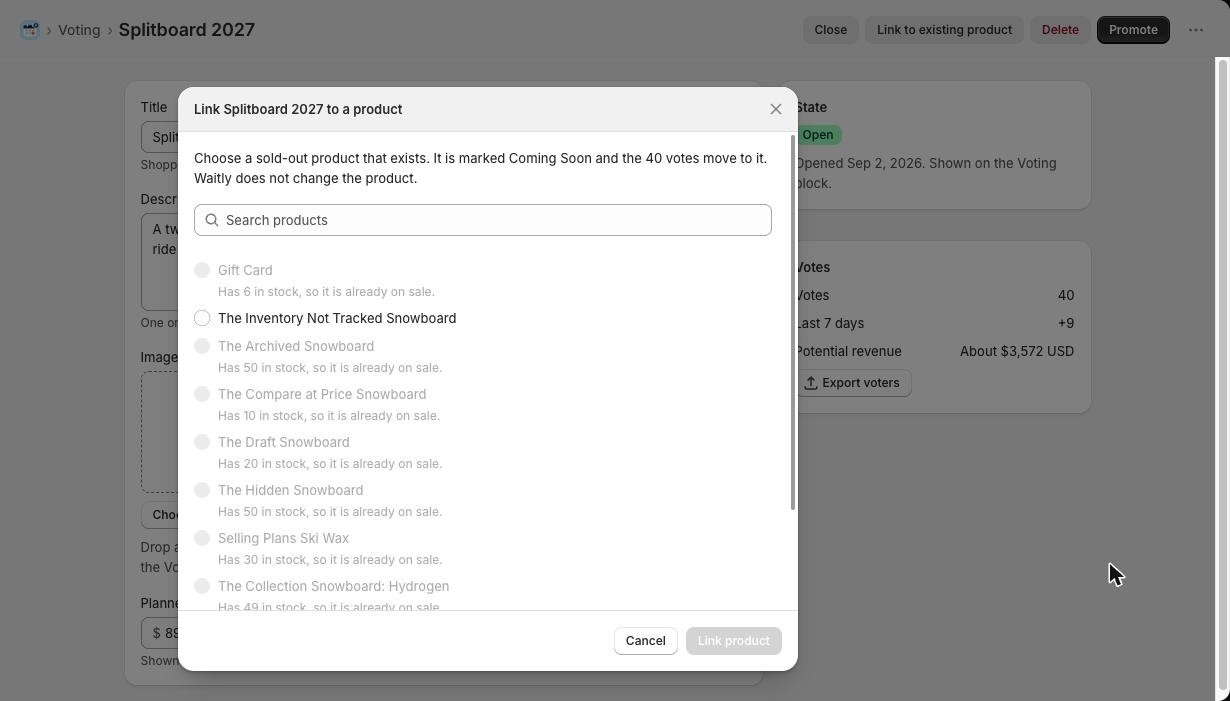
If the product already exists in Shopify, select Link to existing product instead (or Link a product instead in the Promote window). Search, choose the product and select Link product.
It must be sold out and published to the Online Store. Products Waitly can’t use are greyed out with the reason, for example “Has 50 in stock, so it is already on sale.” Waitly doesn’t change the product. It marks it Coming Soon and moves the votes to it.
Shopify admin · Waitly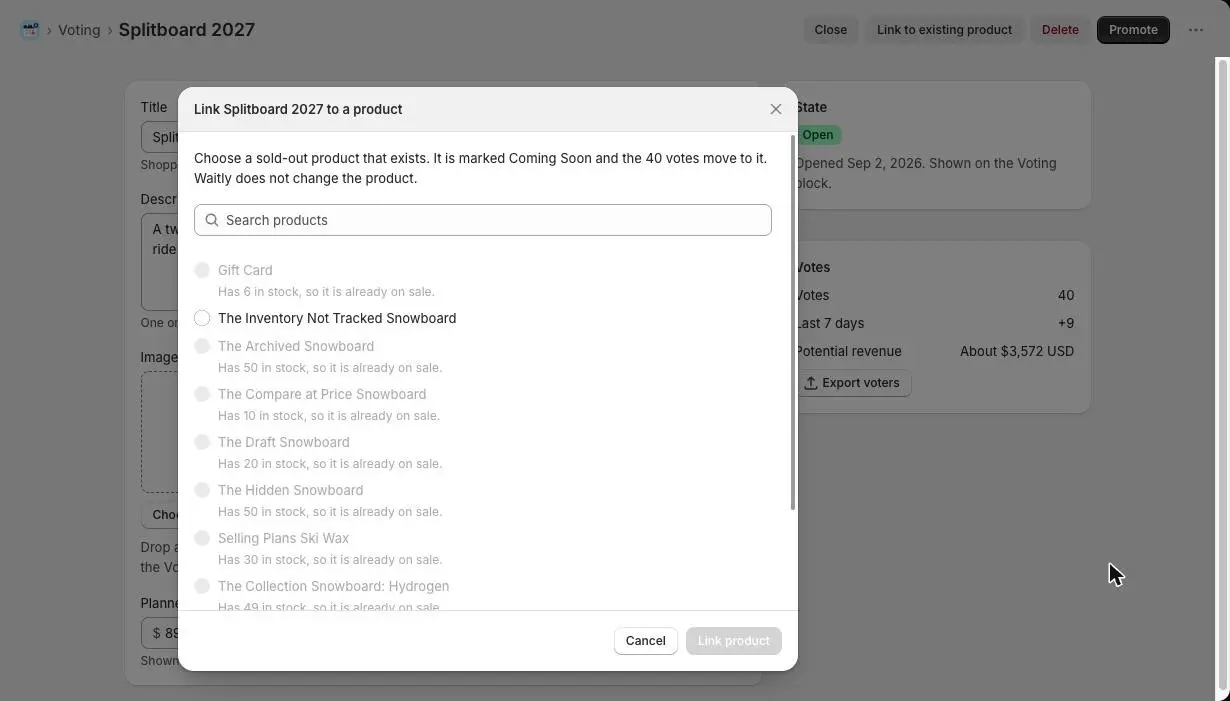
- 1Search your products
- 2Greyed out, with the reason
- 3Link the chosen product
- 4
Follow it in Promoted
Waitly takes you back to Voting. The proposal moves to Promoted, which shows the Product, How it was promoted (Created or Linked), Votes moved and Promoted on.
While Waitly works, the product reads “Creating the product in Shopify…”, or “Moving the votes to the product…” for a linked one. If it’s not published yet, you’ll see “Publish in Shopify to show the Coming Soon form.”
Shopify admin · Waitly
- 1The product, and what’s left to do
- 2Created or Linked
- 3Votes moved
Tip: If a row shows Promotion not finished, select Retry promotion to try again.
- 5
Launch it and tell your voters
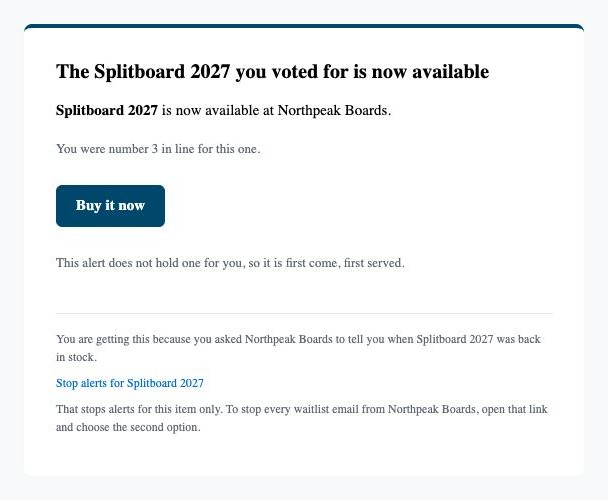
Get the product ready in Shopify, then add stock. That launches it: every voter gets an email saying the product they voted for is now available.
Shoppers who signed up on the product’s Coming Soon form in the meantime get the launch email too, in their own wording.
Shopper’s inbox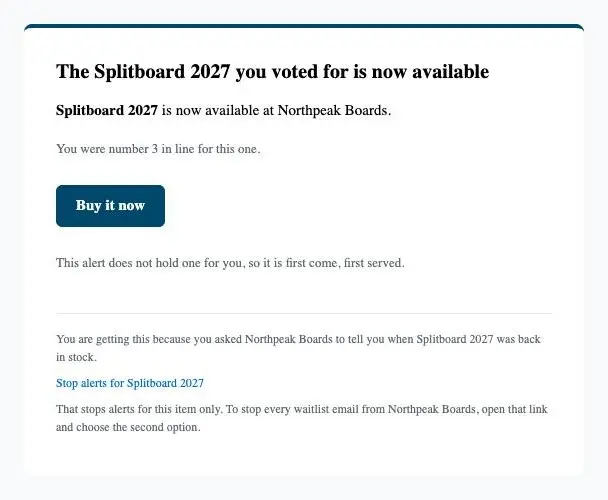
- 1Names the product they voted for
- 2Opens the product page

Questions
- What happens to the votes?
- Each vote becomes a place on the product’s waitlist, keeping the date the shopper voted. A voter already waiting for that product keeps their existing place instead.
- Can I undo a promotion?
- No. A promoted proposal can’t be changed or deleted. It’s off the Voting block for good, and its votes live on the product’s waitlist.
Read next
- Let shoppers vote on a product ideaDescribe a product that doesn’t exist yet, open it for votes, and close, reopen or delete it later.
- Mark a product Coming SoonMark a sold-out product so its page takes “I want this” signups, then email everyone waiting when you add stock.
- Voting for a productWhat your shoppers see when they vote on your next products, and the thank-you email they get.