Change a ship date and notify shoppers
Move a policy’s ship estimate later, see who will be told before you save, and let Waitly send the delay notices.
GrowthNeeds the Growth plan or Pro.
Before you start
- You’re on the Growth or Pro plan.
- The policy has a ship estimate and has taken preorders.
- 1
Open the ship estimate
In Waitly, choose Preorders, select the policy, and scroll to Ship estimate in the What shoppers see card.
- 2
Enter the new estimate
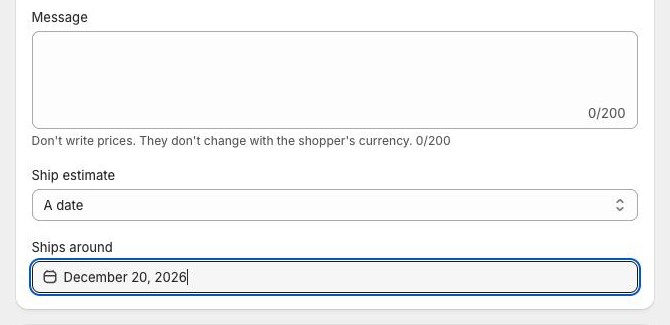
Change the date, the range, or the time after the order. You can also switch to another kind of estimate, or to None.
Only a later date, or no date at all, is news. Moving the estimate earlier, or to the same day, tells no one.
Shopify admin · Waitly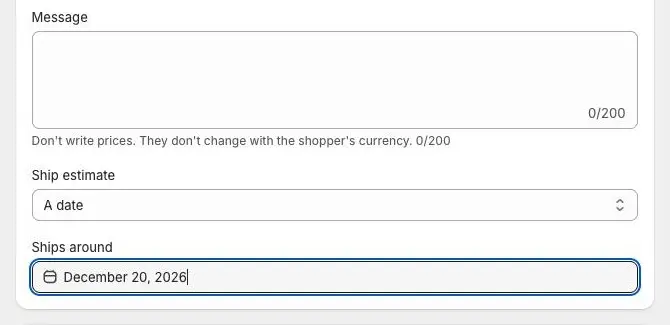
- 1The kind of estimate
- 2Enter the later date
- 3
Read the banner before you save
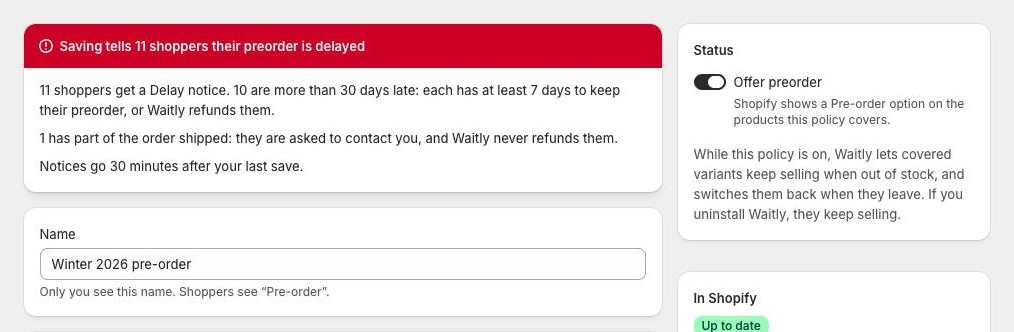
A moment after you stop typing, a banner at the top of the editor says what saving will do, for example Saving tells 12 shoppers their preorder is delayed.
Under it, Waitly counts who gets a delay notice, who must agree to wait, anyone whose order has partly shipped, and who was already promised this day or later and hears nothing. The banner turns red when some shoppers must agree to wait.
Shopify admin · Waitly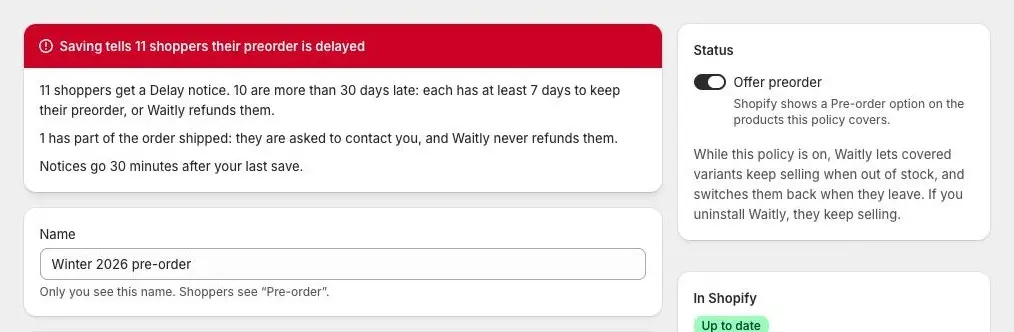
- 1What saving will do
- 2Who is told, and who must agree
Note: The banner only informs. Saving is never blocked, and nothing is sent until you save.
- 4
Save
Select Save in the bar at the top. Notices go 30 minutes after your last save. Saving again within that time restarts the wait, so if you fix a typo or change your mind, shoppers get one notice with the final date, or none if you moved it back.
- 5
Know what shoppers receive
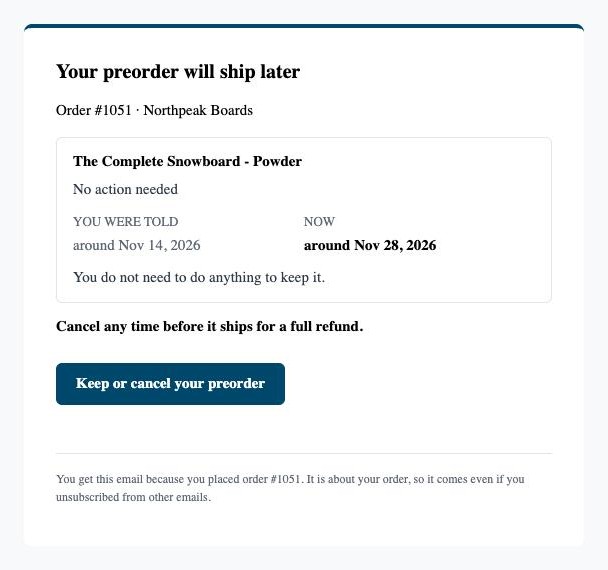
Each order gets one Delay notice email. It shows each preordered product with You were told and Now, the cancel terms, and a button to the page where they can keep or cancel. If the estimate was removed, it says “The store has no new date yet”.
Most shoppers read “You do not need to do anything to keep it.”
Shopper’s inbox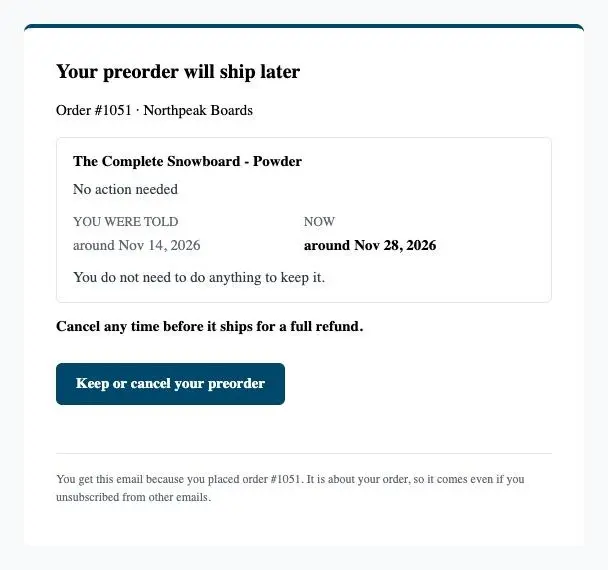
- 1The old and new estimate
- 2Nothing to do
- 3Opens the keep or cancel page
- 6
Understand the 30-day rule
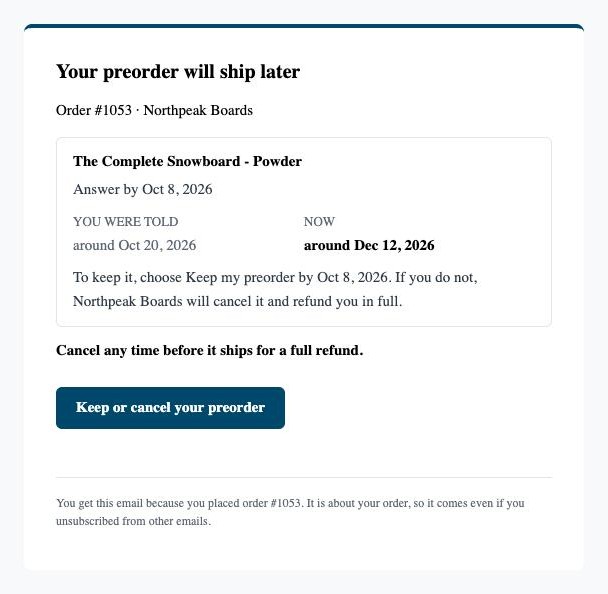
If the new date is more than 30 days after the date the shopper was first promised (or the date they last agreed to), or there’s no date at all, the shopper must agree to wait. Their email’s subject reads “Action needed: keep or cancel your preorder by” a date, at least 7 days after the notice.
A shopper who chooses Keep my preorder stays in line. Anyone who doesn’t answer by the deadline is cancelled and refunded in full, automatically.
A preorder that has partly shipped is never refunded automatically. The shopper is asked to contact you instead.
Shopper’s inbox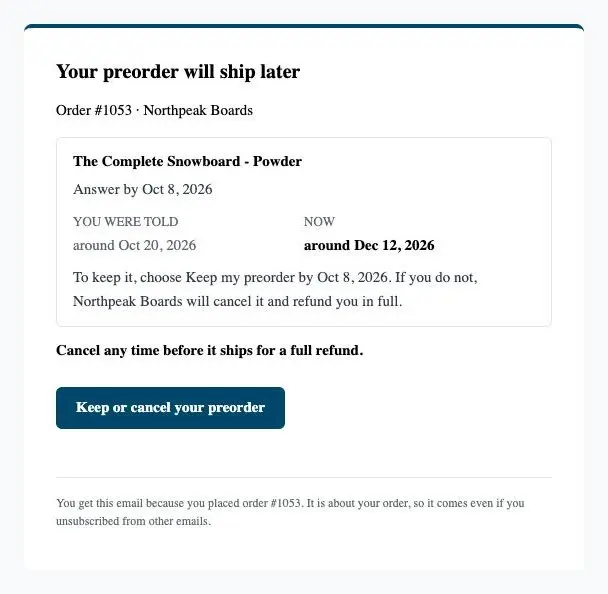
- 1The deadline to answer
- 2Keep it, or it’s refunded
- 3Opens the keep or cancel page
Careful: Auto-refunds can’t be undone. Check the banner’s count of shoppers who must agree before you save a long delay.
- 7
Follow up in the Preorders view
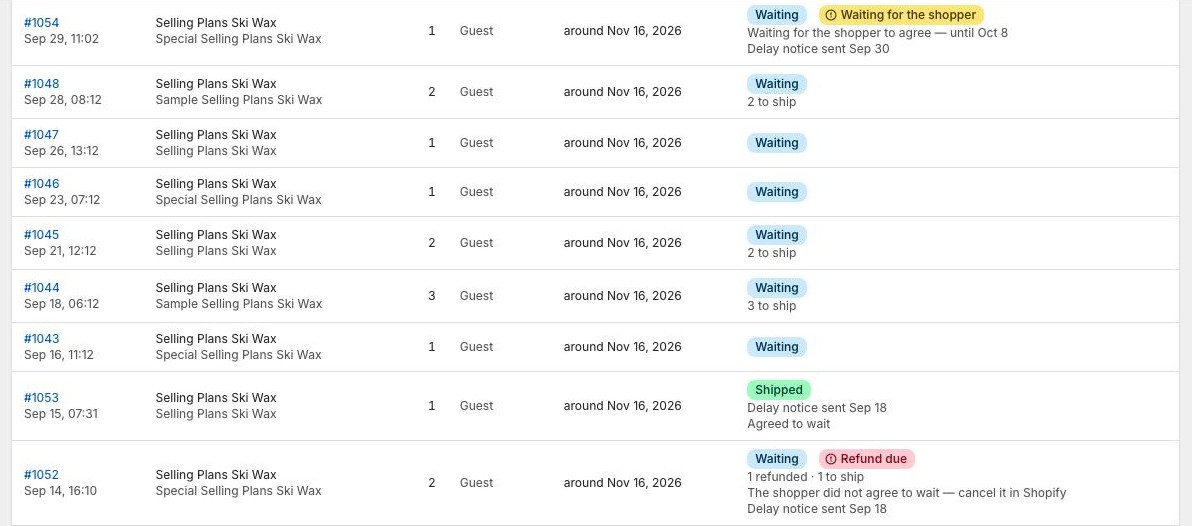
In Preorders, switch to the preorders list. Rows show “Delay notice sent” with the date, Waiting for the shopper until their deadline, and “Agreed to wait” once they keep it. If Shopify refuses an automatic refund, the row shows Refund due: cancel that order in Shopify.
Shopify admin · Waitly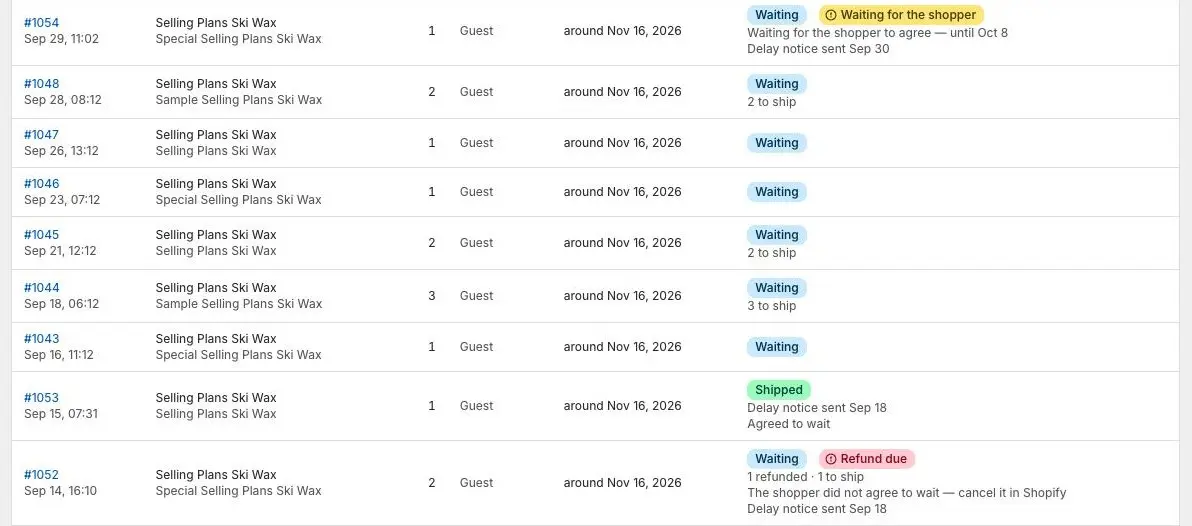
- 1Asked to keep or cancel
- 2Told, and agreed to wait
- 3Cancel this one in Shopify
Questions
- What if the ship date passes and I don’t change it?
- The day after it passes, Waitly sends a late notice to every shopper whose preorder hasn’t shipped, and asks those still waiting to keep or cancel. Set a new estimate to tell them when it ships.
- Does a shopper who agreed to wait get asked again?
- Only if you move the date more than 30 days past the one they agreed to, or that date passes before the preorder ships. A shopper who agreed to wait with no date isn’t asked again when you name one. That date becomes the one they agreed to.
- Do delay notices count toward my plan’s email limits?
- No. Preorder emails are about a purchase, so they go out on every plan and reach shoppers who unsubscribed from alerts.
Read next
- Track the preorders you’ve takenSee every preorder with its ship estimate and status, spot the ones that need you, and ship, cancel or refund them in Shopify.
- Add a message and ship estimateTell shoppers when their preorder ships, add a short message of your own, and tag preorder orders by policy.
- Keeping or cancelling a preorderHow your shoppers cancel a preorder for a full refund, and how they answer when you move a ship date later.